> For the complete documentation index, see [llms.txt](https://docs.geopard.tech/geopard-tutorials/llms.txt). Markdown versions of documentation pages are available by appending `.md` to page URLs; this page is available as [Markdown](https://docs.geopard.tech/geopard-tutorials/ukrainian/shvidki-pidkazki-gis/qgis-manipulyaciyi-z-danimi-urozhainosti.md).
# QGIS: маніпуляції з даними урожайності
Підготуйте та очистіть дані урожайності в QGIS перед імпортом або аналізом у GeoPard.
ОГЛЯД
Посібник із покроковим описом для усунення таких проблем із даними з монітора врожайності:
1. Відсутній файл проєкції (.prj) у shapefile
2. Застосувати правила перетворення для кожного атрибута в shapefile (на основі зразка kb/ha до bu/ac)
Програмне забезпечення, яке слід використовувати, — QGIS ([ПОСИЛАННЯ](https://qgis.org/en/site/forusers/download.html)).
Завантаження та встановлення є обов’язковими.
### ВІДСУТНІЙ ФАЙЛ ПРОЄКЦІЇ
1. Відкрийте shapefile з даними врожайності. Перемістіть файл у вікно QGIS.
2. Shapefile стає доступним для подальших маніпуляцій у блоці Layers.
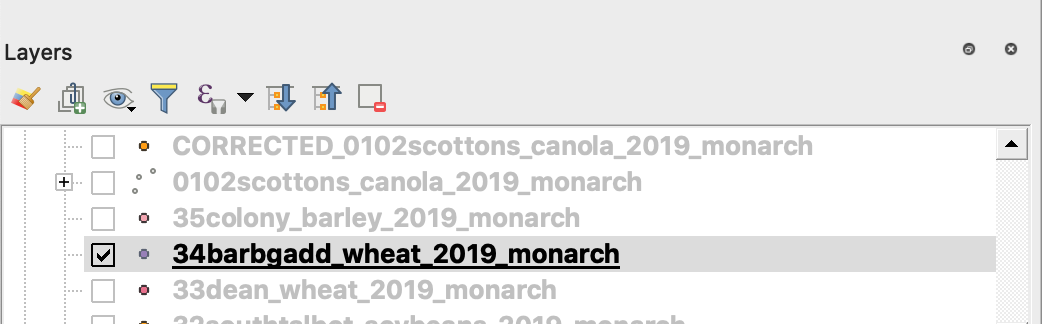
3. Почніть процес збереження
4. 1. Клацніть правою кнопкою миші по shapefile
2. Виберіть Export -> Save Feature As ...
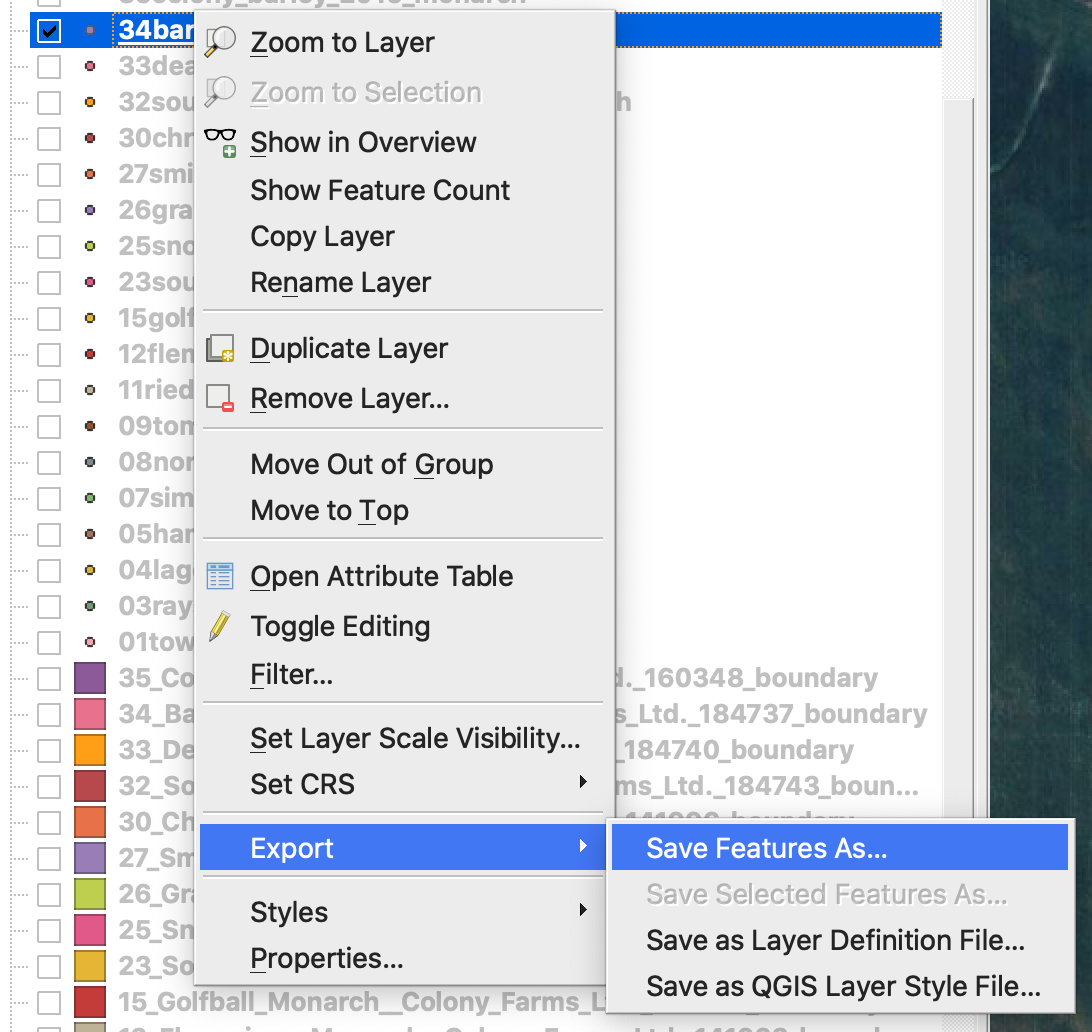
4. Виберіть
5. 1. Format -> ESRI Shapefile,
2. Filename -> натисніть … і виберіть потрібний каталог та ім’я файлу,
3. CRS -> EPSG:4326
4. Encoding -> UTF8
5. Додати збережений файл до карти (необов’язково, якщо хочете побачити його безпосередньо в QGIS)
6. Geometry type -> Point
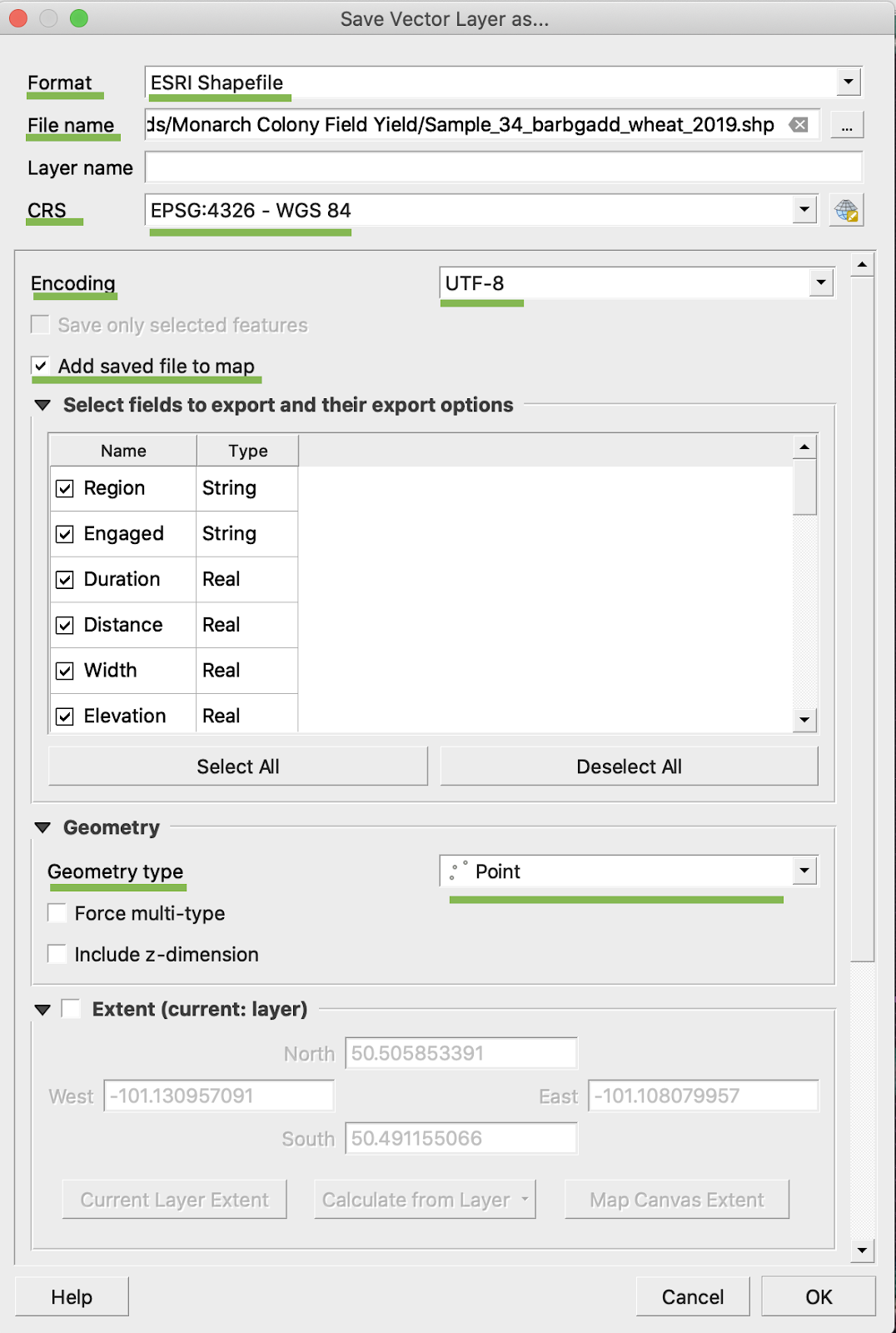
5. Натисніть Ok
6. Створюється додатковий shapefile з тими самими даними врожайності. Файл проєкції (.prj) було додано.
\
### ПЕРЕТВОРЕННЯ BU/AC
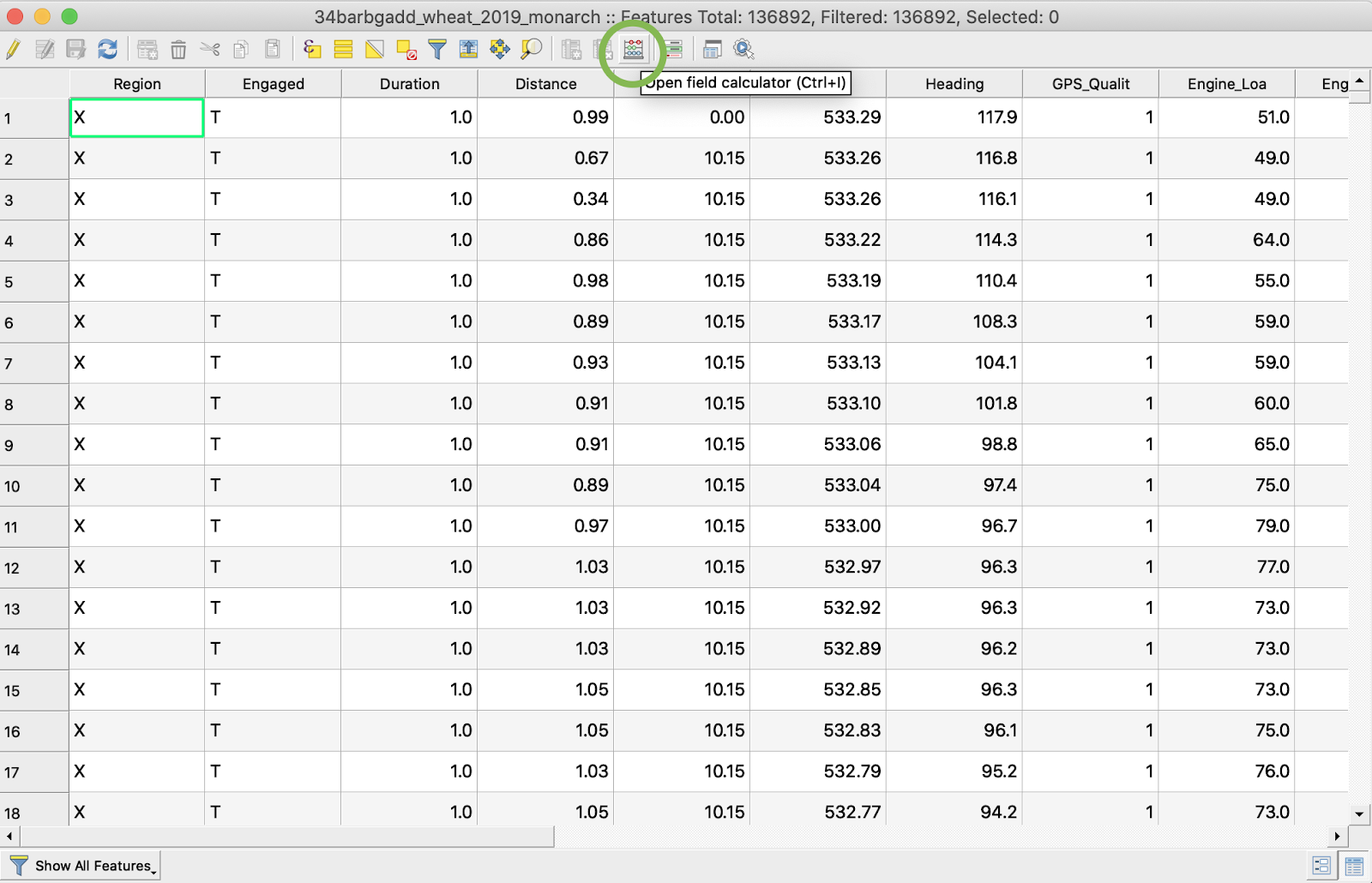
1. Клацніть правою кнопкою миші по shapefile і виберіть Open Attribute Table
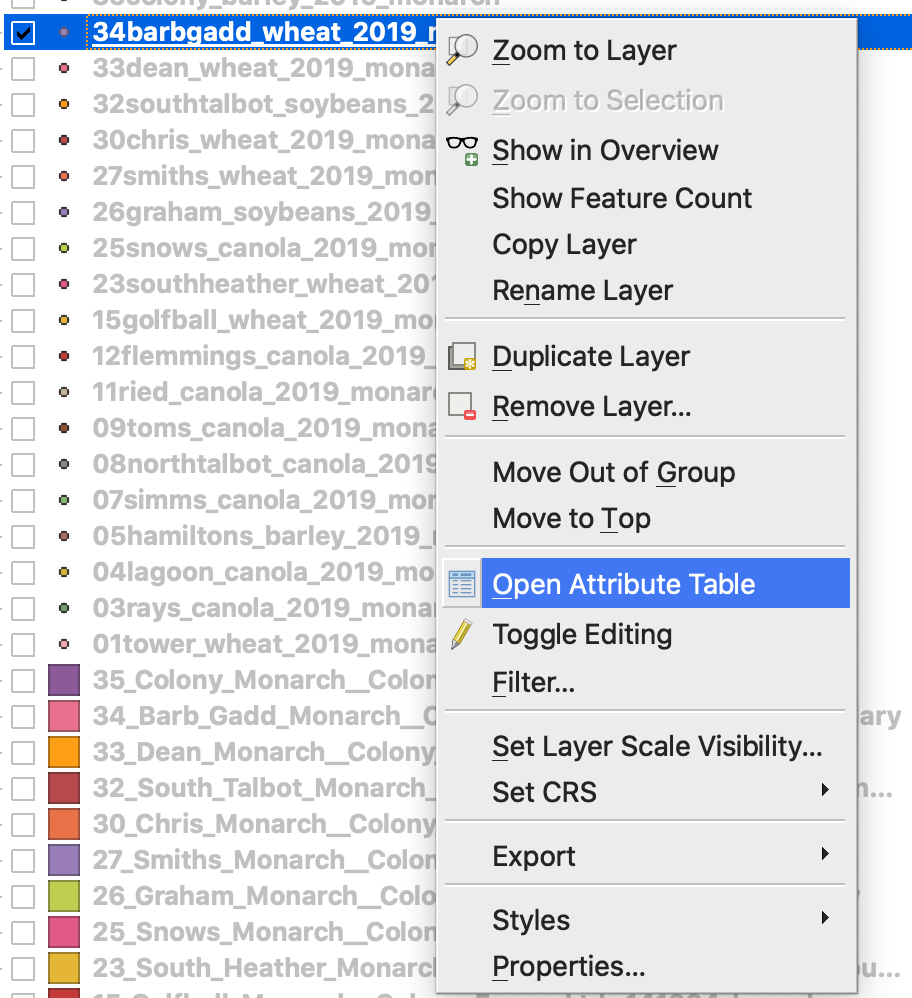
2. Натисніть Open field calculator
3. Створіть нове поле
4. 1. Позначте Create a new field
2. Уведіть Output field name -> DryYieldBu
3. Виберіть Output field type -> Decimal number (real)
4. Змініть Precision -> 4
5. Встановіть правило для перетворення kg/ha у bu/ac -> "Dry\_Yield" \* 0.0149
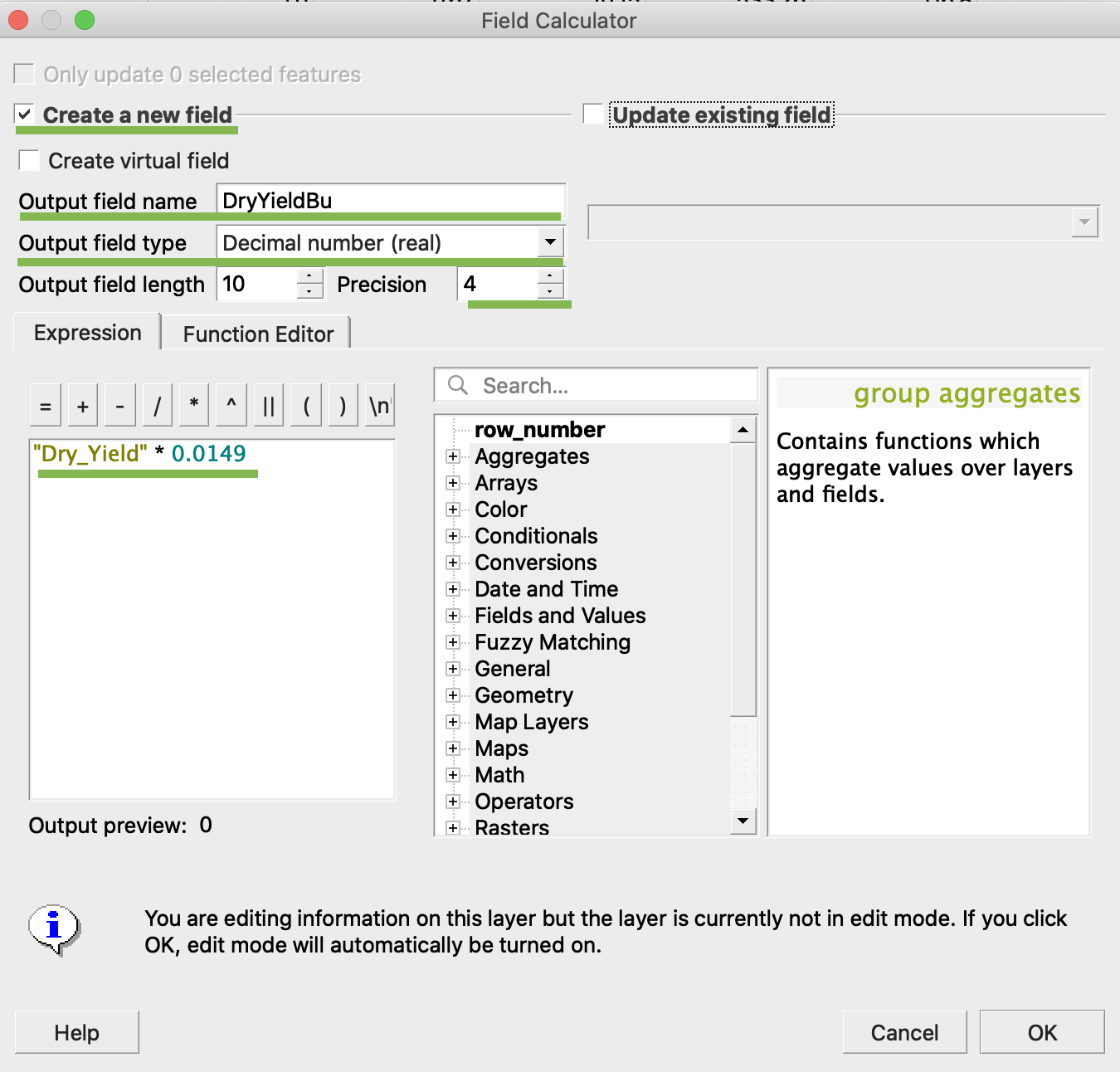
4. Натисніть Ok
5. У таблиці з’явився додатковий атрибут DryYieldBu
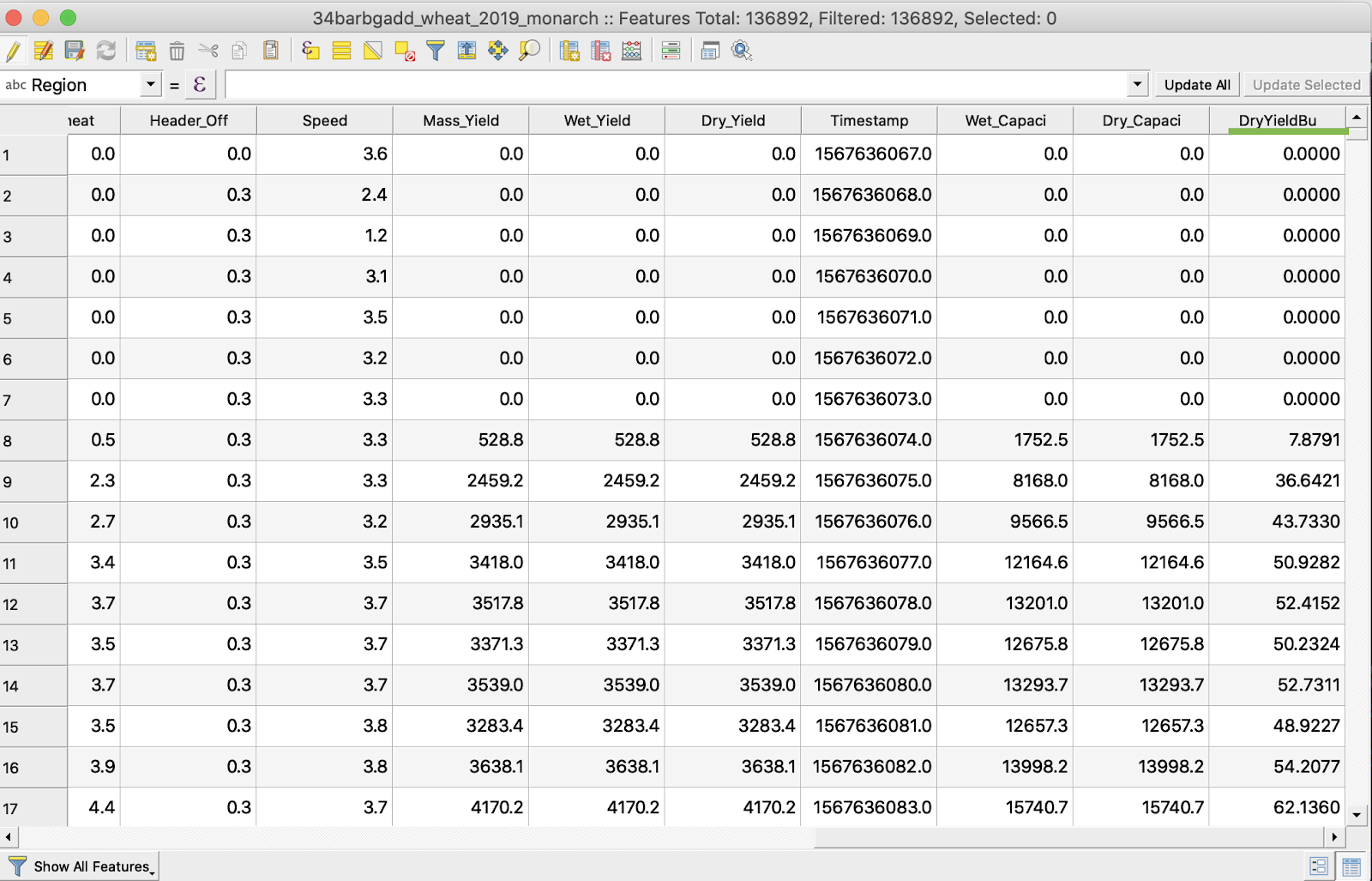
6. Збережіть зміни
7. 1. Клацніть правою кнопкою миші по потрібному shapefile
2. Виберіть Toggle Editing
\
\
\
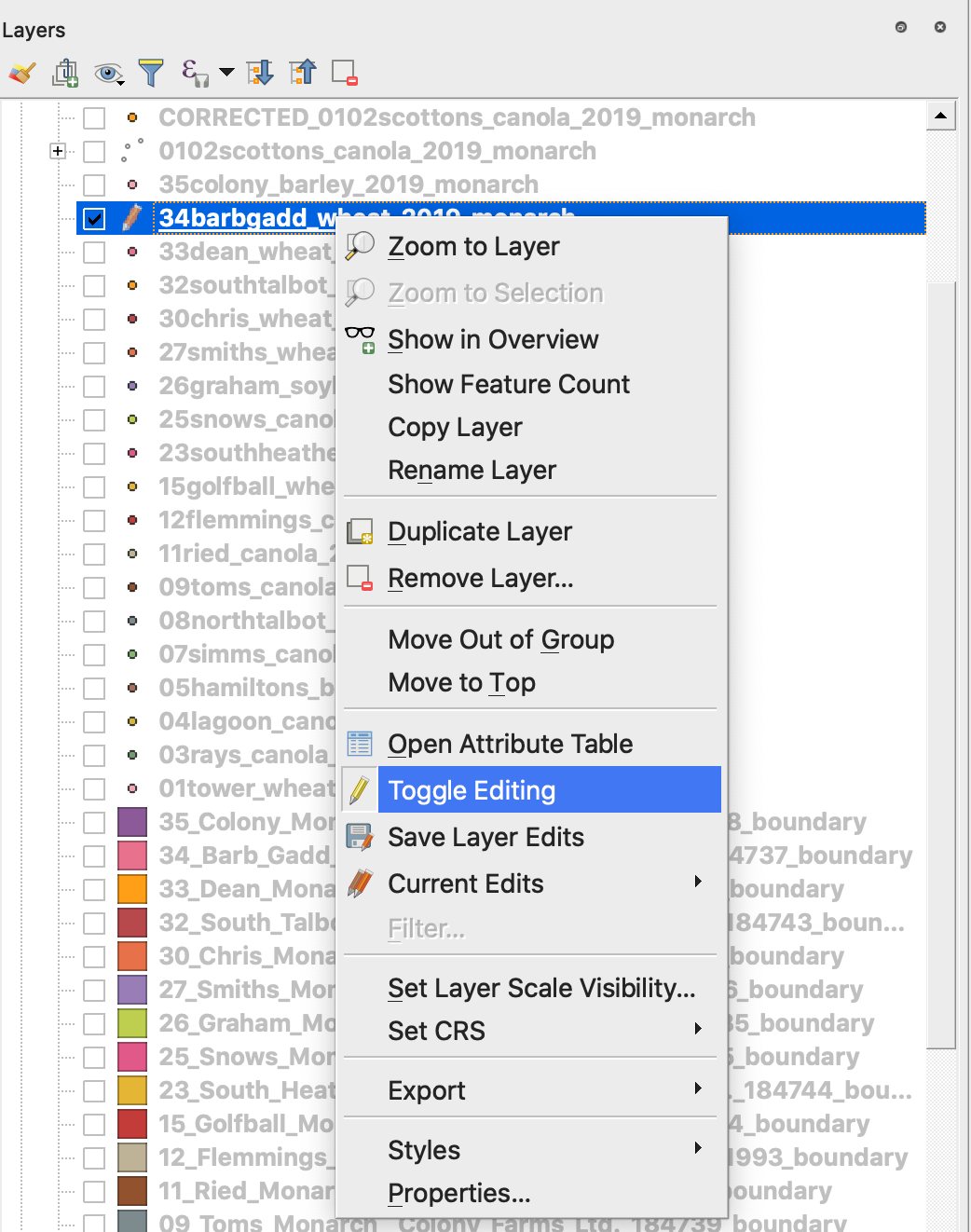
7. Підтвердьте збереження змін
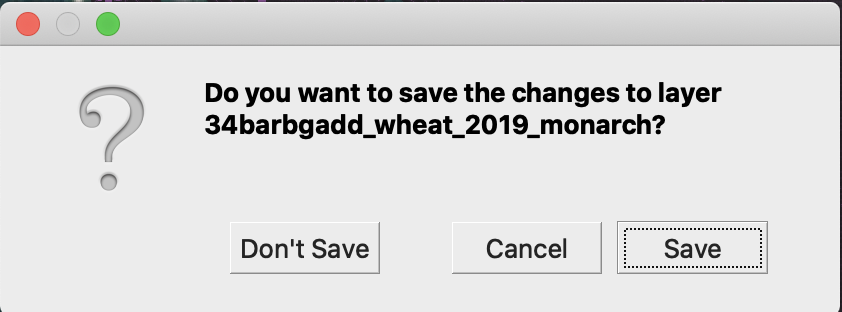
Потрібний shapefile більше не позначений олівцем. Дані в shapefile було оновлено.
---
# Agent Instructions
This documentation is published with GitBook. GitBook is the documentation platform designed so that both humans and AI agents can read, navigate, and reason over technical content effectively. Learn more at gitbook.com.
## Querying This Documentation
If you need additional information that is not directly available in this page, you can query the documentation by asking a question.
Perform an HTTP GET request on the following URL with the `ask` and `goal` query parameters:
```
GET https://docs.geopard.tech/geopard-tutorials/ukrainian/shvidki-pidkazki-gis/qgis-manipulyaciyi-z-danimi-urozhainosti.md?ask=&goal=
```
`ask` is the immediate question: it should be specific, self-contained, and written in natural language.
`goal` is what the user is ultimately trying to achieve, the reason they need the answer. Sharing it helps GitBook give you a better, more relevant answer. A goal is most helpful when it describes the outcome the user wants rather than restating the question. For example, with `ask=how do I create an API token`, a goal like `automate deployments from our CI pipeline` lets GitBook tailor the answer to that use case.
The response will contain a direct answer to the question and relevant excerpts and sources from the documentation.
Use this mechanism when the answer is not explicitly present in the current page, you need clarification or additional context, or you want to retrieve related documentation sections.