> For the complete documentation index, see [llms.txt](https://docs.geopard.tech/geopard-tutorials/llms.txt). Markdown versions of documentation pages are available by appending `.md` to page URLs; this page is available as [Markdown](https://docs.geopard.tech/geopard-tutorials/tr/urun-turu-web-uygulamasi/john-deere-operations-center-integration/6.-export-rx-maps-to-john-deere-operations-center-as-files.md).
# Reçete dosyalarını John Deere Operations Center’a gönderme
GeoPard bölgelerini ve denklem tabanlı reçeteleri doğru Operations Center kuruluşundaki Files bölümüne yükleyin; ardından ekrana gönderin veya USB belleğe kopyalayın.
GeoPard, seçtiğiniz John Deere kuruluşunun Files alanına bir bölgeler haritası veya denklem haritası yükler. Files bölümünden kablosuz veri aktarımıyla reçete haritasını ekrana gönderebilir ya da makinenin bağlantısı yoksa USB belleğe kopyalayabilirsiniz. Operatör işi kabinde ayarlıyorsa dosyaları, ofiste ayarlanıyorsa Work Plan'ı kullanın. Gri renkte görünen kuruluş adına GeoPard'ın henüz erişimi olmadığı anlamına gelir.
{% hint style="success" %}
İlk reçete haritanızı Operations Center'a gönderin: [Ücretsiz başlayın](https://app.geopard.tech/auth/sign-up?utm_source=docs\&utm_medium=cta\&utm_campaign=6.-export-rx-maps-to-john-deere-operations-center-as-files)
{% endhint %}
4\. John Deere Operations Center'a dışa aktarma
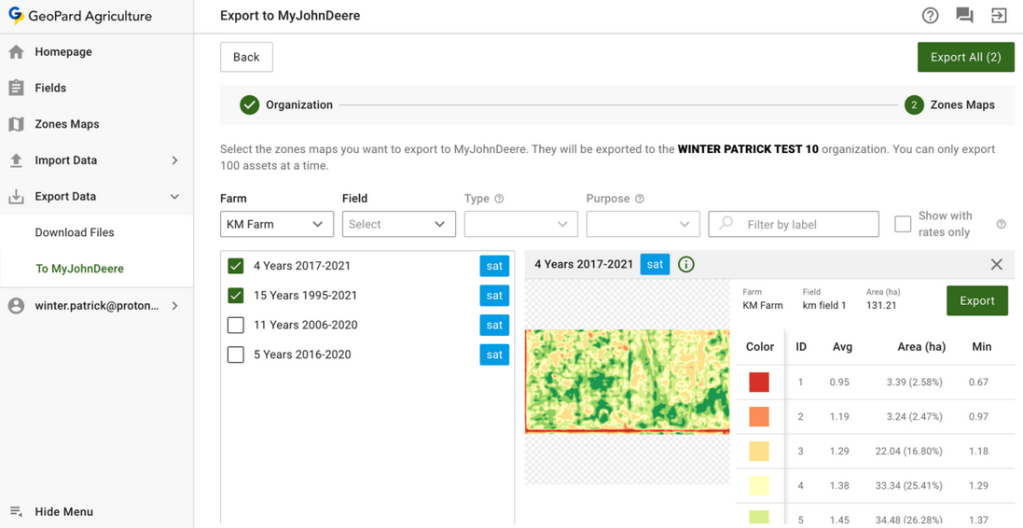
4.1 GeoPard müşterileri, GeoPard'daki verileri (Rx VRA reçete haritaları veya diğer veri katmanları) John Deere Operations Center'a dışa aktarabilir. İlk adım olarak [oturum açın](https://app.geopard.tech/auth/sign-in) ve **Export to MyJohnDeere** sekmesine gidin.
4.2 GeoPard'ın dosyaları yükleyeceği hedef kuruluşu seçin. Metinle arama yapabilirsiniz. John Deere kuruluşu devre dışıysa ( **adı gri renkte görünüyorsa**), John Deere Operations Center'a erişim izni vermeniz gerekir. Şu sayfaya bakın: [GeoPard profilini John Deere kuruluşuna bağlama](https://docs.geopard.tech/geopard-tutorials/tr/urun-turu-web-uygulamasi/john-deere-operations-center-integration/3.-connect-to-john-deere-organizations.md).
4.3 Ardından GeoPard'ın John Deere Operations Center'a yükleyeceği öğeleri seçin.
4.4 Öğeleri filtreleyebilirsiniz.
4.5 Tüm öğeleri seçtikten sonra, **Export All** düğmesine tıklayarak tümünü ya da **Export** düğmesine tıklayarak tek tek öğeleri yükleyebilirsiniz.
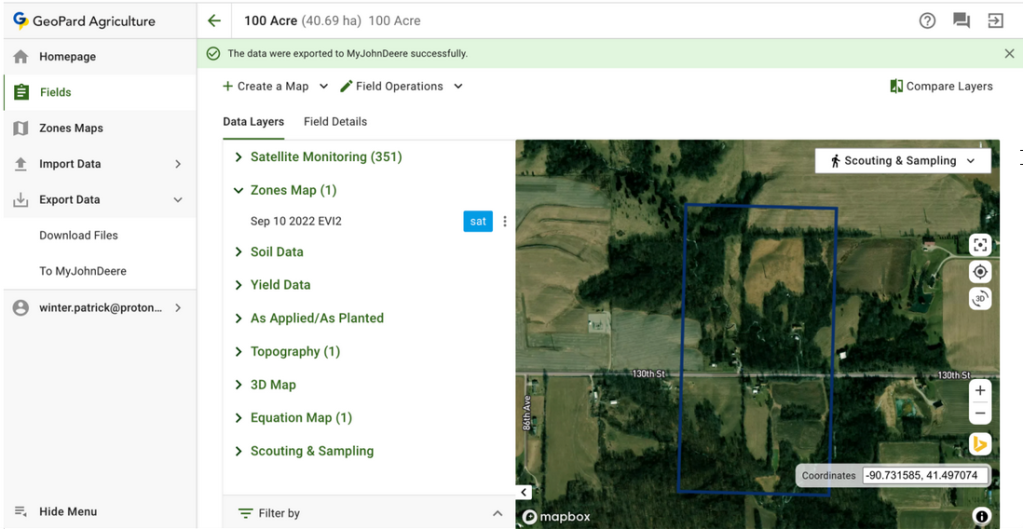
4.6 Tıkladıktan sonra işlemin sonucunu bildiren bir mesaj görürsünüz.
4.7 Ardından sonucu John Deere Operations Center'da ([https://files.deere.com](https://files.deere.com/)). *GeoPard Agriculture ve John Deere Operations Center'da seçtiğiniz kuruluşların doğru olduğundan emin olun.*
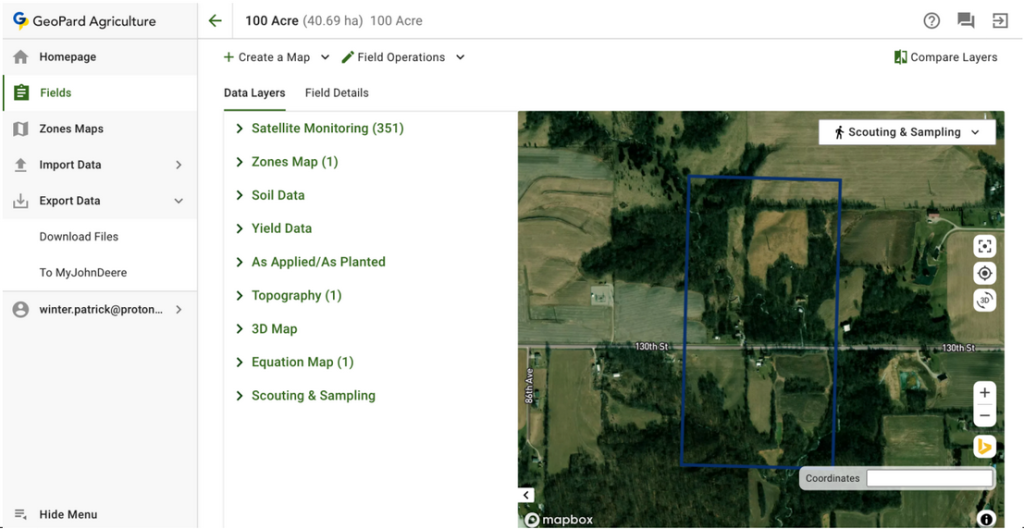
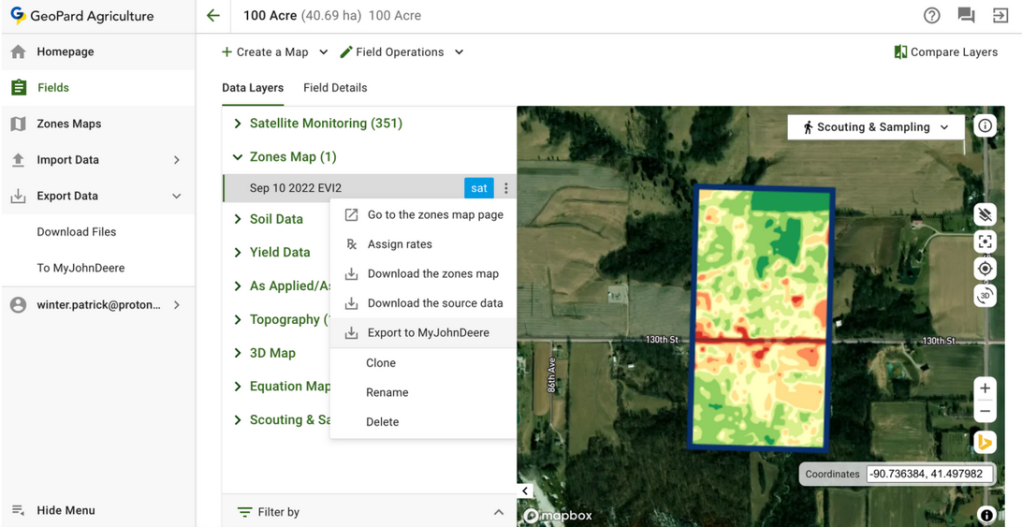
4.8 GeoPard müşterileri, Field sekmesinden Bölgeler Haritalarını (Rx VRA reçete haritaları) ve Denklem Haritalarını John Deere Operations Center'a aktarabilir.
4.8.1 Bölgeler Haritasını seçtikten sonra ilgili menüden **Export to MyJohnDeere** seçeneğine tıklayın.
4.8.2 Denklem Haritasını seçtikten sonra ilgili menüden **Export to MyJohnDeere** seçeneğine tıklayın.
4.8.3 Ardından GeoPard'ın dosyayı yükleyeceği hedef John Deere kuruluşunu seçin. Metinle arama yapabilirsiniz. John Deere kuruluşu devre dışıysa ( **adı gri renkte görünüyorsa**), John Deere Operations Center'a erişim izni vermeniz gerekir. Şu sayfaya bakın: [GeoPard profilini John Deere kuruluşuna bağlama](https://docs.geopard.tech/geopard-tutorials/tr/urun-turu-web-uygulamasi/john-deere-operations-center-integration/3.-connect-to-john-deere-organizations.md).
4.8.4 **Done** düğmesine tıkladıktan sonra işlemin sonucunu bildiren bir mesaj görürsünüz.
4.8.5 Ardından sonucu John Deere Operations Center'da ([https://files.deere.com](https://files.deere.com/)) görebilirsiniz.\
\&#xNAN;*GeoPard Agriculture ve John Deere Operations Center'da seçtiğiniz kuruluşların doğru olduğundan emin olun.*
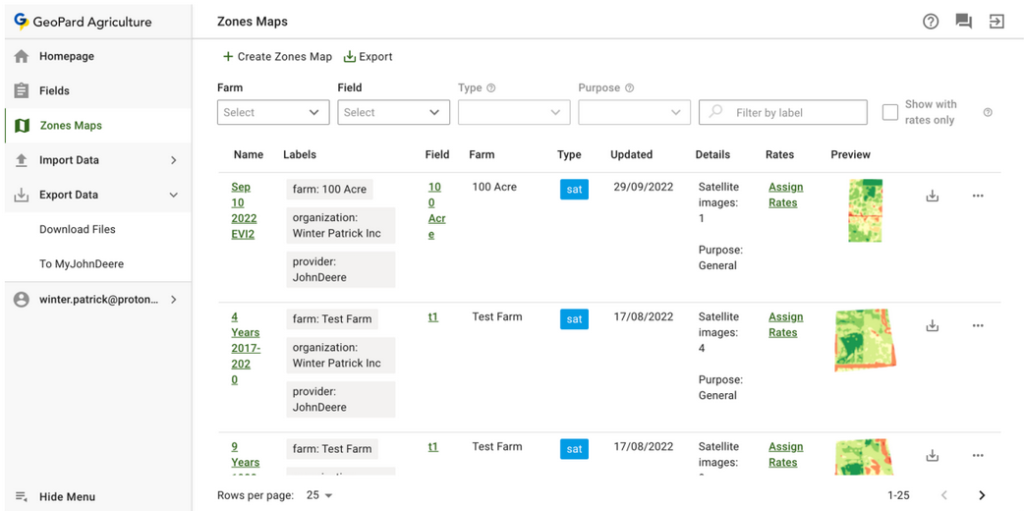
4.9 GeoPard müşterileri, **Zones Maps** sekmesinden Bölgeler Haritalarını (Rx VRA reçete haritaları) John Deere Operations Center'a aktarabilir.
4.9.1 İlgili dışa aktarma düğmesine tıklayarak tek bir Bölgeler Haritasını dışa aktarabilirsiniz.
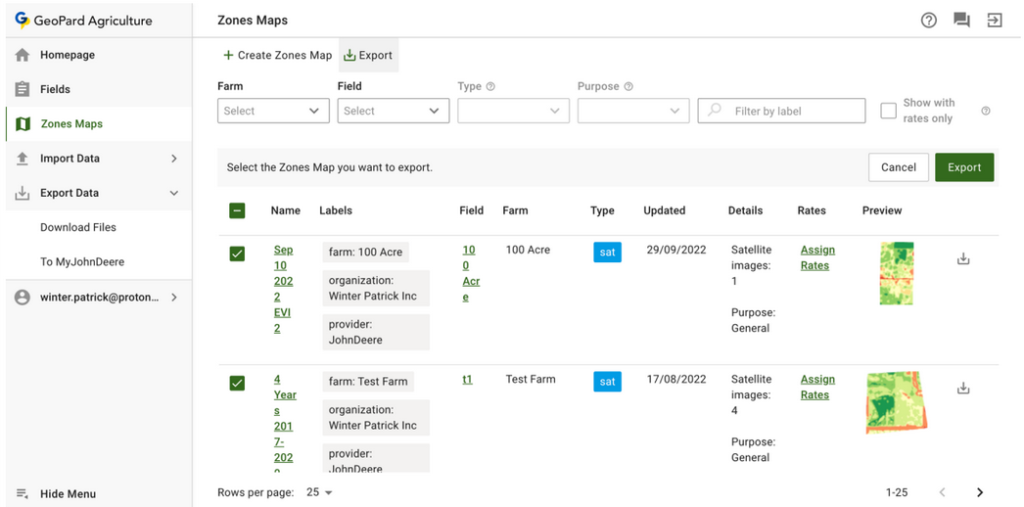
4.9.2 İlgili dışa aktarma düğmesine tıklayıp öğeleri seçerek birden fazla Bölgeler Haritasını dışa aktarabilirsiniz.
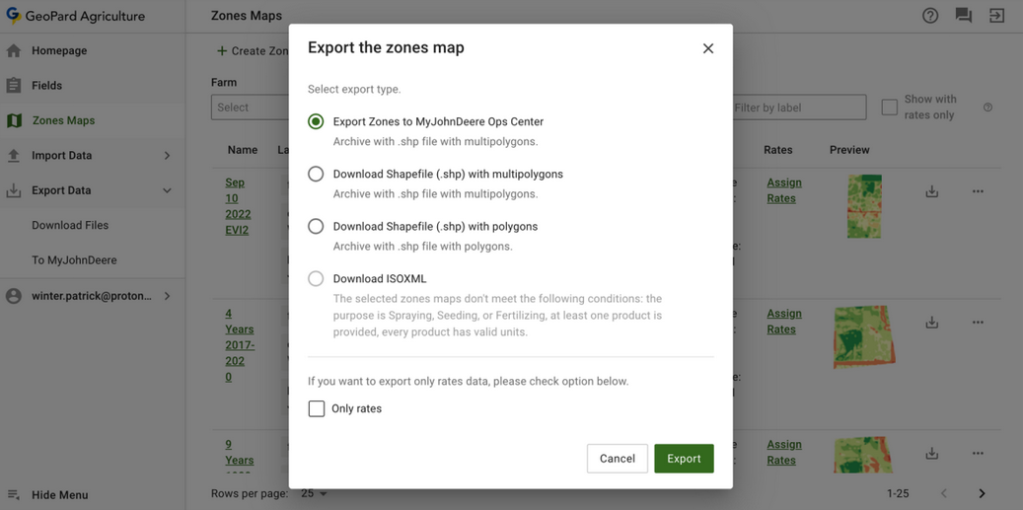
4.9.3 **Export** düğmesine tıkladıktan sonra şunu görürsünüz: **Bölgeler haritalarını dışa aktarın** açılır penceresinde kullanıcı şu seçeneği belirlemelidir: **Bölgeleri MyJohnDeere Ops Center'a aktar** seçeneğini belirleyip şu düğmeye tıklayın: **Export** düğmesi.
4.9.4 Ardından kullanıcı, GeoPard'ın dosyayı yüklemek için kullanacağı bir John Deere kuruluşu hedefi seçer. Kullanıcı metinle arama yapabilir. John Deere kuruluşu devre dışıysa ( **adı gri renkte görünür**), kullanıcı John Deere Operations Center'a erişim eklemelidir. Şuraya bakın: [GeoPard profilini John Deere kuruluşuna bağlama](https://docs.geopard.tech/geopard-tutorials/tr/urun-turu-web-uygulamasi/john-deere-operations-center-integration/3.-connect-to-john-deere-organizations.md).
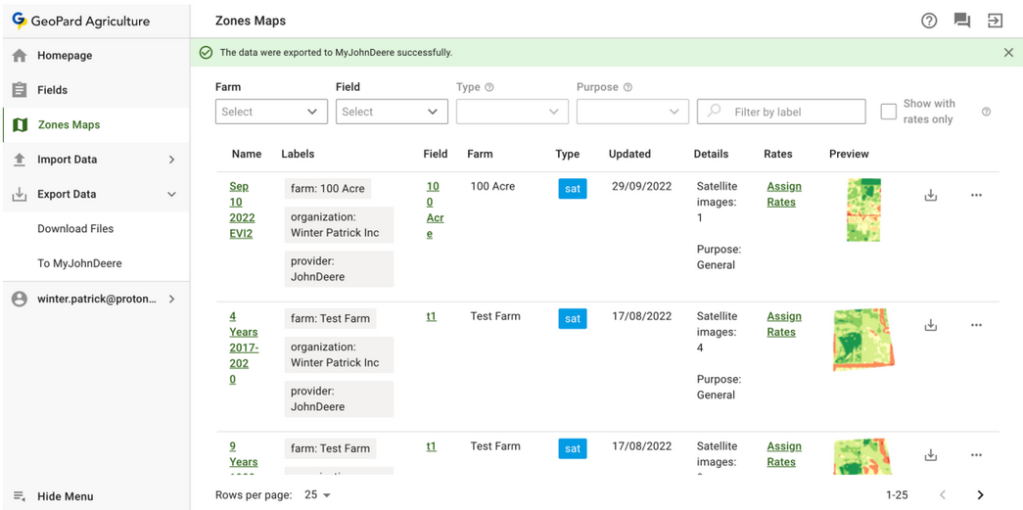
4.9.5 **Tamam** düğmesine tıkladıktan sonra kullanıcı işlemin sonucuyla ilgili bir mesaj görür.
4.9.6 Ardından kullanıcı sonucu John Deere Operations Center'da ([https://files.deere.com](https://files.deere.com/)) görmelidir. GeoPard Agriculture'da ve John Deere Operations Center'da seçilen kuruluşlara dikkat edin.
{% hint style="success" %}
İlk reçete haritanızı Operations Center'a gönderin: [Ücretsiz başlayın](https://app.geopard.tech/auth/sign-up?utm_source=docs\&utm_medium=cta\&utm_campaign=6.-export-rx-maps-to-john-deere-operations-center-as-files)
{% endhint %}
---
# Agent Instructions
This documentation is published with GitBook. GitBook is the documentation platform designed so that both humans and AI agents can read, navigate, and reason over technical content effectively. Learn more at gitbook.com.
## Querying This Documentation
If you need additional information that is not directly available in this page, you can query the documentation by asking a question.
Perform an HTTP GET request on the following URL with the `ask` and `goal` query parameters:
```
GET https://docs.geopard.tech/geopard-tutorials/tr/urun-turu-web-uygulamasi/john-deere-operations-center-integration/6.-export-rx-maps-to-john-deere-operations-center-as-files.md?ask=&goal=
```
`ask` is the immediate question: it should be specific, self-contained, and written in natural language.
`goal` is what the user is ultimately trying to achieve, the reason they need the answer. Sharing it helps GitBook give you a better, more relevant answer. A goal is most helpful when it describes the outcome the user wants rather than restating the question. For example, with `ask=how do I create an API token`, a goal like `automate deployments from our CI pipeline` lets GitBook tailor the answer to that use case.
The response will contain a direct answer to the question and relevant excerpts and sources from the documentation.
Use this mechanism when the answer is not explicitly present in the current page, you need clarification or additional context, or you want to retrieve related documentation sections.