> For the complete documentation index, see [llms.txt](https://docs.geopard.tech/geopard-tutorials/llms.txt). Markdown versions of documentation pages are available by appending `.md` to page URLs; this page is available as [Markdown](https://docs.geopard.tech/geopard-tutorials/tr/urun-turu-web-uygulamasi/john-deere-operations-center-integration/4.-import-into-geopard-from-john-deere-operations-center.md).
# 4. John Deere Operations Center’dan GeoPard’a İçe Aktarın
Sınırları, tarlaları ve tarımsal veri kümelerini John Deere’dan GeoPard’a içe aktarın.
3\. GeoPard'a aktarma
3.1 GeoPard müşterileri, John Deere Operations Center'dan GeoPard'a veri (sınırlar, verim, ekim sırasında ve uygulama sırasında oluşturulan veri kümeleri) aktarma olanağına sahiptir. İlk adım olarak [oturum açın](https://app.geopard.tech/auth/sign-in) ve **MyJohnDeere'den Aktar** sekmesine gidin. Aktarımın ardından GeoPard tarlası ile John Deere tarlası arasında bir ilişki kurulur ve yeni GeoPard tarla varlıkları (Bölge Haritaları, Topografya Haritaları ve Denklem Haritaları) oluşturulduktan sonra otomatik olarak John Deere Operations Center'a gönderilir. 4.14. bölüme bakın. GeoPard tarlasından John Deere tarlasına senkronize edilen verileri inceleyin.
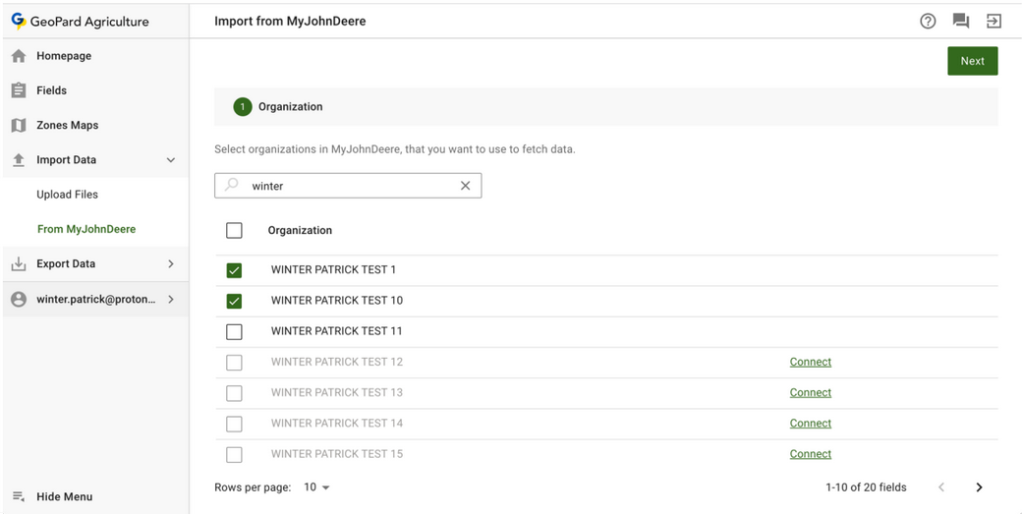
3.2 Kullanıcı, GeoPard'ın veri almak için kullanacağı John Deere kuruluşunu seçmeli ve **İleri** düğmesine tıklamalıdır. Kullanıcı metinle arama yapabilir. John Deere kuruluşu devre dışıysa ( **adı gri renkteyse**), kullanıcının John Deere Operations Center'a erişim izni eklemesi gerekir. Bkz. [**2. GeoPard profilini John Deere kuruluşuna bağlama**](https://docs.geopard.tech/geopard-tutorials/tr/urun-turu-web-uygulamasi/john-deere-operations-center-integration/3.-connect-to-john-deere-organizations.md).
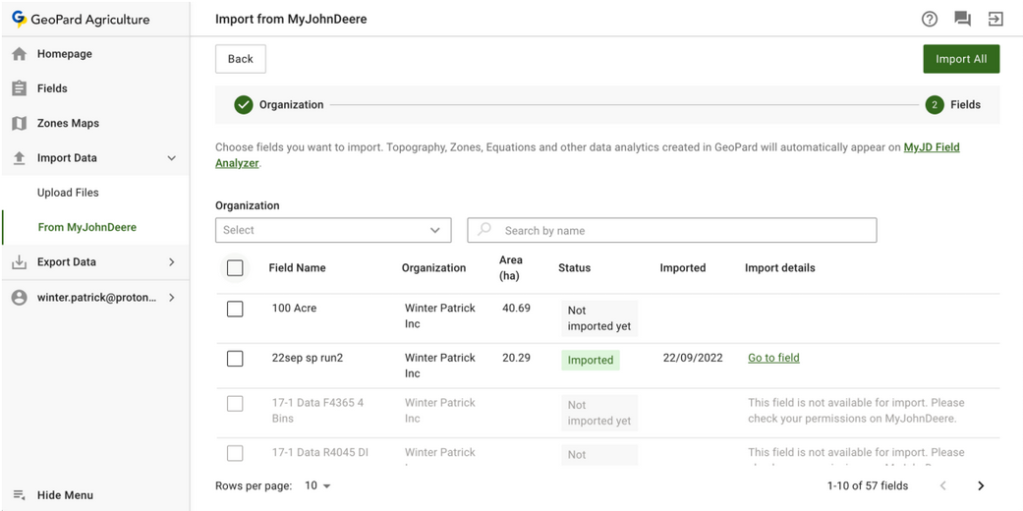
3.3 Kullanıcı, mevcut tüm verileri aktarmak için **Tümünü Aktar** düğmesine tıklamalı veya seçim işlevini kullanmalıdır (Bölüm 4.4).
3.4 Belirli verileri aktarmak için kullanıcı önce veri kümelerini seçer. Kullanıcı varlıkları filtreleyebilir.
3.5 Seçimi yaptıktan sonra kullanıcı **Seçilenleri Aktar** düğmesine tıklamalıdır.
3.6 Aktarım türünü seçin ve **İleri**.
3.7 Kullanıcı, açılır listeden **Dönem** varlıklarını seçmelidir.
3.8 **Dönem** açılır listesinden bir dönem aralığı seçilebilir.
3.9 **Tür** ve **Dönem**seçildikten sonra kullanıcı, aktarım işlemini başlatmak için **Bitti** düğmesine tıklamalıdır.
3.10 Aktarım işlemi, veri miktarına bağlı olarak zaman alır. Kullanıcı, geçerli sekmede bir dönen yükleme simgesi veya başka bir sekmede bir **ilerleme çubuğu** görür.
3.11 İşlem tamamlandığında kullanıcı, işlemin sonucuna ilişkin bir mesaj görür.
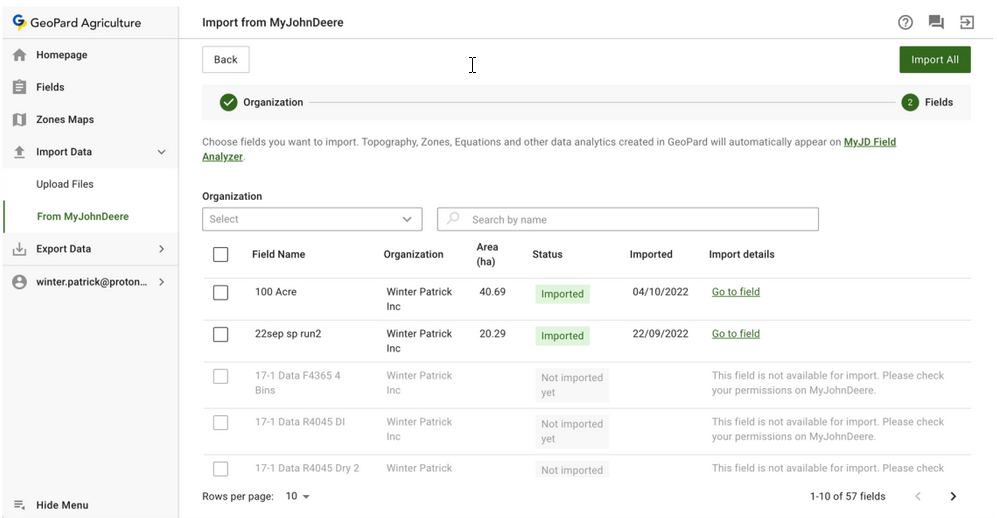
3.12 Veriler aktarıldıktan sonra kullanıcı, verileri görmek için **Tarlalar** modülüne gidebilir veya **Tarlaya git** bağlantısına tıklayabilir.
3.13 Kullanıcı, aktarılan verileri **Tarlalar** modülünde görebilir.
3.14 GeoPard tarlasından John Deere tarlasına senkronize edilen verileri inceleyin. Yalnızca aktarılan GeoPard tarlası ile John Deere tarlası arasında ilişki kurulur ve yeni GeoPard tarla varlıkları (Bölge Haritaları, Topografya Haritaları ve Denklem Haritaları) oluşturulduktan sonra otomatik olarak John Deere Operations Center'a gönderilir. Bunları görüntülemek için John Deere Operations Center'daki Field Analyzer'a gidin ([https://field-analyzer.deere.com](https://field-analyzer.deere.com/)).
---
# Agent Instructions
This documentation is published with GitBook. GitBook is the documentation platform designed so that both humans and AI agents can read, navigate, and reason over technical content effectively. Learn more at gitbook.com.
## Querying This Documentation
If you need additional information that is not directly available in this page, you can query the documentation by asking a question.
Perform an HTTP GET request on the following URL with the `ask` and `goal` query parameters:
```
GET https://docs.geopard.tech/geopard-tutorials/tr/urun-turu-web-uygulamasi/john-deere-operations-center-integration/4.-import-into-geopard-from-john-deere-operations-center.md?ask=&goal=
```
`ask` is the immediate question: it should be specific, self-contained, and written in natural language.
`goal` is what the user is ultimately trying to achieve, the reason they need the answer. Sharing it helps GitBook give you a better, more relevant answer. A goal is most helpful when it describes the outcome the user wants rather than restating the question. For example, with `ask=how do I create an API token`, a goal like `automate deployments from our CI pipeline` lets GitBook tailor the answer to that use case.
The response will contain a direct answer to the question and relevant excerpts and sources from the documentation.
Use this mechanism when the answer is not explicitly present in the current page, you need clarification or additional context, or you want to retrieve related documentation sections.