> For the complete documentation index, see [llms.txt](https://docs.geopard.tech/geopard-tutorials/llms.txt). Markdown versions of documentation pages are available by appending `.md` to page URLs; this page is available as [Markdown](https://docs.geopard.tech/geopard-tutorials/tr/urun-turu-web-uygulamasi/john-deere-operations-center-entegrasyonu/veri-paylasim-secenekleri/6.-is-plani-olusturma-sorun-giderme.md).
# 6. İş Planı oluşturma sorun giderme
GeoPard’dan John Deere İş Planı oluşturma ve dışa aktarma sorunlarını giderin.
## 6.1 Kullanıcı KENDİ kuruluşunda bir iş planı oluşturamıyorsa
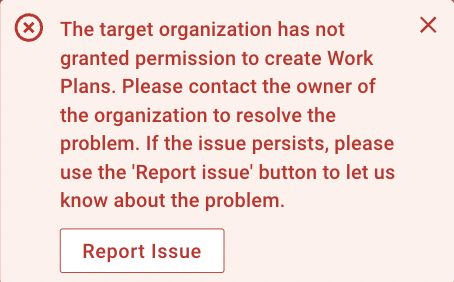
1. Ortak, GeoPard üzerinden bir John Deere İş Planı oluşturamıyorsa ve hata mesajı alıyorsa.
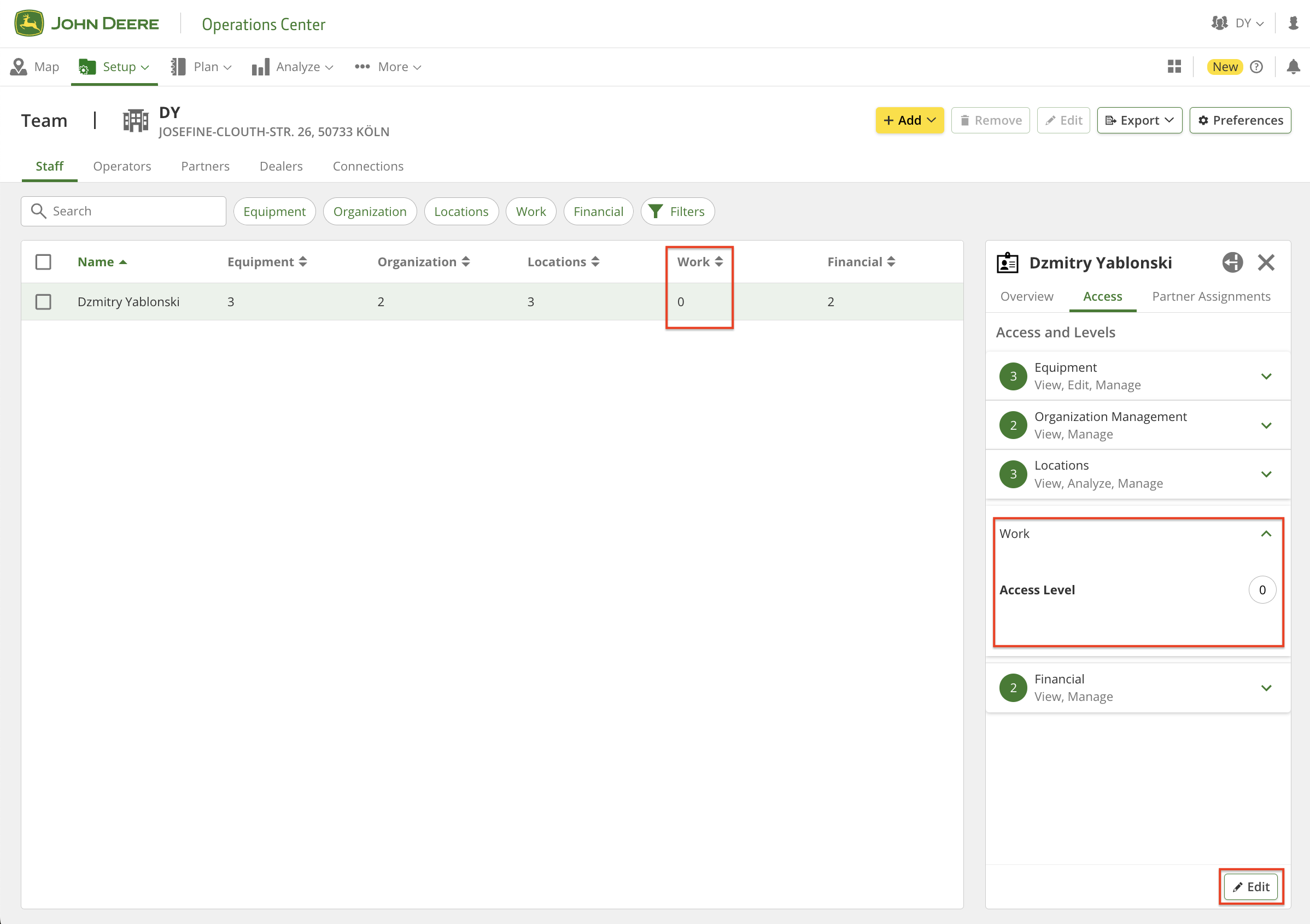
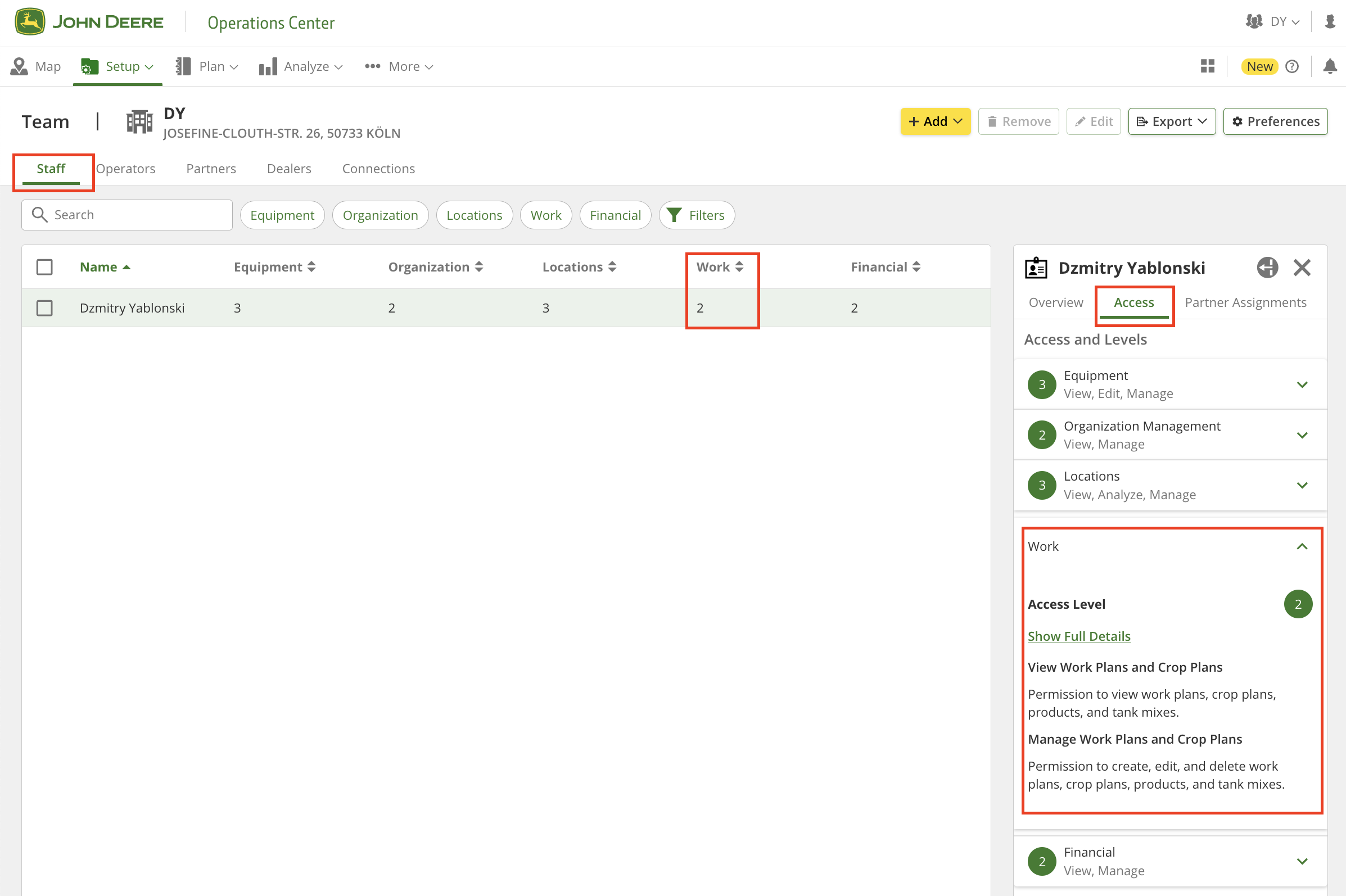
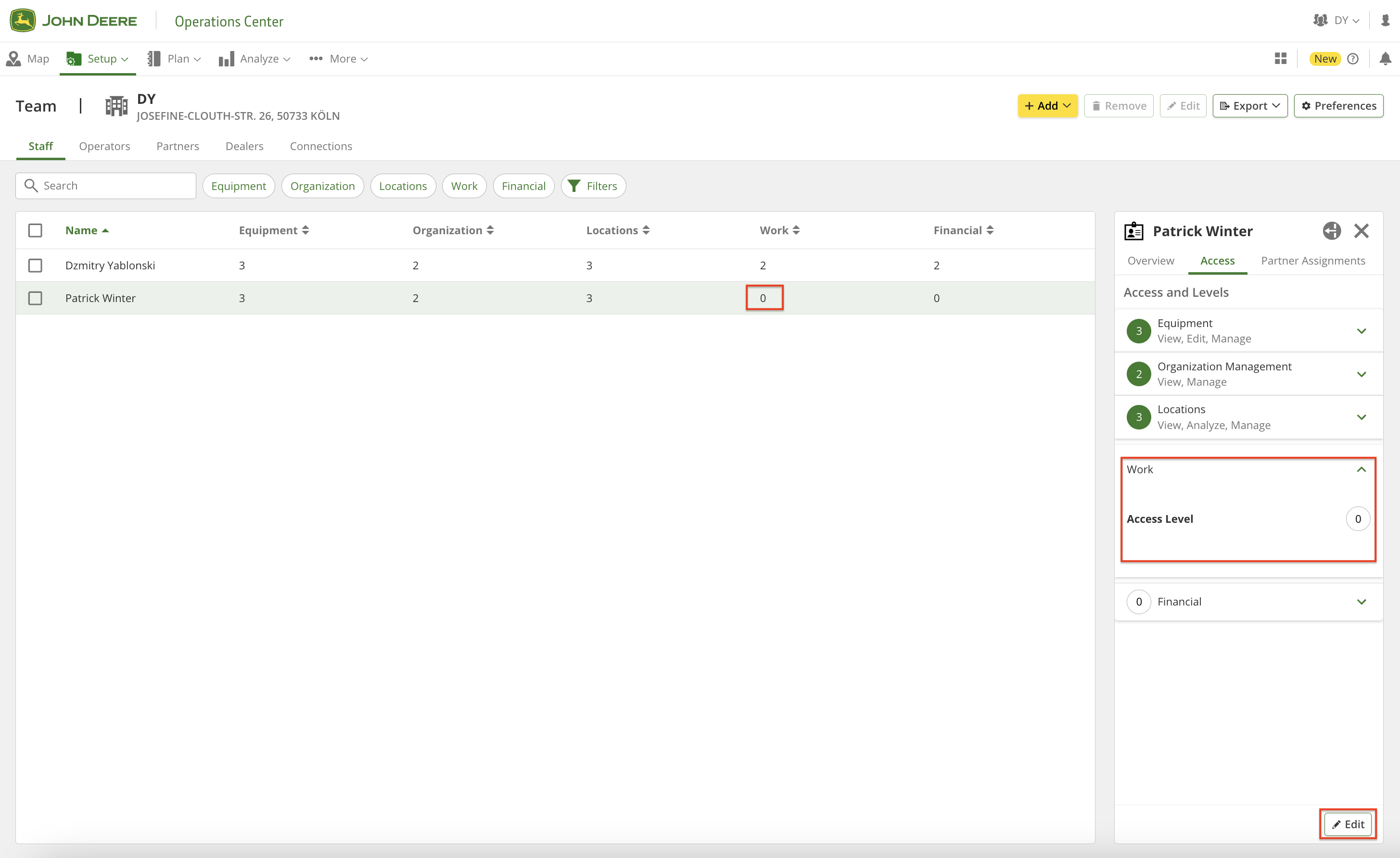
2. Ortak, "Setup" >> "Team" sayfasına (veya ) gidip erişim haklarını kontrol etmelidir: "Work" erişim seviyesi 2 olmalıdır.\
Erişim haklarını değiştirmek için "Edit" düğmesine tıklayın.
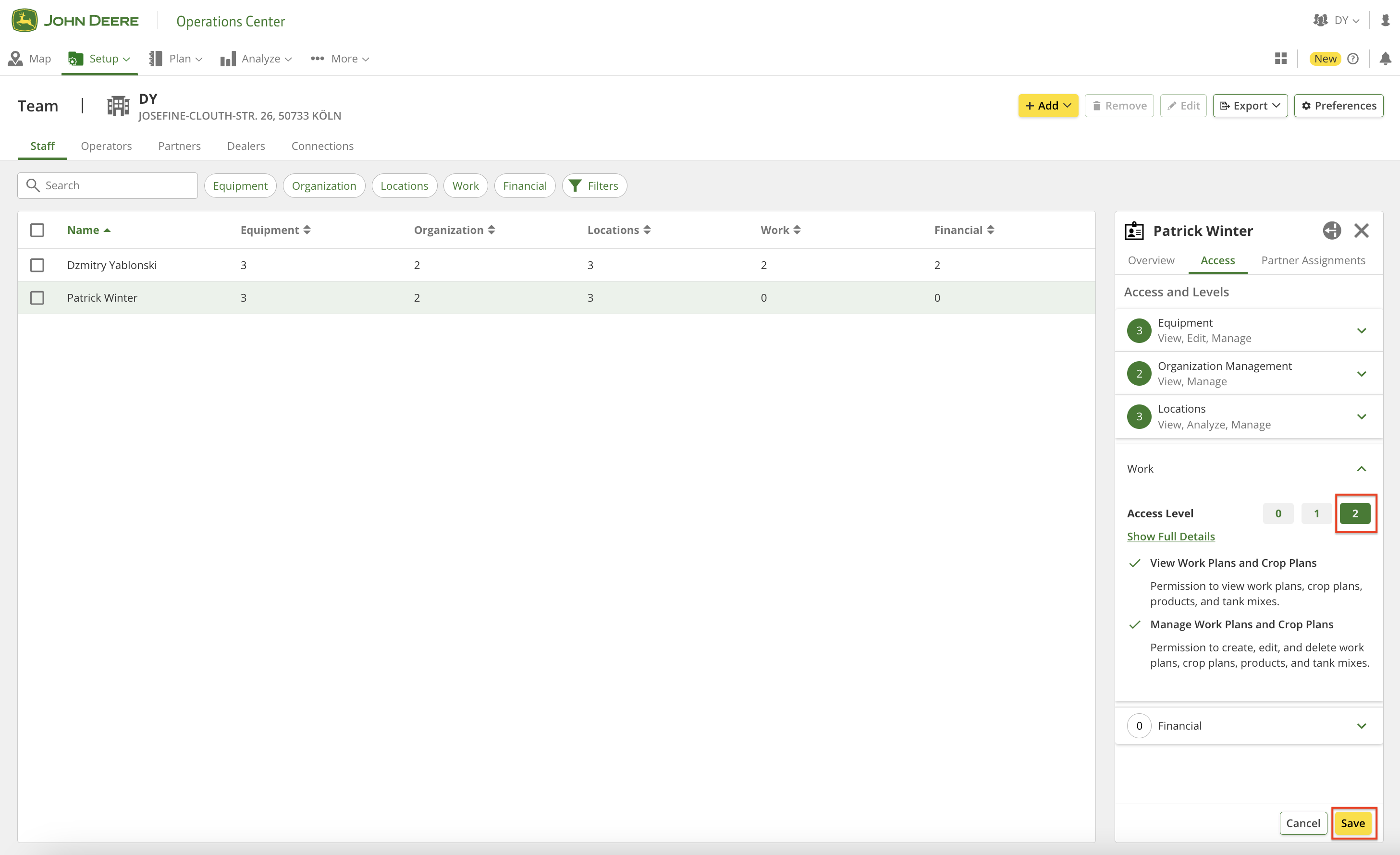
3. "Work" erişim haklarını 2 olarak değiştirin ve "Save" düğmesine tıklayın.
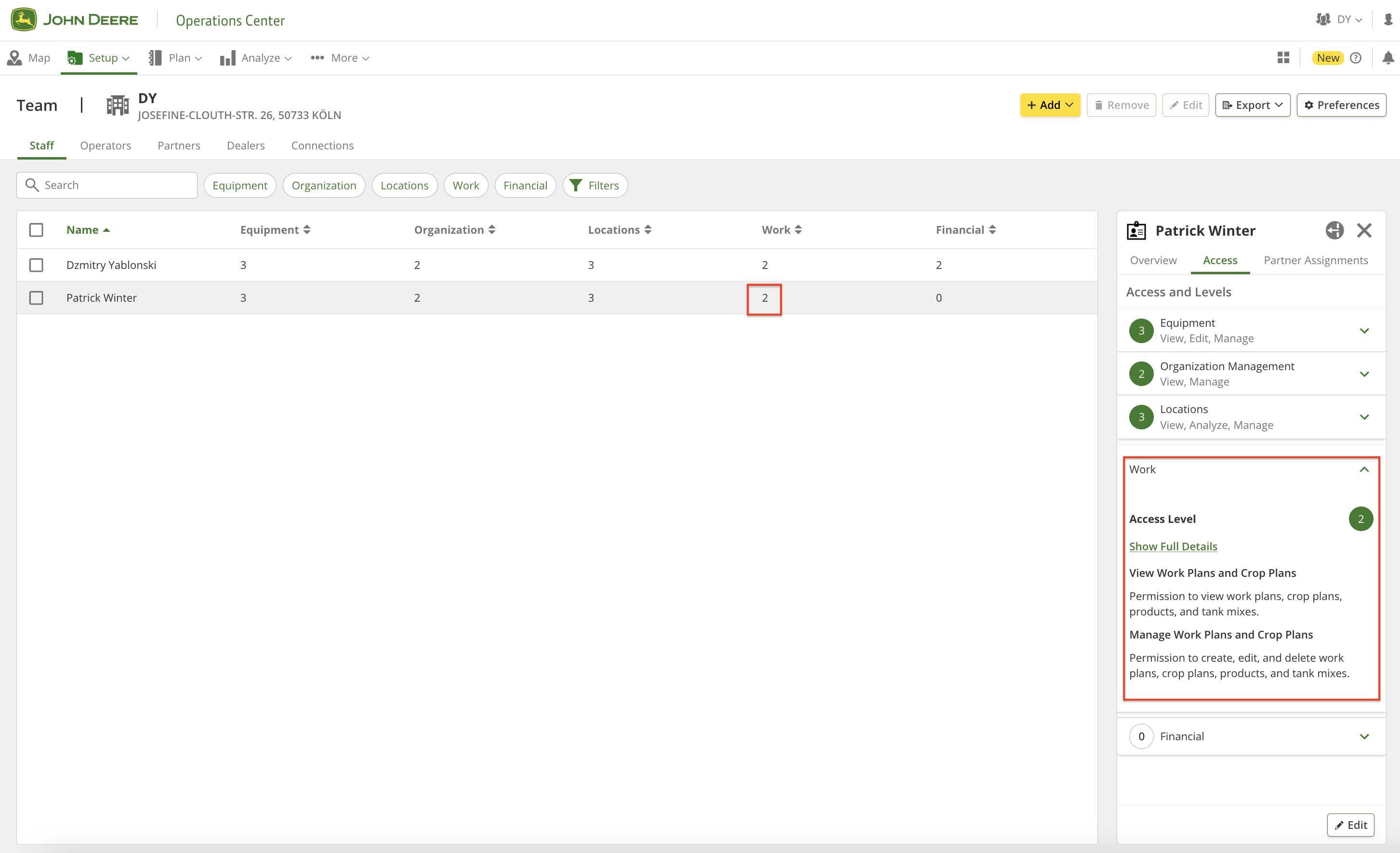
4. "Work" erişim seviyesinin başarıyla 2 olarak ayarlandığını doğrulayın.
## 6.2 Kullanıcı PAYLAŞILAN kuruluşta bir iş planı oluşturamıyorsa
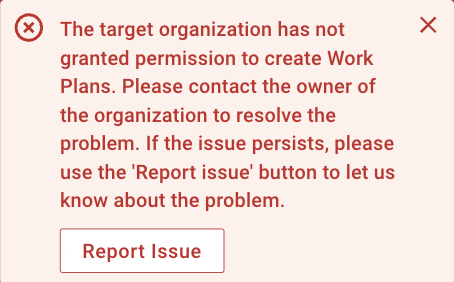
1. Ortak, GeoPard üzerinden bir John Deere İş Planı oluşturamıyorsa ve hata mesajı alıyorsa.
2. Ortak, "Setup" >> "Team" sayfasına (veya ) gidip "Access Granted" sekmesini kontrol edin.\
Eğer "Work" erişim seviyesi 0 veya 1 ise, "Edit" düğmesine tıklayıp bunları düzeltin.\ Bu seçenek mevcut değilse, ortak bunu düzeltmesi için sahibi bilgilendirmelidir.
3. "Work" erişim seviyesi 2 olmalıdır.\
"Work" erişim seviyesini 2 olarak değiştirin ve "Save" düğmesine tıklayın.
4. "Work" erişim seviyesini doğrulayın.
---
# Agent Instructions
This documentation is published with GitBook. GitBook is the documentation platform designed so that both humans and AI agents can read, navigate, and reason over technical content effectively. Learn more at gitbook.com.
## Querying This Documentation
If you need additional information that is not directly available in this page, you can query the documentation by asking a question.
Perform an HTTP GET request on the following URL with the `ask` and `goal` query parameters:
```
GET https://docs.geopard.tech/geopard-tutorials/tr/urun-turu-web-uygulamasi/john-deere-operations-center-entegrasyonu/veri-paylasim-secenekleri/6.-is-plani-olusturma-sorun-giderme.md?ask=&goal=
```
`ask` is the immediate question: it should be specific, self-contained, and written in natural language.
`goal` is what the user is ultimately trying to achieve, the reason they need the answer. Sharing it helps GitBook give you a better, more relevant answer. A goal is most helpful when it describes the outcome the user wants rather than restating the question. For example, with `ask=how do I create an API token`, a goal like `automate deployments from our CI pipeline` lets GitBook tailor the answer to that use case.
The response will contain a direct answer to the question and relevant excerpts and sources from the documentation.
Use this mechanism when the answer is not explicitly present in the current page, you need clarification or additional context, or you want to retrieve related documentation sections.