> For the complete documentation index, see [llms.txt](https://docs.geopard.tech/geopard-tutorials/llms.txt). Markdown versions of documentation pages are available by appending `.md` to page URLs; this page is available as [Markdown](https://docs.geopard.tech/geopard-tutorials/tr/urun-turu-web-uygulamasi/john-deere-operations-center-entegrasyonu/9.-toprak-topografya-uydu-veya-analitik-verisini-harita-katmanlari-olarak-disa-aktarin.md).

# 9. Toprak, Topoğrafya, Uydu veya Analitik Verisini Harita Katmanları Olarak Dışa Aktarın

GeoPard’da herhangi bir coğrafi katmanı John Deere Ops Center’a bir harita katmanı olarak dışa aktarabilirsiniz.

#### Neleri dışa aktarabilirsiniz

* Yönetim **Bölgeler** (örn. ekim, gübre, bitki koruma)
* **Uydu görüntüleri** (ve tüm vejetasyon indeksleri)
* **Topografya** ve türetilmiş katmanlar (rakım, eğim, bakı)
* **NUE** (azot kullanım verimliliği) haritaları
* **Kâr** haritaları
* Değişken oranlı **Rx** reçeteler (herhangi bir ürün)
* GeoPard’da oluşturduğunuz diğer tüm raster veya vektör katmanları

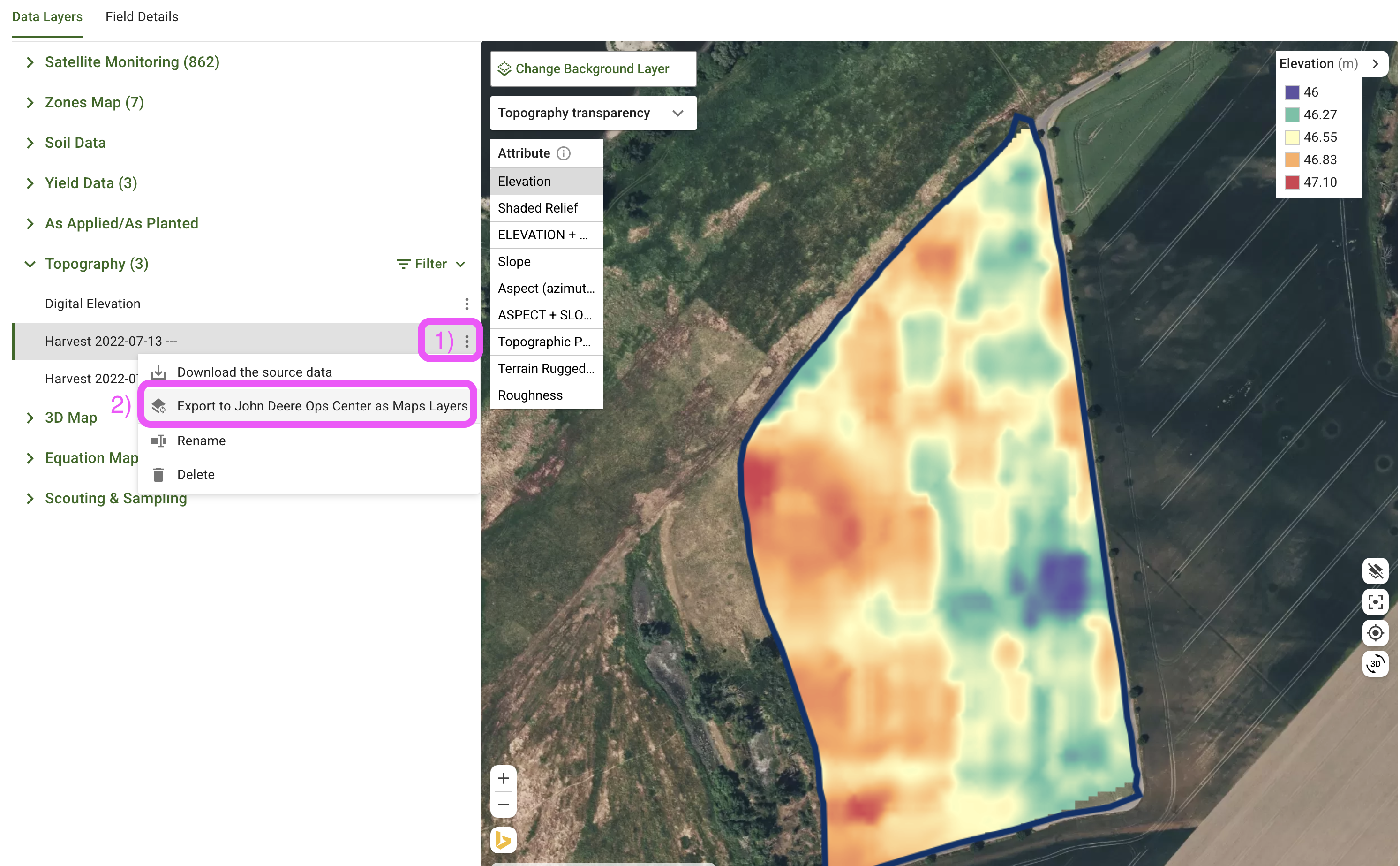
<div data-full-width="true"><figure><img src="https://4027984477-files.gitbook.io/~/files/v0/b/gitbook-x-prod.appspot.com/o/spaces%2FYICBELdyAXXebKAzfLOR%2Fuploads%2F8dKxPmUmV4amrPsHjVS2%2FExport%20GeoPard%20Layer%20to%20John%20Deere%20as%20a%20Map%20Layer.png?alt=media&amp;token=97fa981e-9c01-4755-97ba-c30db4cb27ad" alt=""><figcaption><p>Katmanı GeoPard’da dışa aktarın</p></figcaption></figure> <figure><img src="https://4027984477-files.gitbook.io/~/files/v0/b/gitbook-x-prod.appspot.com/o/spaces%2FYICBELdyAXXebKAzfLOR%2Fuploads%2FPiR8QPi144uoawnjNMNO%2FJohn%20Deere%20Ops%20center%20-%20Slope%20-%20via%20GeoPard.png?alt=media&amp;token=6ee97a8c-9132-4434-9452-1e61831b995c" alt=""><figcaption><p>Dışa aktarılan eğim katmanı, Ops Center’da web ve mobilde görünür</p></figcaption></figure> <figure><img src="https://4027984477-files.gitbook.io/~/files/v0/b/gitbook-x-prod.appspot.com/o/spaces%2FYICBELdyAXXebKAzfLOR%2Fuploads%2FGI3nSvBbDJmn26JzGPXr%2FJohn%20Deere%20Ops%20center%20-%20Topography%20-%20via%20GeoPard.png?alt=media&amp;token=49c6ca71-be6e-42e1-920e-077c80ce4df0" alt=""><figcaption><p>Dışa aktarılan rakım katmanı, John Deere Ops Center’da web ve mobilde görünür</p></figcaption></figure></div>

#### Hızlı adımlar

1. Tarlayı açın ve paylaşmak istediğiniz katmanı seçin.
2. Şuna tıklayın: **︙** (üç nokta) katman adının yanındaki menüden seçin ve **Dışa aktar → John Deere → Harita Katmanı**.
3. Genellikle 1–2 dakika içinde Ops Center’da görünür.

#### Ops Center’da kontrol edin

1. John Deere Operations Center’a giriş yapın.
2. Şuraya gidin **Field Analyzer → Harita Katmanları**.
3. Yeni katmanınız **Katmanlar**altında görünür. Haritada görmek için açın.

Hepsi bu kadar — GeoPard içgörülerini tarladaki her John Deere ekranına taşımanın basit bir yolu.


---

# Agent Instructions
This documentation is published with GitBook. GitBook is the documentation platform designed so that both humans and AI agents can read, navigate, and reason over technical content effectively. Learn more at gitbook.com.

## Querying This Documentation
If you need additional information that is not directly available in this page, you can query the documentation by asking a question.

Perform an HTTP GET request on the following URL with the `ask` and `goal` query parameters:

```
GET https://docs.geopard.tech/geopard-tutorials/tr/urun-turu-web-uygulamasi/john-deere-operations-center-entegrasyonu/9.-toprak-topografya-uydu-veya-analitik-verisini-harita-katmanlari-olarak-disa-aktarin.md?ask=<question>&goal=<user_goal>
```

`ask` is the immediate question: it should be specific, self-contained, and written in natural language.
`goal` is what the user is ultimately trying to achieve, the reason they need the answer. Sharing it helps GitBook give you a better, more relevant answer. A goal is most helpful when it describes the outcome the user wants rather than restating the question. For example, with `ask=how do I create an API token`, a goal like `automate deployments from our CI pipeline` lets GitBook tailor the answer to that use case.

The response will contain a direct answer to the question and relevant excerpts and sources from the documentation.

Use this mechanism when the answer is not explicitly present in the current page, you need clarification or additional context, or you want to retrieve related documentation sections.
