> For the complete documentation index, see [llms.txt](https://docs.geopard.tech/geopard-tutorials/llms.txt). Markdown versions of documentation pages are available by appending `.md` to page URLs; this page is available as [Markdown](https://docs.geopard.tech/geopard-tutorials/tr/urun-turu-web-uygulamasi/john-deere-operations-center-entegrasyonu/11.-bir-tarlayi-john-deere-operations-center-ile-senkronize-et.md).
# 11. Bir Tarlayı John Deere Operations Center ile Senkronize Et
İstediğiniz anda bir tarlayı John Deere Operations Center'a aktarın ve sınırını ile hiyerarşisini güncel tutun.
GeoPard, tek bir parseli John Deere Operations Center ile isteğe bağlı olarak senkronize etmenizi sağlar.
Bir parseli ekledikten hemen sonra kullanın. Sınırı değiştirdikten veya müşteri ve çiftlik hiyerarşisini güncelledikten sonra tekrar kullanın.
GeoPard, John Deere Operations Center’da parseli oluşturup oluşturmayacağına ya da mevcut olanı yeniden senkronize edip etmeyeceğine otomatik olarak karar verir. Önce mevcut durumunu kontrol etmeniz gerekmez.
{% hint style="info" %}
Bu **John Deere Operations Center ile parsel senkronize et** işlem yalnızca GeoPard hesabınız John Deere’e bağlı olduğunda görünür. Görmüyorsanız, tamamlayın [John Deere Operations Center’a bağlanın](https://docs.geopard.tech/geopard-tutorials/product-tour-web-app/john-deere-operations-center-integration/2.-connect-to-john-deere-operations-center).
{% endhint %}
### Başlamadan önce
Senkronizasyon iki kurulum adımına bağlıdır. Bunlardan biri eksikse, senkronizasyon başarısız olur.
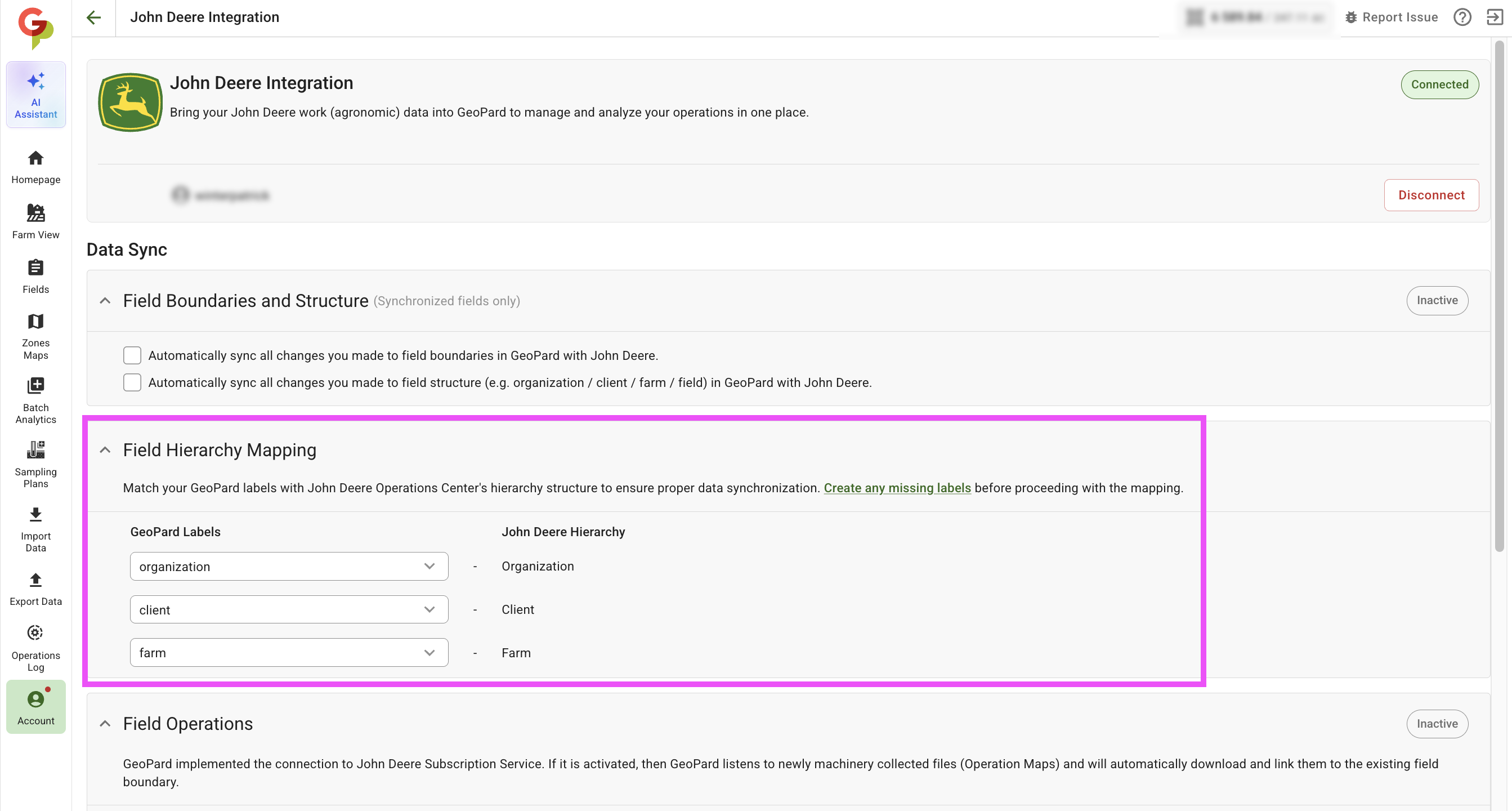
#### 1. GeoPard etiketlerini John Deere hiyerarşisine eşleştirin
GeoPard, parselleri etiketlerle düzenler. John Deere ise bir **Organizasyon → Müşteri → Çiftlik** hiyerarşisi kullanır.
John Deere entegrasyon sayfasında, GeoPard etiketlerinizi şu John Deere seviyelerine eşleştirin:
* `organizasyon` → Organizasyon
* `müşteri` → Müşteri
* `çiftlik` → Çiftlik
Eşleşen bir etiket henüz yoksa, önce onu oluşturun. Bakınız [Etiket ekleme](https://docs.geopard.tech/geopard-tutorials/product-tour-web-app/farm-and-field-setup/add-a-label).
#### 2. Parsleye eşleşen etiketler ekleyin
Parseli açın ve kontrol edin **Parsel Detayları** → **Etiketler**.
Parsel, eşlemenize uyan değerleri içermelidir. Örneğin:
* `organizasyon: AgriCore Solutions`
* `müşteri: GreenField`
* `çiftlik: Green Valley Farm`
Bu değerler, parseli John Deere Operations Center içindeki doğru **Organizasyon → Müşteri → Çiftlik** yola yerleştirir.
### Bir parseli senkronize edin
1. John Deere Operations Center’a göndermek istediğiniz parseli açın.
2. Tıklayın **Dışa aktar** → **John Deere Operations Center ile parsel senkronize et**.
3. Sonuç bildirimini bekleyin.
### Tıkladığınızda ne olur
GeoPard, parselin zaten John Deere Operations Center’a bağlı olup olmadığını kontrol eder.
* Parsel John Deere Operations Center’da zaten yoksa, GeoPard onu parselin çiftlik ve müşteri etiketlerine göre otomatik olarak oluşturur.
* Parsel John Deere Operations Center’da zaten varsa, GeoPard senkronizasyon sırasında sınırını, çiftlik ve müşteri bilgilerini otomatik olarak günceller.
### Göreceğiniz sonuçlar
İşlem tamamlandıktan sonra GeoPard şu bildirimlerden birini gösterir:
* **Parsel John Deere Operations Center’da oluşturuldu** — parselin John Deere bağlantısı yoktu ve başarıyla oluşturuldu.
* **Parsel John Deere Operations Center ile yeniden senkronize edildi** — parsel zaten bağlıydı ve sınırı ile hiyerarşisi güncellendi.
* **Senkronizasyon başarısız oldu** — parsel senkronize edilemedi.
### Sorun giderme
Senkronizasyon başarısız olursa, önce şu maddeleri kontrol edin:
* GeoPard hesabınız John Deere’e bağlıdır. Bakınız [2. John Deere Operations Center’a bağlanın](https://docs.geopard.tech/geopard-tutorials/product-tour-web-app/john-deere-operations-center-integration/2.-connect-to-john-deere-operations-center).
* John Deere organizasyonunuz GeoPard’da etkinleştirilmiştir. Bakınız [3. John Deere Organizasyonlarına bağlanın](https://docs.geopard.tech/geopard-tutorials/product-tour-web-app/john-deere-operations-center-integration/3.-connect-to-john-deere-organizations).
* Parselde, doğru değerlere sahip tüm eşlenmiş etiketler vardır.
* Etiket eşlemesi istenen **Organizasyon → Müşteri → Çiftlik** yol.
En yaygın başarısızlık nedeni, eksik veya eşleşmeyen parsel etiketleridir.
---
# Agent Instructions
This documentation is published with GitBook. GitBook is the documentation platform designed so that both humans and AI agents can read, navigate, and reason over technical content effectively. Learn more at gitbook.com.
## Querying This Documentation
If you need additional information that is not directly available in this page, you can query the documentation by asking a question.
Perform an HTTP GET request on the following URL with the `ask` and `goal` query parameters:
```
GET https://docs.geopard.tech/geopard-tutorials/tr/urun-turu-web-uygulamasi/john-deere-operations-center-entegrasyonu/11.-bir-tarlayi-john-deere-operations-center-ile-senkronize-et.md?ask=&goal=
```
`ask` is the immediate question: it should be specific, self-contained, and written in natural language.
`goal` is what the user is ultimately trying to achieve, the reason they need the answer. Sharing it helps GitBook give you a better, more relevant answer. A goal is most helpful when it describes the outcome the user wants rather than restating the question. For example, with `ask=how do I create an API token`, a goal like `automate deployments from our CI pipeline` lets GitBook tailor the answer to that use case.
The response will contain a direct answer to the question and relevant excerpts and sources from the documentation.
Use this mechanism when the answer is not explicitly present in the current page, you need clarification or additional context, or you want to retrieve related documentation sections.