> For the complete documentation index, see [llms.txt](https://docs.geopard.tech/geopard-tutorials/llms.txt). Markdown versions of documentation pages are available by appending `.md` to page URLs; this page is available as [Markdown](https://docs.geopard.tech/geopard-tutorials/tr/urun-turu-web-uygulamasi/bolgeler-haritalari-ve-analitigi/uydu-goruntusu-kullanarak-bir-bolgeler-haritasi-olustur.md).
# Uydu Görüntüsü Kullanarak Bir Bölgeler Haritası Oluştur
Değişkenliği hedeflemek ve değişken oranlı kararları yönlendirmek için uydu görüntülerinden yönetim bölgeleri oluşturun.
1. Listeden tarlayı seçin, **Bölge Haritası Oluştur** düğmesine tıklayın, **Tek katmanlı** seçeneğini belirleyin ve ardından **İleri**.
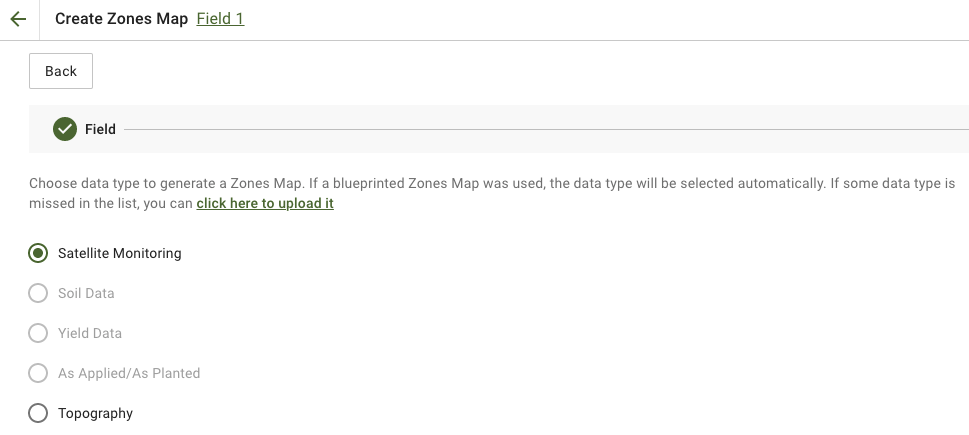
2. Seçin **Uydu İzleme** devam etmek için veri türünü.
3. Bir sonraki adımda bir uydu görüntüsü seçebilirsiniz. Aya, yıla, sağlayıcıya veya NDVI'ya göre filtreleyebilir ve NIR ile EVI2 gibi görüntü görünümleri arasında geçiş yapabilirsiniz. Bu **İndeks türlerinin kısa açıklaması burada** bağlantı, mevcut indeksleri açıklar. İndeksi değiştirmek istiyorsanız, yanındaki oka tıklayın **EVI2**. Ardından tıklayın **İleri**.
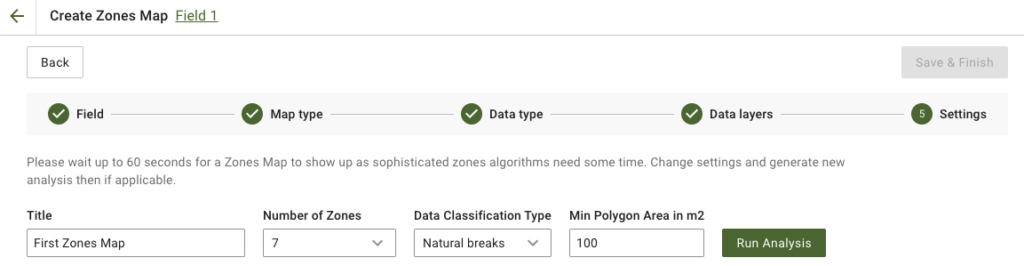
4. Bir sonraki adımda, başlığı düzenleyebilir, bölge sayısını değiştirebilir, [bir Veri Sınıflandırma Türü seçebilir](/geopard-tutorials/tr/urun-turu-web-uygulamasi/bolgeler-haritalari-ve-analitigi/veri-siniflandirmasi-kullanimi.md)ve Metrekare cinsinden Minimum Poligon Alanını tanımlayabilirsiniz. Tıklayın **Analizi Çalıştır** ilerlemek için.
Belirttiğiniz parametrelere bağlı olarak analiz 60 saniyeye kadar sürebilir.
5. Tamamlandığında, **Kaydet ve Bitir**.
Kayıt edildikten sonra aşağıdaki mesajı göreceksiniz:
Başka bir bölge haritası oluşturabilir, oranlar atayabilir veya az önce oluşturduğunuz Bölge Haritasını açabilirsiniz. Açarsanız, benzer bir görünüm göreceksiniz.
---
# Agent Instructions
This documentation is published with GitBook. GitBook is the documentation platform designed so that both humans and AI agents can read, navigate, and reason over technical content effectively. Learn more at gitbook.com.
## Querying This Documentation
If you need additional information that is not directly available in this page, you can query the documentation by asking a question.
Perform an HTTP GET request on the following URL with the `ask` and `goal` query parameters:
```
GET https://docs.geopard.tech/geopard-tutorials/tr/urun-turu-web-uygulamasi/bolgeler-haritalari-ve-analitigi/uydu-goruntusu-kullanarak-bir-bolgeler-haritasi-olustur.md?ask=&goal=
```
`ask` is the immediate question: it should be specific, self-contained, and written in natural language.
`goal` is what the user is ultimately trying to achieve, the reason they need the answer. Sharing it helps GitBook give you a better, more relevant answer. A goal is most helpful when it describes the outcome the user wants rather than restating the question. For example, with `ask=how do I create an API token`, a goal like `automate deployments from our CI pipeline` lets GitBook tailor the answer to that use case.
The response will contain a direct answer to the question and relevant excerpts and sources from the documentation.
Use this mechanism when the answer is not explicitly present in the current page, you need clarification or additional context, or you want to retrieve related documentation sections.