> For the complete documentation index, see [llms.txt](https://docs.geopard.tech/geopard-tutorials/llms.txt). Markdown versions of documentation pages are available by appending `.md` to page URLs; this page is available as [Markdown](https://docs.geopard.tech/geopard-tutorials/swe/snabba-gis-tips/qgis-berakna-ndvi-for-drone-geotiff-filen.md).
# QGIS: Beräkna NDVI för drone-geotiff-filen
Ibland behöver du räkna ut medel-NDVI för en viss polygon inne i fältet. Du kan göra så här i QGIS.
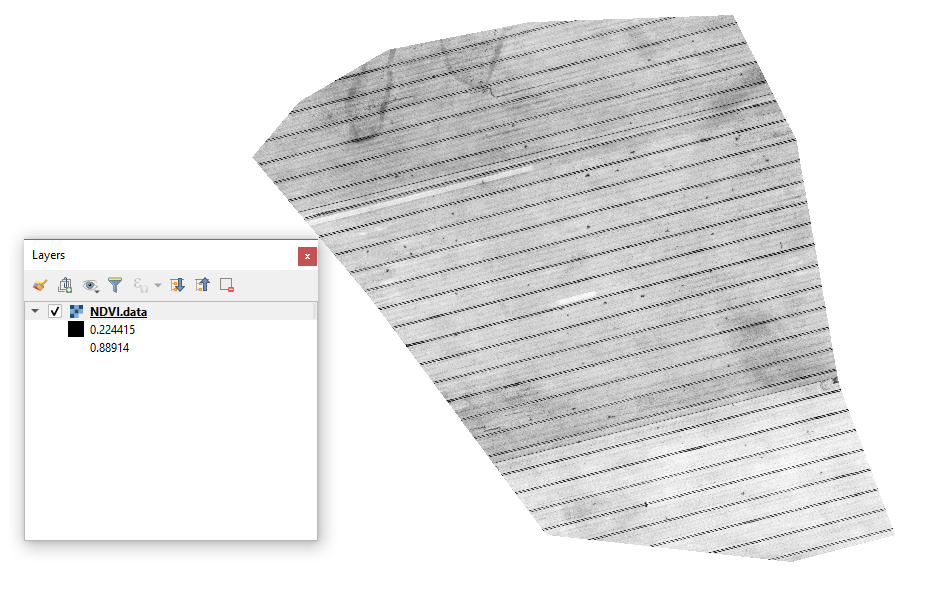
#### 1 - Visa den ursprungliga Drone NDVI-geotiffen
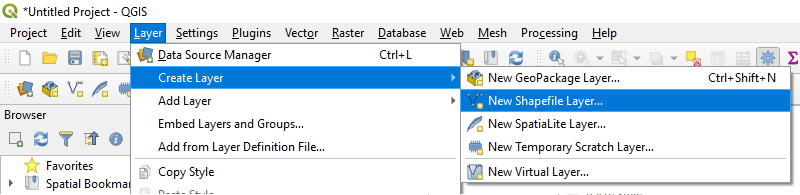
#### 2 - Skapa ett nytt lager
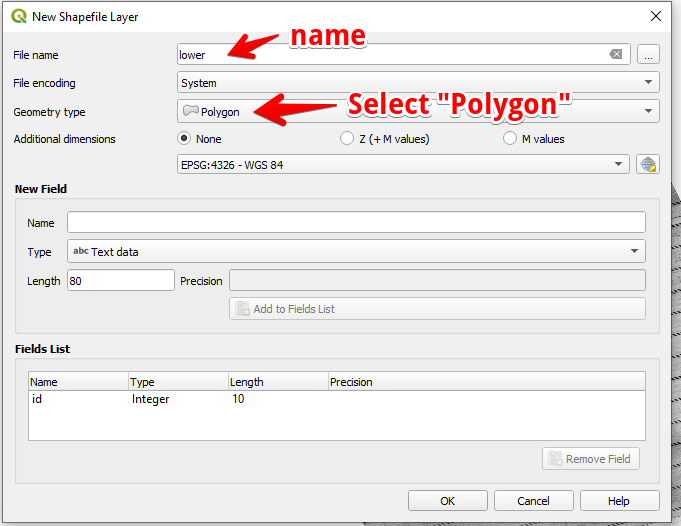
#### 3 - Ställ in lagrets namn och geometrityp och tryck på OK
#### 4 - Markera lagret i panelen Lager
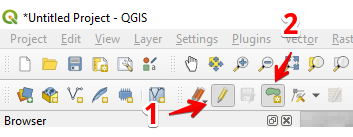
1. Välj ”Växla redigering” (1)
2. Välj ”Lägg till polygonobjekt” (2)
#### 5 - Rita en polygon. För att avsluta ritningen, tryck på höger musknapp och ange ”id” i popup-fönstret.
Avsluta lagret genom att trycka på ”Växla redigering” igen och tryck på ”Spara”.
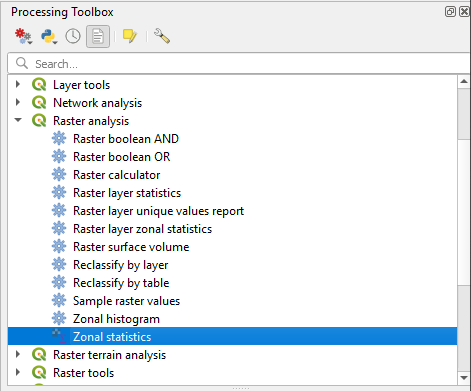
#### 6 - Välj zonstatistik i panelen ”Bearbetningsverktygslådan”.
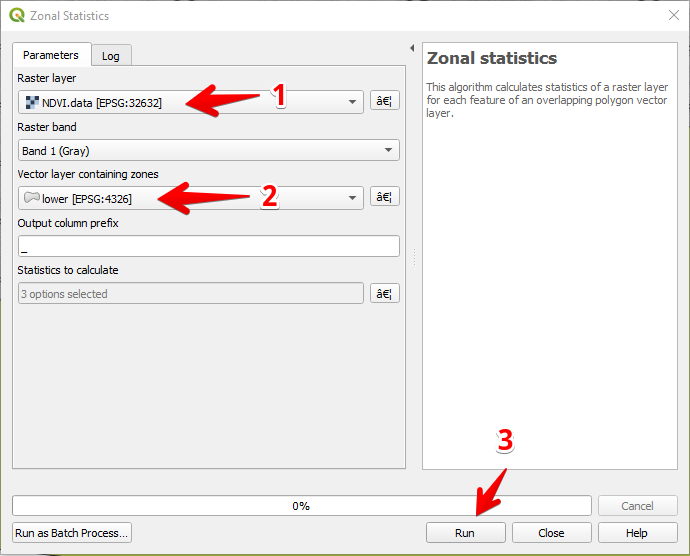
#### 7 - Välj rasterlager (1),
Välj polygonlager (2),
Tryck på ”Kör” (3).
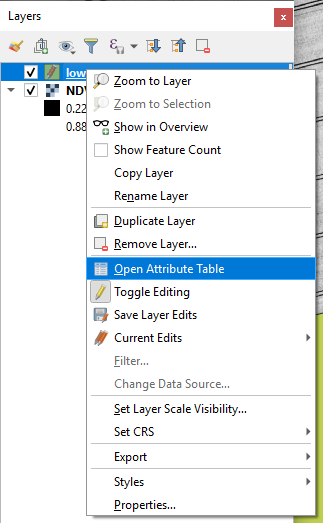
#### 8 - Markera lagret i panelen Lager och tryck på höger musknapp, välj Öppna attributtabell i snabbmenyn.
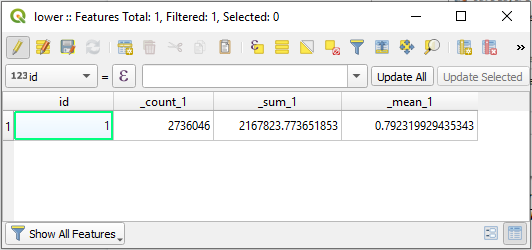
#### 9 - De beräknade statistikvärdena visas i tabellen.
---
# Agent Instructions
This documentation is published with GitBook. GitBook is the documentation platform designed so that both humans and AI agents can read, navigate, and reason over technical content effectively. Learn more at gitbook.com.
## Querying This Documentation
If you need additional information that is not directly available in this page, you can query the documentation dynamically by asking a question.
Perform an HTTP GET request on the current page URL with the `ask` query parameter, and the optional `goal` query parameter:
```
GET https://docs.geopard.tech/geopard-tutorials/swe/snabba-gis-tips/qgis-berakna-ndvi-for-drone-geotiff-filen.md?ask=&goal=
```
`ask` is the immediate question: it should be specific, self-contained, and written in natural language.
`goal` is optional and describes the broader end goal you are ultimately trying to accomplish on behalf of the user. GitBook uses it to tailor the answer towards what is most useful for that goal.
The response will contain a direct answer to the question and relevant excerpts and sources from the documentation.
Use this mechanism when the answer is not explicitly present in the current page, you need clarification or additional context, or you want to retrieve related documentation sections.