> For the complete documentation index, see [llms.txt](https://docs.geopard.tech/geopard-tutorials/llms.txt). Markdown versions of documentation pages are available by appending `.md` to page URLs; this page is available as [Markdown](https://docs.geopard.tech/geopard-tutorials/swe/produktvandring-webbapp/john-deere-operations-center-integration/9.-export-soil-topography-satellite-or-analytics-as-map-layers.md).

# 9. Exportera jord-, topografi-, satellit- eller analysdata som kartlager

I GeoPard kan du exportera vilket geospatialt lager som helst till John Deere Ops Center som ett kartlager.

#### Det här kan du exportera

* Drift **Skiften** (t.ex. sådd, gödsling, växtskydd)
* **Satellitbilder** (och alla vegetationsindex)
* **Topografi** och härledda lager (höjd, lutning, väderstreck)
* **NUE** (kväveutnyttjandegrad)kartor
* **Lönsamhets** kartor
* Variabel giva **Rx** receptkartor (valfri produkt)
* Alla andra raster- eller vektorlager som du skapar i GeoPard

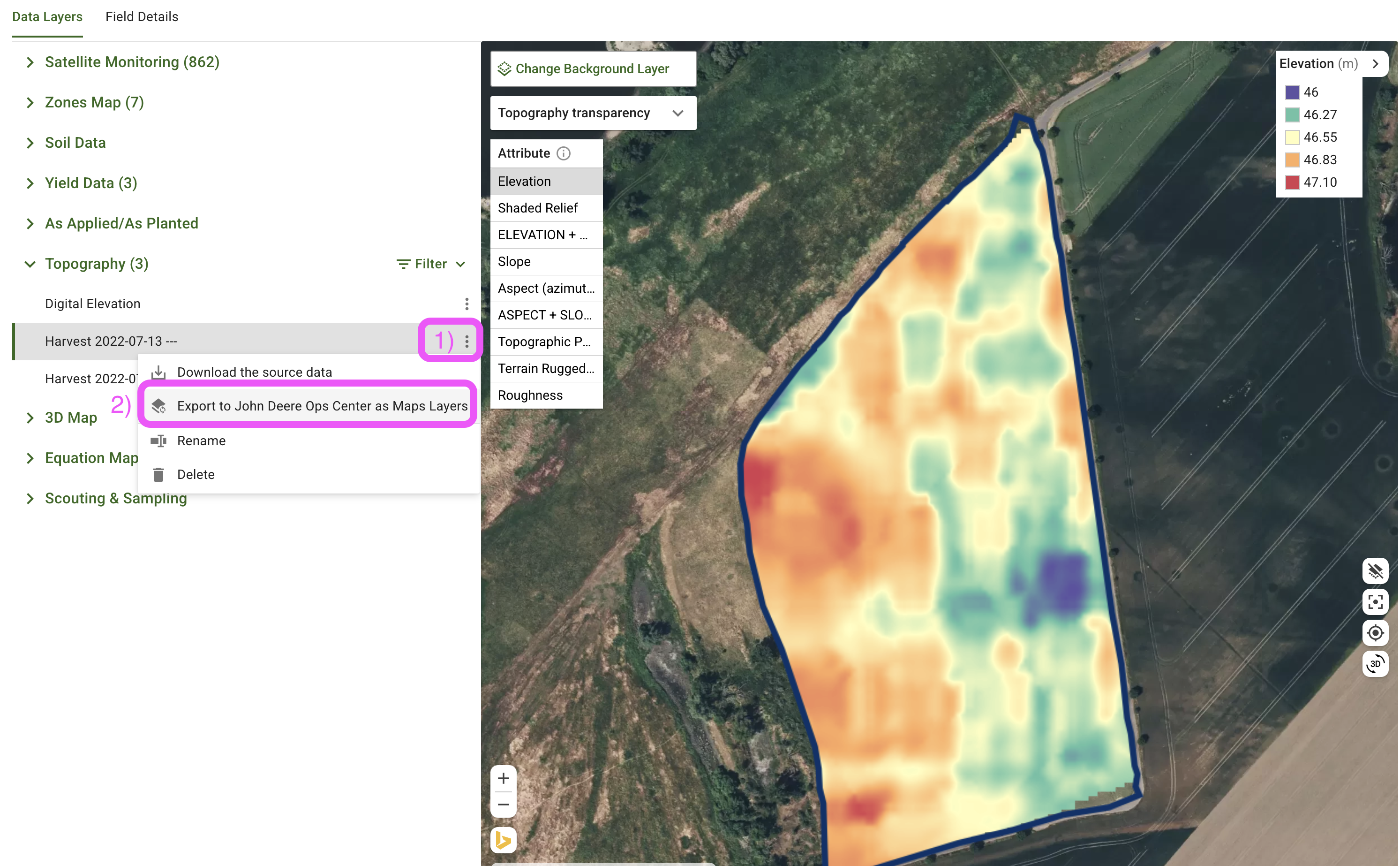
<div data-full-width="true"><figure><img src="https://1016759462-files.gitbook.io/~/files/v0/b/gitbook-x-prod.appspot.com/o/spaces%2FYICBELdyAXXebKAzfLOR%2Fuploads%2F8dKxPmUmV4amrPsHjVS2%2FExport%20GeoPard%20Layer%20to%20John%20Deere%20as%20a%20Map%20Layer.png?alt=media&amp;token=97fa981e-9c01-4755-97ba-c30db4cb27ad" alt=""><figcaption><p>Exportera lagret från GeoPard</p></figcaption></figure> <figure><img src="https://1016759462-files.gitbook.io/~/files/v0/b/gitbook-x-prod.appspot.com/o/spaces%2FYICBELdyAXXebKAzfLOR%2Fuploads%2FPiR8QPi144uoawnjNMNO%2FJohn%20Deere%20Ops%20center%20-%20Slope%20-%20via%20GeoPard.png?alt=media&amp;token=6ee97a8c-9132-4434-9452-1e61831b995c" alt=""><figcaption><p>Det exporterade lutningslagret visas i Ops Center på webben och i mobilen</p></figcaption></figure> <figure><img src="https://1016759462-files.gitbook.io/~/files/v0/b/gitbook-x-prod.appspot.com/o/spaces%2FYICBELdyAXXebKAzfLOR%2Fuploads%2FGI3nSvBbDJmn26JzGPXr%2FJohn%20Deere%20Ops%20center%20-%20Topography%20-%20via%20GeoPard.png?alt=media&amp;token=49c6ca71-be6e-42e1-920e-077c80ce4df0" alt=""><figcaption><p>Det exporterade höjdlagret visas i John Deere Ops Center på webben och i mobilen</p></figcaption></figure></div>

#### Snabbguide

1. Öppna fältet och välj lagret som du vill dela.
2. Klicka på **︙** (de tre punkterna) bredvid lagrets namn och välj **Exportera → John Deere → Kartlager**.
3. Lagret visas vanligtvis i Ops Center inom 1–2 minuter.

#### Kontrollera i Ops Center

1. Logga in på John Deere Operations Center.
2. Gå till **Fältanalys → Kartlager**.
3. Ditt nya lager visas under **Lager**. Slå på det för att visa det på kartan.

Klart – ett enkelt sätt att få ut GeoPards insikter på alla John Deere-skärmar på gården.


---

# Agent Instructions
This documentation is published with GitBook. GitBook is the documentation platform designed so that both humans and AI agents can read, navigate, and reason over technical content effectively. Learn more at gitbook.com.

## Querying This Documentation
If you need additional information that is not directly available in this page, you can query the documentation by asking a question.

Perform an HTTP GET request on the following URL with the `ask` and `goal` query parameters:

```
GET https://docs.geopard.tech/geopard-tutorials/swe/produktvandring-webbapp/john-deere-operations-center-integration/9.-export-soil-topography-satellite-or-analytics-as-map-layers.md?ask=<question>&goal=<user_goal>
```

`ask` is the immediate question: it should be specific, self-contained, and written in natural language.
`goal` is what the user is ultimately trying to achieve, the reason they need the answer. Sharing it helps GitBook give you a better, more relevant answer. A goal is most helpful when it describes the outcome the user wants rather than restating the question. For example, with `ask=how do I create an API token`, a goal like `automate deployments from our CI pipeline` lets GitBook tailor the answer to that use case.

The response will contain a direct answer to the question and relevant excerpts and sources from the documentation.

Use this mechanism when the answer is not explicitly present in the current page, you need clarification or additional context, or you want to retrieve related documentation sections.
