> For the complete documentation index, see [llms.txt](https://docs.geopard.tech/geopard-tutorials/llms.txt). Markdown versions of documentation pages are available by appending `.md` to page URLs; this page is available as [Markdown](https://docs.geopard.tech/geopard-tutorials/swe/produktvandring-webbapp/john-deere-operations-center-integration/6.-export-rx-maps-to-john-deere-operations-center-as-files.md).
# Skicka tilldelningsfiler till John Deere Operations Center
Ladda upp GeoPard-zoner och tilldelningsfiler baserade på formler till Files i rätt organisation i Operations Center. Skicka dem sedan till displayen eller kopiera dem till ett USB-minne.
GeoPard laddar upp en zonkarta eller ekvationskarta till området Filer i den John Deere-organisation du väljer. Från Filer kan du skicka förskrivningen till displayen via trådlös dataöverföring eller kopiera den till ett USB-minne när maskinen saknar anslutning. Använd filer när föraren ställer in jobbet i hytten och en arbetsplan när jobbet ställs in på kontoret. Ett organisationsnamn som visas i grått betyder att GeoPard ännu inte har åtkomst till organisationen.
{% hint style="success" %}
Skicka din första förskrivning till Operations Center: [Kom igång gratis](https://app.geopard.tech/auth/sign-up?utm_source=docs\&utm_medium=cta\&utm_campaign=6.-export-rx-maps-to-john-deere-operations-center-as-files)
{% endhint %}
4\. Exportera till John Deere Operations Center
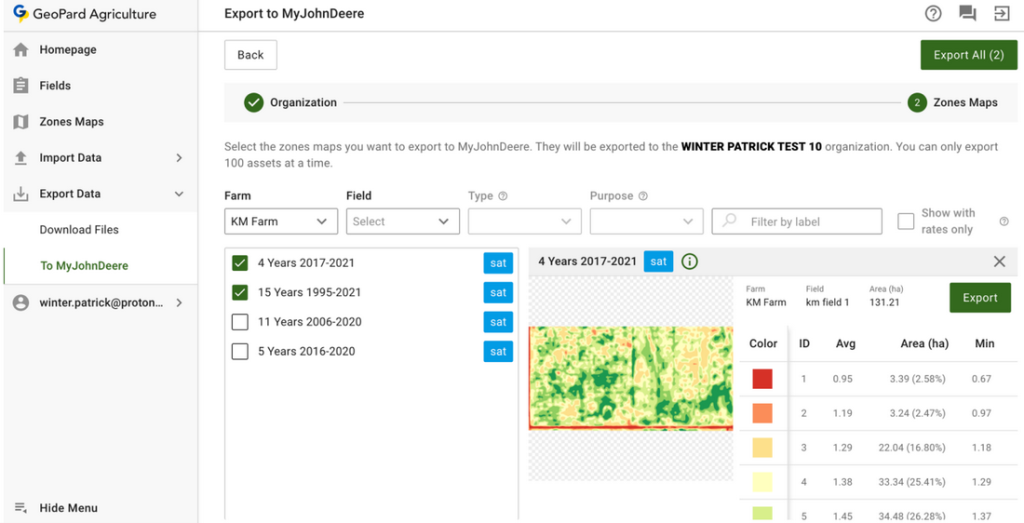
4.1 GeoPards kunder kan exportera data (VRA-förskrivningar eller andra datalager) från GeoPard till John Deere Operations Center. Det första steget är att [logga in](https://app.geopard.tech/auth/sign-in) och gå till fliken **Exportera till MyJohnDeere** .
4.2 Användaren väljer en målorganisation som GeoPard ska använda för att ladda upp filer. Det går att söka efter text. Om John Deere-organisationen är inaktiverad ( **namnet visas i grått**) behöver användaren ge åtkomst till John Deere Operations Center. Se [Ansluta GeoPard-profilen till John Deere-organisationen](https://docs.geopard.tech/geopard-tutorials/swe/produktvandring-webbapp/john-deere-operations-center-integration/3.-connect-to-john-deere-organizations.md).
4.3 Därefter väljer användaren de tillgångar som GeoPard ska ladda upp till John Deere Operations Center.
4.4 Användaren kan filtrera tillgångar.
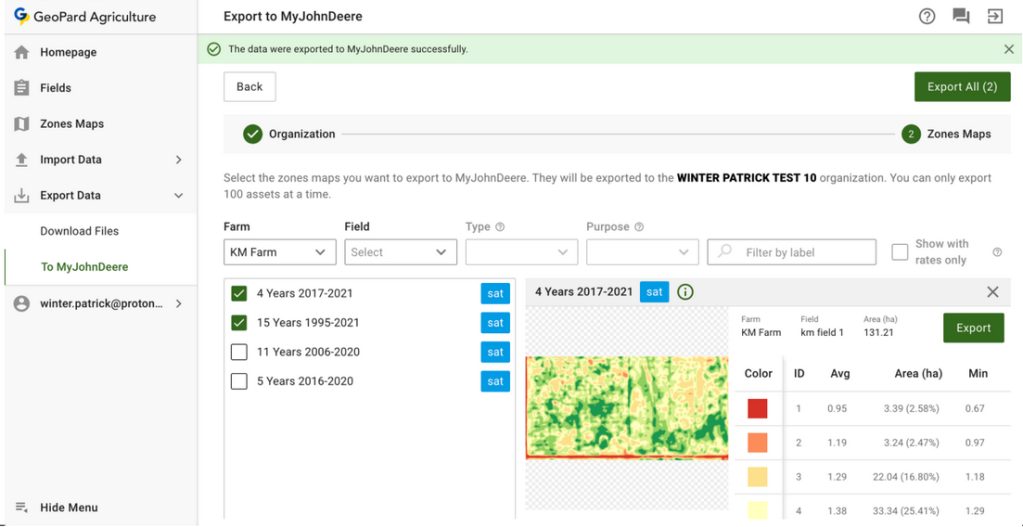
4.5 När alla tillgångar har valts kan användaren ladda upp alla genom att klicka på knappen **Exportera alla** eller ladda upp enskilda tillgångar genom att klicka på knappen **Exportera** .
4.6 Efter klicket visas ett meddelande om resultatet av åtgärden.
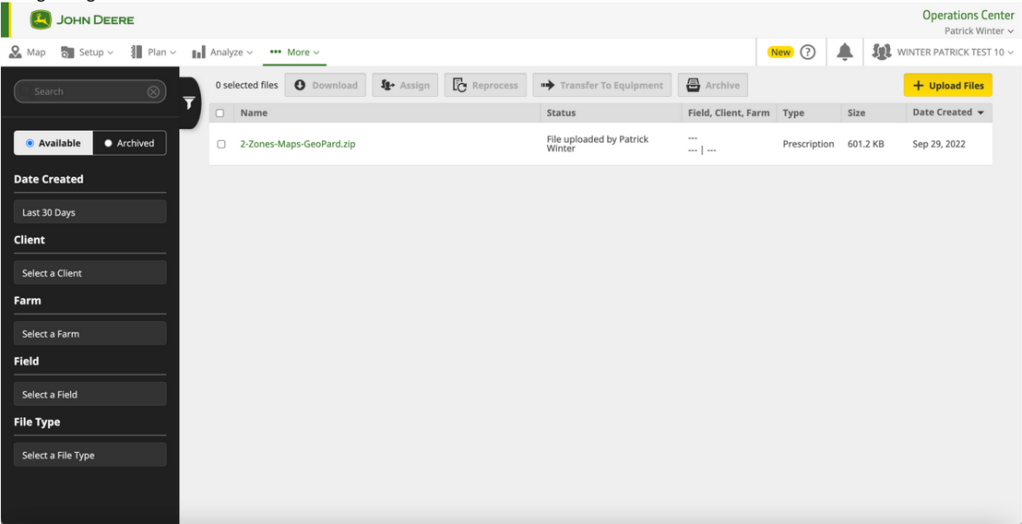
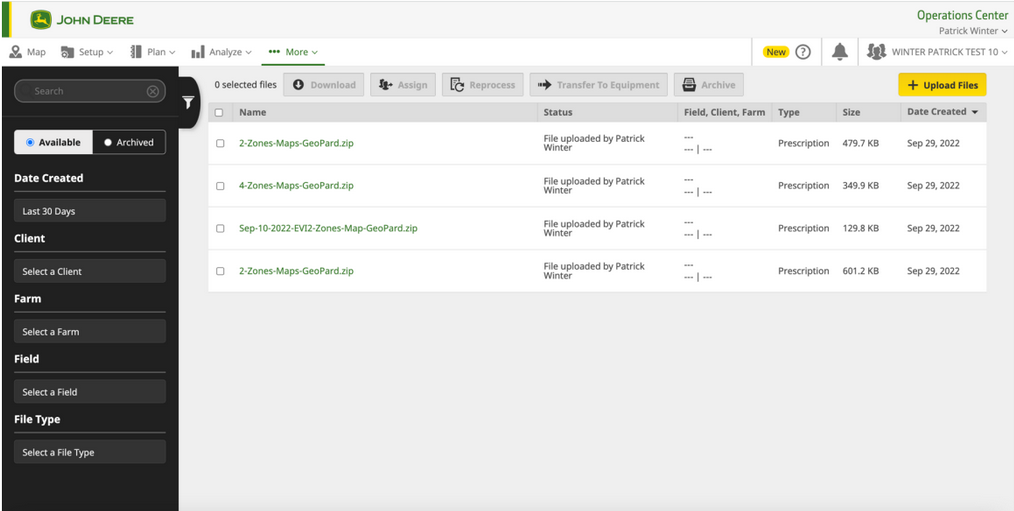
4.7 Därefter bör användaren se resultatet i John Deere Operations Center ([https://files.deere.com](https://files.deere.com/)). *Var noga med att välja samma organisation i GeoPard Agriculture och John Deere Operations Center.*
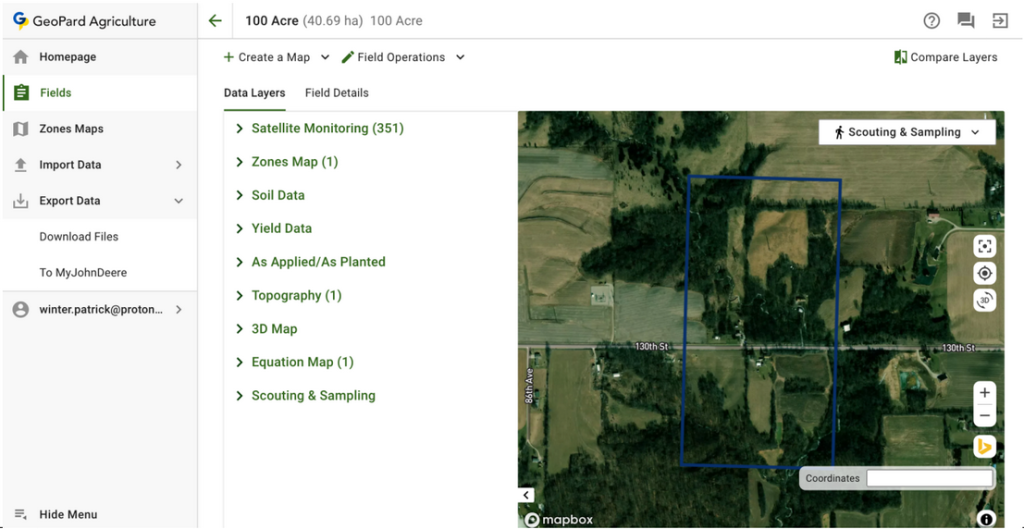
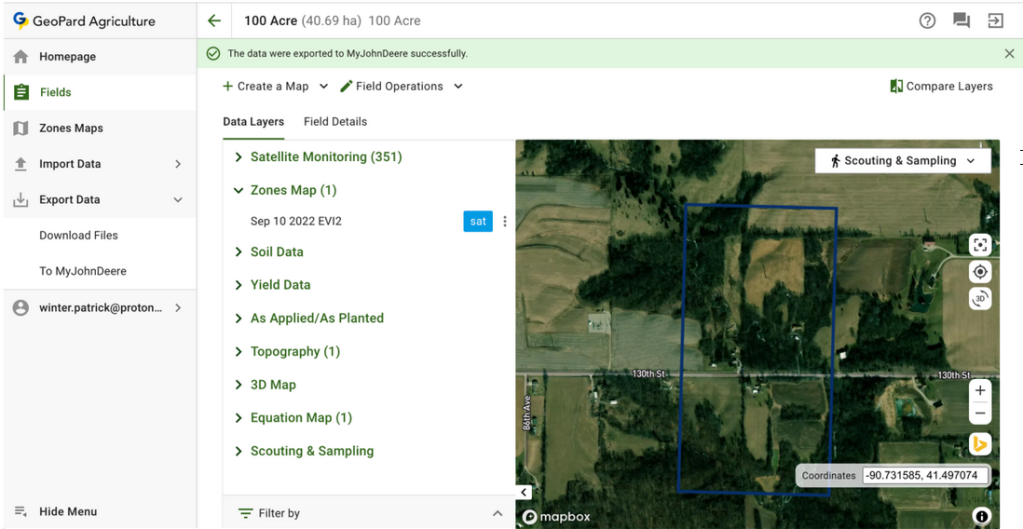
4.8 GeoPards kunder kan exportera zonkartor (VRA-förskrivningar) och ekvationskartor till John Deere Operations Center från fliken Fält.
4.8.1 När du har valt en zonkarta klickar du på **Exportera till MyJohnDeere** i motsvarande meny.
4.8.2 När du har valt en ekvationskarta klickar du på **Exportera till MyJohnDeere** i motsvarande meny.
4.8.3 Därefter väljer användaren en målorganisation hos John Deere som GeoPard ska använda för att ladda upp en fil. Det går att söka efter text. Om John Deere-organisationen är inaktiverad ( **namnet visas i grått**) behöver användaren ge åtkomst till John Deere Operations Center och läsa [Ansluta GeoPard-profilen till John Deere-organisationen](https://docs.geopard.tech/geopard-tutorials/swe/produktvandring-webbapp/john-deere-operations-center-integration/3.-connect-to-john-deere-organizations.md).
4.8.4 När användaren klickar på knappen **Klart** visas ett meddelande om resultatet av åtgärden.
4.8.5 Därefter bör användaren se resultatet i John Deere Operations Center ([https://files.deere.com](https://files.deere.com/)).\
\&#xNAN;*Var noga med att välja samma organisation i GeoPard Agriculture och John Deere Operations Center.*
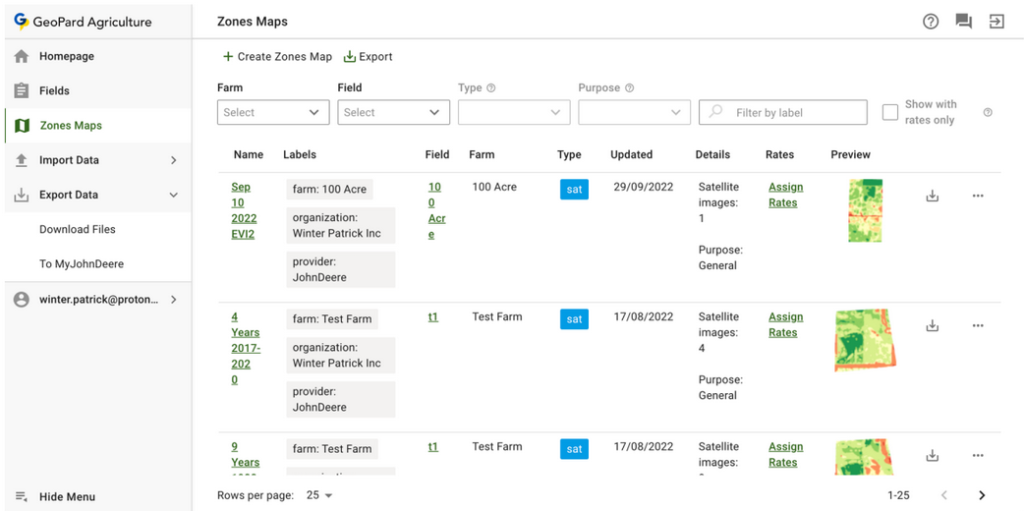
4.9 GeoPards kunder kan exportera zonkartor (VRA-förskrivningar) till John Deere Operations Center från fliken **Zonkartor** .
4.9.1 Användaren kan exportera en enskild zonkarta genom att klicka på motsvarande exportknapp.
4.9.2 Användaren kan exportera flera zonkartor genom att klicka på motsvarande exportknapp och välja kartor.
4.9.3 När användaren klickar på knappen **Exportera** visas **Exportera kartorna över zonerna** popupfönster, därefter ska användaren välja **Exportera zoner till MyJohnDeere Ops Center** alternativet och klicka på **Exportera** knappen.
4.9.4 Därefter väljer användaren en John Deere-organisation som GeoPard ska använda för att ladda upp en fil till. Användaren kan söka med text. Om John Deere-organisationen är inaktiverad ( **namnet visas i grått**) ska användaren ge åtkomst till John Deere Operations Center. Se [Ansluta GeoPard-profilen till John Deere-organisationen](https://docs.geopard.tech/geopard-tutorials/swe/produktvandring-webbapp/john-deere-operations-center-integration/3.-connect-to-john-deere-organizations.md).
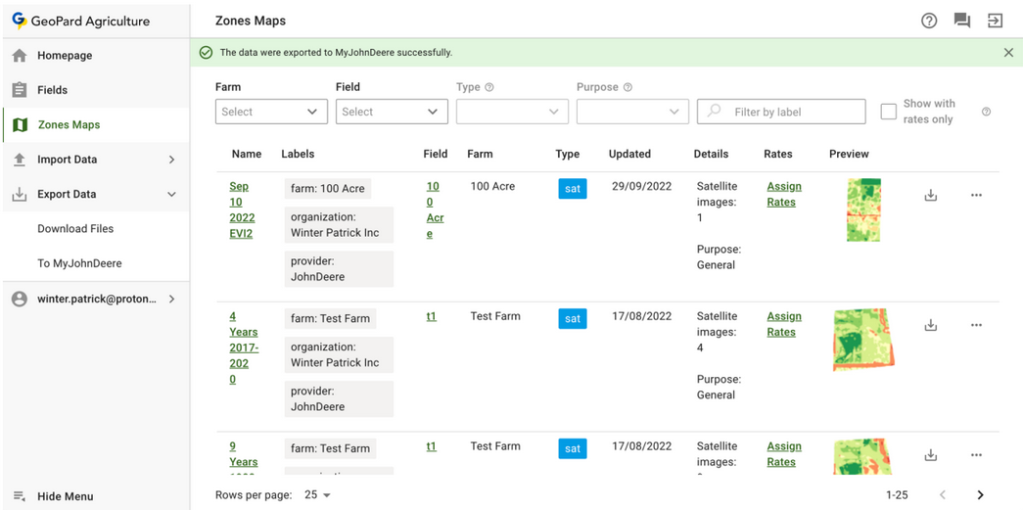
4.9.5 När användaren har klickat på **Klart** -knappen visas ett meddelande om resultatet av åtgärden.
4.9.6 Därefter ska användaren se resultatet i John Deere Operations Center ([https://files.deere.com](https://files.deere.com/)). Var noga med att välja rätt organisationer i GeoPard Agriculture och John Deere Operations Center.
{% hint style="success" %}
Skicka din första förskrivning till Operations Center: [Kom igång gratis](https://app.geopard.tech/auth/sign-up?utm_source=docs\&utm_medium=cta\&utm_campaign=6.-export-rx-maps-to-john-deere-operations-center-as-files)
{% endhint %}
---
# Agent Instructions
This documentation is published with GitBook. GitBook is the documentation platform designed so that both humans and AI agents can read, navigate, and reason over technical content effectively. Learn more at gitbook.com.
## Querying This Documentation
If you need additional information that is not directly available in this page, you can query the documentation by asking a question.
Perform an HTTP GET request on the following URL with the `ask` and `goal` query parameters:
```
GET https://docs.geopard.tech/geopard-tutorials/swe/produktvandring-webbapp/john-deere-operations-center-integration/6.-export-rx-maps-to-john-deere-operations-center-as-files.md?ask=&goal=
```
`ask` is the immediate question: it should be specific, self-contained, and written in natural language.
`goal` is what the user is ultimately trying to achieve, the reason they need the answer. Sharing it helps GitBook give you a better, more relevant answer. A goal is most helpful when it describes the outcome the user wants rather than restating the question. For example, with `ask=how do I create an API token`, a goal like `automate deployments from our CI pipeline` lets GitBook tailor the answer to that use case.
The response will contain a direct answer to the question and relevant excerpts and sources from the documentation.
Use this mechanism when the answer is not explicitly present in the current page, you need clarification or additional context, or you want to retrieve related documentation sections.