> For the complete documentation index, see [llms.txt](https://docs.geopard.tech/geopard-tutorials/llms.txt). Markdown versions of documentation pages are available by appending `.md` to page URLs; this page is available as [Markdown](https://docs.geopard.tech/geopard-tutorials/swe/produktvandring-webbapp/exportera-ladda-ner/batchexport-av-granser-zoner-och-faltvandringspunkter.md).
# Batchexport av gränser, zoner och fältvandringspunkter
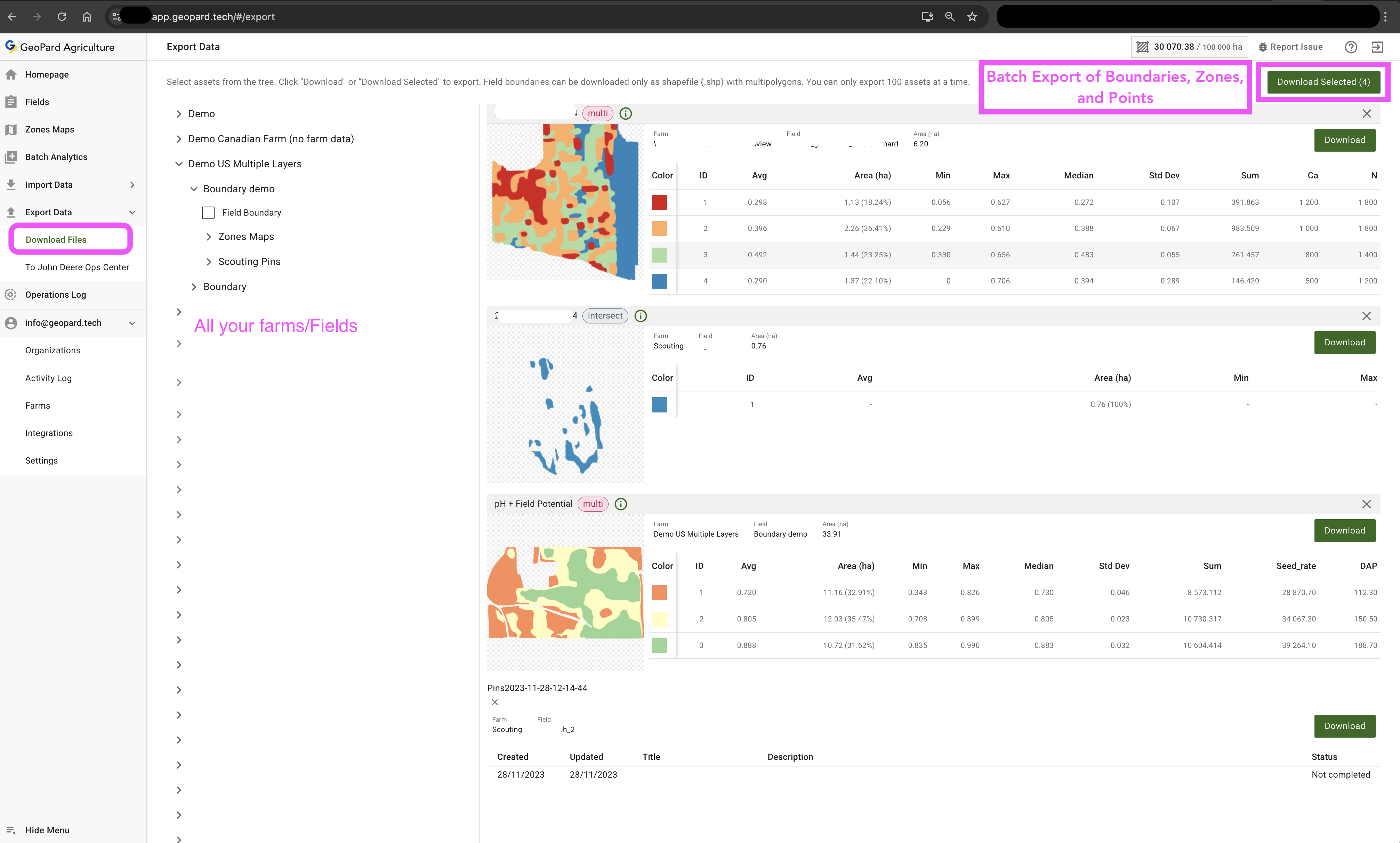
GeoPard låter dig exportera datalager och VRA-kartor i batch, med en gräns på 100 lager per nedladdning.
Flytta lager till ditt GIS, John Deere Operations Center eller vilken utrustningsstyrenhet som helst med ett par klick.
Massexport av gränser, zoner och skanningsnålar
### Snabb väg
* Gå till **Exportera data** i [`app.geopard.tech/#/export`](https://app.geopard.tech/#/export).
* Markera de lager du behöver – zoner, skanningsnålar, gränser osv.
* Tryck på **Ladda ner markerade**.
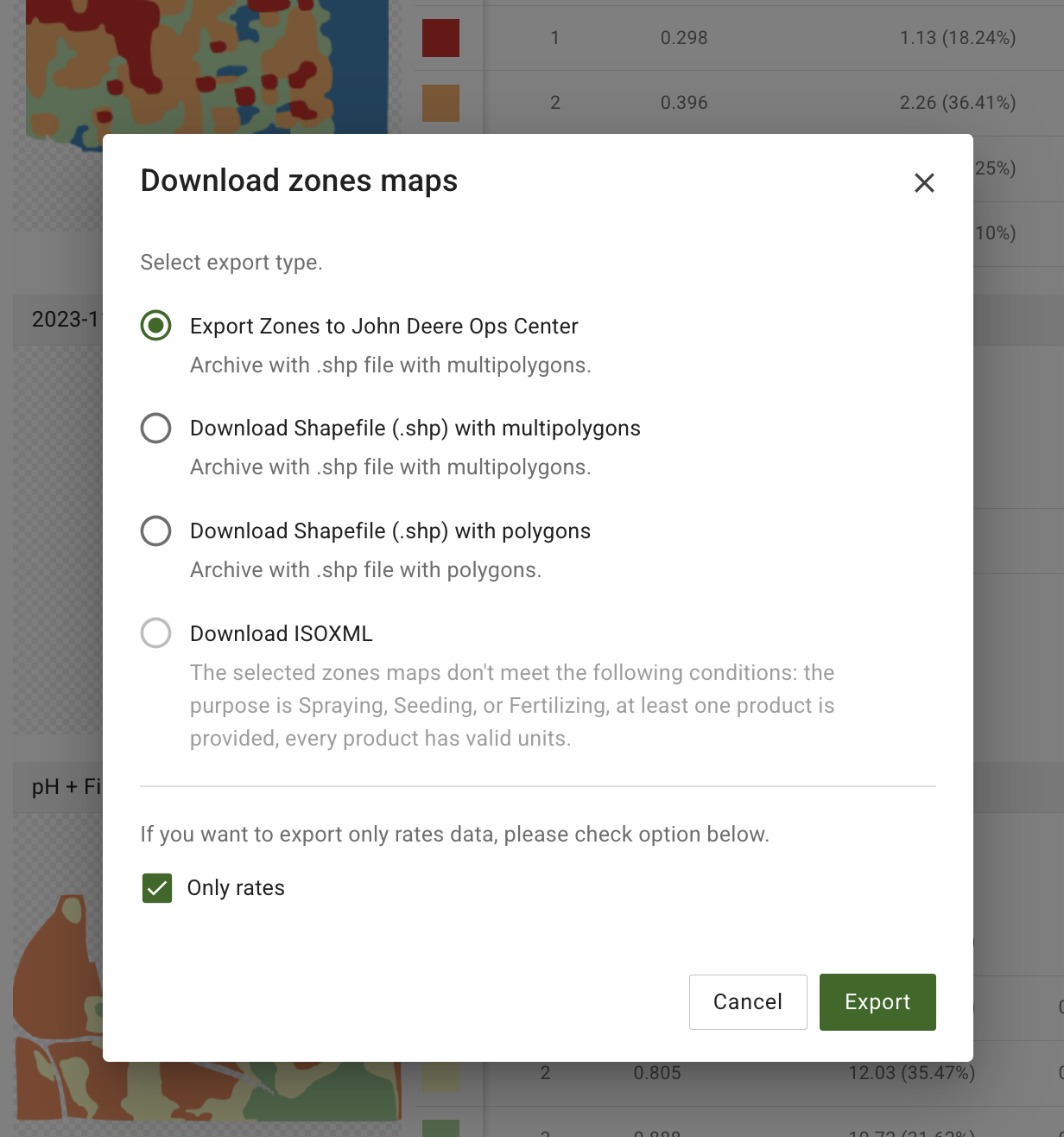
* I popup-fönstret väljer du exporttyp (se nedan) och trycker på **Export**.
Exportalternativ
### Exporttyper
| Alternativ | Det här får du | När du ska använda det |
| ---------------------------------------------- | ---------------------------------------------------------------- | ----------------------------------------------------------------------------------------------------------------------------------------- |
| **Exportera zoner till John Deere Ops Center** | ZIP med en shapefil för multipolygoner | Direkt uppladdning till John Deere Ops Center som Rx-filer |
| **Ladda ner shapefil (.shp) – multipolygoner** | En funktion per klass, perfekt för de flesta GIS och styrenheter | Klassiskt VRA-flöde |
| **Ladda ner shapefil (.shp) – polygoner** | Varje polygon som egen funktion | När du behöver rå geometri för redigering. Vissa monitorer har gränser för polygoner, så multipolygoner är oftast bättre. |
| **Ladda ner ISOXML** | ISOXML-uppdragsfil | Aktiv när kartan har sprut-, så- eller gödslingsmängder med giltiga enheter. Förutsättning: ange enheter och typ av arbete när du skapar. |
| **Endast mängder** (kryssruta) | Samma fil men innehåller bara kolumnen för mängd | För variabel giva, för att minimera risken för mänskliga fel |
### Steg för steg
1. Öppna **Ladda ner filer** eller gå direkt till `/export`.
2. Expandera gårdar och fält, markera upp till **100** lager.
3. Ett förhandskort visas för varje lager så att du kan dubbelkolla.
4. Klicka **Ladda ner markerade** → välj exporttyp → **Export**.
5. GeoPard bygger en ZIP-fil. Varje lager blir sitt eget shapefilsset (`.shp`, `.shx`, `.dbf`, `.prj`, `.cpg`). Ingen GeoJSON eller CSV i det här steget.
6. Arkivet laddas automatiskt ner till webbläsarens standardmapp för nedladdningar.
### Bra att veta
* Filnamn slutar med `_GP`, så att du kan spåra dem tillbaka till GeoPard.
* Alla attribut följer med oförändrade: zon-ID, medelvärde, areal, statistik, anteckningar, foton osv.
### Exempel på nedladdat arkiv
Nedladdat arkiv på macOS. Du kan importera SHP-filen till en VRA-monitor eller ett annat GIS-verktyg.
### Vanliga arbetsflöden
| Mål | Vad du ska välja | Resultat |
| -------------------------------------------------- | ----------------------------- | ------------------------------------------------------------------- |
| Skapa utsädesrecept för våren | Zonkartor från flera fält | ZIP med shapefiler redo för sammanslagning i styrenheten |
| Dela skanningsresultat med en växtodlingsrådgivare | Alla skanningsnålar på gården | Shapefil som hon kan öppna i QGIS eller ladda upp igen till GeoPard |
| Skapa en ren GIS-bas | Fältgränser + viktiga zoner | Fullt gårdspaket för vilket GIS som helst |
---
# Agent Instructions
This documentation is published with GitBook. GitBook is the documentation platform designed so that both humans and AI agents can read, navigate, and reason over technical content effectively. Learn more at gitbook.com.
## Querying This Documentation
If you need additional information that is not directly available in this page, you can query the documentation by asking a question.
Perform an HTTP GET request on the following URL with the `ask` and `goal` query parameters:
```
GET https://docs.geopard.tech/geopard-tutorials/swe/produktvandring-webbapp/exportera-ladda-ner/batchexport-av-granser-zoner-och-faltvandringspunkter.md?ask=&goal=
```
`ask` is the immediate question: it should be specific, self-contained, and written in natural language.
`goal` is what the user is ultimately trying to achieve, the reason they need the answer. Sharing it helps GitBook give you a better, more relevant answer. A goal is most helpful when it describes the outcome the user wants rather than restating the question. For example, with `ask=how do I create an API token`, a goal like `automate deployments from our CI pipeline` lets GitBook tailor the answer to that use case.
The response will contain a direct answer to the question and relevant excerpts and sources from the documentation.
Use this mechanism when the answer is not explicitly present in the current page, you need clarification or additional context, or you want to retrieve related documentation sections.