> For the complete documentation index, see [llms.txt](https://docs.geopard.tech/geopard-tutorials/llms.txt). Markdown versions of documentation pages are available by appending `.md` to page URLs; this page is available as [Markdown](https://docs.geopard.tech/geopard-tutorials/swe/produktvandring-mobilapp/arbeta-offline.md).
# Arbeta offline
Använd GeoPard mobilapp offline och håll igång fältarbetet utan täckning.
Arbeta offline
Innan du börjar arbeta med GeoPard-mobilappen rekommenderar vi att du sparar dina inloggningsuppgifter, så att du inte får problem med att komma åt appen när du saknar nätverksanslutning.
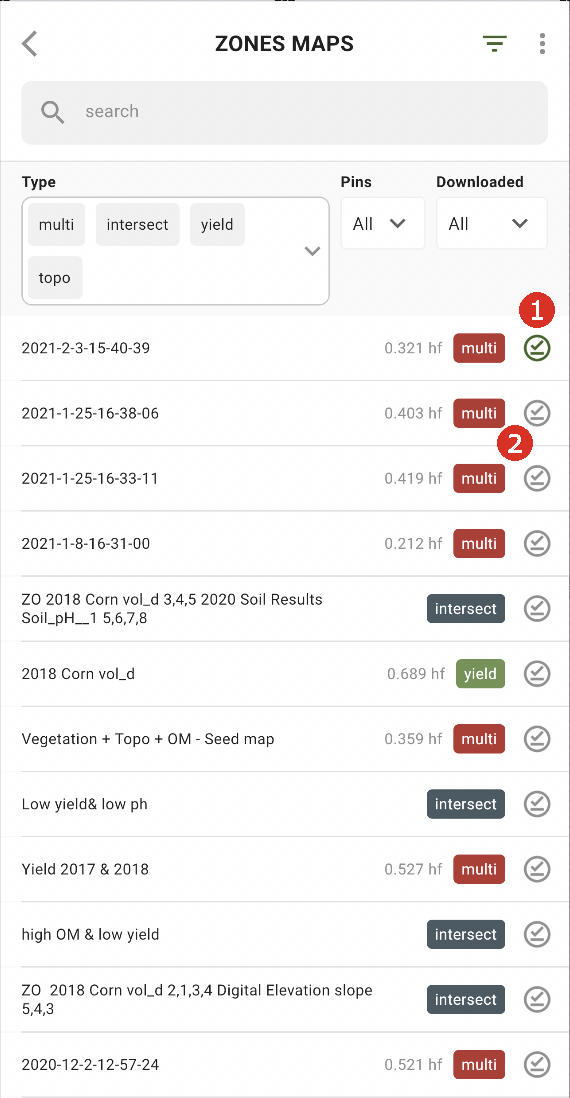
För att kunna arbeta offline behöver du ladda ner kartan för zoner till din smartphone. Tryck på nedladdningsknappen bredvid den zonkarta du vill ladda ner (2).
När kartan har laddats ner till din enhet visas en grön bock bredvid den (1).
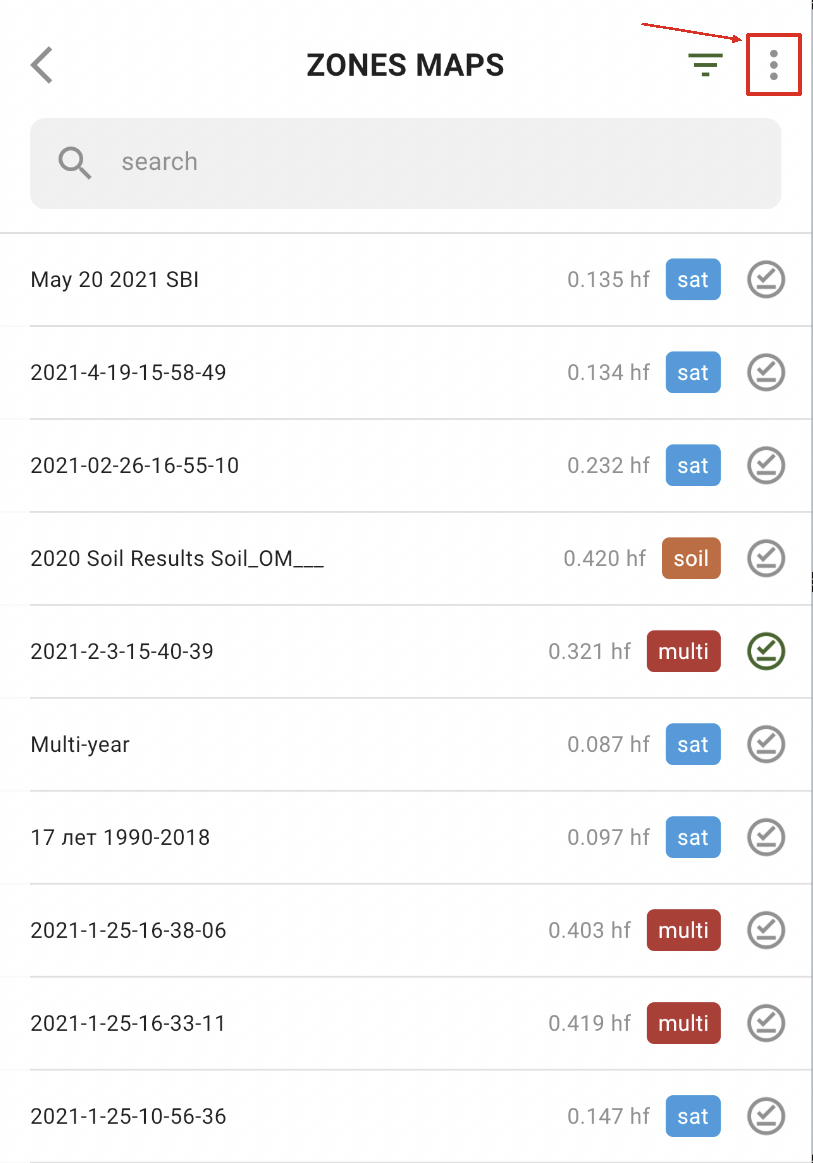
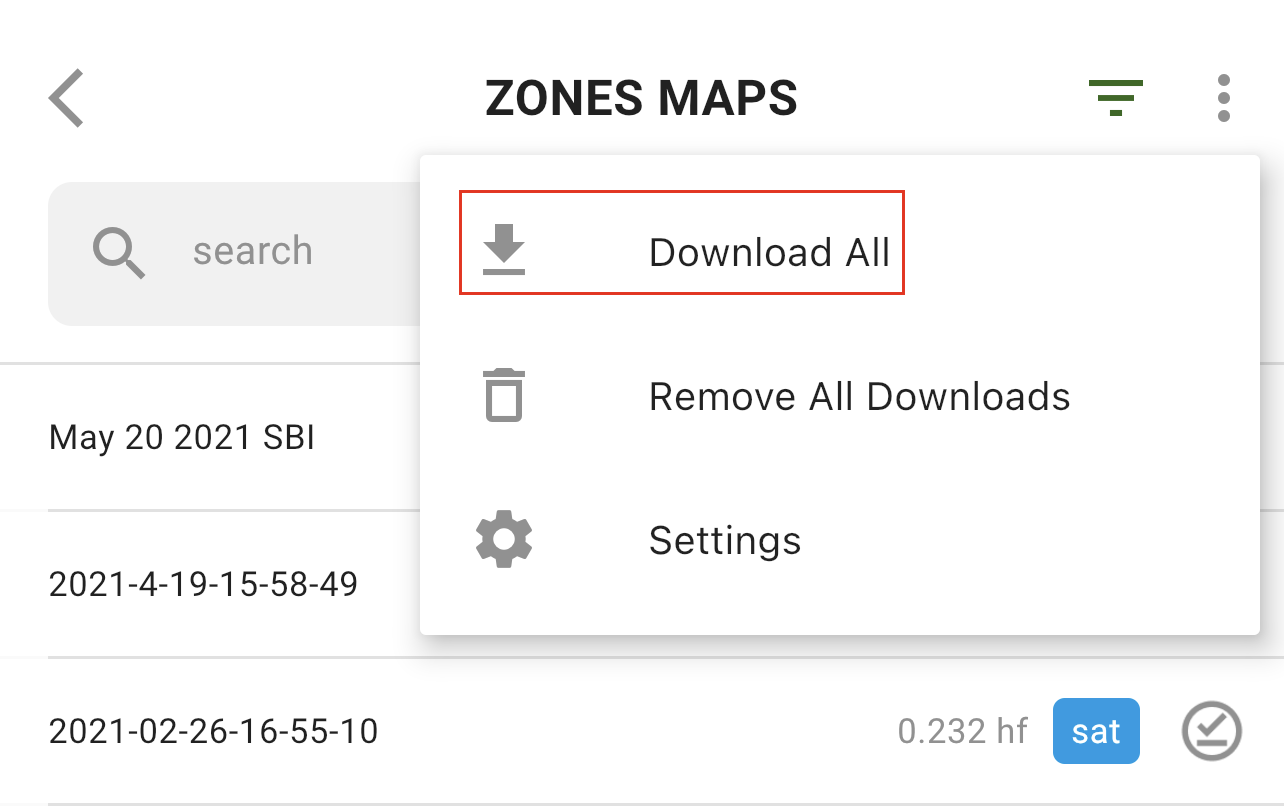
För att ladda ner alla zonkartor på en gång, tryck på alternativet Mer:
och välj alternativet ”Ladda ner alla”:
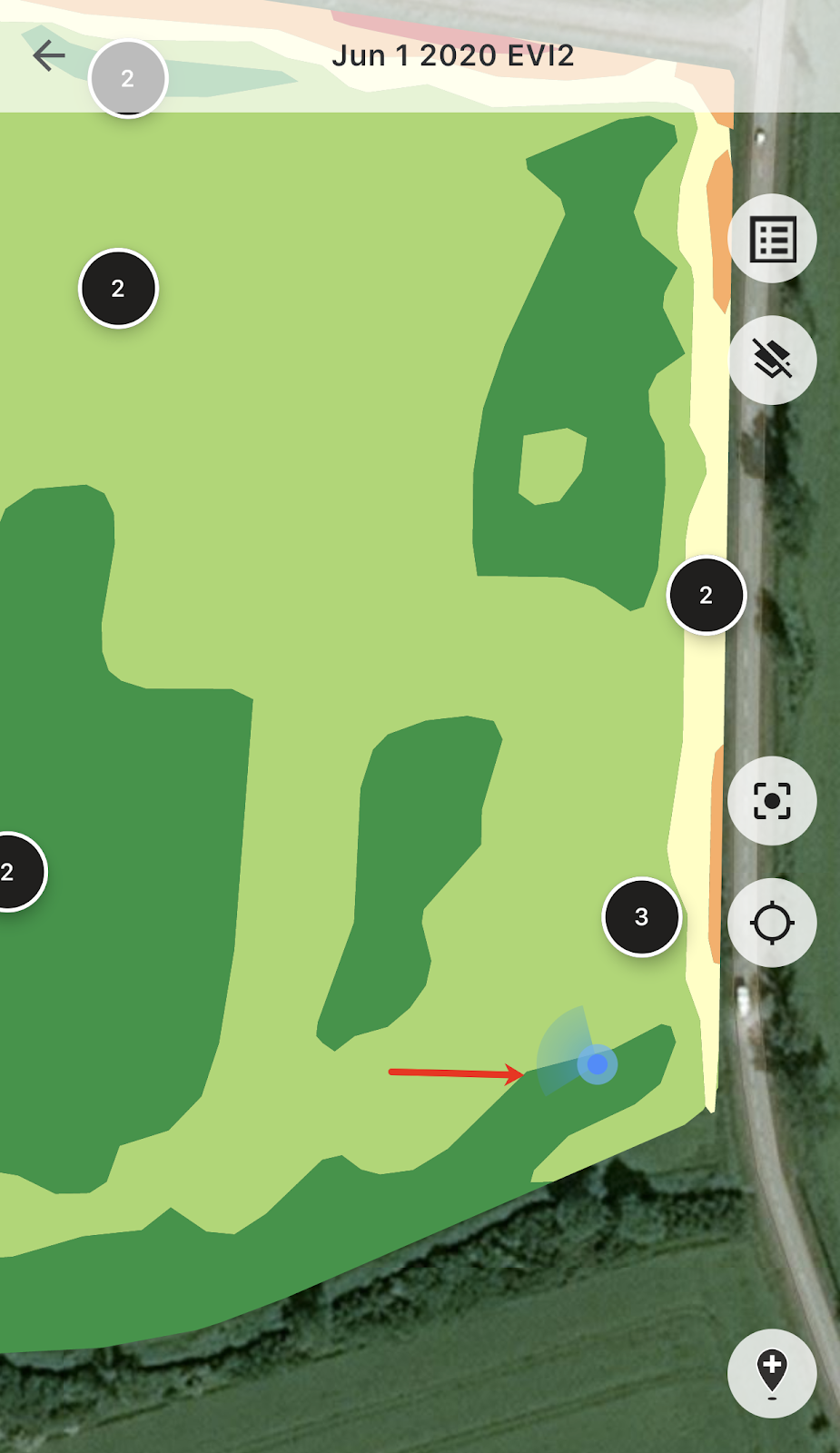
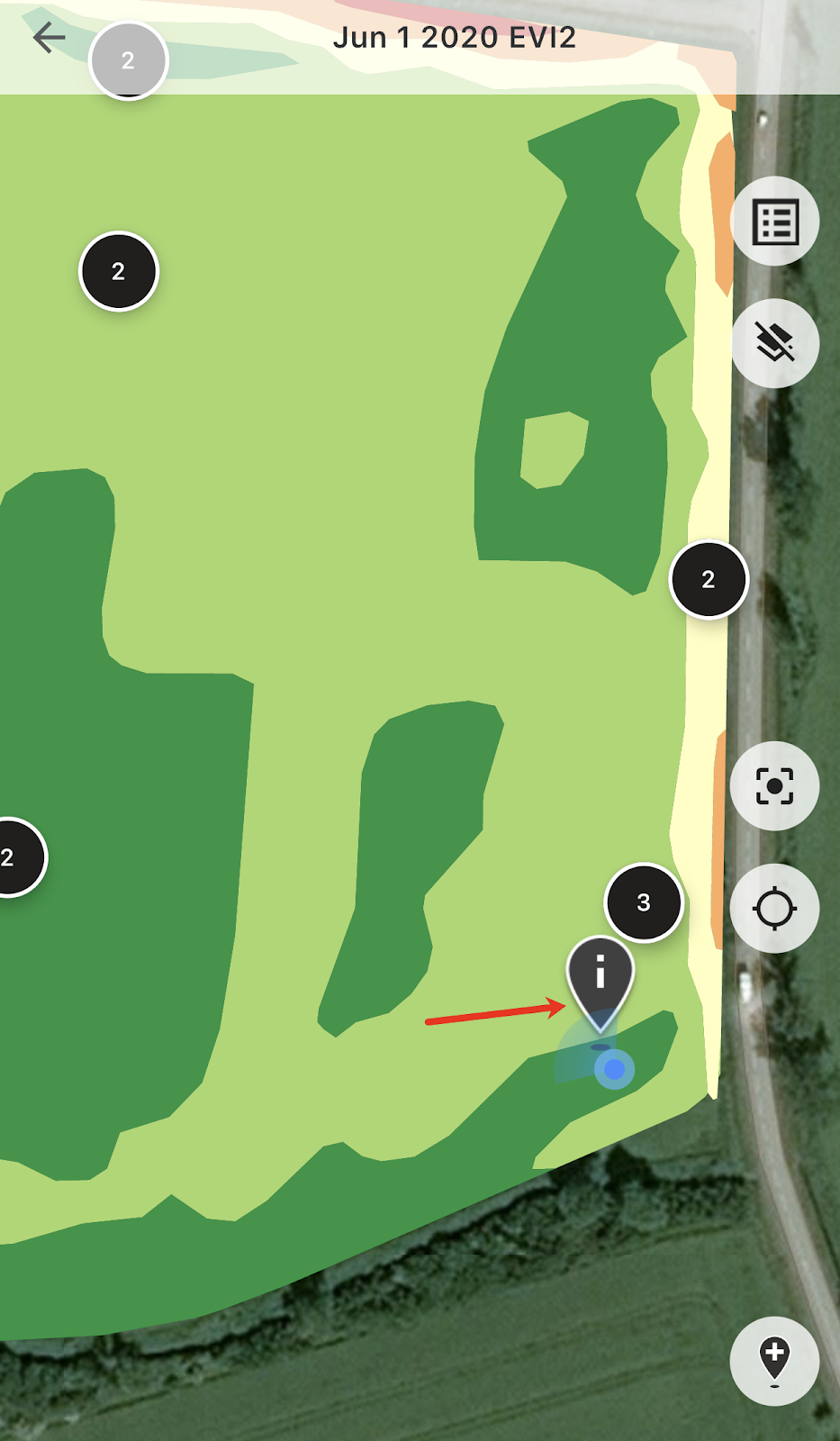
När du är ute på fältet kan du följa din plats och se i vilken riktning du rör dig.
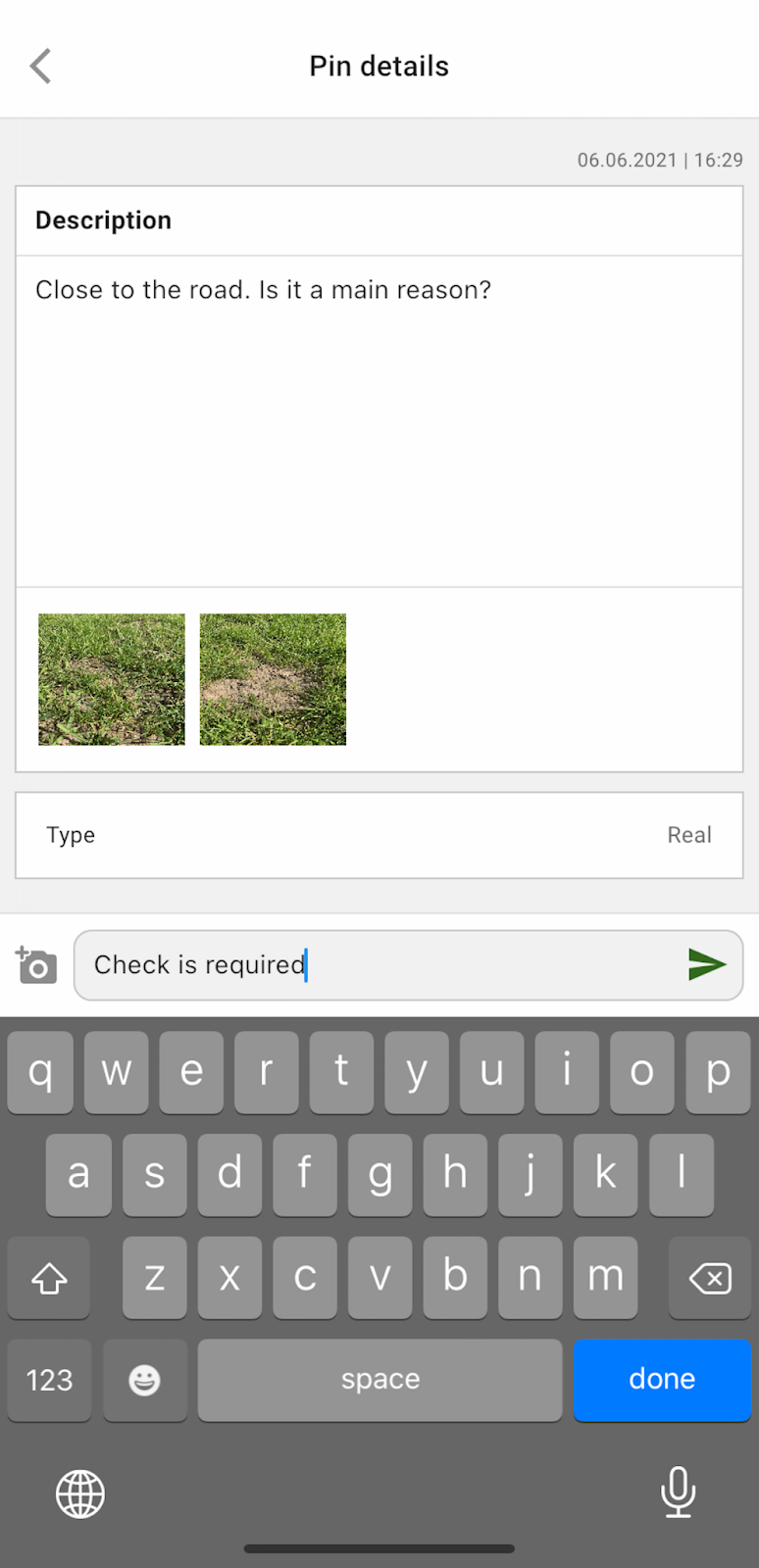
Du kan trycka på valfri av de planerade pinnarna och lägga till/redigera kommentarer.
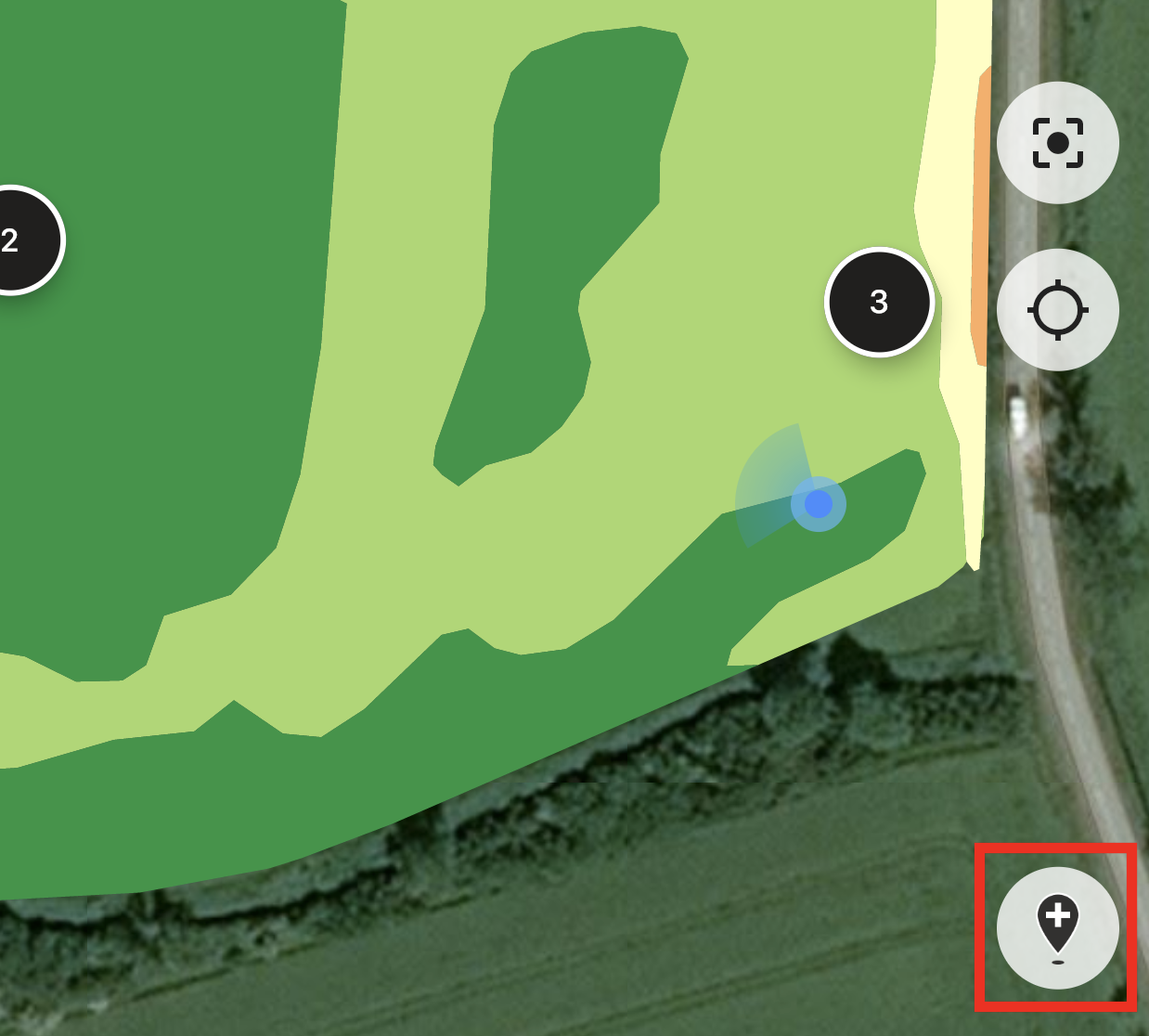
Eller, om du har upptäckt något som behöver uppmärksamhet (en avvikelse eller om fältgränsen är fel), tryck på knappen Lägg till ny pinne.
Skriv in dina kommentarer och tryck på knappen ”Spara” för att lägga till en ny pinne i zonkartan.
Pinnarna som du lägger till via din mobil enhet har en annan ikon jämfört med de planerade pinnarna som du lägger till via webbappen.
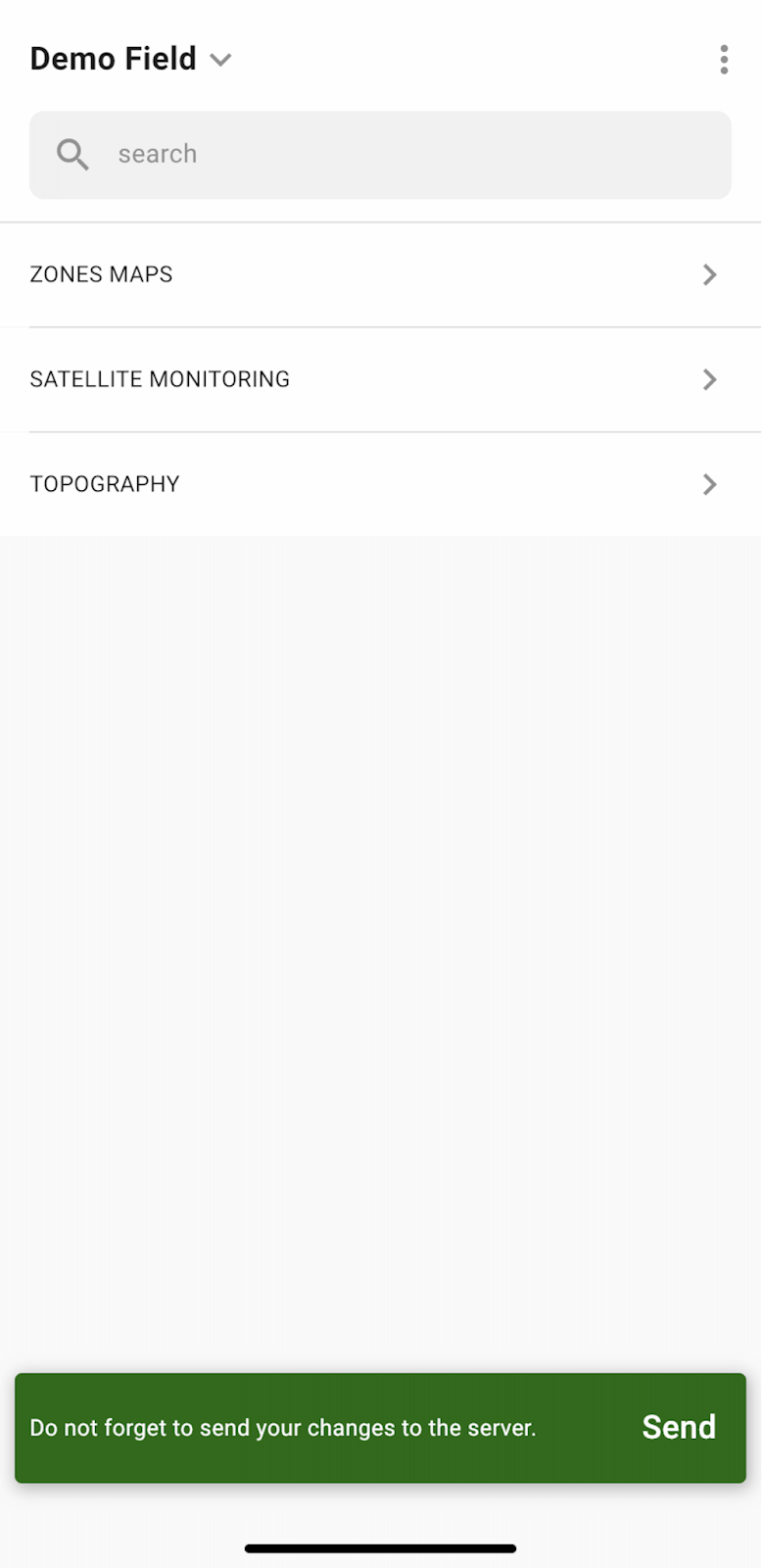
När du har avslutat ditt arbete ute på fältet och har lagt till/redigerat pinnar visas ett meddelande som ber dig ladda upp dina ändringar till servern. Eller, om du arbetar offline, får du en uppmaning att ladda upp dina ändringar när du åter är ansluten till nätverket.
Tryck på ”Skicka” för att synkronisera dina ändringar med servern.
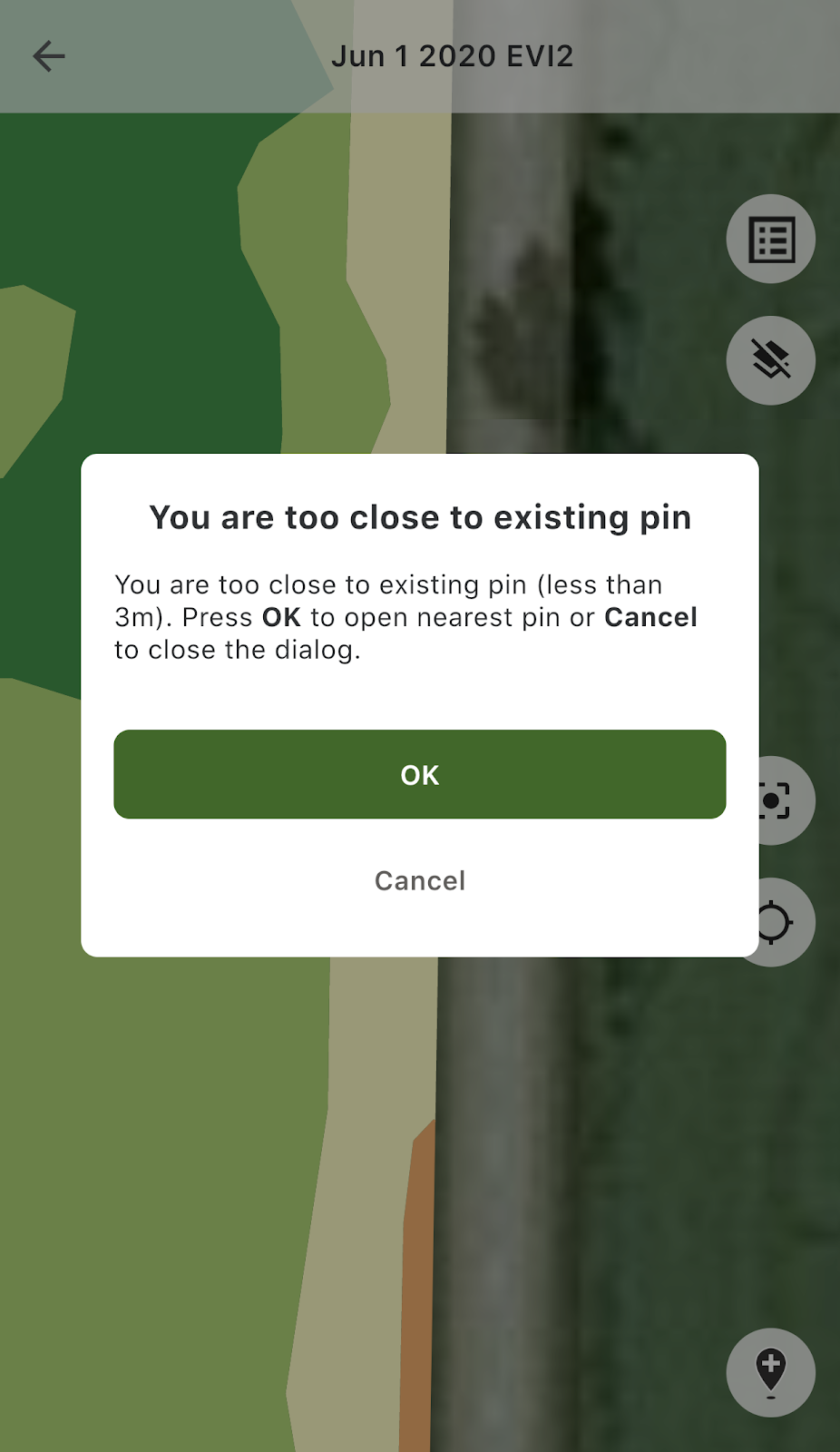
Om du är nära en befintlig pinne och försöker lägga till en ny pinne, visas följande meddelande:
I så fall kan du trycka på antingen ”OK” för att öppna den närmaste pinnen, eller ”Avbryt” för att stänga popupmeddelandet.
---
# Agent Instructions
This documentation is published with GitBook. GitBook is the documentation platform designed so that both humans and AI agents can read, navigate, and reason over technical content effectively. Learn more at gitbook.com.
## Querying This Documentation
If you need additional information that is not directly available in this page, you can query the documentation by asking a question.
Perform an HTTP GET request on the following URL with the `ask` and `goal` query parameters:
```
GET https://docs.geopard.tech/geopard-tutorials/swe/produktvandring-mobilapp/arbeta-offline.md?ask=&goal=
```
`ask` is the immediate question: it should be specific, self-contained, and written in natural language.
`goal` is what the user is ultimately trying to achieve, the reason they need the answer. Sharing it helps GitBook give you a better, more relevant answer. A goal is most helpful when it describes the outcome the user wants rather than restating the question. For example, with `ask=how do I create an API token`, a goal like `automate deployments from our CI pipeline` lets GitBook tailor the answer to that use case.
The response will contain a direct answer to the question and relevant excerpts and sources from the documentation.
Use this mechanism when the answer is not explicitly present in the current page, you need clarification or additional context, or you want to retrieve related documentation sections.