> For the complete documentation index, see [llms.txt](https://docs.geopard.tech/geopard-tutorials/llms.txt). Markdown versions of documentation pages are available by appending `.md` to page URLs; this page is available as [Markdown](https://docs.geopard.tech/geopard-tutorials/svn/predstavitev-izdelka-spletna-aplikacija/zemljevidi-con-in-analitika/ustvari-zemljevid-con-s-pomocjo-predloge.md).
# Ustvari zemljevid con s pomočjo predloge
Ponovno uporabite shranjeno predlogo con za standardizacijo ustvarjanja upravljavskih con po poljih.
Predloga zemljevida con je uporabna, ko želite ustvariti nov zemljevid iz podatkov in nastavitev obstoječega zemljevida con ter nato dodati nove podatke. Na primer, morda imate 3-letni satelitski zemljevid con in želite dodati novo sliko iz tekočega leta, pri čemer ohranite enako število con in vegetacijski indeks.
Postopek je enak kot pri ustvarjanju novega zemljevida con, vendar zdaj kot izhodišče uporabite že obstoječi zemljevid con.
1. V drevesu izberite polje in kliknite **Ustvari zemljevid con** , izberite **Klonirajte obstoječi zemljevid con**, nato pa kliknite **Naprej**.
2. V naslednjem koraku izberite zemljevid con, ki ga želite uporabiti kot predlogo. Kliknite **Naprej**.
3. Uporabijo se enaka merila z enakim indeksom. Vidite predizbrane slike, uporabljene pri analizi predloge. Tu lahko izberete sliko (slike), ki jo želite dodati ali zamenjati.
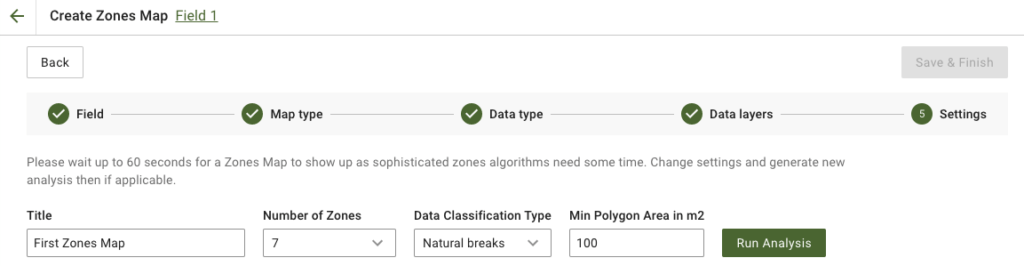
4. V naslednjem koraku lahko uredite naslov, spremenite število con, [izberite vrsto klasifikacije podatkov](/geopard-tutorials/svn/predstavitev-izdelka-spletna-aplikacija/zemljevidi-con-in-analitika/uporaba-klasifikacije-podatkov.md)in določite najmanjšo površino poligona v kvadratnih metrih. Kliknite **Zaženi analizo** za nadaljevanje.
Analiza lahko traja do 60 sekund, odvisno od parametrov, ki ste jih določili.
5. Ko je končana, kliknite **Shrani in končaj**.
Ko je shranjeno, boste videli naslednje sporočilo:
Ustvarite lahko še en zemljevid con, dodelite mere ali odprete pravkar ustvarjeni zemljevid con.
---
# Agent Instructions
This documentation is published with GitBook. GitBook is the documentation platform designed so that both humans and AI agents can read, navigate, and reason over technical content effectively. Learn more at gitbook.com.
## Querying This Documentation
If you need additional information that is not directly available in this page, you can query the documentation by asking a question.
Perform an HTTP GET request on the following URL with the `ask` and `goal` query parameters:
```
GET https://docs.geopard.tech/geopard-tutorials/svn/predstavitev-izdelka-spletna-aplikacija/zemljevidi-con-in-analitika/ustvari-zemljevid-con-s-pomocjo-predloge.md?ask=&goal=
```
`ask` is the immediate question: it should be specific, self-contained, and written in natural language.
`goal` is what the user is ultimately trying to achieve, the reason they need the answer. Sharing it helps GitBook give you a better, more relevant answer. A goal is most helpful when it describes the outcome the user wants rather than restating the question. For example, with `ask=how do I create an API token`, a goal like `automate deployments from our CI pipeline` lets GitBook tailor the answer to that use case.
The response will contain a direct answer to the question and relevant excerpts and sources from the documentation.
Use this mechanism when the answer is not explicitly present in the current page, you need clarification or additional context, or you want to retrieve related documentation sections.