> For the complete documentation index, see [llms.txt](https://docs.geopard.tech/geopard-tutorials/llms.txt). Markdown versions of documentation pages are available by appending `.md` to page URLs; this page is available as [Markdown](https://docs.geopard.tech/geopard-tutorials/svn/predstavitev-izdelka-spletna-aplikacija/john-deere-operations-center-integration/6.-export-rx-maps-to-john-deere-operations-center-as-files.md).
# Pošiljanje datotek s predpisanim odmerjanjem v John Deere Operations Center
Naložite območja in predpisana odmerjanja po enačbi iz GeoPard v razdelek Files v ustrezni organizaciji Operations Center, nato pa jih pošljite na zaslon ali kopirajte na ključ USB.
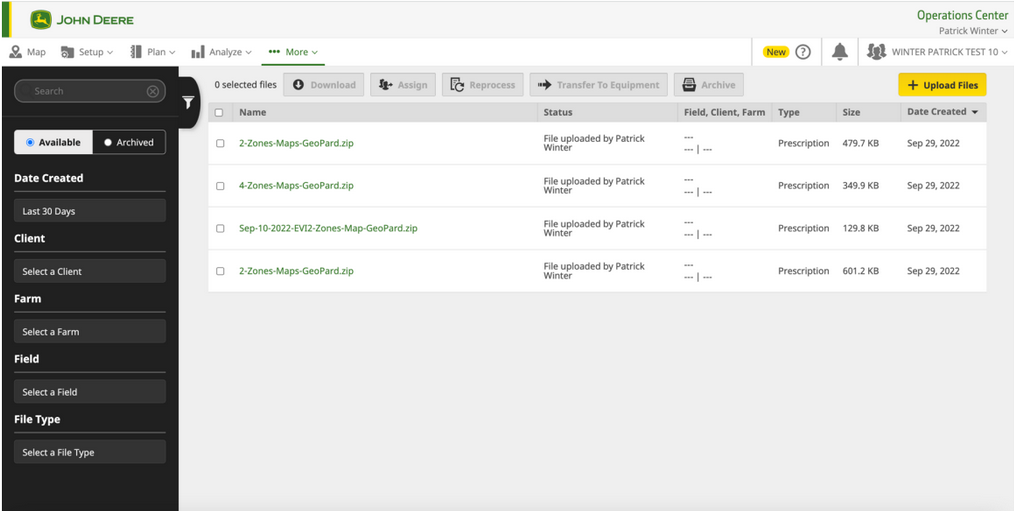
GeoPard naloži zemljevid con ali zemljevid enačb v območje Datoteke organizacije John Deere, ki jo izberete. V območju Datoteke lahko pošljete predpis na prikazovalnik z brezžičnim prenosom podatkov ali pa ga kopirate na ključ USB, če stroj nima povezave. Datoteke uporabite, kadar upravljavec pripravi opravilo v kabini; delovni načrt pa, kadar ga pripravi pisarna. Ime organizacije, prikazano sivo, pomeni, da GeoPard še nima dostopa do nje.
{% hint style="success" %}
Pošljite svoj prvi predpis v Operations Center: [Začnite brezplačno](https://app.geopard.tech/auth/sign-up?utm_source=docs\&utm_medium=cta\&utm_campaign=6.-export-rx-maps-to-john-deere-operations-center-as-files)
{% endhint %}
4\. Izvoz v John Deere Operations Center
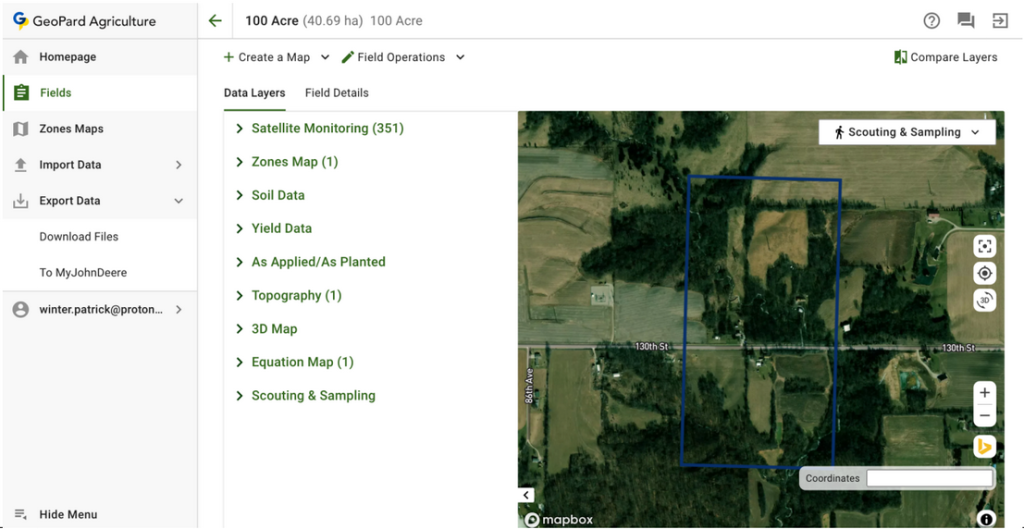
4.1 Stranke GeoPard lahko izvozijo podatke (predpise Rx VRA ali druge podatkovne sloje) iz GeoPard v John Deere Operations Center. Prvi korak je, da se [prijavite](https://app.geopard.tech/auth/sign-in) in odprete zavihek **Izvoz v MyJohnDeere** .
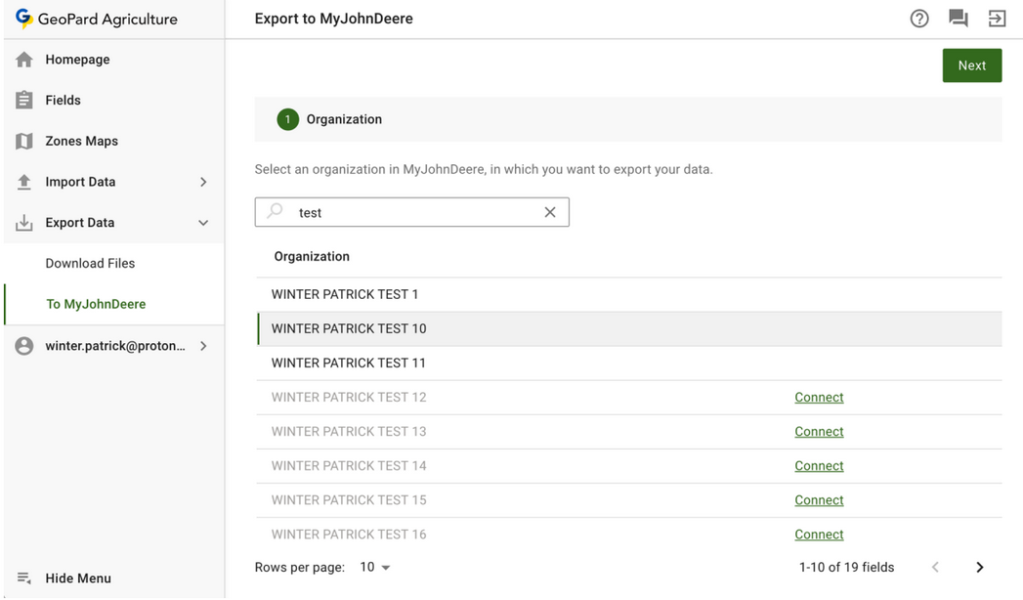
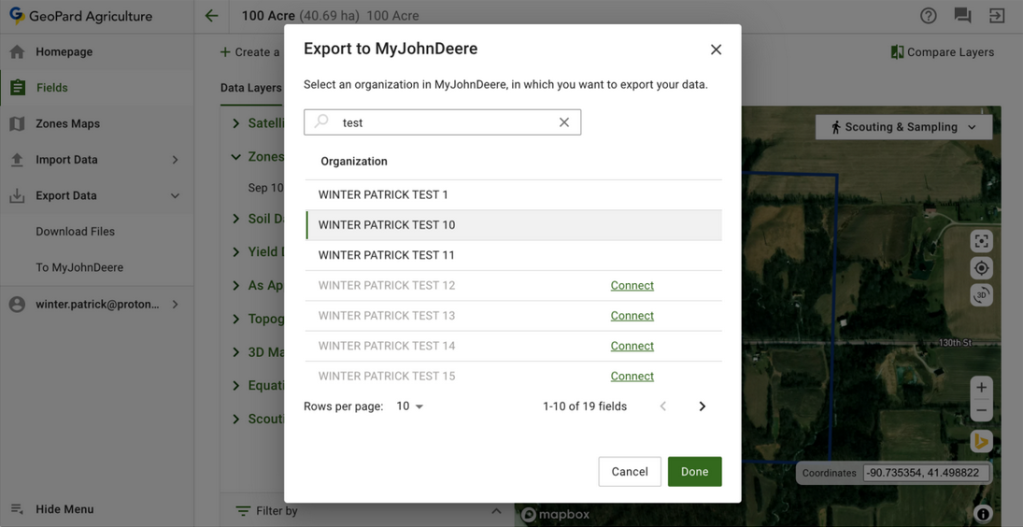
4.2 Uporabnik mora izbrati ciljno organizacijo, v katero bo GeoPard naložil datoteke. Organizacijo lahko poišče po besedilu. Če organizacija John Deere ni omogočena (njeno **ime je prikazano sivo**), mora uporabnik omogočiti dostop do John Deere Operations Center. Oglejte si navodila za [Povezovanje profila GeoPard z organizacijo John Deere](https://docs.geopard.tech/geopard-tutorials/svn/predstavitev-izdelka-spletna-aplikacija/john-deere-operations-center-integration/3.-connect-to-john-deere-organizations.md).
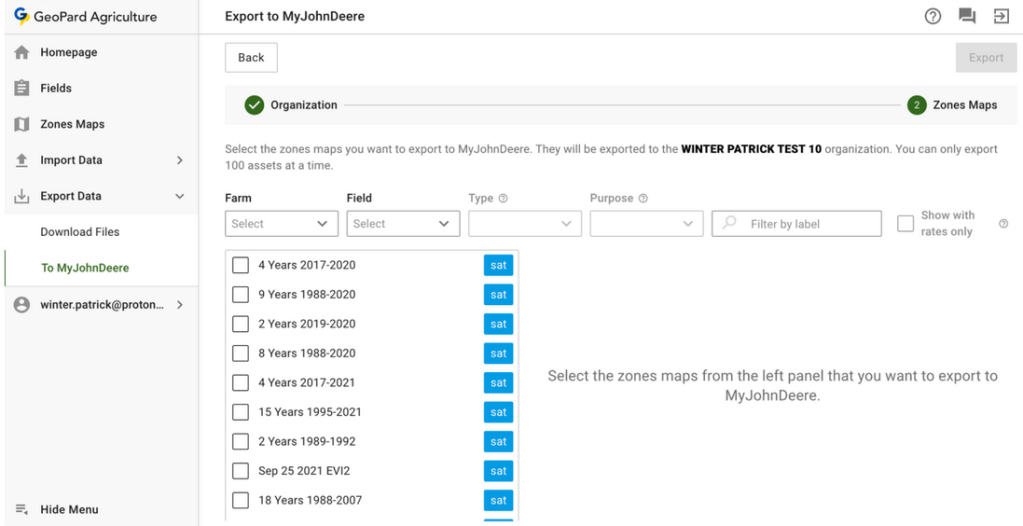
4.3 Nato uporabnik izbere sredstva, ki jih bo GeoPard naložil v John Deere Operations Center.
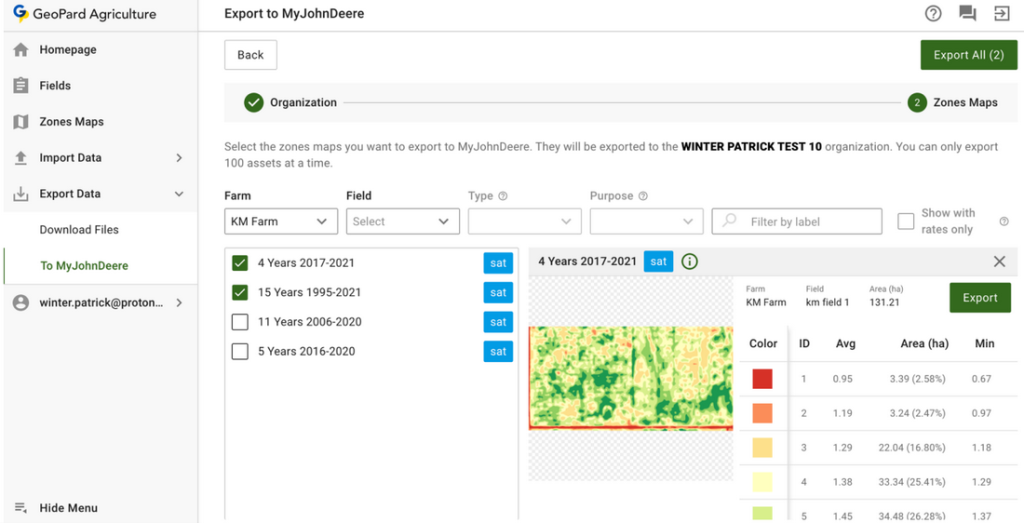
4.4 Uporabnik lahko filtrira sredstva.
4.5 Ko so izbrana vsa sredstva, jih lahko uporabnik naloži vsa hkrati s klikom gumba **Izvozi vse** ali pa posamezna sredstva naloži s klikom gumba **Izvozi** .
4.6 Po kliku se uporabniku prikaže sporočilo z rezultatom postopka.
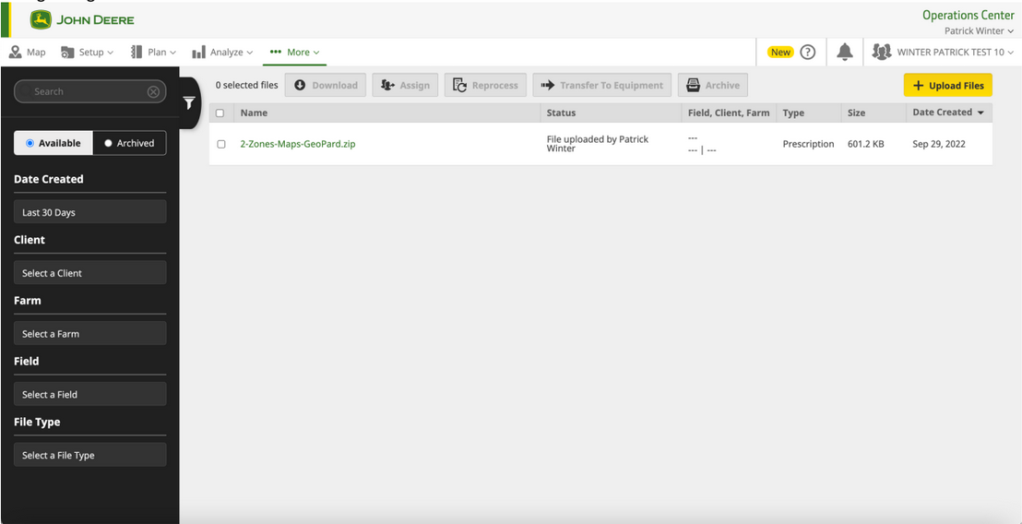
4.7 Nato bi moral uporabnik rezultat videti v John Deere Operations Center ([https://files.deere.com](https://files.deere.com/)). *Bodite pozorni na to, katere organizacije uporabnik izbere v GeoPard Agriculture in John Deere Operations Center.*
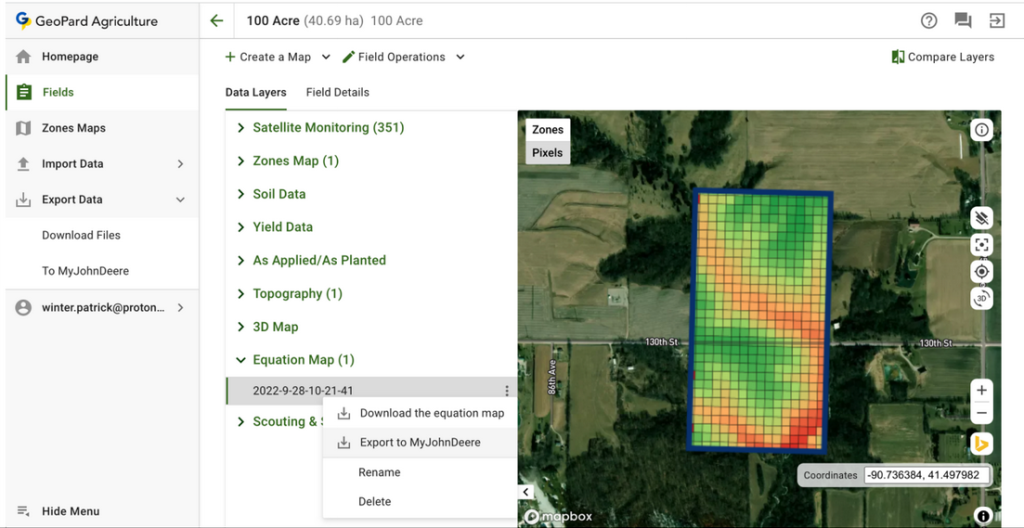
4.8 Stranke GeoPard lahko na zavihku Polje izvozijo zemljevide con (predpise Rx VRA) in zemljevide enačb v John Deere Operations Center.
4.8.1 Ko izbere zemljevid con, mora uporabnik v ustreznem meniju klikniti **Izvoz v MyJohnDeere** .
4.8.2 Ko izbere zemljevid enačb, mora uporabnik v ustreznem meniju klikniti **Izvoz v MyJohnDeere** .
4.8.3 Nato uporabnik izbere ciljno organizacijo John Deere, v katero bo GeoPard naložil datoteko. Organizacijo lahko poišče po besedilu. Če organizacija John Deere ni omogočena (njeno **ime je prikazano sivo**), mora uporabnik omogočiti dostop do John Deere Operations Center in si ogledati navodila za [Povezovanje profila GeoPard z organizacijo John Deere](https://docs.geopard.tech/geopard-tutorials/svn/predstavitev-izdelka-spletna-aplikacija/john-deere-operations-center-integration/3.-connect-to-john-deere-organizations.md).
4.8.4 Po kliku gumba **Končano** se uporabniku prikaže sporočilo z rezultatom postopka.
4.8.5 Nato bi moral uporabnik rezultat videti v John Deere Operations Center ([https://files.deere.com](https://files.deere.com/)).\
\&#xNAN;*Bodite pozorni na to, katere organizacije uporabnik izbere v GeoPard Agriculture in John Deere Operations Center.*
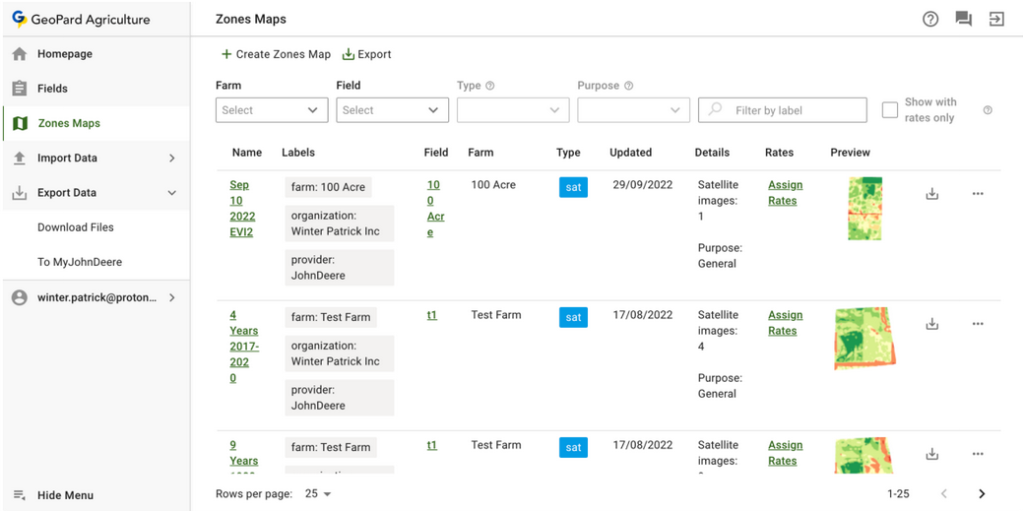
4.9 Stranke GeoPard lahko iz zavihka **Zemljevidi con** izvozijo zemljevide con (predpise Rx VRA) v John Deere Operations Center.
4.9.1 Uporabnik lahko izvozi posamezen zemljevid con s klikom ustreznega gumba za izvoz.
4.9.2 Uporabnik lahko izvozi več zemljevidov con tako, da klikne ustrezni gumb za izvoz in izbere elemente.
4.9.3 Po kliku gumba **Izvozi** bo uporabnik videl **Izvoz zemljevidov območij** v pojavnem oknu, nato naj uporabnik izbere **Izvozi območja v John Deere Operations Center** možnost in klikne gumb **Izvozi** .
4.9.4 Nato uporabnik izbere ciljno organizacijo John Deere, v katero bo GeoPard naložil datoteko. Uporabnik lahko organizacije išče po besedilu. Če je organizacija John Deere onemogočena ( **ime je prikazano sivo**), naj uporabnik omogoči dostop do John Deere Operations Center. Oglejte si [Povezovanje profila GeoPard z organizacijo John Deere](https://docs.geopard.tech/geopard-tutorials/svn/predstavitev-izdelka-spletna-aplikacija/john-deere-operations-center-integration/3.-connect-to-john-deere-organizations.md).
4.9.5 Ko klikne gumb **Done** , bo uporabnik videl sporočilo o rezultatu postopka.
4.9.6 Nato naj uporabnik preveri rezultat v John Deere Operations Center ([https://files.deere.com](https://files.deere.com/)). Bodite pozorni na organizacije, ki jih uporabnik izbere v aplikacijah GeoPard Agriculture in John Deere Operations Center.
{% hint style="success" %}
Pošljite svoj prvi predpis v Operations Center: [Začnite brezplačno](https://app.geopard.tech/auth/sign-up?utm_source=docs\&utm_medium=cta\&utm_campaign=6.-export-rx-maps-to-john-deere-operations-center-as-files)
{% endhint %}
---
# Agent Instructions
This documentation is published with GitBook. GitBook is the documentation platform designed so that both humans and AI agents can read, navigate, and reason over technical content effectively. Learn more at gitbook.com.
## Querying This Documentation
If you need additional information that is not directly available in this page, you can query the documentation by asking a question.
Perform an HTTP GET request on the following URL with the `ask` and `goal` query parameters:
```
GET https://docs.geopard.tech/geopard-tutorials/svn/predstavitev-izdelka-spletna-aplikacija/john-deere-operations-center-integration/6.-export-rx-maps-to-john-deere-operations-center-as-files.md?ask=&goal=
```
`ask` is the immediate question: it should be specific, self-contained, and written in natural language.
`goal` is what the user is ultimately trying to achieve, the reason they need the answer. Sharing it helps GitBook give you a better, more relevant answer. A goal is most helpful when it describes the outcome the user wants rather than restating the question. For example, with `ask=how do I create an API token`, a goal like `automate deployments from our CI pipeline` lets GitBook tailor the answer to that use case.
The response will contain a direct answer to the question and relevant excerpts and sources from the documentation.
Use this mechanism when the answer is not explicitly present in the current page, you need clarification or additional context, or you want to retrieve related documentation sections.