> For the complete documentation index, see [llms.txt](https://docs.geopard.tech/geopard-tutorials/llms.txt). Markdown versions of documentation pages are available by appending `.md` to page URLs; this page is available as [Markdown](https://docs.geopard.tech/geopard-tutorials/svn/predstavitev-izdelka-spletna-aplikacija/john-deere-operations-center-integration/6.-export-rx-maps-to-john-deere-operations-center-as-files.md).
# Pošiljanje datotek s predpisanim odmerjanjem v John Deere Operations Center
Naložite območja in predpisana odmerjanja po enačbi iz GeoPard v razdelek Files v ustrezni organizaciji Operations Center, nato pa jih pošljite na zaslon ali kopirajte na ključ USB.
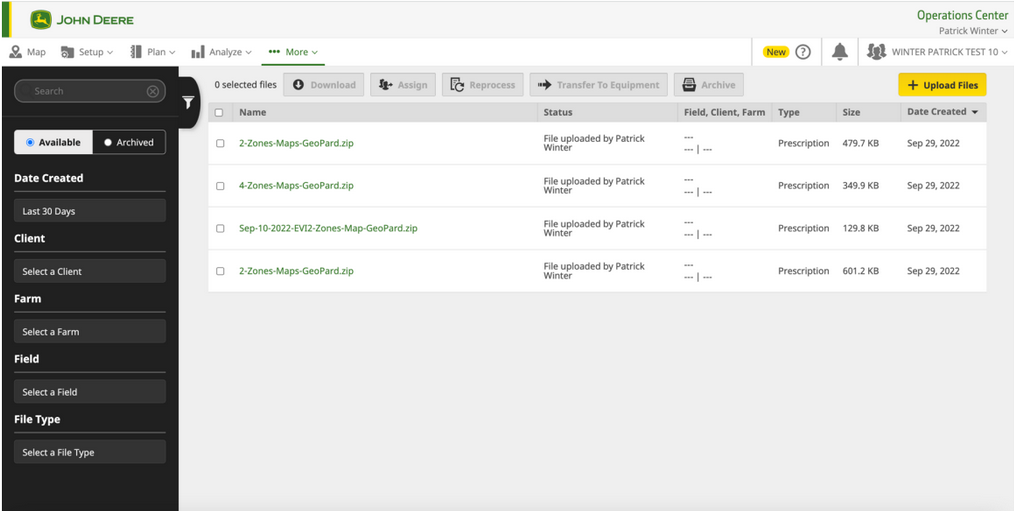
GeoPard naloži karto območij ali karto enačb v razdelek Datoteke izbrane organizacije John Deere. Iz razdelka Datoteke pošljete aplikacijsko karto na zaslon z brezžičnim prenosom podatkov ali jo kopirate na ključek USB, če stroj nima povezave. Datoteke uporabite, kadar izvajalec nastavi opravilo v kabini; delovni načrt pa, kadar ga pripravi pisarna. Sivo prikazano ime organizacije pomeni, da GeoPard še nima dostopa do nje.
{% hint style="success" %}
Pošljite svojo prvo aplikacijsko karto v Operations Center: [Začnite brezplačno](https://app.geopard.tech/auth/sign-up?utm_source=docs\&utm_medium=cta\&utm_campaign=6.-export-rx-maps-to-john-deere-operations-center-as-files)
{% endhint %}
4\. Izvoz v John Deere Operations Center
4.1 Uporabniki GeoParda lahko izvozijo podatke (aplikacijske karte Rx VRA ali druge podatkovne sloje) iz GeoParda v John Deere Operations Center. Najprej se [prijavite](https://app.geopard.tech/auth/sign-in) in odprite zavihek **Izvoz v MyJohnDeere** .
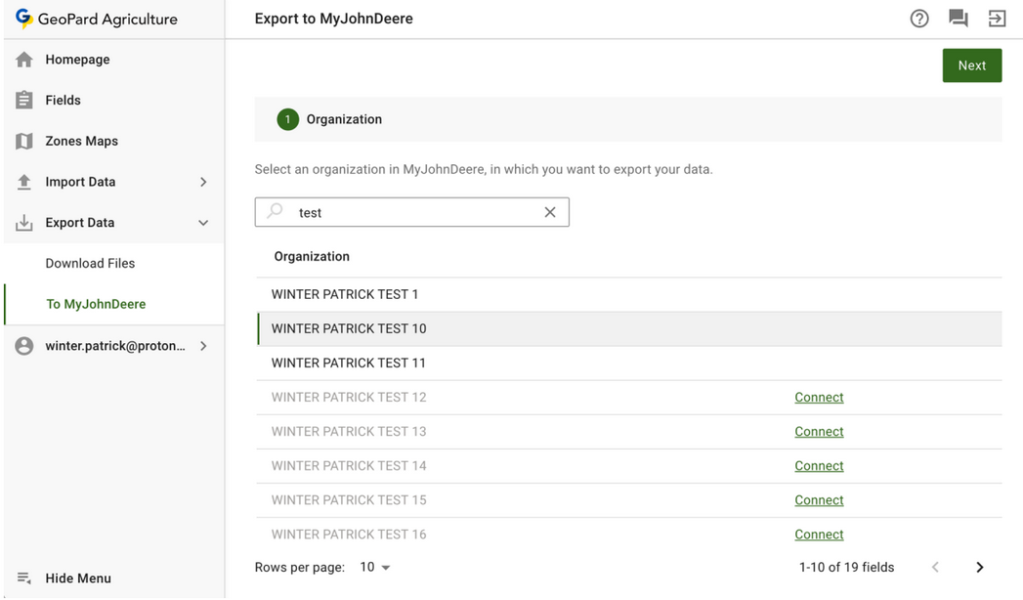
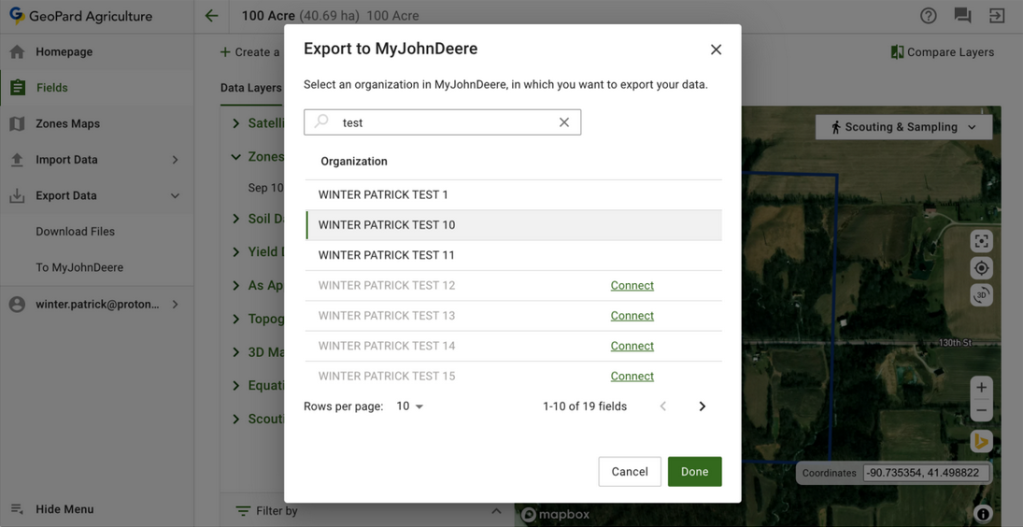
4.2 Izberite ciljno organizacijo, v katero bo GeoPard naložil datoteke. Iščete lahko z vnosom besedila. Če je organizacija John Deere onemogočena (njeno **ime je obarvano sivo**), morate dodati dostop do John Deere Operations Center. Glejte [Povezovanje profila GeoPard z organizacijo John Deere](https://docs.geopard.tech/geopard-tutorials/svn/predstavitev-izdelka-spletna-aplikacija/john-deere-operations-center-integration/3.-connect-to-john-deere-organizations.md).
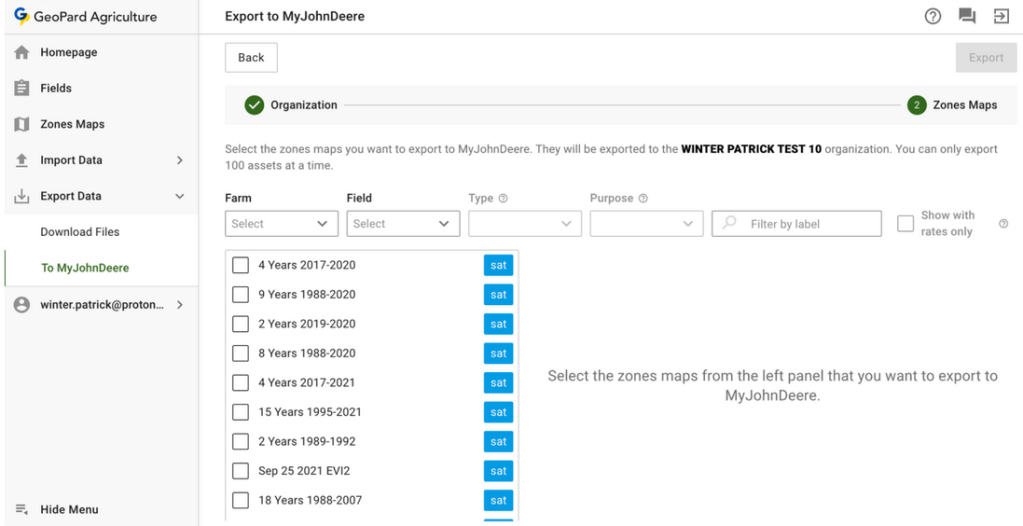
4.3 Nato izberite podatke, ki jih bo GeoPard naložil v John Deere Operations Center.
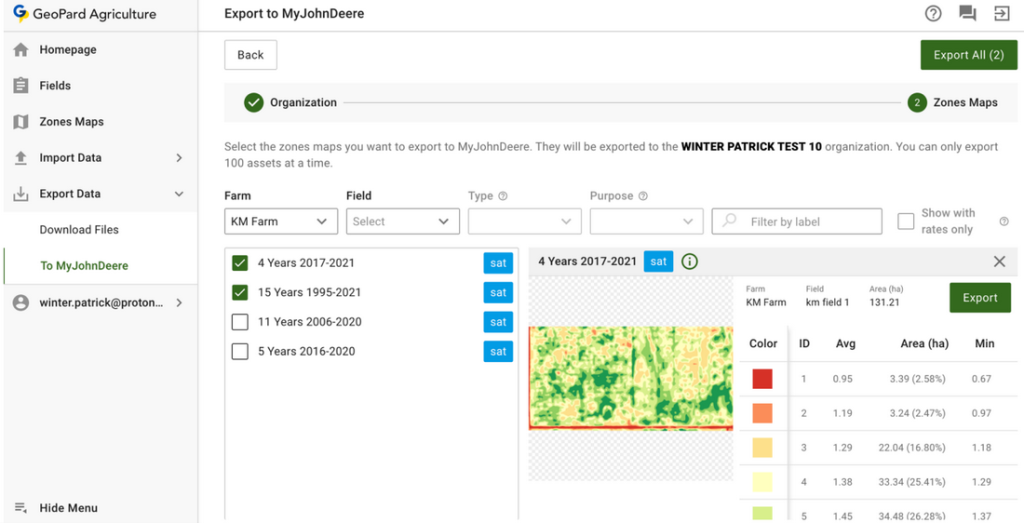
4.4 Podatke lahko filtrirate.
4.5 Ko izberete vse podatke, jih lahko naložite s klikom gumba **Izvozi vse** ali pa posamezne podatke naložite s klikom gumba **Izvozi** .
4.6 Po kliku se prikaže sporočilo o rezultatu postopka.
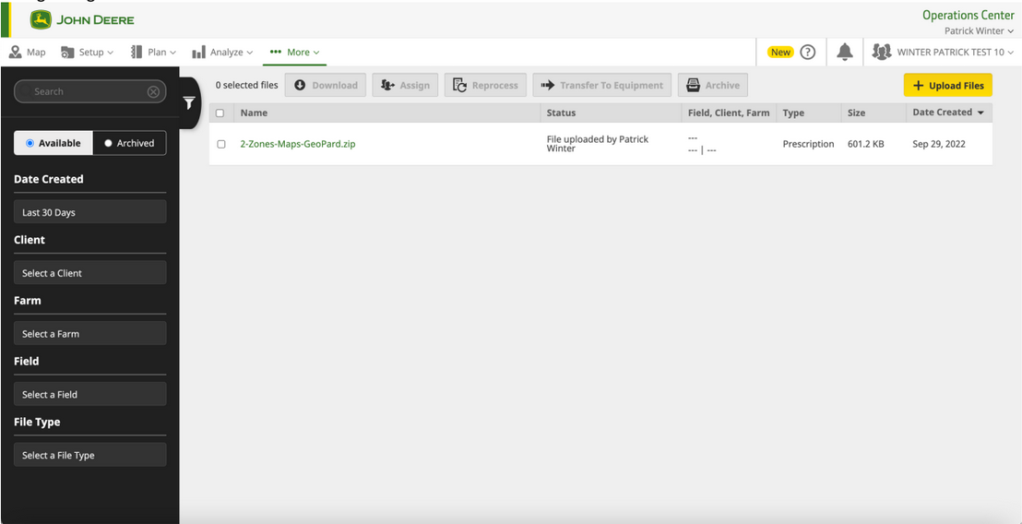
4.7 Rezultat si lahko nato ogledate v John Deere Operations Center ([https://files.deere.com](https://files.deere.com/)). *Bodite pozorni na organizaciji, ki ju izberete v GeoPard Agriculture in John Deere Operations Center.*
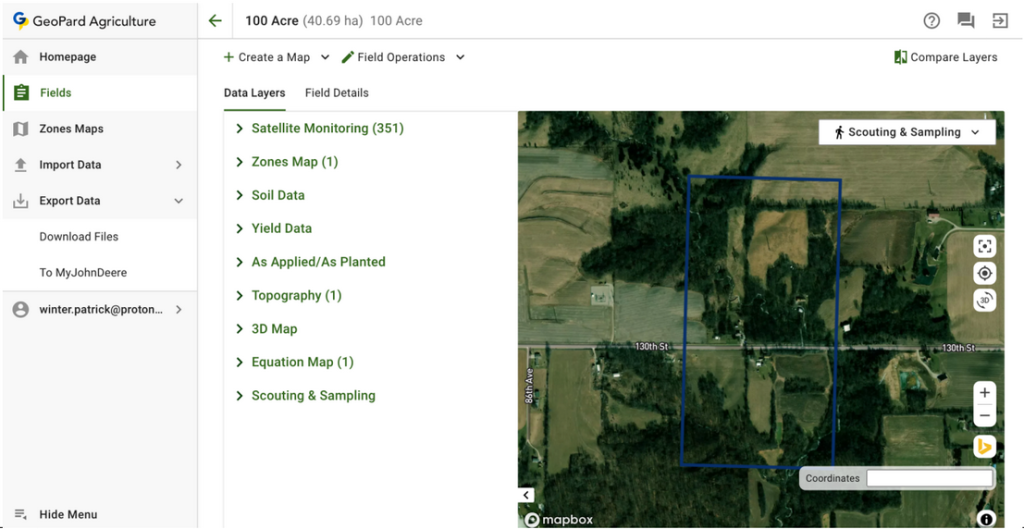
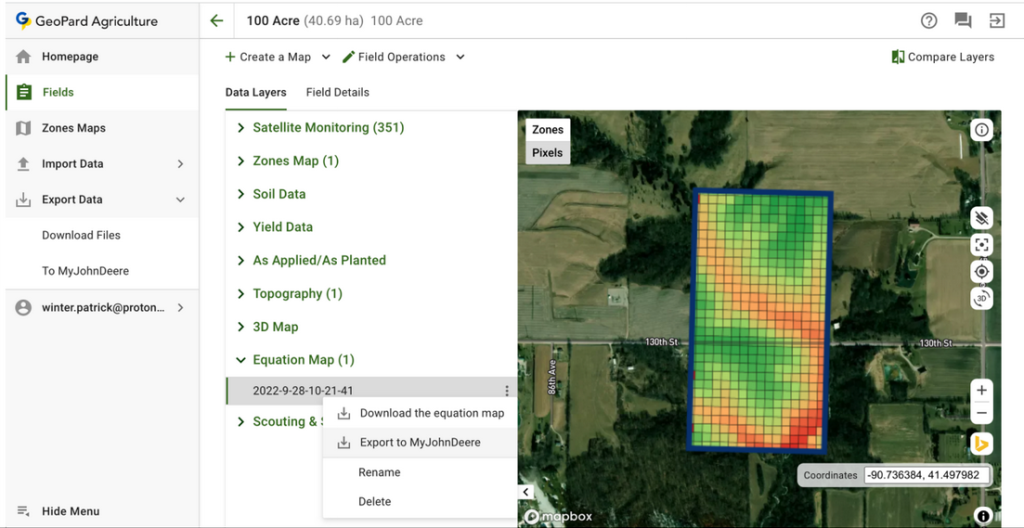
4.8 Uporabniki GeoParda lahko iz zavihka Polje izvozijo karte območij (aplikacijske karte Rx VRA) in karte enačb v John Deere Operations Center.
4.8.1 Ko izberete karto območij, v ustreznem meniju kliknite **Izvoz v MyJohnDeere** .
4.8.2 Ko izberete karto enačb, v ustreznem meniju kliknite **Izvoz v MyJohnDeere** .
4.8.3 Nato izberite ciljno organizacijo John Deere, v katero bo GeoPard naložil datoteko. Iščete lahko z vnosom besedila. Če je organizacija John Deere onemogočena (njeno **ime je obarvano sivo**), morate dodati dostop do John Deere Operations Center. Glejte [Povezovanje profila GeoPard z organizacijo John Deere](https://docs.geopard.tech/geopard-tutorials/svn/predstavitev-izdelka-spletna-aplikacija/john-deere-operations-center-integration/3.-connect-to-john-deere-organizations.md).
4.8.4 Po kliku gumba **Končano** se prikaže sporočilo o rezultatu postopka.
4.8.5 Rezultat si lahko nato ogledate v John Deere Operations Center ([https://files.deere.com](https://files.deere.com/)).\
\&#xNAN;*Bodite pozorni na organizaciji, ki ju izberete v GeoPard Agriculture in John Deere Operations Center.*
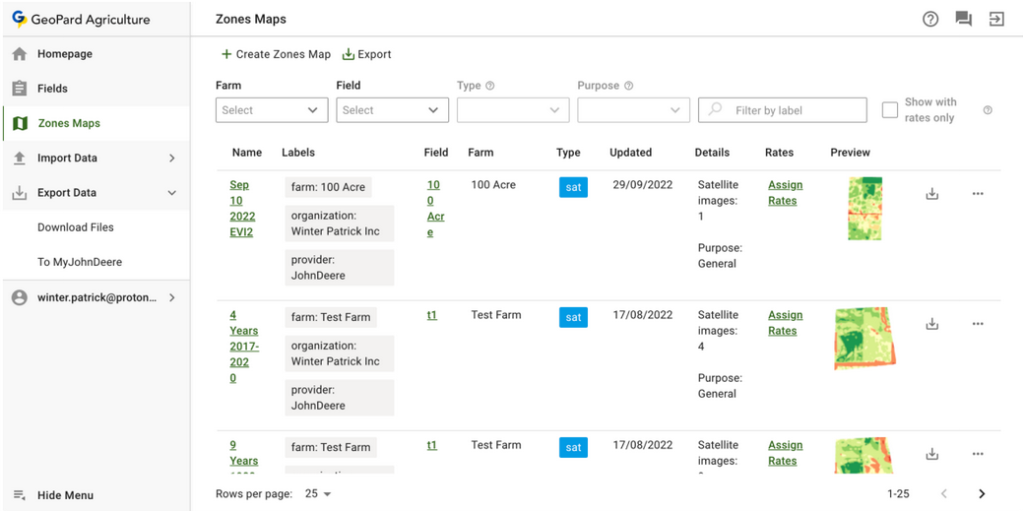
4.9 Uporabniki GeoParda lahko izvozijo karte območij (aplikacijske karte Rx VRA) v John Deere Operations Center z zavihka **Karte območij** .
4.9.1 Posamezno karto območij lahko izvozite s klikom ustreznega gumba za izvoz.
4.9.2 Več kart območij lahko izvozite s klikom ustreznega gumba za izvoz in izbiro elementov.
4.9.3 Po kliku gumba **Izvozi** boste videli **Izvoz zemljevidov con** v pojavnem oknu, nato naj uporabnik izbere **Izvozi cone v John Deere Operations Center** možnost in klikne gumb **Izvozi** .
4.9.4 Nato uporabnik izbere ciljno organizacijo John Deere, v katero bo GeoPard naložil datoteko. Organizacijo lahko poišče z vnosom besedila. Če je organizacija John Deere onemogočena ( **ime je prikazano sivo**), mora uporabnik omogočiti dostop do John Deere Operations Center; glejte [Povezava profila GeoPard z organizacijo John Deere](https://docs.geopard.tech/geopard-tutorials/svn/predstavitev-izdelka-spletna-aplikacija/john-deere-operations-center-integration/3.-connect-to-john-deere-organizations.md).
4.9.5 Ko klikne gumb **Done** , bo uporabnik videl sporočilo z rezultatom postopka.
4.9.6 Nato naj uporabnik preveri rezultat v John Deere Operations Center ([https://files.deere.com](https://files.deere.com/)). Pozoren naj bo na organizacijo, ki jo izbere v GeoPard Agriculture in John Deere Operations Center.
{% hint style="success" %}
Pošljite svojo prvo aplikacijsko karto v Operations Center: [Začnite brezplačno](https://app.geopard.tech/auth/sign-up?utm_source=docs\&utm_medium=cta\&utm_campaign=6.-export-rx-maps-to-john-deere-operations-center-as-files)
{% endhint %}
---
# Agent Instructions
This documentation is published with GitBook. GitBook is the documentation platform designed so that both humans and AI agents can read, navigate, and reason over technical content effectively. Learn more at gitbook.com.
## Querying This Documentation
If you need additional information that is not directly available in this page, you can query the documentation by asking a question.
Perform an HTTP GET request on the following URL with the `ask` and `goal` query parameters:
```
GET https://docs.geopard.tech/geopard-tutorials/svn/predstavitev-izdelka-spletna-aplikacija/john-deere-operations-center-integration/6.-export-rx-maps-to-john-deere-operations-center-as-files.md?ask=&goal=
```
`ask` is the immediate question: it should be specific, self-contained, and written in natural language.
`goal` is what the user is ultimately trying to achieve, the reason they need the answer. Sharing it helps GitBook give you a better, more relevant answer. A goal is most helpful when it describes the outcome the user wants rather than restating the question. For example, with `ask=how do I create an API token`, a goal like `automate deployments from our CI pipeline` lets GitBook tailor the answer to that use case.
The response will contain a direct answer to the question and relevant excerpts and sources from the documentation.
Use this mechanism when the answer is not explicitly present in the current page, you need clarification or additional context, or you want to retrieve related documentation sections.