> For the complete documentation index, see [llms.txt](https://docs.geopard.tech/geopard-tutorials/llms.txt). Markdown versions of documentation pages are available by appending `.md` to page URLs; this page is available as [Markdown](https://docs.geopard.tech/geopard-tutorials/svn/hitri-gis-namigi/qgis-izracunaj-ndvi-za-dronsko-geotiff-datoteko.md).
# QGIS: izračunaj NDVI za dronsko GeoTIFF datoteko
Včasih morate izračunati povprečni NDVI za neki poligon znotraj polja. V programu QGIS lahko naredite naslednje.
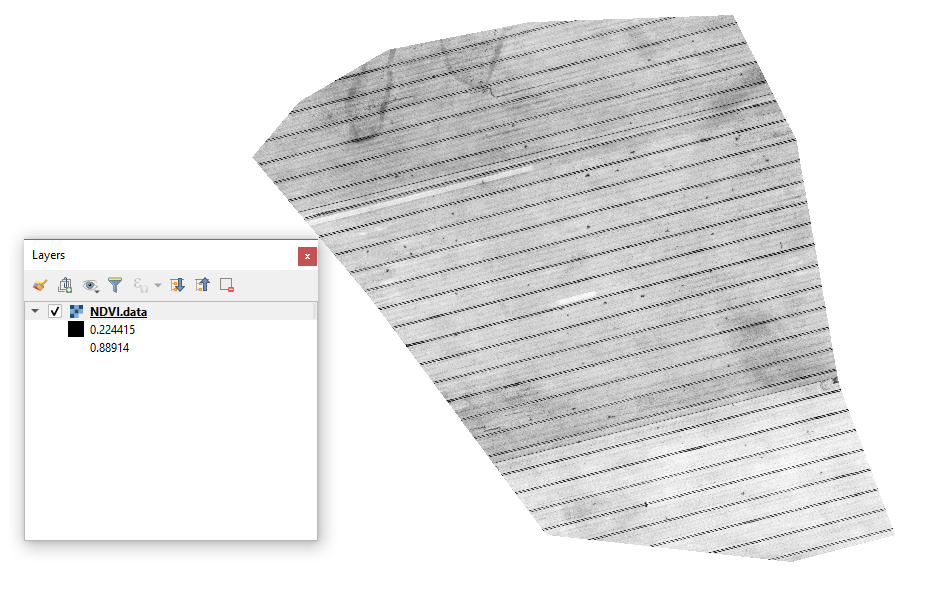
#### 1 - Prikažite začetni Drone NDVI GeoTIFF
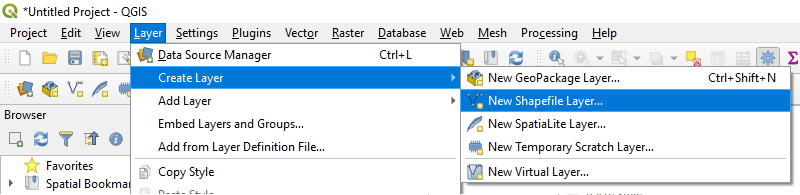
#### 2 - Ustvarite novo plast
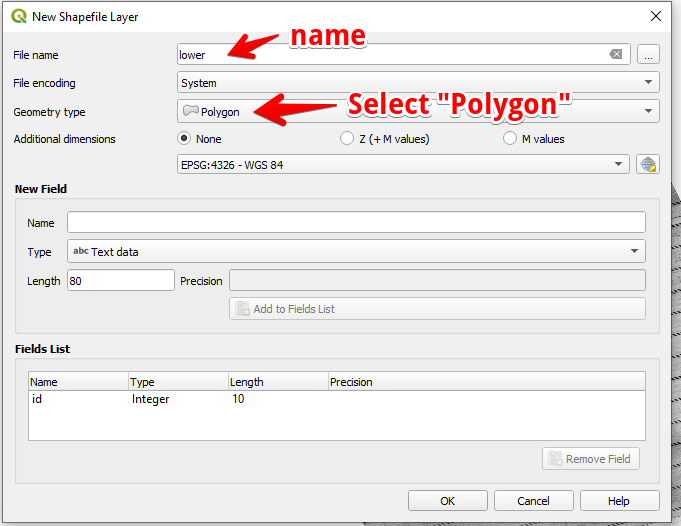
#### 3 - Nastavite ime plasti in tip geometrije ter pritisnite OK
#### 4 - Izberite plast v plošči Plasti
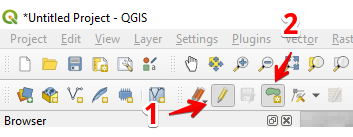
1. Izberite »Preklopi urejanje« (1)
2. Izberite »Dodaj poligonski element« (2)
#### 5 - Narišite poligon. Za zaključek risanja pritisnite desni gumb miške in v pojavnem oknu nastavite »id«.
Zaključite plast tako, da znova pritisnete »Preklopi urejanje« in pritisnete »Shrani«.
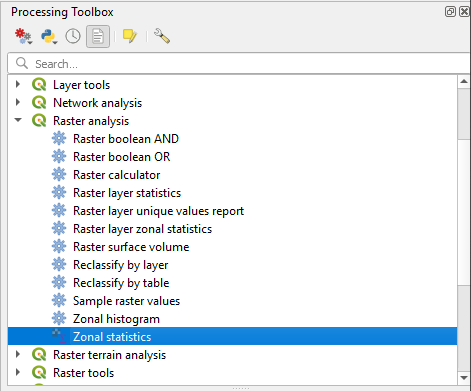
#### 6 - V plošči »Orodjarna za obdelavo« izberite prostorske statistike.
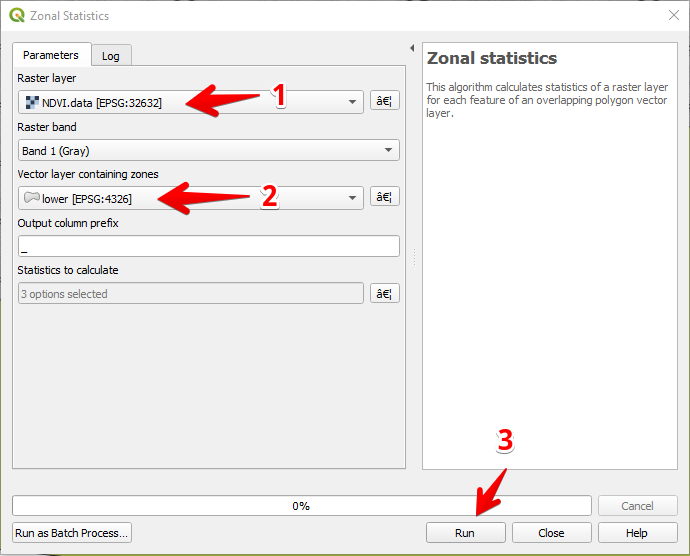
#### 7 - Izberite rastrsko plast (1),
Izberite poligonsko plast (2),
Pritisnite »Zaženi« (3).
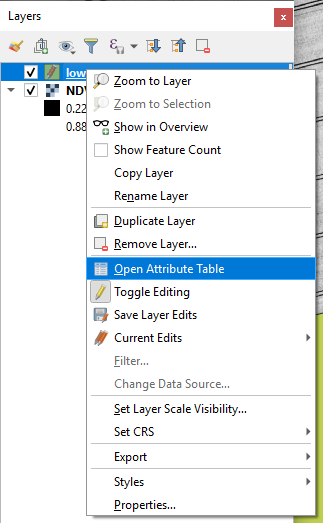
#### 8 - Izberite plast v plošči Plasti in pritisnite desni gumb miške; v kontekstnem meniju izberite Odpri tabelo atributov.
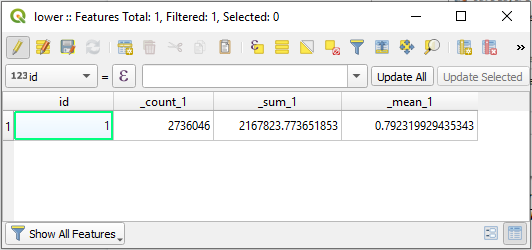
#### 9 - Izračunana statistika bo prikazana v tabeli.
---
# Agent Instructions
This documentation is published with GitBook. GitBook is the documentation platform designed so that both humans and AI agents can read, navigate, and reason over technical content effectively. Learn more at gitbook.com.
## Querying This Documentation
If you need additional information that is not directly available in this page, you can query the documentation by asking a question.
Perform an HTTP GET request on the following URL with the `ask` and `goal` query parameters:
```
GET https://docs.geopard.tech/geopard-tutorials/svn/hitri-gis-namigi/qgis-izracunaj-ndvi-za-dronsko-geotiff-datoteko.md?ask=&goal=
```
`ask` is the immediate question: it should be specific, self-contained, and written in natural language.
`goal` is what the user is ultimately trying to achieve, the reason they need the answer. Sharing it helps GitBook give you a better, more relevant answer. A goal is most helpful when it describes the outcome the user wants rather than restating the question. For example, with `ask=how do I create an API token`, a goal like `automate deployments from our CI pipeline` lets GitBook tailor the answer to that use case.
The response will contain a direct answer to the question and relevant excerpts and sources from the documentation.
Use this mechanism when the answer is not explicitly present in the current page, you need clarification or additional context, or you want to retrieve related documentation sections.