> For the complete documentation index, see [llms.txt](https://docs.geopard.tech/geopard-tutorials/llms.txt). Markdown versions of documentation pages are available by appending `.md` to page URLs; this page is available as [Markdown](https://docs.geopard.tech/geopard-tutorials/ru/obzor-produkta-veb-prilozhenie/karty-zon-i-analitika/sozdat-kartu-zon-po-sputnikovym-snimkam.md).
# Создать карту зон по спутниковым снимкам
Стройте управленческие зоны по спутниковым снимкам, чтобы выявлять вариабельность и принимать решения по дифференцированному внесению.
1. Выберите поле в списке, нажмите кнопку **Создать Карту зон** , выберите **Однослойная**, а затем нажмите **Далее**.
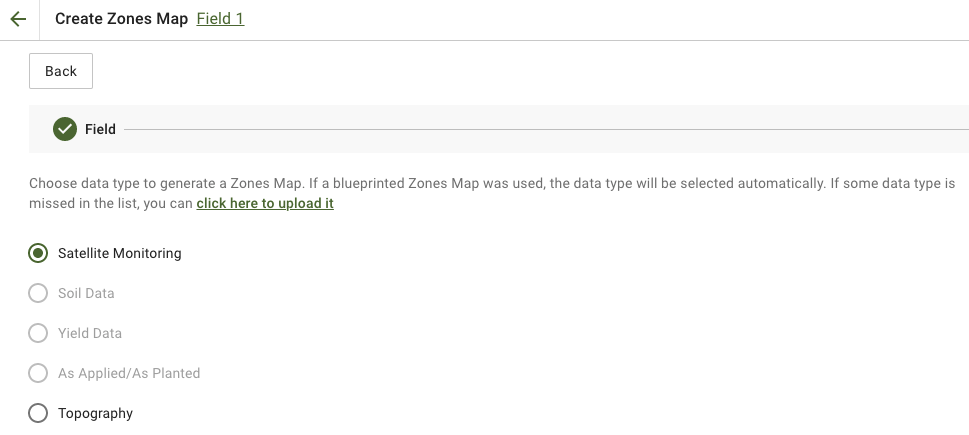
2. Выбрать **Спутниковый мониторинг** тип данных, чтобы продолжить.
3. На следующем шаге вы можете выбрать спутниковое изображение. Вы можете фильтровать по месяцу, году, поставщику или NDVI и переключаться между типами изображений, такими как NIR и EVI2. **Вот краткое описание типов индексов** ссылка объясняет доступные индексы. Если вам нужно изменить индекс, нажмите стрелку рядом с **EVI2**. Затем нажмите **Далее**.
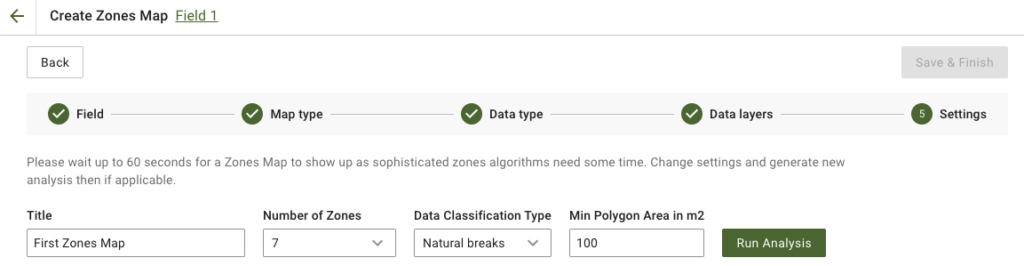
4. На следующем шаге вы можете изменить название, изменить количество зон, [выбрать тип классификации данных](/geopard-tutorials/ru/obzor-produkta-veb-prilozhenie/karty-zon-i-analitika/ispolzovanie-klassifikacii-dannykh.md), и задать минимальную площадь полигона в квадратных метрах. Нажмите **Запустить анализ** чтобы продолжить.
Анализ может выполняться до 60 секунд, в зависимости от заданных вами параметров.
5. После завершения нажмите **Сохранить и завершить**.
После сохранения вы увидите следующее сообщение:
Вы можете создать ещё одну карту зон, назначить нормы внесения или открыть только что созданную Карту зон. Если вы откроете её, вы увидите похожий вид.
---
# Agent Instructions
This documentation is published with GitBook. GitBook is the documentation platform designed so that both humans and AI agents can read, navigate, and reason over technical content effectively. Learn more at gitbook.com.
## Querying This Documentation
If you need additional information that is not directly available in this page, you can query the documentation by asking a question.
Perform an HTTP GET request on the following URL with the `ask` and `goal` query parameters:
```
GET https://docs.geopard.tech/geopard-tutorials/ru/obzor-produkta-veb-prilozhenie/karty-zon-i-analitika/sozdat-kartu-zon-po-sputnikovym-snimkam.md?ask=&goal=
```
`ask` is the immediate question: it should be specific, self-contained, and written in natural language.
`goal` is what the user is ultimately trying to achieve, the reason they need the answer. Sharing it helps GitBook give you a better, more relevant answer. A goal is most helpful when it describes the outcome the user wants rather than restating the question. For example, with `ask=how do I create an API token`, a goal like `automate deployments from our CI pipeline` lets GitBook tailor the answer to that use case.
The response will contain a direct answer to the question and relevant excerpts and sources from the documentation.
Use this mechanism when the answer is not explicitly present in the current page, you need clarification or additional context, or you want to retrieve related documentation sections.