> For the complete documentation index, see [llms.txt](https://docs.geopard.tech/geopard-tutorials/llms.txt). Markdown versions of documentation pages are available by appending `.md` to page URLs; this page is available as [Markdown](https://docs.geopard.tech/geopard-tutorials/ru/kratkie-sovety-po-gis/qgis-rasschitat-ndvi-dlya-geotiff-faila-s-drona.md).
# QGIS: рассчитать NDVI для GeoTIFF-файла с дрона
Иногда нужно рассчитать средний NDVI для некоторого полигона внутри поля. Это можно сделать следующим образом в программе QGIS.
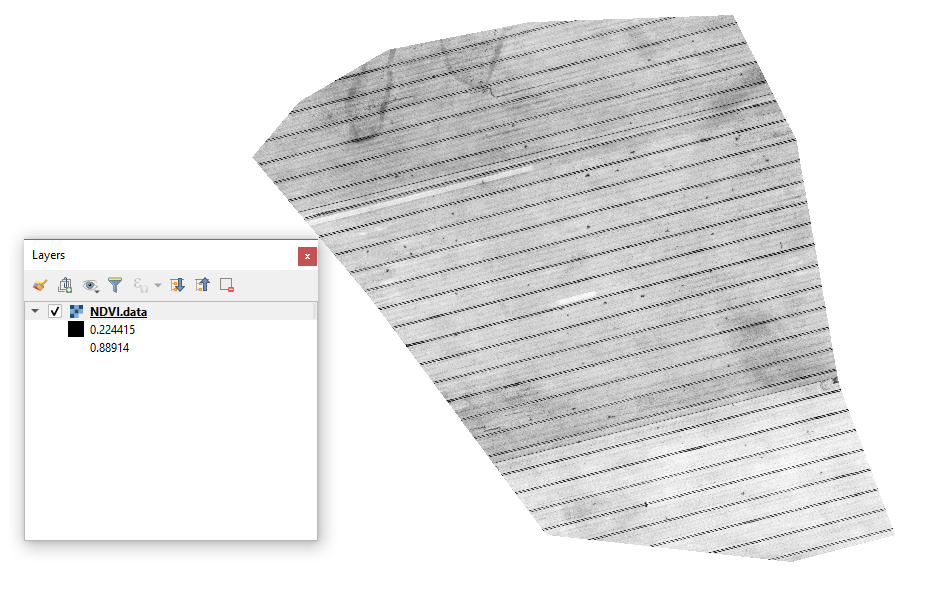
#### 1 - Визуализируйте исходный GeoTIFF с NDVI с дрона
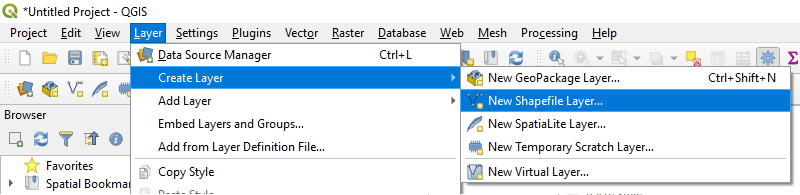
#### 2 - Создайте новый слой
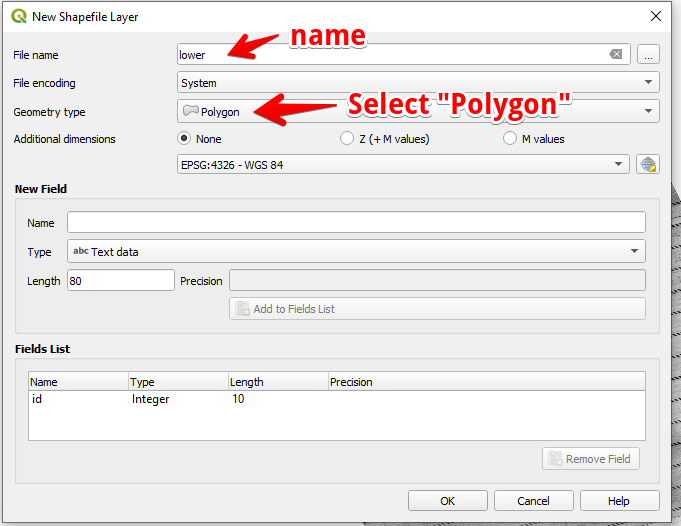
#### 3 - Настройте имя слоя и тип геометрии, затем нажмите OK
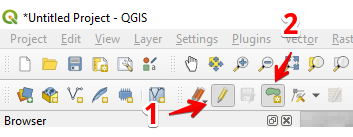
#### 4 - Выберите слой в панели «Слои»
1. Выберите «Переключить редактирование» (1)
2. Выберите «Добавить полигональный объект» (2)
#### 5 - Нарисуйте полигон. Чтобы завершить рисование, нажмите правую кнопку мыши и задайте «id» во всплывающем окне.
Завершите работу со слоем, снова нажав «Переключить редактирование», и нажмите «Сохранить».
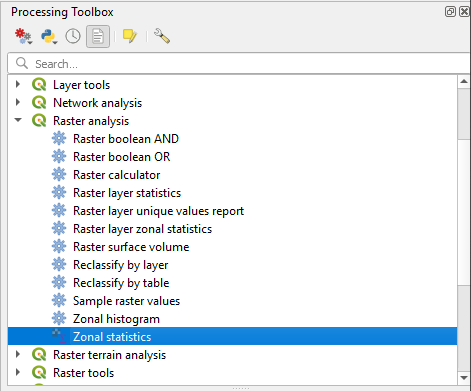
#### 6 - Выберите «Зональную статистику» в панели «Панель инструментов обработки».
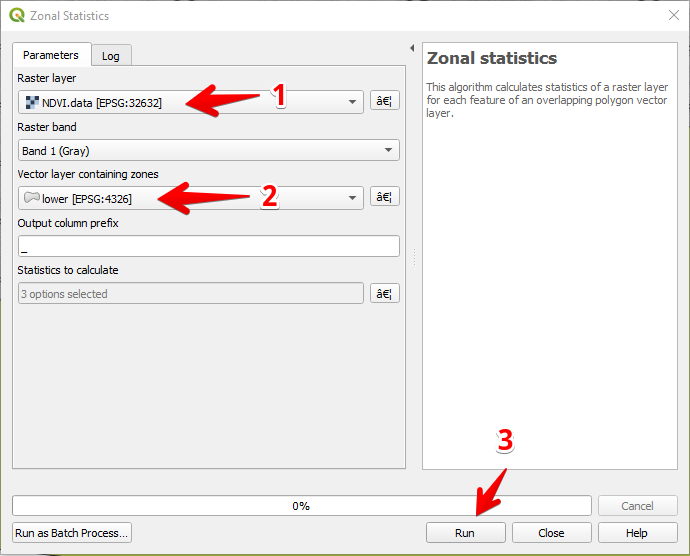
#### 7 - Выберите растровый слой (1),
Выберите полигональный слой (2),
Нажмите «Запустить» (3).
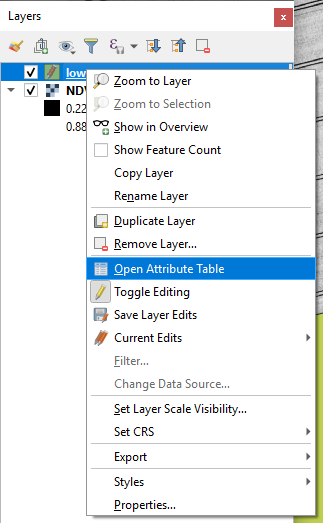
#### 8 - Выберите слой в панели «Слои» и нажмите правую кнопку мыши; в контекстном меню выберите «Открыть таблицу атрибутов».
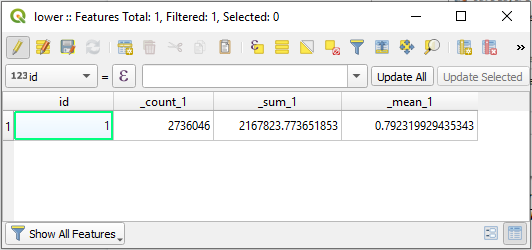
#### 9 - Рассчитанные статистические показатели будут показаны в таблице.
---
# Agent Instructions
This documentation is published with GitBook. GitBook is the documentation platform designed so that both humans and AI agents can read, navigate, and reason over technical content effectively. Learn more at gitbook.com.
## Querying This Documentation
If you need additional information that is not directly available in this page, you can query the documentation by asking a question.
Perform an HTTP GET request on the following URL with the `ask` and `goal` query parameters:
```
GET https://docs.geopard.tech/geopard-tutorials/ru/kratkie-sovety-po-gis/qgis-rasschitat-ndvi-dlya-geotiff-faila-s-drona.md?ask=&goal=
```
`ask` is the immediate question: it should be specific, self-contained, and written in natural language.
`goal` is what the user is ultimately trying to achieve, the reason they need the answer. Sharing it helps GitBook give you a better, more relevant answer. A goal is most helpful when it describes the outcome the user wants rather than restating the question. For example, with `ask=how do I create an API token`, a goal like `automate deployments from our CI pipeline` lets GitBook tailor the answer to that use case.
The response will contain a direct answer to the question and relevant excerpts and sources from the documentation.
Use this mechanism when the answer is not explicitly present in the current page, you need clarification or additional context, or you want to retrieve related documentation sections.