> For the complete documentation index, see [llms.txt](https://docs.geopard.tech/geopard-tutorials/llms.txt). Markdown versions of documentation pages are available by appending `.md` to page URLs; this page is available as [Markdown](https://docs.geopard.tech/geopard-tutorials/ro/tur-de-produs-aplicatia-web/integrare-john-deere-operations-center/optiuni-de-partajare-a-datelor/1.-partajare-membru-al-echipei.md).

# 1. partajare „Membru al echipei”

Partajează datele John Deere cu membrii echipei, astfel încât să poată lucra în GeoPard.

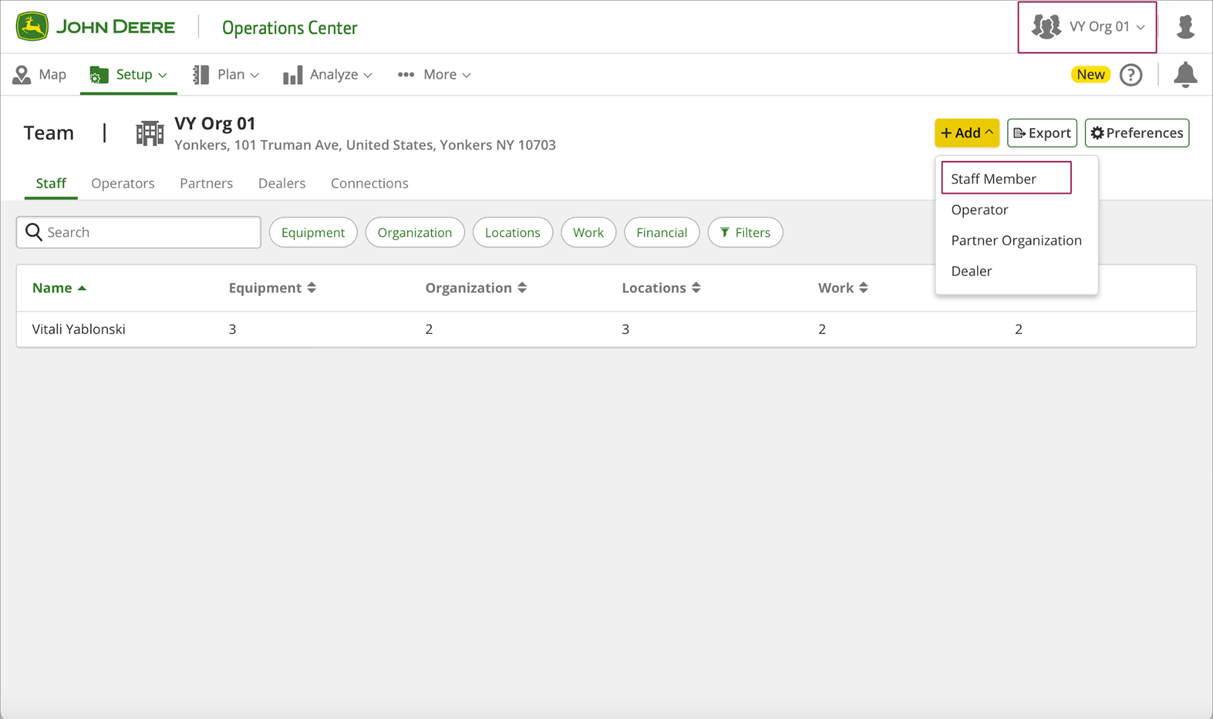
1. Pentru a partaja datele organizației cu contul membrului personalului, proprietarul organizației trebuie să meargă la pagina „Setup” >> „Team” (sau <https://team.deere.com/>), să selecteze organizația (de exemplu VY Org 01) și să facă clic pe butonul „Staff Member”.<br>

   <figure><img src="https://1279602871-files.gitbook.io/~/files/v0/b/gitbook-x-prod.appspot.com/o/spaces%2FYICBELdyAXXebKAzfLOR%2Fuploads%2FRYvIvhMVDuNspZs2CmZP%2Fimage.png?alt=media&amp;token=2f724d2e-0ae4-4aba-9e51-1d1b7cc38f36" alt=""><figcaption></figcaption></figure>
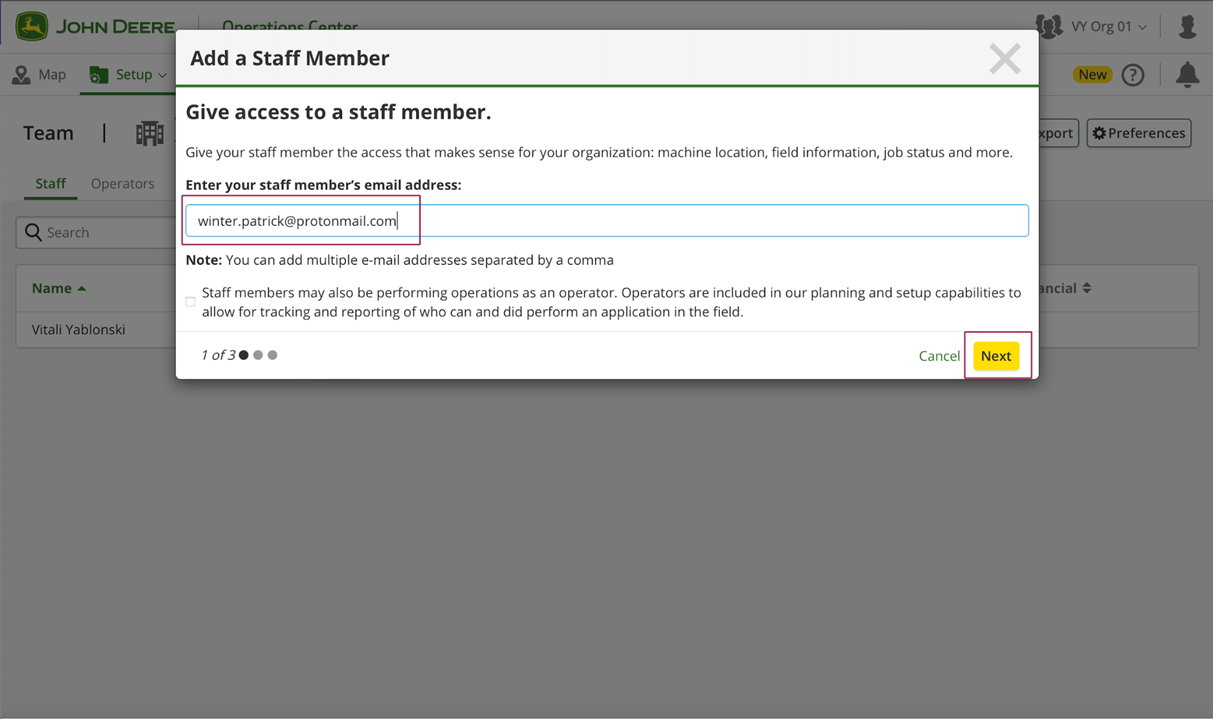
2. Introduceți adresa de e-mail a contului membrului personalului și faceți clic pe butonul „Next”.<br>

   <figure><img src="https://1279602871-files.gitbook.io/~/files/v0/b/gitbook-x-prod.appspot.com/o/spaces%2FYICBELdyAXXebKAzfLOR%2Fuploads%2FPdsAAlBS71LAUT4xXdv1%2Fimage.png?alt=media&amp;token=2971f5fe-c54c-4186-941c-b56a85ece6cd" alt=""><figcaption></figcaption></figure>
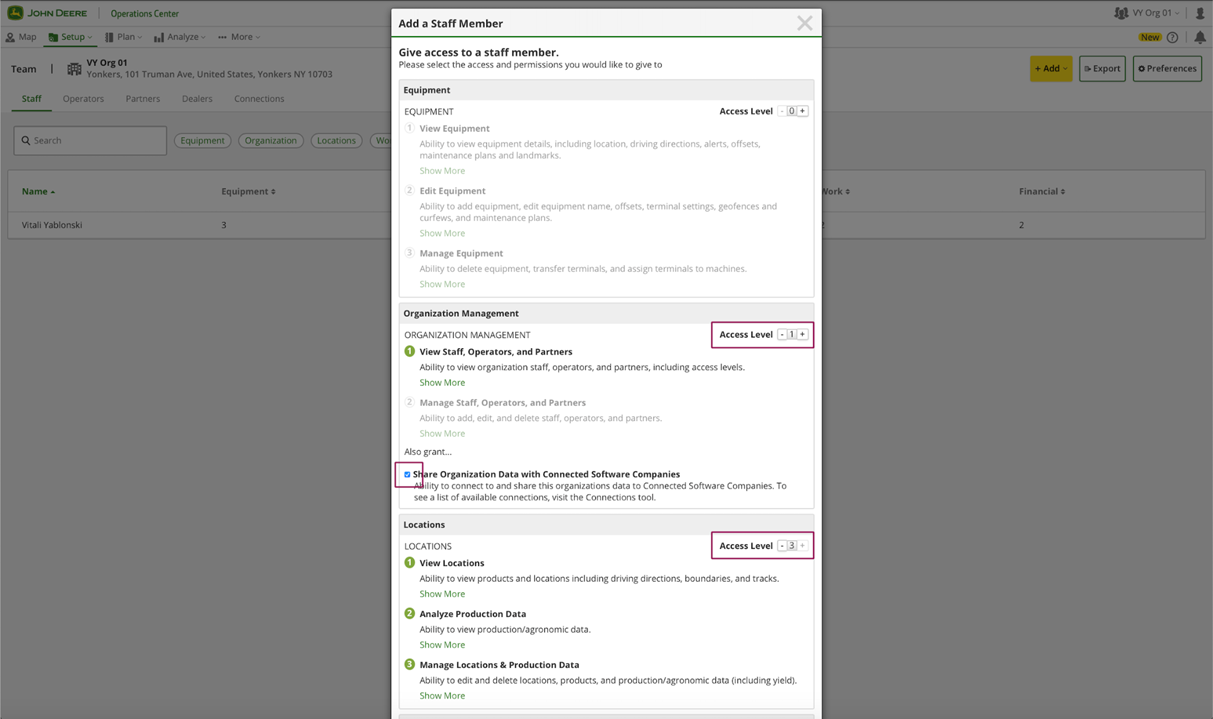
3. Setați nivelul de acces la <mark style="background-color:green;">„Organization Management”</mark> la 1 cu ajutorul <mark style="background-color:green;">casetei de bifare „Share Organization Data with Connected Software Companies”</mark> și nivelul de acces la <mark style="background-color:green;">„Locations” la 3</mark>.<br>

   <figure><img src="https://1279602871-files.gitbook.io/~/files/v0/b/gitbook-x-prod.appspot.com/o/spaces%2FYICBELdyAXXebKAzfLOR%2Fuploads%2FYXk1BPNgszoRQ3CxG5D8%2Fimage.png?alt=media&amp;token=c639df00-16dd-4718-89fb-e8c6fd71f02e" alt=""><figcaption></figcaption></figure>
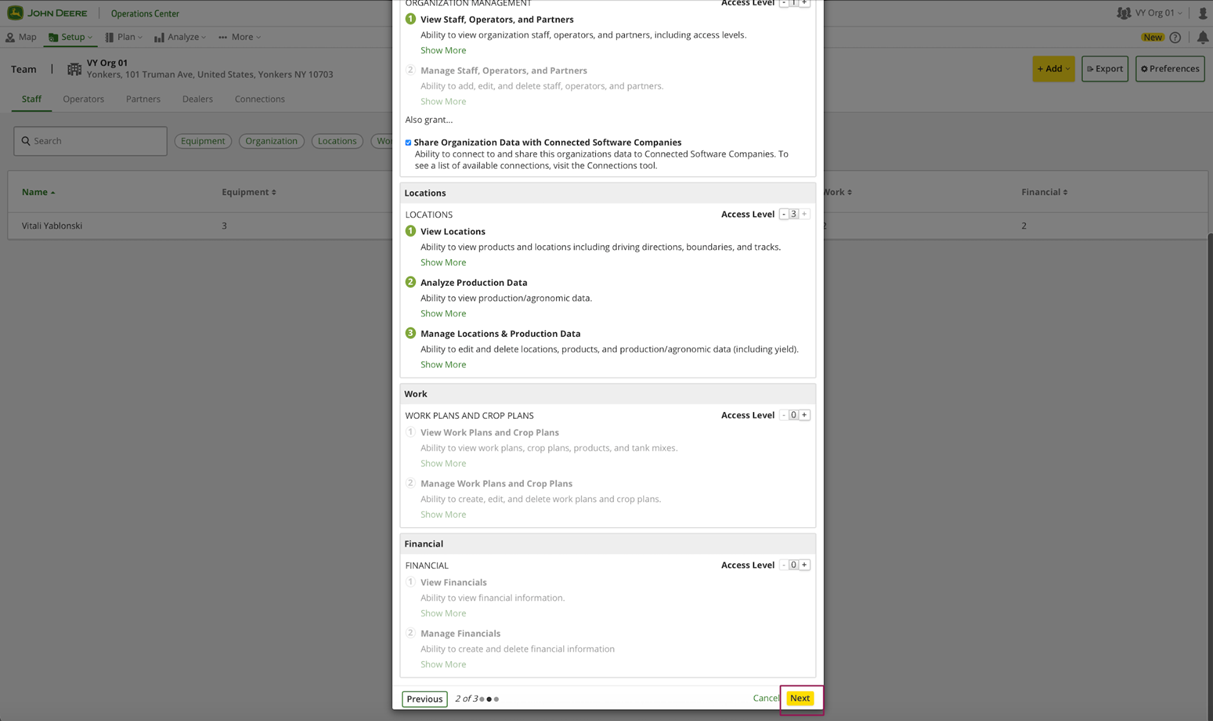
4. Faceți clic pe butonul „Next”.<br>

   <figure><img src="https://1279602871-files.gitbook.io/~/files/v0/b/gitbook-x-prod.appspot.com/o/spaces%2FYICBELdyAXXebKAzfLOR%2Fuploads%2FaGnOoYQb76m0Mkv5zBTU%2Fimage.png?alt=media&amp;token=ad411211-8aca-413d-8d30-3756398ff86f" alt=""><figcaption></figcaption></figure>
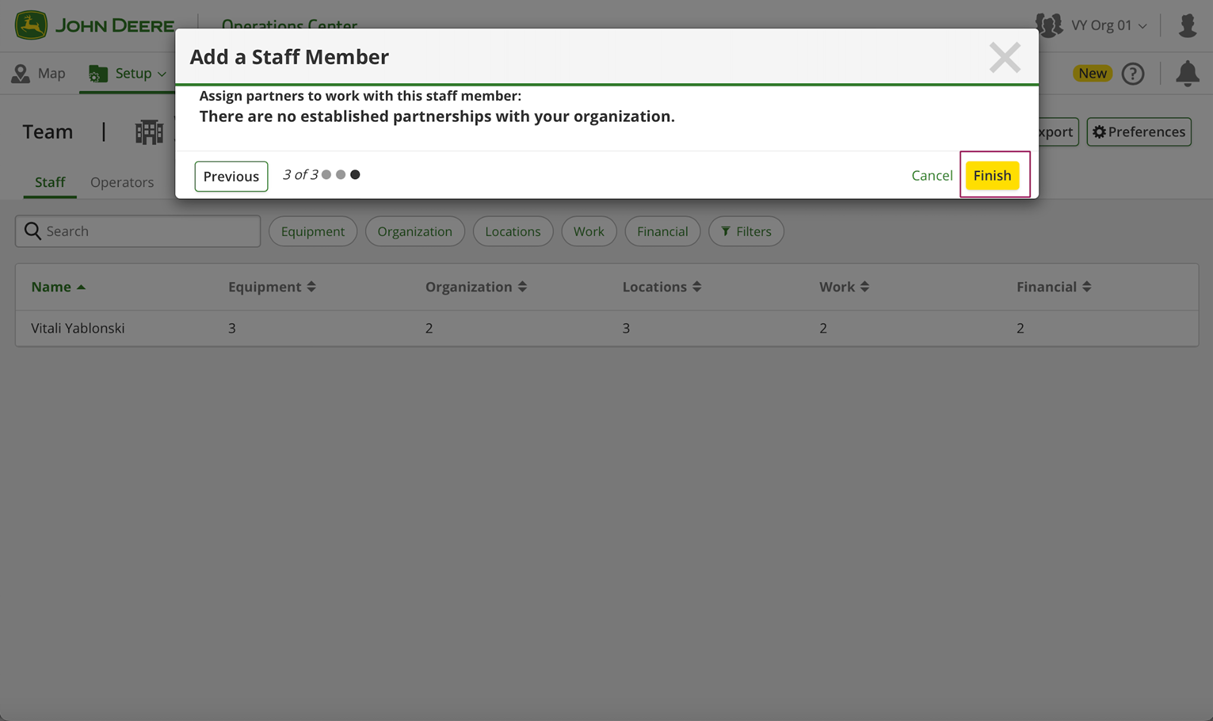
5. Faceți clic pe butonul „Finish”.<br>

   <figure><img src="https://1279602871-files.gitbook.io/~/files/v0/b/gitbook-x-prod.appspot.com/o/spaces%2FYICBELdyAXXebKAzfLOR%2Fuploads%2FUEJxQXiWKqNGm2vz8fo3%2Fimage.png?alt=media&amp;token=108d774d-6fe0-4029-ad23-3a3ba2401ce3" alt=""><figcaption></figcaption></figure>
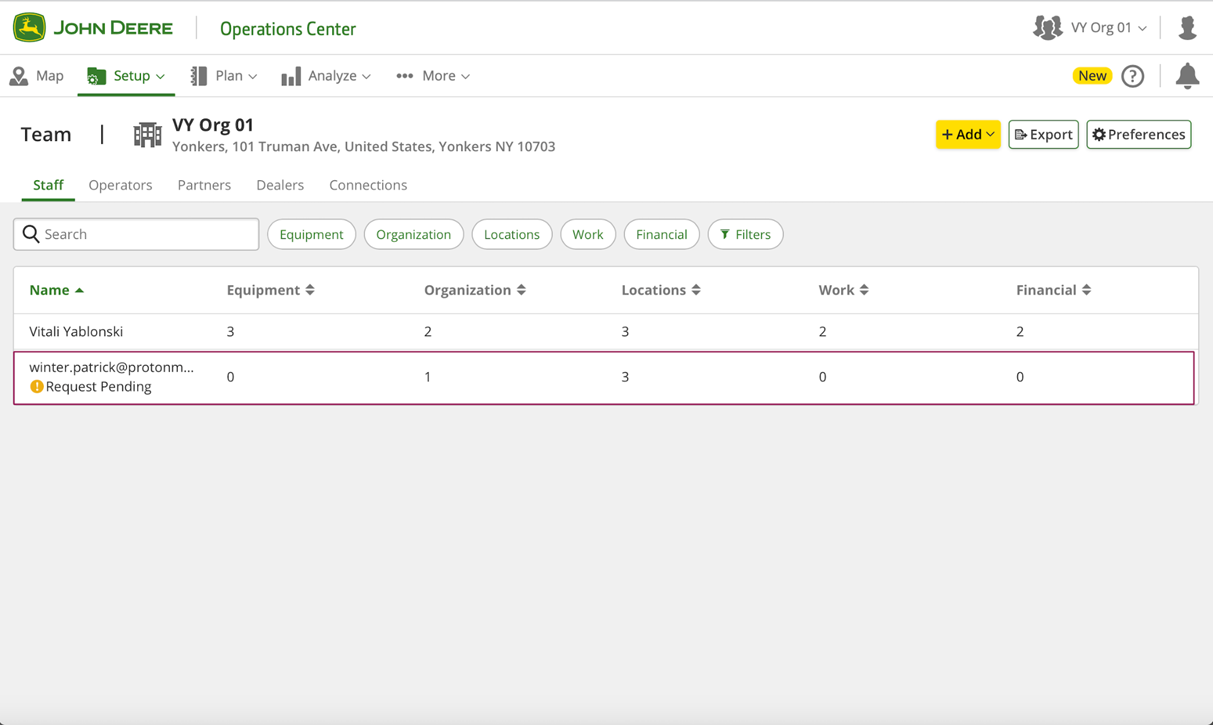
6. Tabelul afișează rezultatul aprobat/respins/în așteptare al cererii.<br>

   <figure><img src="https://1279602871-files.gitbook.io/~/files/v0/b/gitbook-x-prod.appspot.com/o/spaces%2FYICBELdyAXXebKAzfLOR%2Fuploads%2FggifaL6ZyOngyqaXjsab%2Fimage.png?alt=media&amp;token=931eebcd-0633-48a3-adf6-6ef210c04e21" alt=""><figcaption></figcaption></figure>
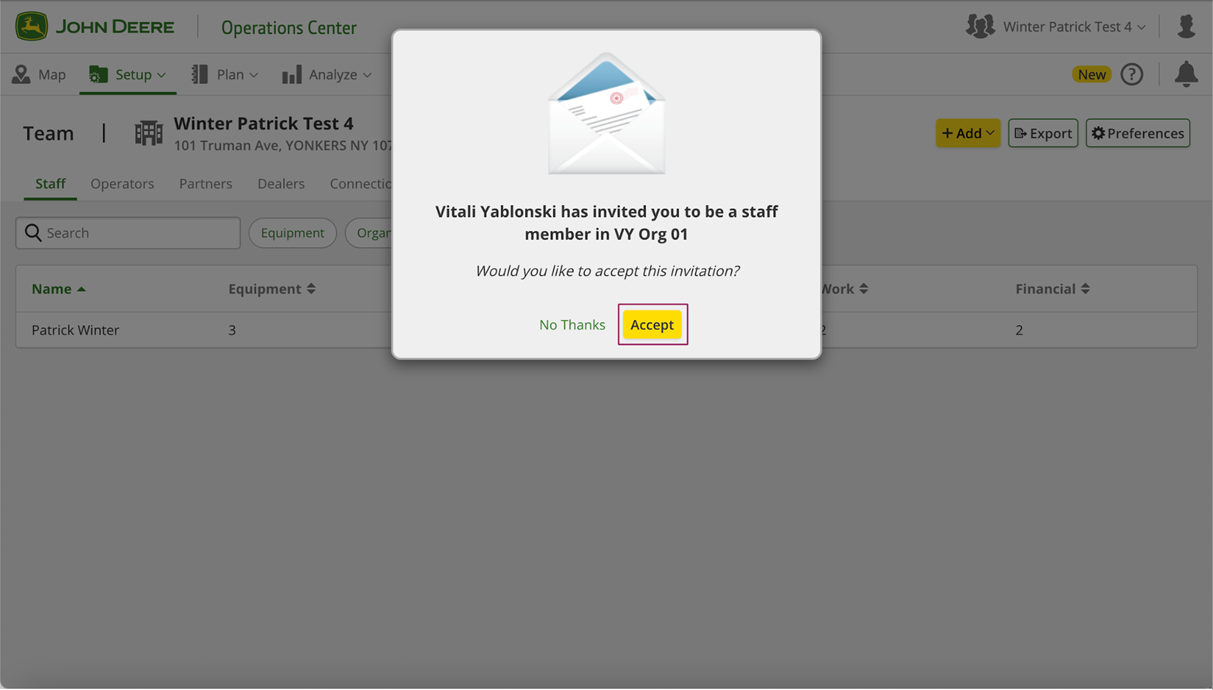
7. După aceea, contul membrului personalului primește o notificare prin e-mail despre acest lucru și fereastra pop-up de confirmare pentru prima autentificare în John Deere Operations Center.\
   Membrul personalului trebuie să facă clic pe butonul „Accept”.<br>

   <figure><img src="https://1279602871-files.gitbook.io/~/files/v0/b/gitbook-x-prod.appspot.com/o/spaces%2FYICBELdyAXXebKAzfLOR%2Fuploads%2FbqzjsZuxjs6is5gCBMeW%2Fimage.png?alt=media&amp;token=54aa427e-2d7a-4798-8837-cf20b426a262" alt=""><figcaption></figcaption></figure>
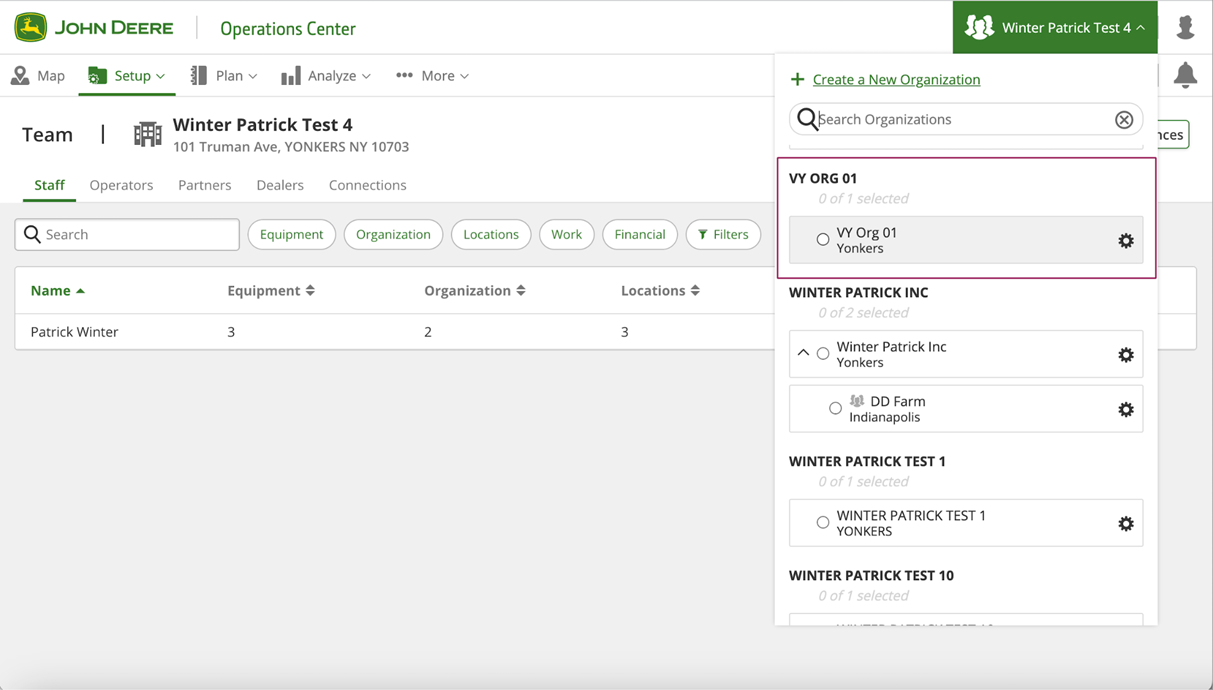
8. După aprobare, membrul personalului ar trebui să vadă o nouă organizație (de exemplu VY Org 01).<br>

   <figure><img src="https://1279602871-files.gitbook.io/~/files/v0/b/gitbook-x-prod.appspot.com/o/spaces%2FYICBELdyAXXebKAzfLOR%2Fuploads%2Fj74vyeUH5tPW6hxSdkwK%2Fimage.png?alt=media&amp;token=a9c39452-2f73-4e13-8ef3-4b2b5de6bd1c" alt=""><figcaption></figcaption></figure>
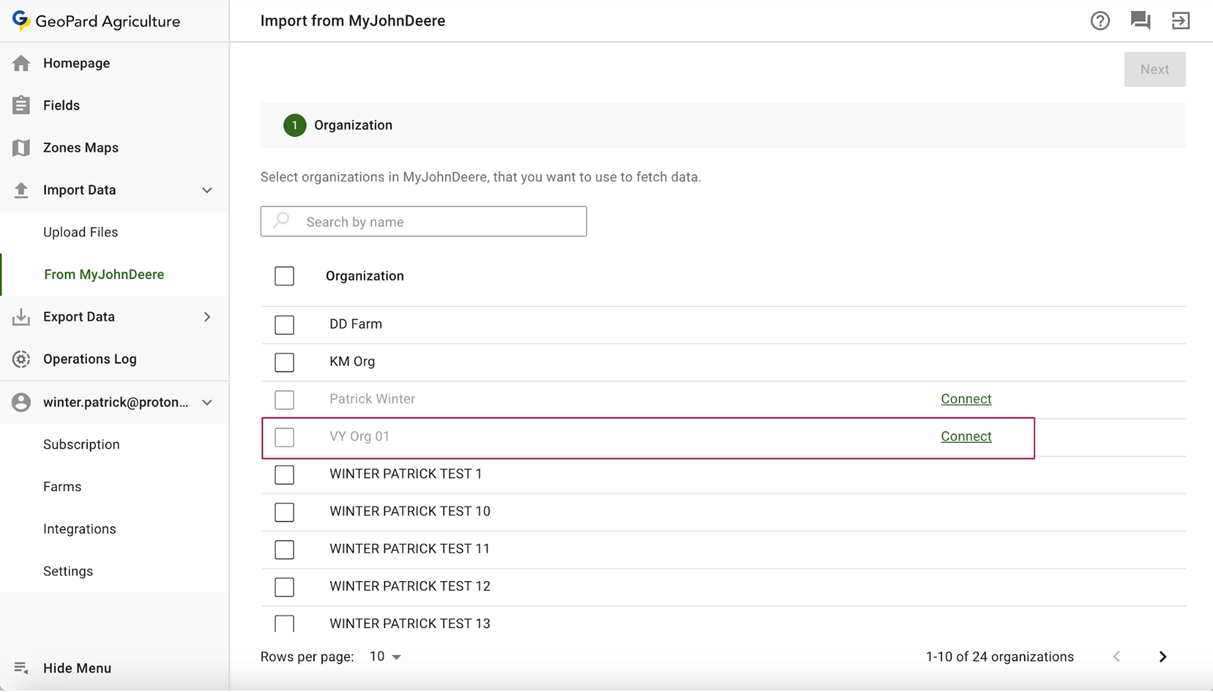
9. Aplicația GeoPard ar trebui să afișeze noua organizație a membrului personalului, apoi membrul personalului trebuie să facă clic pe linkul „Connect” (de exemplu VY Org 01).<br>

   <figure><img src="https://1279602871-files.gitbook.io/~/files/v0/b/gitbook-x-prod.appspot.com/o/spaces%2FYICBELdyAXXebKAzfLOR%2Fuploads%2FEqnSqOhA40OHE40JAUem%2Fimage.png?alt=media&amp;token=e542ffb7-19b9-40e3-b7e6-bd5589b39119" alt=""><figcaption></figcaption></figure>
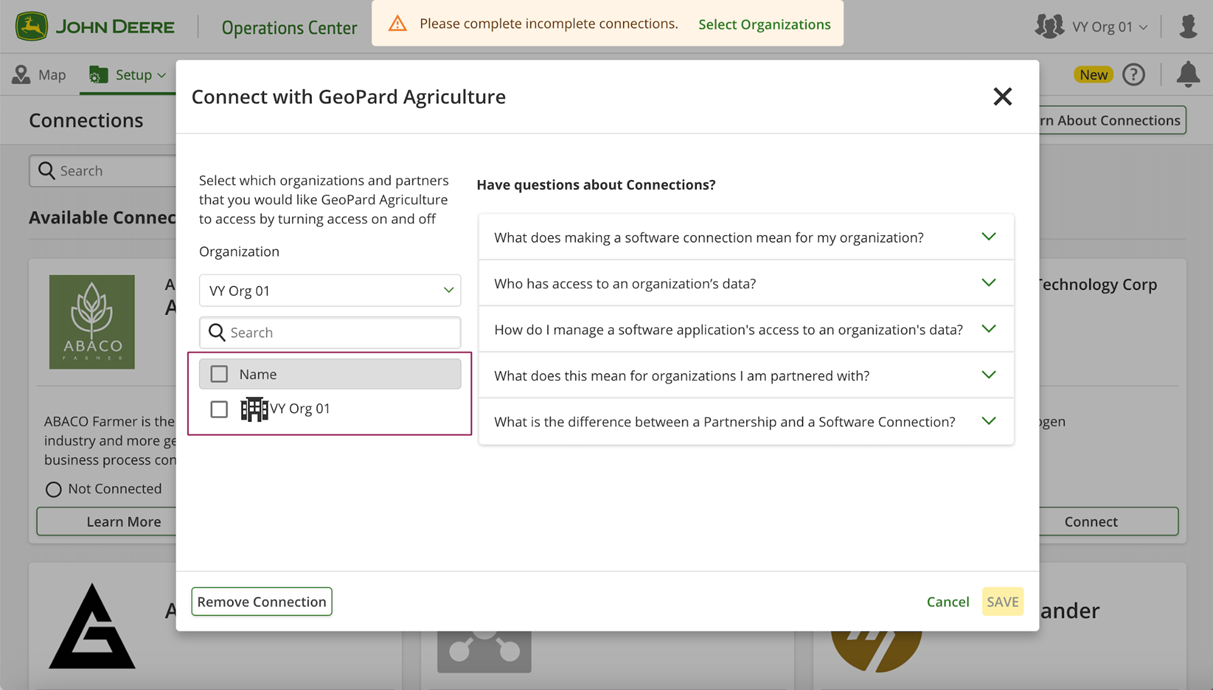
10. Membrul personalului trebuie să selecteze noua organizație din listă (de exemplu VY Org 01).<br>

    <figure><img src="https://1279602871-files.gitbook.io/~/files/v0/b/gitbook-x-prod.appspot.com/o/spaces%2FYICBELdyAXXebKAzfLOR%2Fuploads%2Fa22B8z0WUxv6vDLF1D6Z%2Fimage.png?alt=media&amp;token=132d98a3-0c22-425c-96f4-37952c1e4d7c" alt=""><figcaption></figcaption></figure>
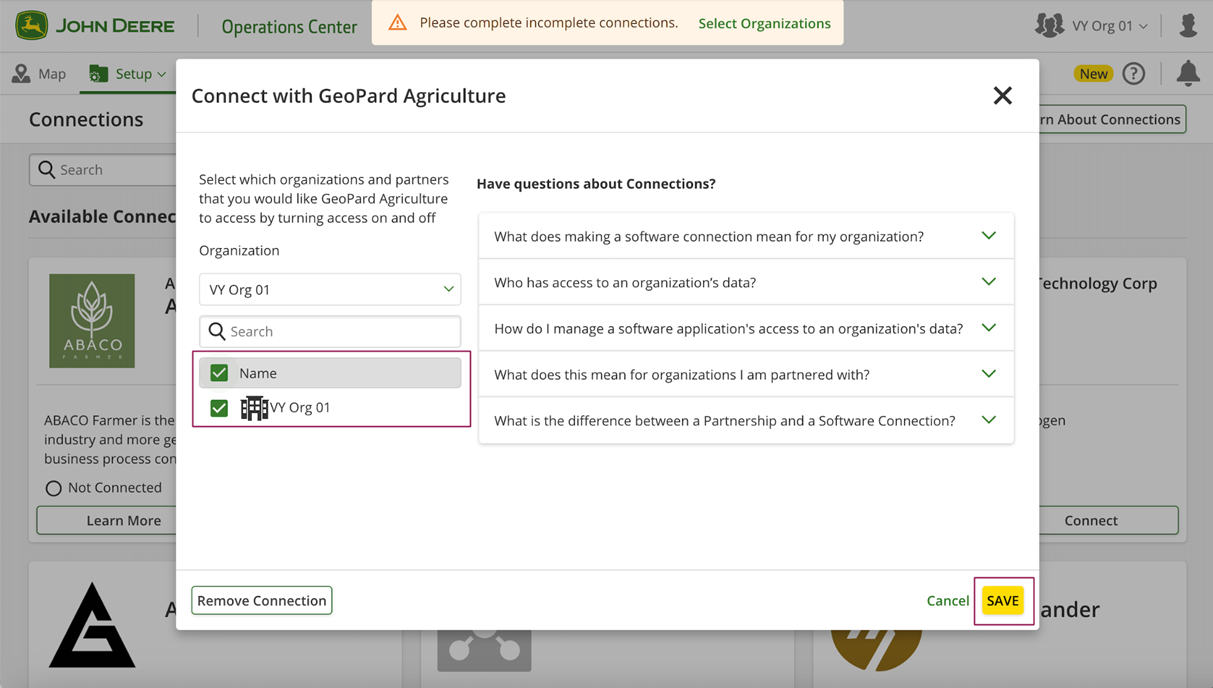
11. Faceți clic pe butonul „Save”.<br>

    <figure><img src="https://1279602871-files.gitbook.io/~/files/v0/b/gitbook-x-prod.appspot.com/o/spaces%2FYICBELdyAXXebKAzfLOR%2Fuploads%2FLxh5hHstCQIG0hOUP7Z0%2Fimage.png?alt=media&amp;token=4f20c485-8f71-4653-ad14-0b523412336e" alt=""><figcaption></figcaption></figure>
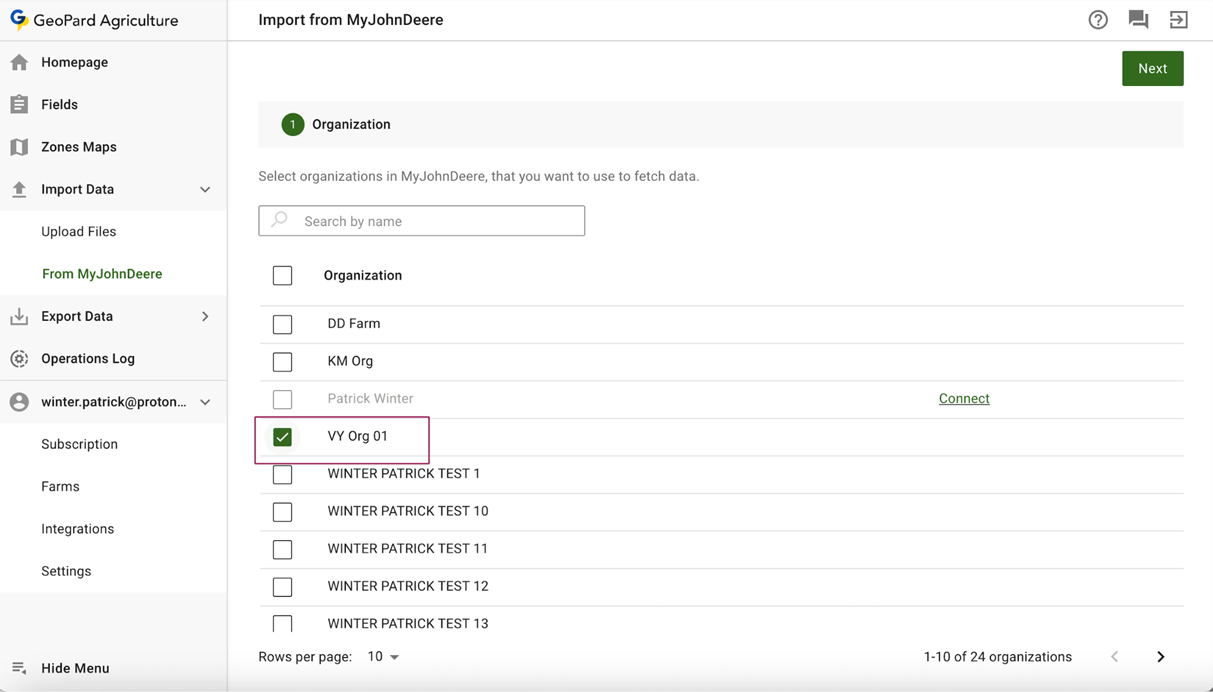
12. După aceea, aplicația GeoPard este pregătită să lucreze cu noua organizație.<br>

    <figure><img src="https://1279602871-files.gitbook.io/~/files/v0/b/gitbook-x-prod.appspot.com/o/spaces%2FYICBELdyAXXebKAzfLOR%2Fuploads%2Fy8T29aZ02uQ0fyMggFdC%2Fimage.png?alt=media&amp;token=cefc9539-9af9-4d6d-a698-373049c21425" alt=""><figcaption></figcaption></figure>


---

# Agent Instructions
This documentation is published with GitBook. GitBook is the documentation platform designed so that both humans and AI agents can read, navigate, and reason over technical content effectively. Learn more at gitbook.com.

## Querying This Documentation
If you need additional information that is not directly available in this page, you can query the documentation by asking a question.

Perform an HTTP GET request on the following URL with the `ask` and `goal` query parameters:

```
GET https://docs.geopard.tech/geopard-tutorials/ro/tur-de-produs-aplicatia-web/integrare-john-deere-operations-center/optiuni-de-partajare-a-datelor/1.-partajare-membru-al-echipei.md?ask=<question>&goal=<user_goal>
```

`ask` is the immediate question: it should be specific, self-contained, and written in natural language.
`goal` is what the user is ultimately trying to achieve, the reason they need the answer. Sharing it helps GitBook give you a better, more relevant answer. A goal is most helpful when it describes the outcome the user wants rather than restating the question. For example, with `ask=how do I create an API token`, a goal like `automate deployments from our CI pipeline` lets GitBook tailor the answer to that use case.

The response will contain a direct answer to the question and relevant excerpts and sources from the documentation.

Use this mechanism when the answer is not explicitly present in the current page, you need clarification or additional context, or you want to retrieve related documentation sections.