> For the complete documentation index, see [llms.txt](https://docs.geopard.tech/geopard-tutorials/llms.txt). Markdown versions of documentation pages are available by appending `.md` to page URLs; this page is available as [Markdown](https://docs.geopard.tech/geopard-tutorials/ro/tur-de-produs-aplicatia-web/export-download/export-scouting-notes-as-shapefile.md).

# Exportă notițele de scouting ca shapefile

Exportă mai multe puncte de scouting sau de prelevare ca shapefile.

GeoPard vă permite să exportați în lot notele de inspecție din teren prin interfața de utilizator, în format shapefile.

### Opțiunea 1: Export în format shapefile

Puteți descărca notele de inspecție din teren din **Export** din meniul din stânga, după ce vă [autentificați în app.geopard.tech](https://app.geopard.tech/auth/sign-in)\ <br>

<figure><img src="https://1279602871-files.gitbook.io/~/files/v0/b/gitbook-x-prod.appspot.com/o/spaces%2FYICBELdyAXXebKAzfLOR%2Fuploads%2FTNDnqr7B1vlPGwd7fDUR%2FGeoPard_Batch_Export_page.png?alt=media&amp;token=5b3d093c-7c80-4055-b983-3ac5243ec3d6" alt="Export page with scouting pins selected"><figcaption><p>Descărcarea punctelor de inspecție din teren din pagina Export</p></figcaption></figure>

Fișierul ZIP descărcat conține unul sau mai multe shapefile-uri, cu câte un fișier SHP pentru fiecare strat de inspecție.

<figure><img src="https://1279602871-files.gitbook.io/~/files/v0/b/gitbook-x-prod.appspot.com/o/spaces%2FYICBELdyAXXebKAzfLOR%2Fuploads%2F6NZ3Y899ZacaJPtdOSzA%2FScreenshot%202024-08-27%20at%2021.57.49.png?alt=media&amp;token=dacedbf3-e01f-4dfd-88e7-f985fadc02c5" alt=""><figcaption><p>Fișier ZIP: shapefile pentru fiecare parcelă, cu puncte de inspecție/prelevare de probe</p></figcaption></figure>

Shapefile-ul arată astfel în QGIS:

<figure><img src="https://1279602871-files.gitbook.io/~/files/v0/b/gitbook-x-prod.appspot.com/o/spaces%2FYICBELdyAXXebKAzfLOR%2Fuploads%2FTOwa8dDKo4MD5LAx4Qj1%2FScreenshot%202024-08-27%20at%2022.03.15.png?alt=media&amp;token=6ecc48a5-fedd-436f-afb6-c81d0866bb86" alt=""><figcaption><p>Puncte de inspecție GeoPard descărcate și afișate în QGIS</p></figcaption></figure>

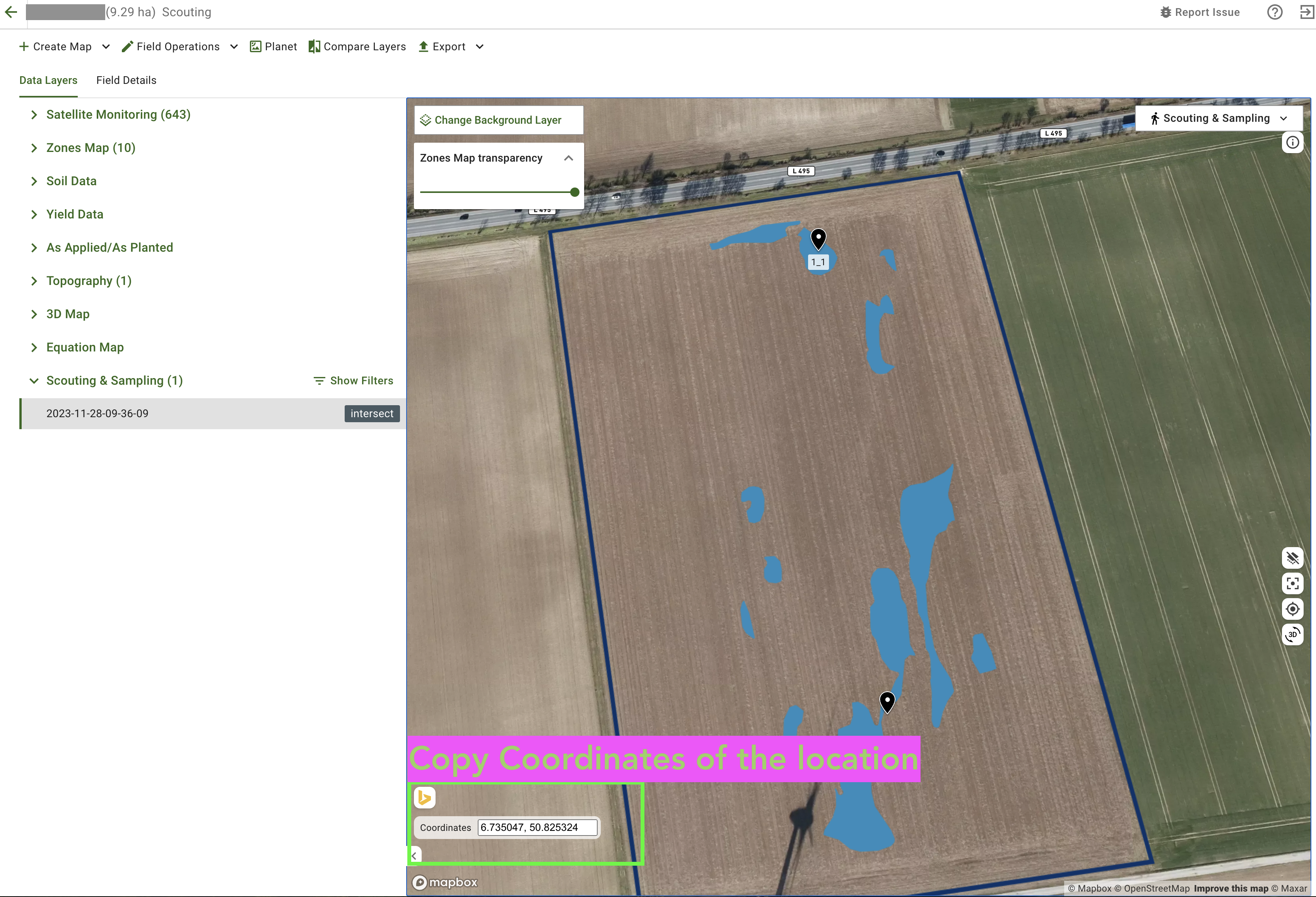
### Opțiunea 2: Copierea coordonatelor punctelor de inspecție din instrumentul de control al hărții

<figure><img src="https://1279602871-files.gitbook.io/~/files/v0/b/gitbook-x-prod.appspot.com/o/spaces%2FYICBELdyAXXebKAzfLOR%2Fuploads%2FEA1WQxTgsSEhHhADVhmY%2FGeoPard%20-%20copy%20coordinates%20of%20a%20location.png?alt=media&amp;token=bd5225b7-5570-4b86-b366-80e5f52e6d80" alt=""><figcaption><p>Opțiunea 2: copierea coordonatelor punctului de pe hartă</p></figcaption></figure>

### Opțiunea 3: Export prin API

[Exportați punctele de inspecție](https://docs.geopard.tech/geopard-tutorials/ro/documentatie-api/geopard-api-requests-overview/export/mutation-generate-a-zip-archive-with-notes.md) prin API-ul GeoPard.


---

# Agent Instructions
This documentation is published with GitBook. GitBook is the documentation platform designed so that both humans and AI agents can read, navigate, and reason over technical content effectively. Learn more at gitbook.com.

## Querying This Documentation
If you need additional information that is not directly available in this page, you can query the documentation by asking a question.

Perform an HTTP GET request on the following URL with the `ask` and `goal` query parameters:

```
GET https://docs.geopard.tech/geopard-tutorials/ro/tur-de-produs-aplicatia-web/export-download/export-scouting-notes-as-shapefile.md?ask=<question>&goal=<user_goal>
```

`ask` is the immediate question: it should be specific, self-contained, and written in natural language.
`goal` is what the user is ultimately trying to achieve, the reason they need the answer. Sharing it helps GitBook give you a better, more relevant answer. A goal is most helpful when it describes the outcome the user wants rather than restating the question. For example, with `ask=how do I create an API token`, a goal like `automate deployments from our CI pipeline` lets GitBook tailor the answer to that use case.

The response will contain a direct answer to the question and relevant excerpts and sources from the documentation.

Use this mechanism when the answer is not explicitly present in the current page, you need clarification or additional context, or you want to retrieve related documentation sections.