> For the complete documentation index, see [llms.txt](https://docs.geopard.tech/geopard-tutorials/llms.txt). Markdown versions of documentation pages are available by appending `.md` to page URLs; this page is available as [Markdown](https://docs.geopard.tech/geopard-tutorials/ro/ponturi-rapide-gis/qgis-converteste-csv-in-shp.md).
# QGIS: Convertește CSV în SHP
Convertește datele punctuale CSV într-un shapefile în QGIS pentru import în GeoPard și utilizare GIS.
Tutorialul ajută la convertirea CSV în SHP (shapefile). Mai jos sunt pașii despre cum să faceți acest lucru folosind [QGIS](https://www.qgis.org/en/site/) software desktop.
**IMPORTANT**: Datele în format CSV trebuie să conțină `longitudine` și `latitudine` coloane pentru a realiza corect maparea georeferențiată.
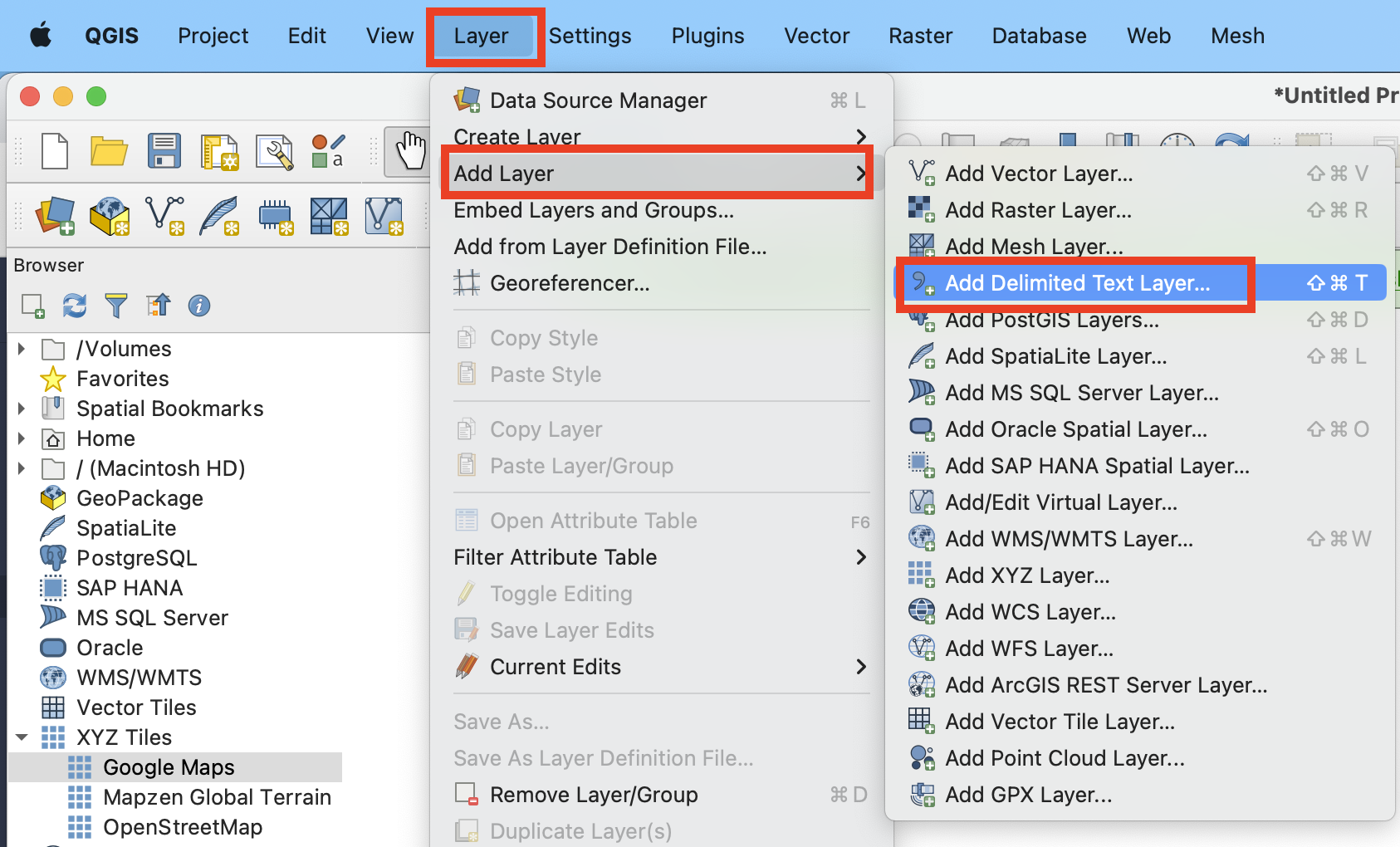
**PASUL 1**: Porniți procesul de import folosind „Layer” >> „Add Layer” >> „Add Delimited Text Layer”.
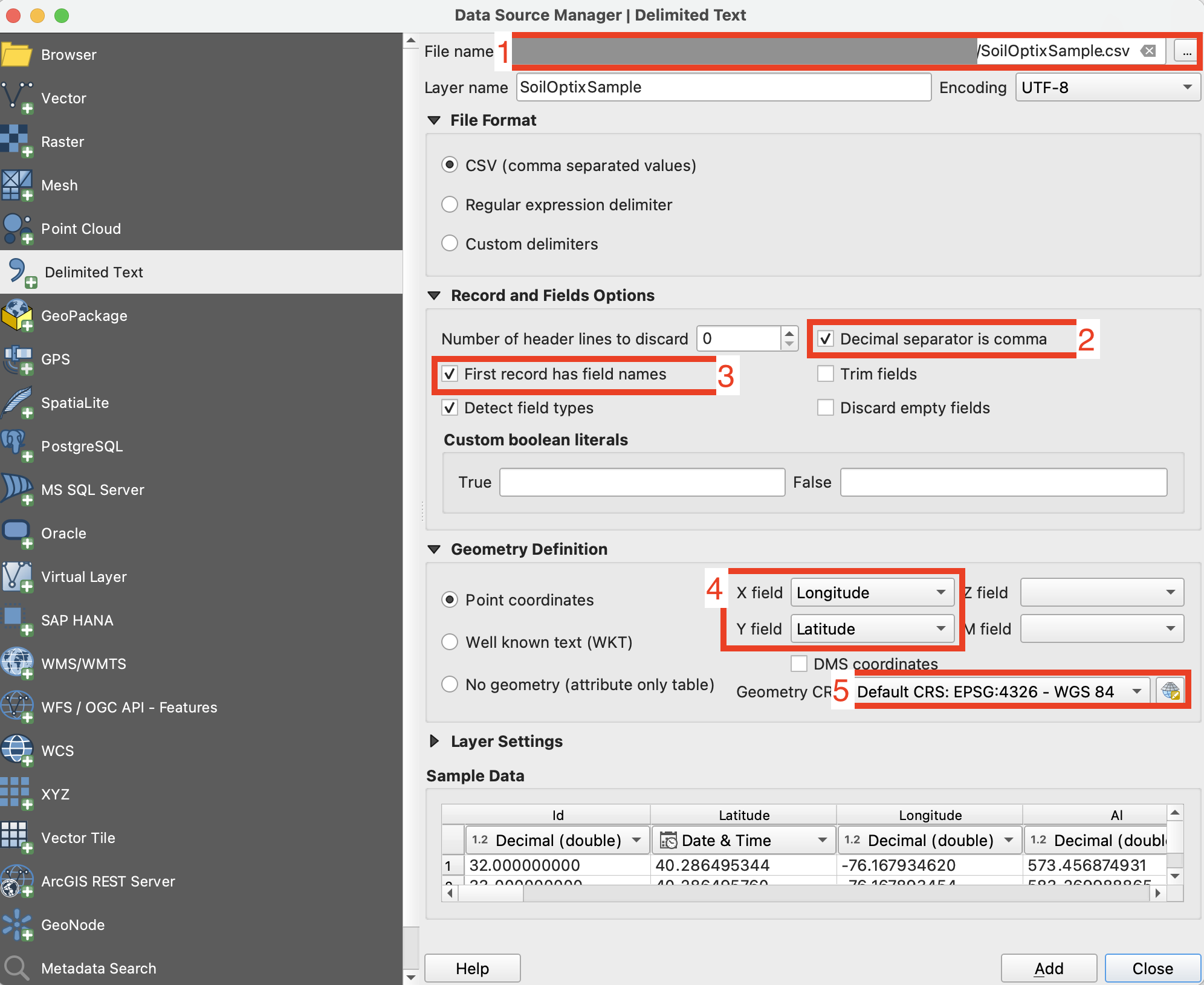
**PASUL 2**: Configurați parametrii de import și faceți clic pe butonul „Add”.
1. Definiți calea către fișierul CSV
2. Verificați separatorul de coloană, ar trebui să fie o virgulă.
3. Verificați primul rând. De obicei, conține numele atributelor. Trebuie exclus din parsare.
4. Selectați coloanele setului de date cu date de Latitudine (X) și Longitudine (Y).
5. Setați Sistemul de Referință al Coordonatelor. De obicei, se folosește ESPG:4326.
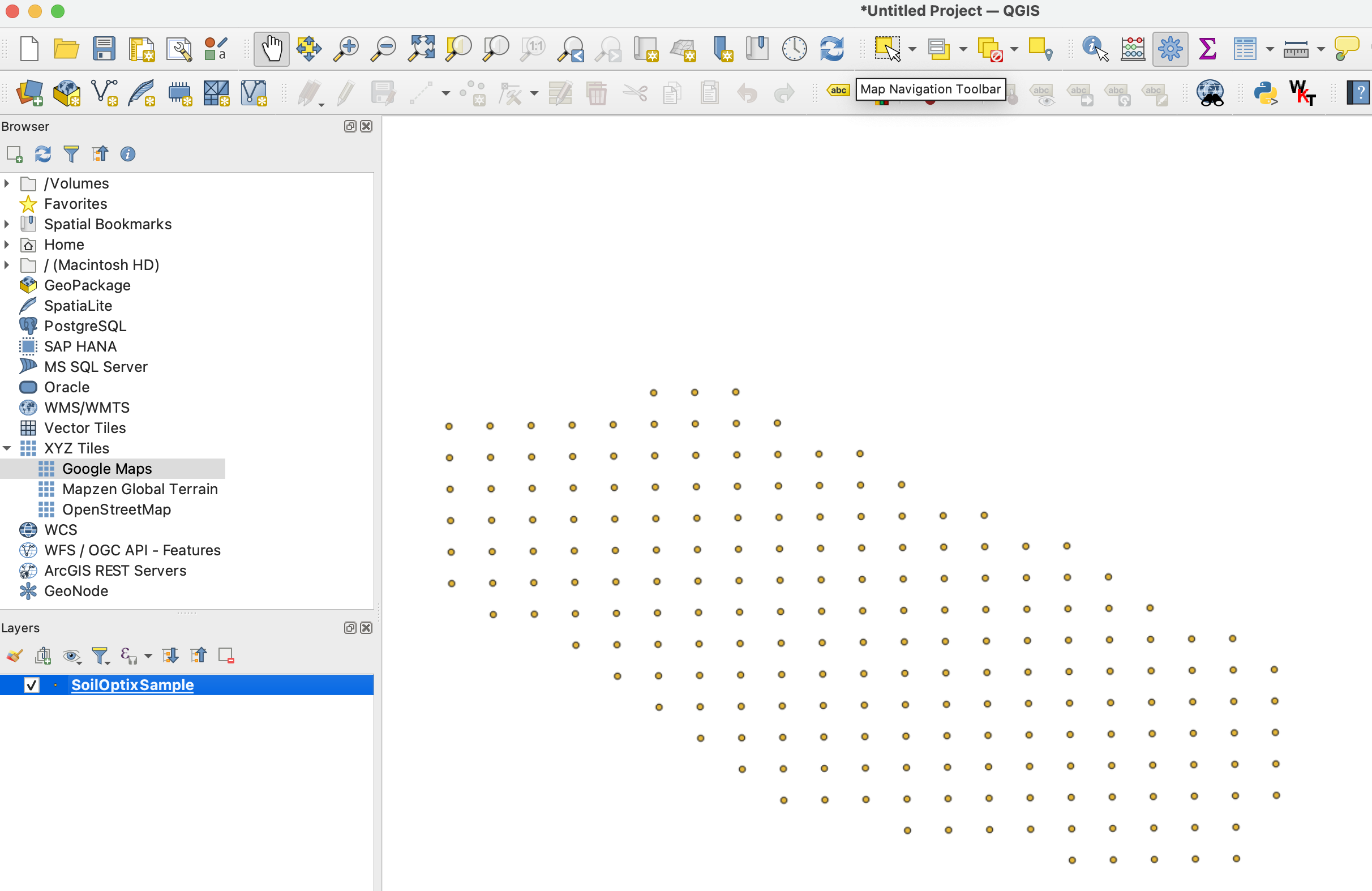
Rezultatul așteptat după **PASUL 2** arată ca
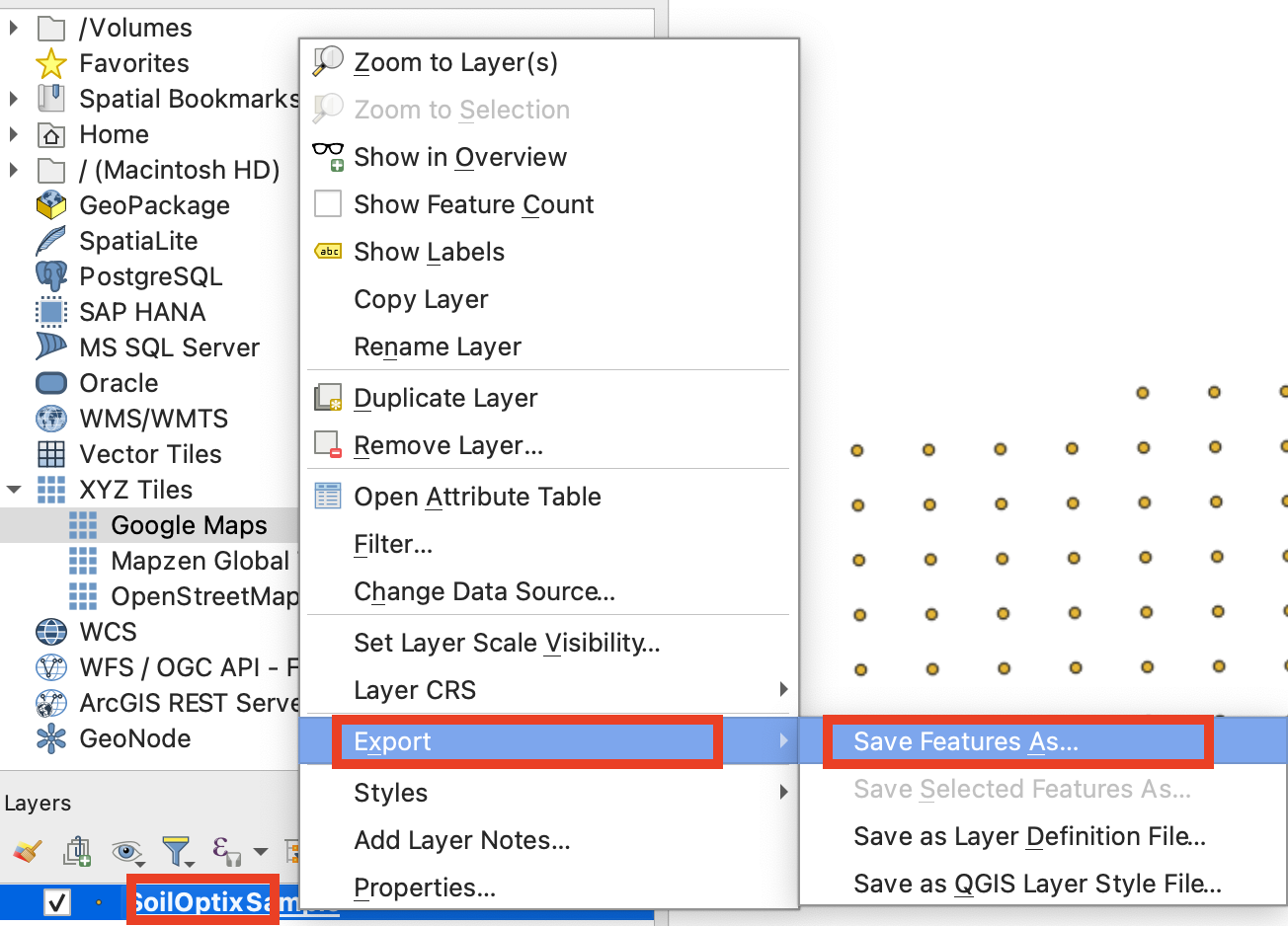
**PASUL 3**: Declanșați fluxul de export prin clic pe „Right Mouse Button” >> „Export” >> „Save Features As ...”
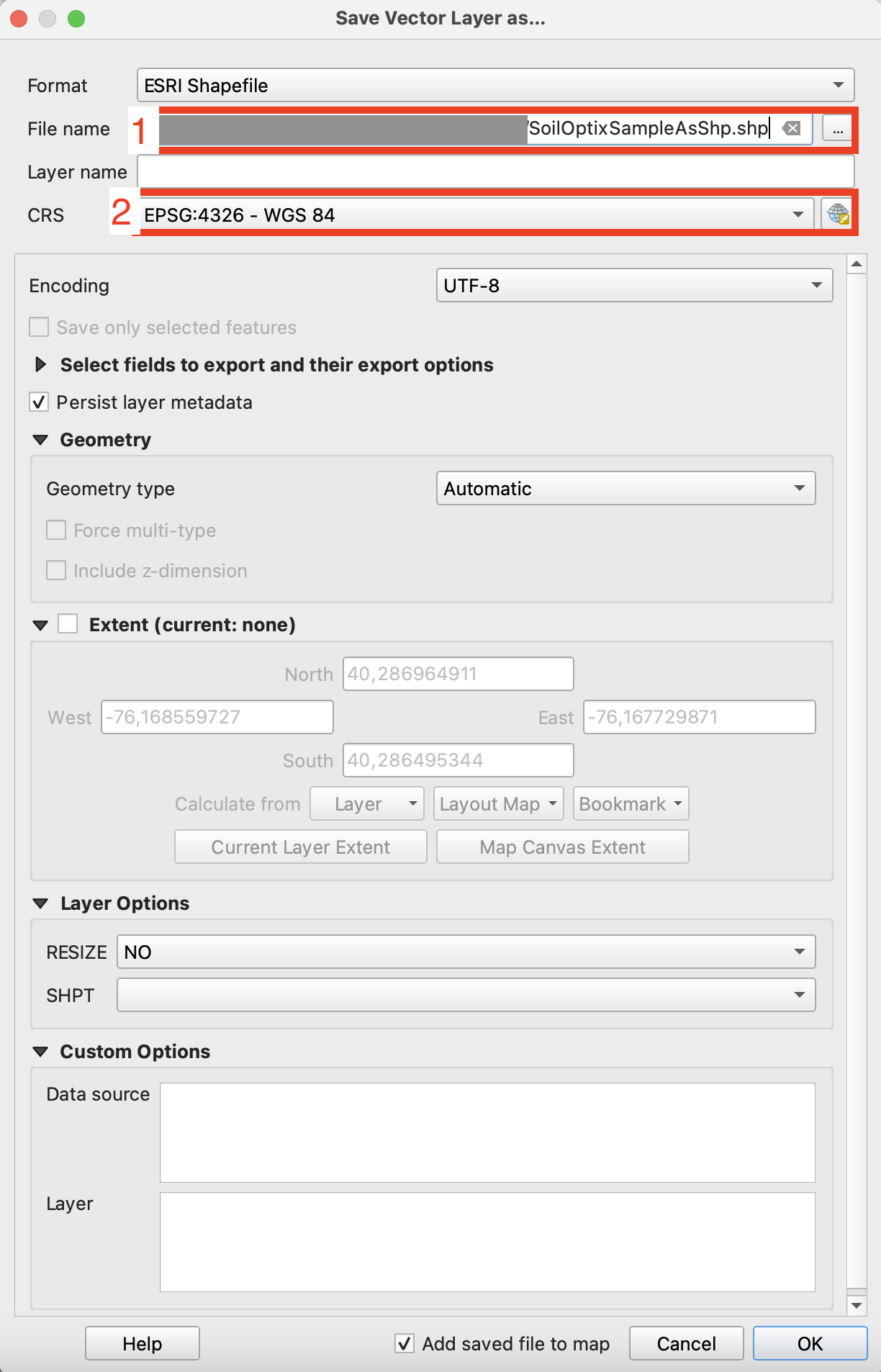
**PASUL 4**: Configurați opțiunile corecte de export și faceți clic pe „Ok”.
1. Setați calea către shapefile-ul exportat.
2. Setați Sistemul de Referință al Coordonatelor (CRS) la ESPG:4326, care este acceptat de GeoPard.
---
# Agent Instructions
This documentation is published with GitBook. GitBook is the documentation platform designed so that both humans and AI agents can read, navigate, and reason over technical content effectively. Learn more at gitbook.com.
## Querying This Documentation
If you need additional information that is not directly available in this page, you can query the documentation by asking a question.
Perform an HTTP GET request on the following URL with the `ask` and `goal` query parameters:
```
GET https://docs.geopard.tech/geopard-tutorials/ro/ponturi-rapide-gis/qgis-converteste-csv-in-shp.md?ask=&goal=
```
`ask` is the immediate question: it should be specific, self-contained, and written in natural language.
`goal` is what the user is ultimately trying to achieve, the reason they need the answer. Sharing it helps GitBook give you a better, more relevant answer. A goal is most helpful when it describes the outcome the user wants rather than restating the question. For example, with `ask=how do I create an API token`, a goal like `automate deployments from our CI pipeline` lets GitBook tailor the answer to that use case.
The response will contain a direct answer to the question and relevant excerpts and sources from the documentation.
Use this mechanism when the answer is not explicitly present in the current page, you need clarification or additional context, or you want to retrieve related documentation sections.