> For the complete documentation index, see [llms.txt](https://docs.geopard.tech/geopard-tutorials/llms.txt). Markdown versions of documentation pages are available by appending `.md` to page URLs; this page is available as [Markdown](https://docs.geopard.tech/geopard-tutorials/ro/ponturi-rapide-gis/qgis-calculeaza-ndvi-pentru-fisierul-drone-geotiff.md).
# QGIS: Calculează NDVI pentru fișierul drone GeoTIFF
Uneori trebuie să calculați NDVI-ul mediu pentru un anumit poligon din interiorul parcelei. Puteți face următoarele într-un program QGIS.
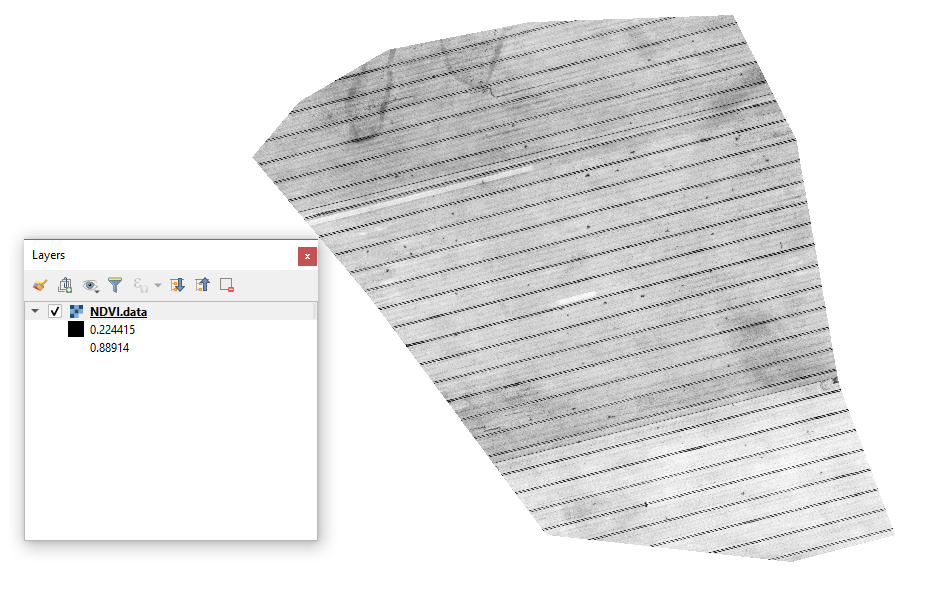
#### 1 - Vizualizați GeoTIFF-ul NDVI inițial de la dronă
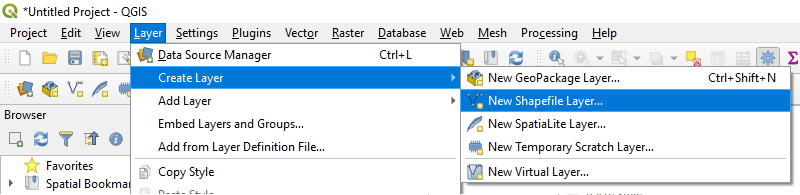
#### 2 - Creați un strat nou
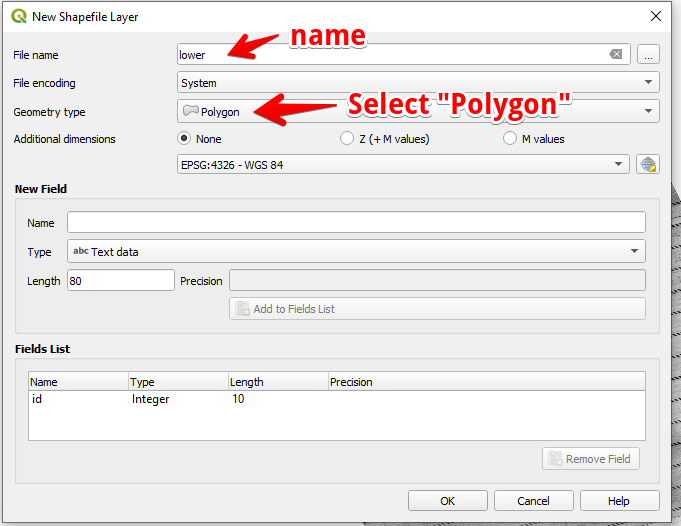
#### 3 - Configurați numele stratului și tipul de geometrie, apoi apăsați OK
#### 4 - Selectați stratul în panoul Straturi
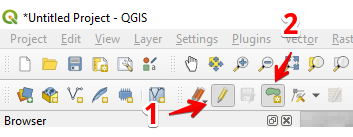
1. Selectați „Comutare editare” (1)
2. Selectați „Adăugare entitate poligonală” (2)
#### 5 - Desenați un poligon. Pentru a termina desenarea, apăsați butonul din dreapta al mouse-ului și setați „id” în fereastra pop-up.
Finalizați stratul apăsând din nou „Comutare editare” și apăsați „Salvare”.
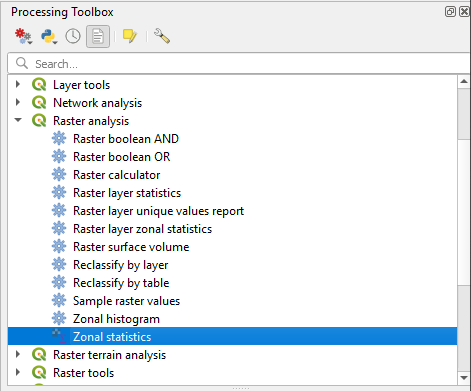
#### 6 - Selectați statistici zonale în panoul „Processing toolbox”.
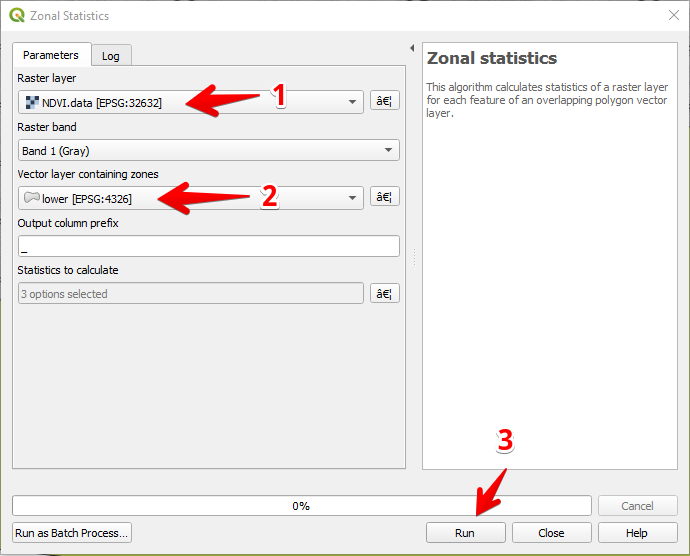
#### 7 - Selectați stratul raster (1),
Selectați stratul poligonal (2),
Apăsați „Run” (3).
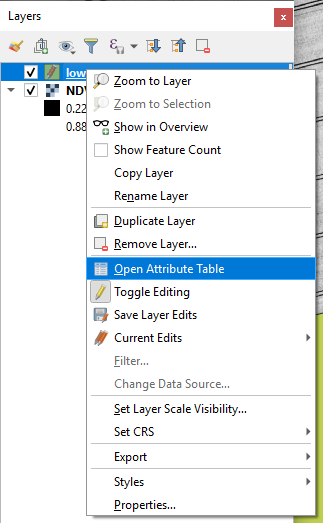
#### 8 - Selectați stratul în panoul Straturi și apăsați butonul din dreapta al mouse-ului; în meniul contextual selectați Deschide tabela de atribute.
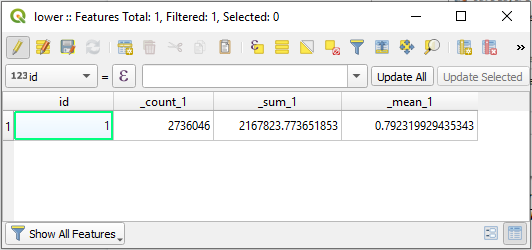
#### 9 - Statisticile calculate vor fi afișate în tabel.
---
# Agent Instructions
This documentation is published with GitBook. GitBook is the documentation platform designed so that both humans and AI agents can read, navigate, and reason over technical content effectively. Learn more at gitbook.com.
## Querying This Documentation
If you need additional information that is not directly available in this page, you can query the documentation by asking a question.
Perform an HTTP GET request on the following URL with the `ask` and `goal` query parameters:
```
GET https://docs.geopard.tech/geopard-tutorials/ro/ponturi-rapide-gis/qgis-calculeaza-ndvi-pentru-fisierul-drone-geotiff.md?ask=&goal=
```
`ask` is the immediate question: it should be specific, self-contained, and written in natural language.
`goal` is what the user is ultimately trying to achieve, the reason they need the answer. Sharing it helps GitBook give you a better, more relevant answer. A goal is most helpful when it describes the outcome the user wants rather than restating the question. For example, with `ask=how do I create an API token`, a goal like `automate deployments from our CI pipeline` lets GitBook tailor the answer to that use case.
The response will contain a direct answer to the question and relevant excerpts and sources from the documentation.
Use this mechanism when the answer is not explicitly present in the current page, you need clarification or additional context, or you want to retrieve related documentation sections.