> For the complete documentation index, see [llms.txt](https://docs.geopard.tech/geopard-tutorials/llms.txt). Markdown versions of documentation pages are available by appending `.md` to page URLs; this page is available as [Markdown](https://docs.geopard.tech/geopard-tutorials/pt-br/tour-do-produto-aplicativo-web/mapas-de-zonas-e-analises/comparar-camadas.md).
# Comparar Camadas
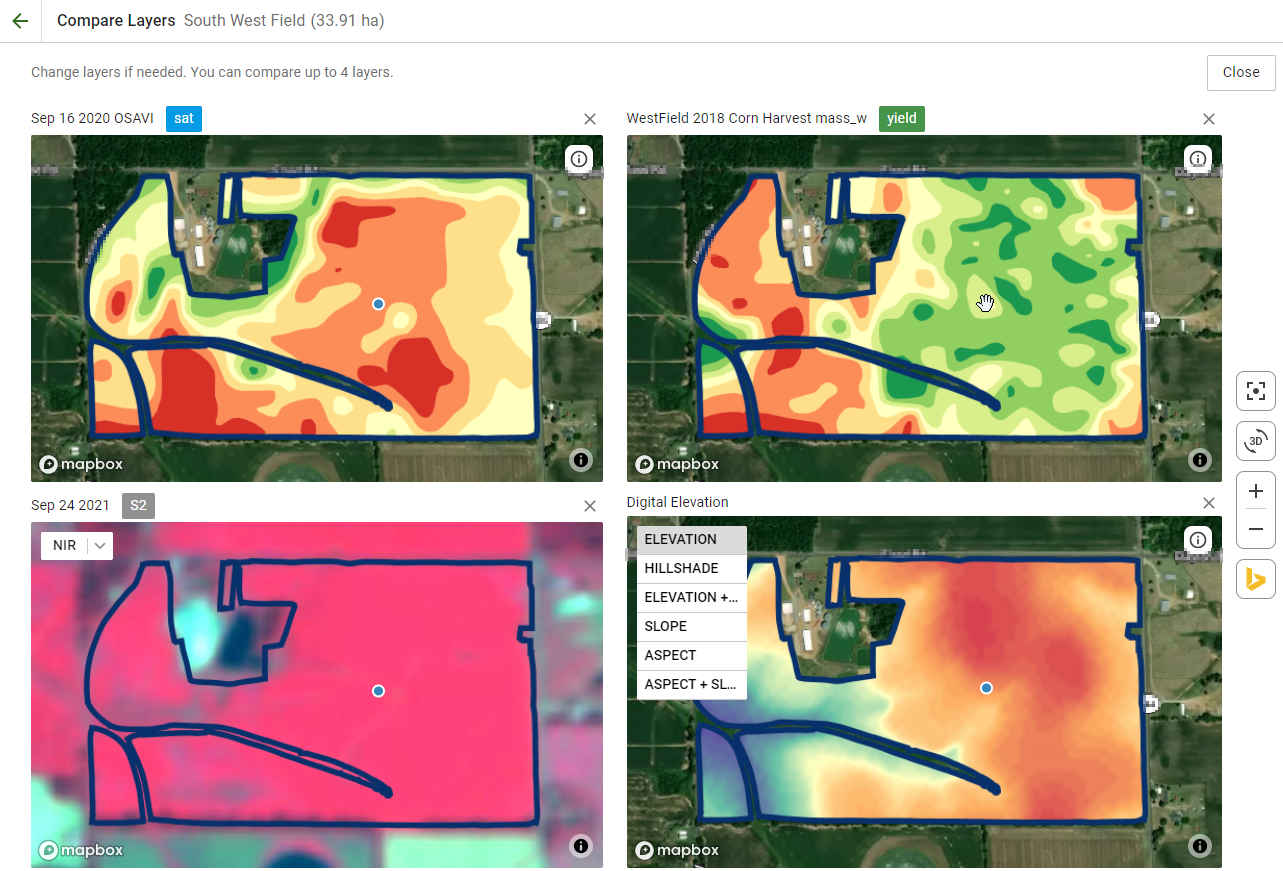
O recurso Comparar Camadas permite comparar análises de campo lado a lado em uma visualização dividida. Você pode selecionar qualquer tipo de camada para comparação, incluindo imagens em cores naturais ou infravermelhas, imagens com visualizações de vegetação e zonas de manejo sazonais ou históricas. As duas camadas permanecem sincronizadas quando você amplia ou move o mapa.
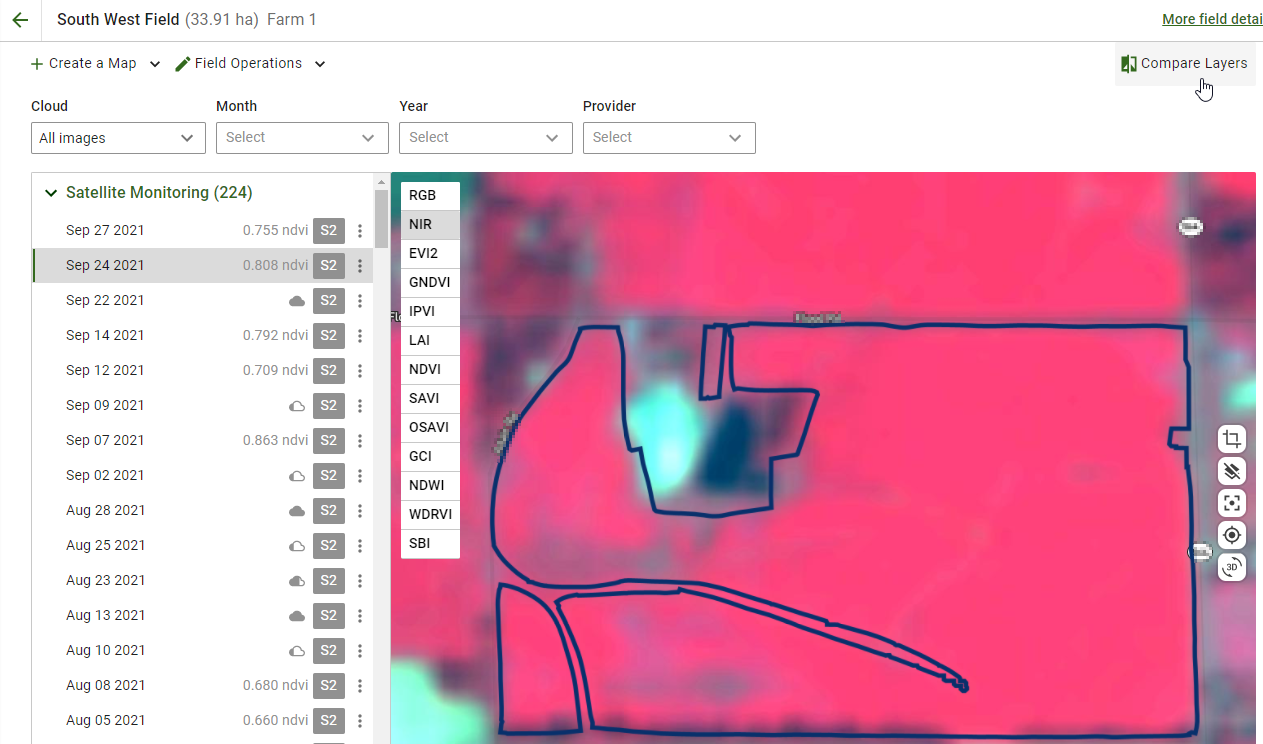
1. Para entrar no modo de visualização dividida, selecione seu talhão e clique no **Comparar Camadas** item no canto superior direito.
2. Selecione as camadas para análise na árvore à esquerda e clique no **Comparar Camadas** botão. 
3. Na próxima etapa, você pode comparar e analisar os dados. Além disso, você pode gerenciar camadas e adicionar novas ou remover antigas.
4. Para sair do modo de visualização dividida, clique no **Fechar** botão na parte superior da tela.
---
# Agent Instructions
This documentation is published with GitBook. GitBook is the documentation platform designed so that both humans and AI agents can read, navigate, and reason over technical content effectively. Learn more at gitbook.com.
## Querying This Documentation
If you need additional information that is not directly available in this page, you can query the documentation dynamically by asking a question.
Perform an HTTP GET request on the current page URL with the `ask` query parameter:
```
GET https://docs.geopard.tech/geopard-tutorials/pt-br/tour-do-produto-aplicativo-web/mapas-de-zonas-e-analises/comparar-camadas.md?ask=
```
The question should be specific, self-contained, and written in natural language.
The response will contain a direct answer to the question and relevant excerpts and sources from the documentation.
Use this mechanism when the answer is not explicitly present in the current page, you need clarification or additional context, or you want to retrieve related documentation sections.