> For the complete documentation index, see [llms.txt](https://docs.geopard.tech/geopard-tutorials/llms.txt). Markdown versions of documentation pages are available by appending `.md` to page URLs; this page is available as [Markdown](https://docs.geopard.tech/geopard-tutorials/pt-br/tour-do-produto-aplicativo-mobile/trabalhando-offline.md).
# Trabalhando offline
Use o aplicativo móvel GeoPard offline e mantenha o trabalho de campo em movimento sem sinal.
Trabalhando offline
Antes de prosseguir para trabalhar com o aplicativo móvel GeoPard, recomendamos que você salve suas credenciais, para que não tenha problemas para acessar o aplicativo sem conexão de rede.
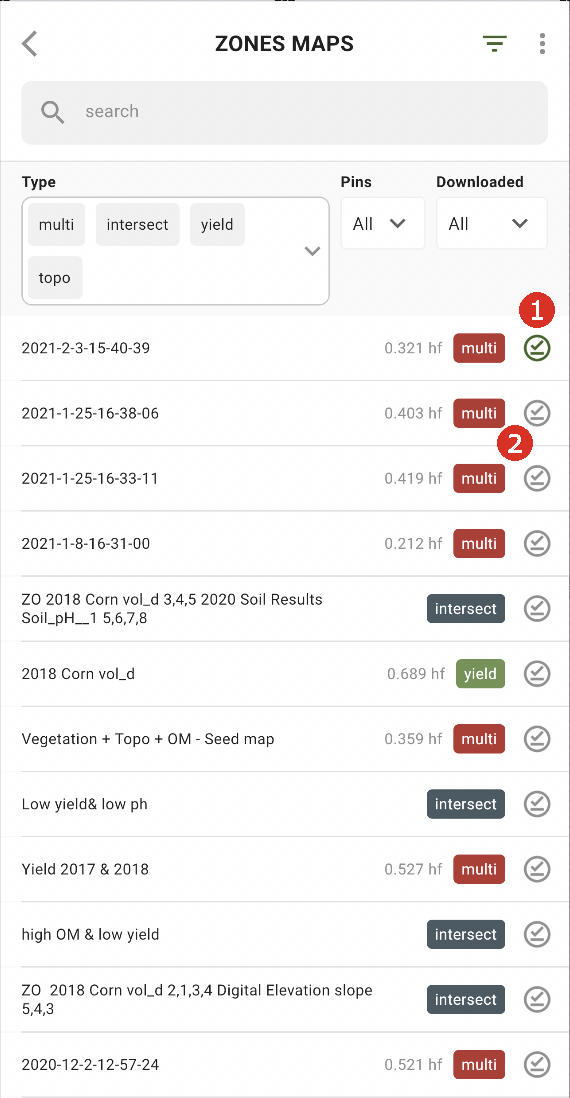
Para conseguir trabalhar offline, você precisa baixar o mapa de Zonas para o seu smartphone. Toque no botão de download ao lado do mapa de Zonas que você deseja baixar (2).
Depois que o mapa for baixado para o seu dispositivo, ele terá uma marca de seleção verde ao lado (1).
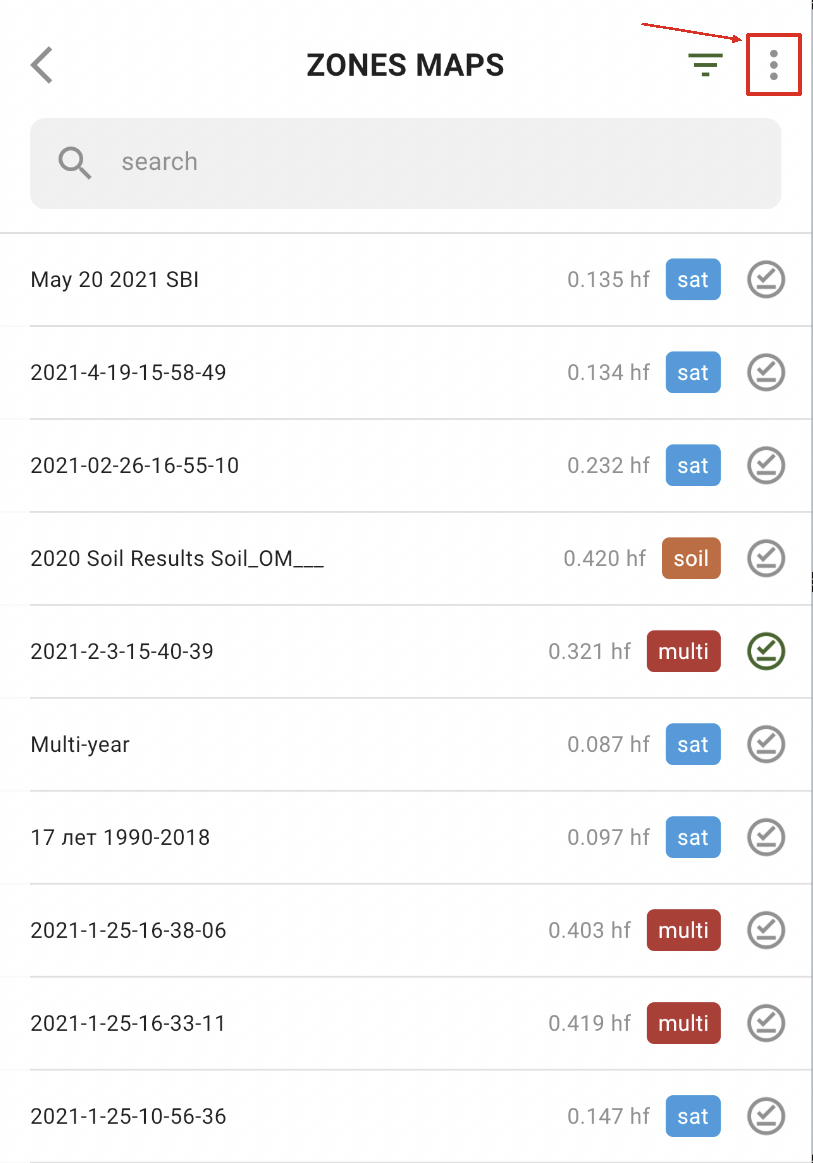
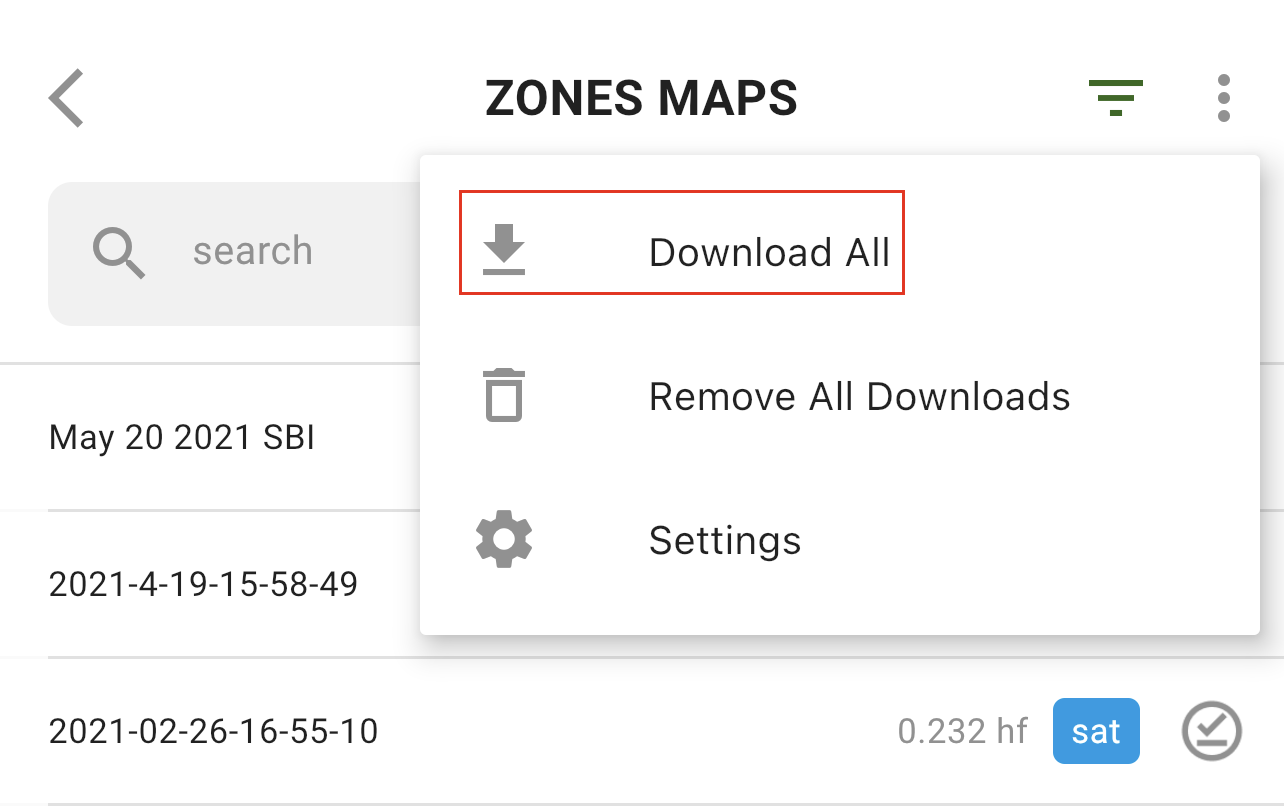
Para baixar todos os mapas de Zonas de uma vez, toque na opção Mais:
e selecione a opção “Baixar tudo”:
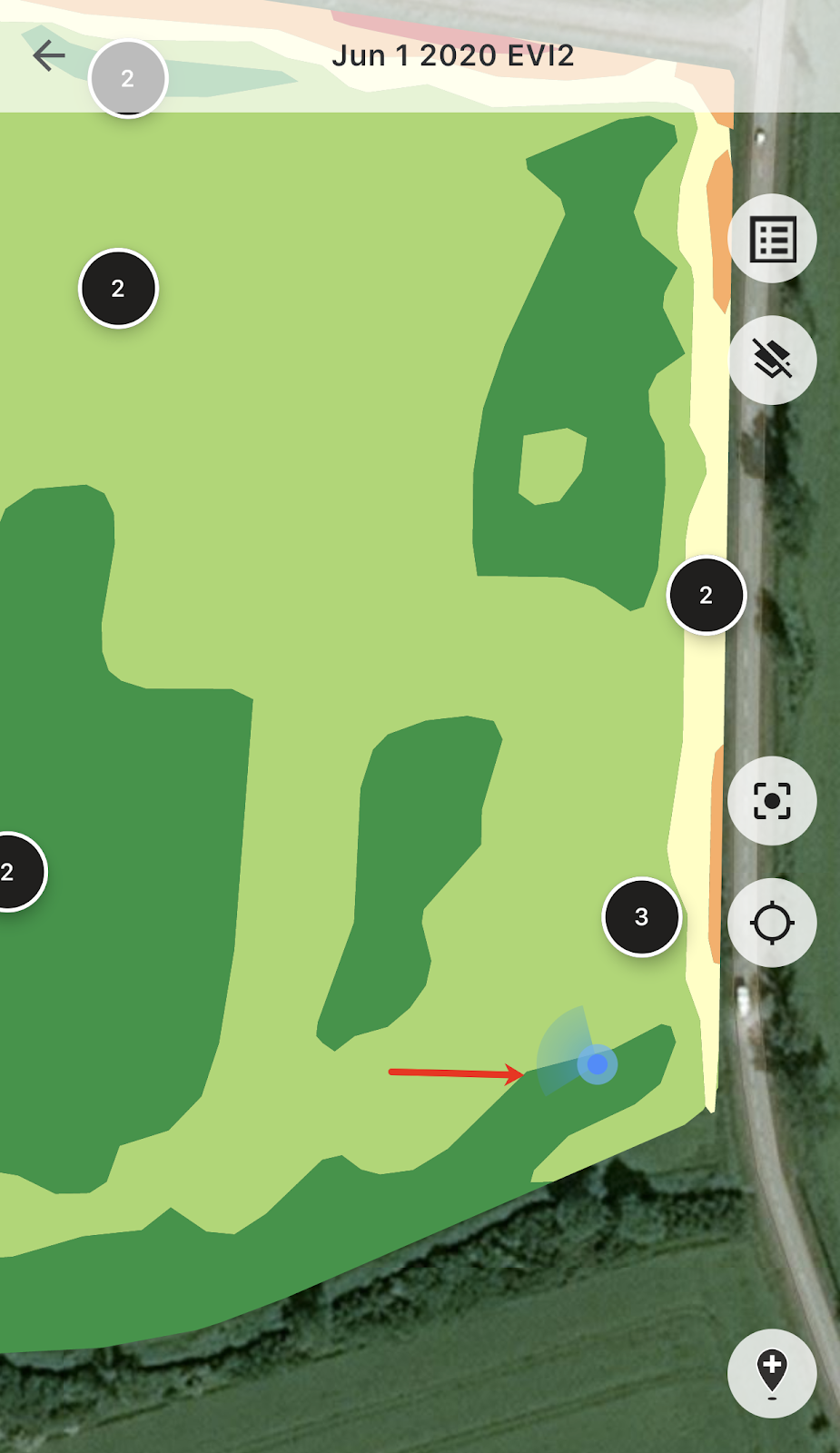
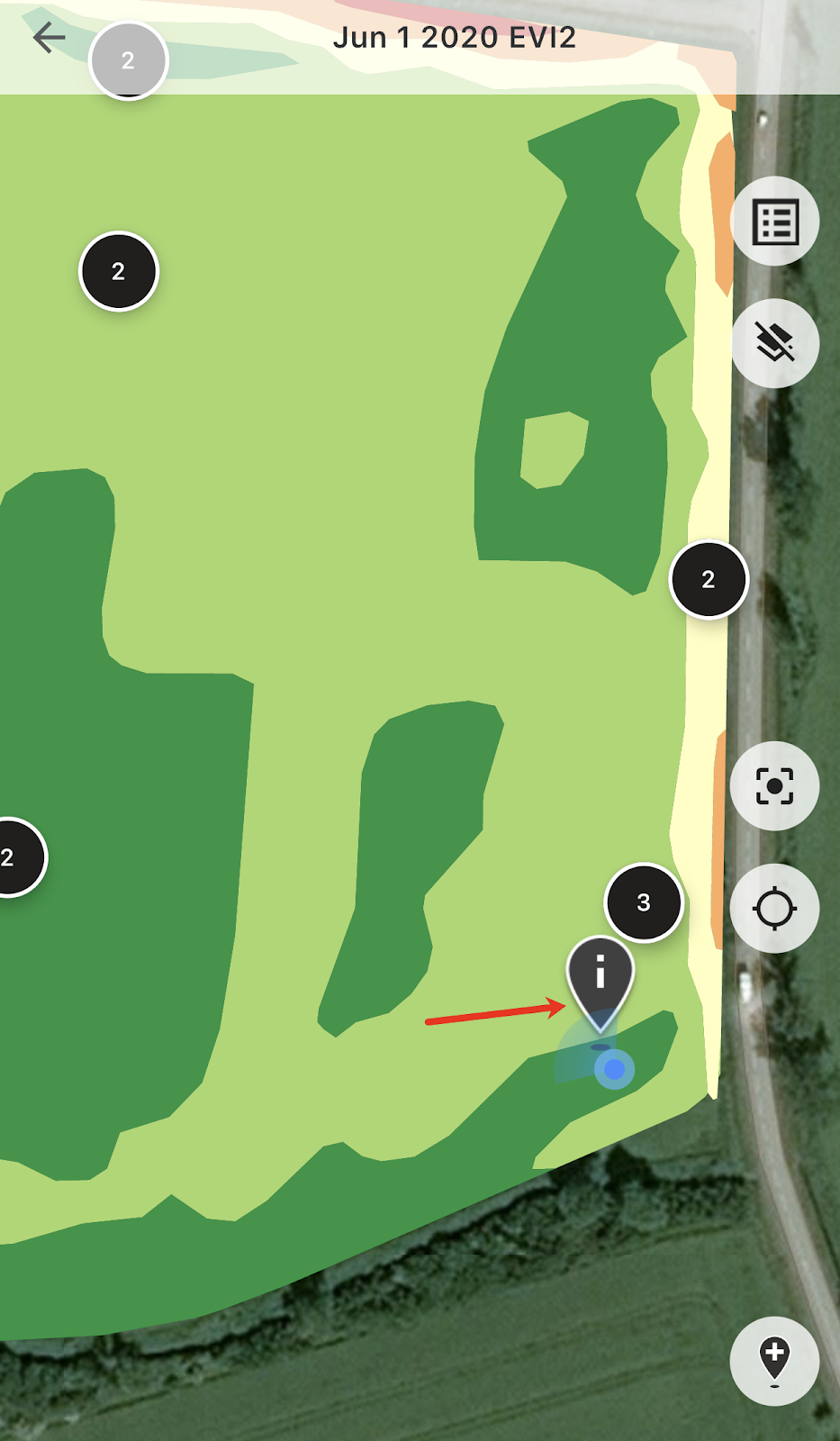
Quando você estiver no campo, poderá acompanhar sua localização e ver a direção do seu deslocamento.
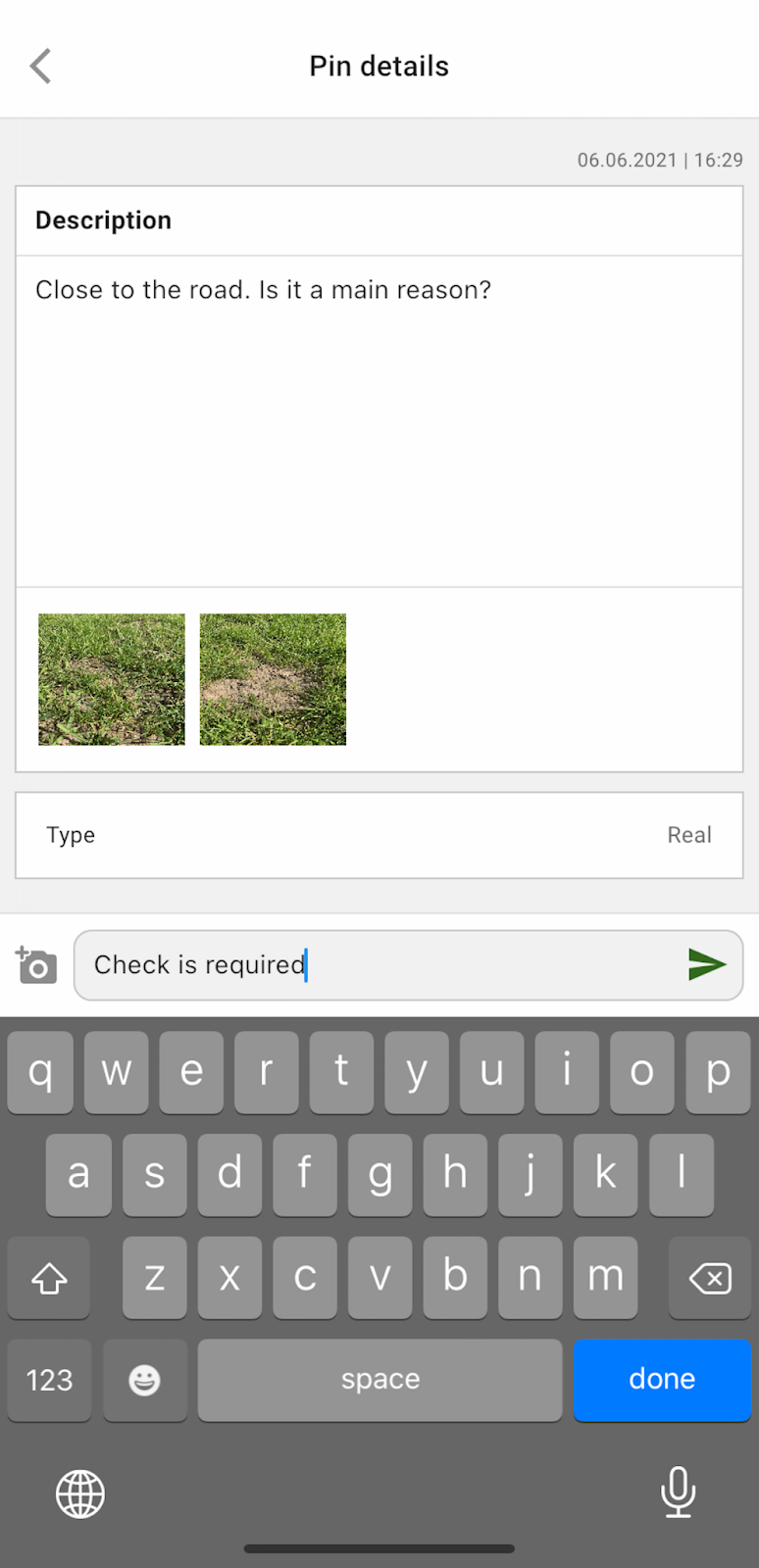
Você pode tocar em qualquer um dos pinos planejados e adicionar/editar comentários.
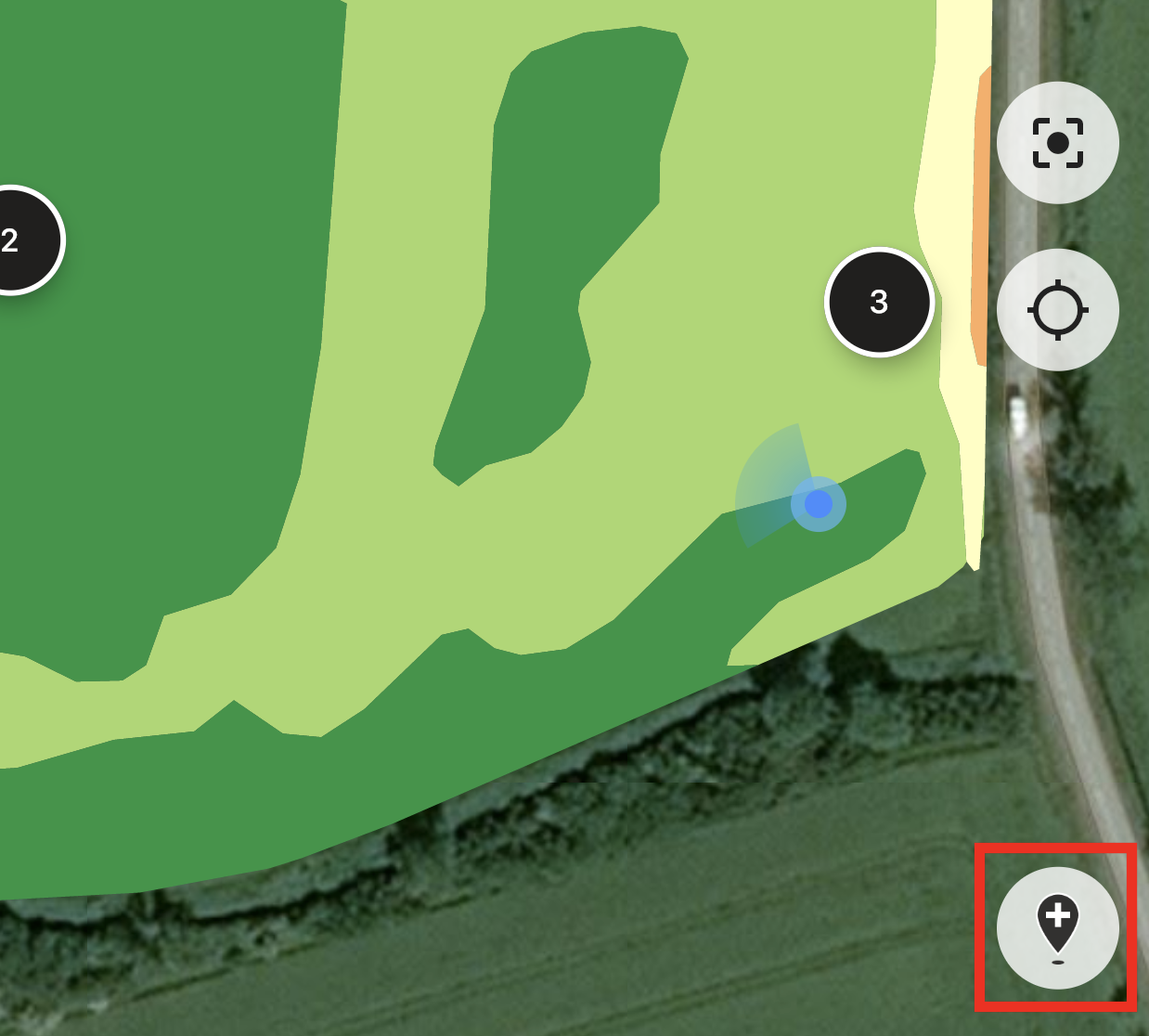
Ou, se você perceber algo que precise de atenção (uma anomalia ou o limite do campo estiver incorreto), toque no botão Adicionar novo pino.
Digite seus comentários e toque no botão “Salvar” para adicionar um novo pino ao mapa de Zonas.
Os pinos que você adiciona usando o dispositivo móvel têm um ícone diferente em comparação com os pinos planejados que você adiciona usando o aplicativo web.
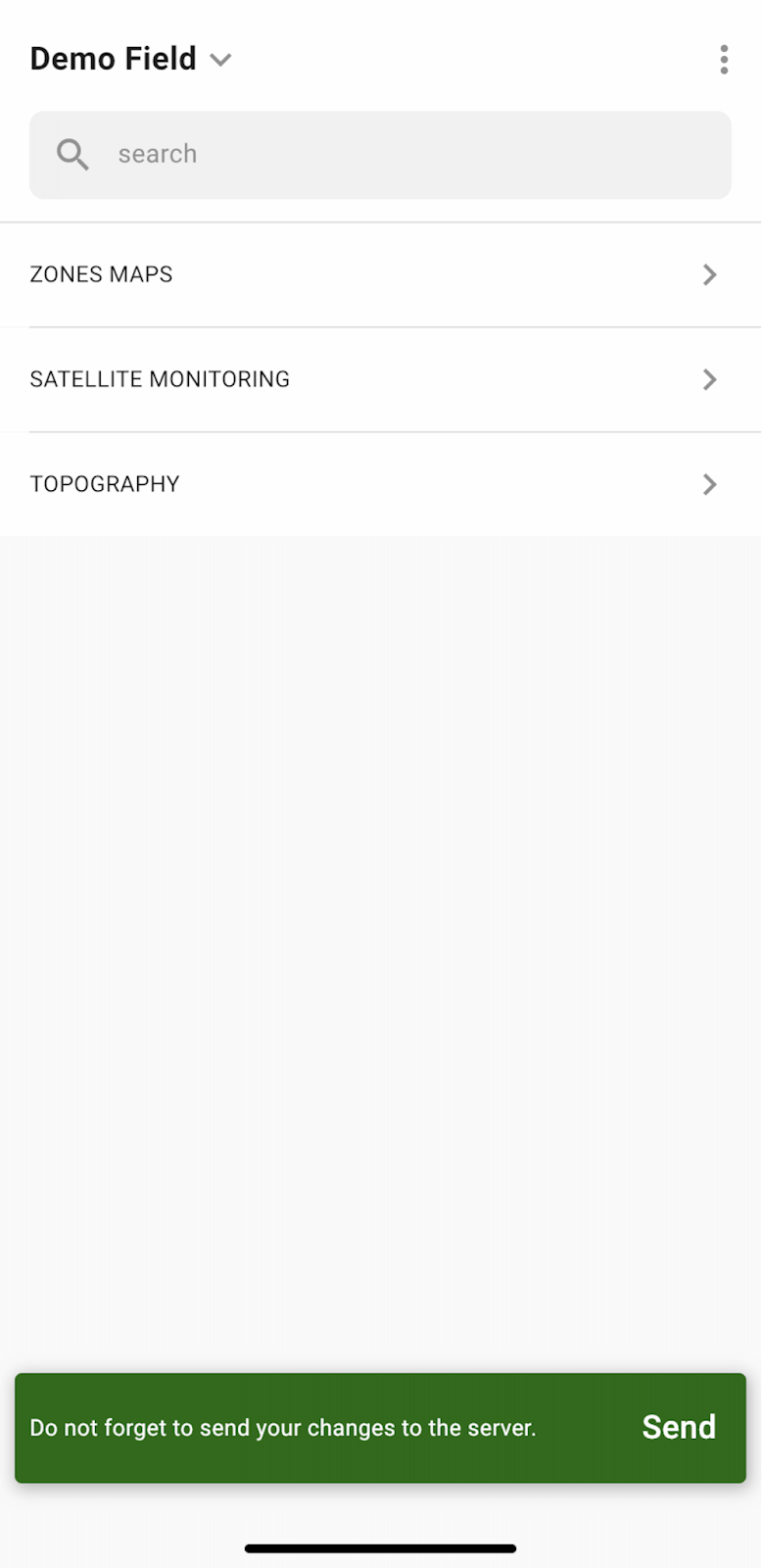
Quando você terminar seu trabalho no campo e tiver adicionado/editado pinos, verá uma notificação solicitando que você envie suas alterações para o servidor. Ou, no caso de você trabalhar offline, será solicitado que você envie suas alterações assim que estiver conectado à rede.
Toque em “Enviar” para sincronizar suas alterações com o servidor.
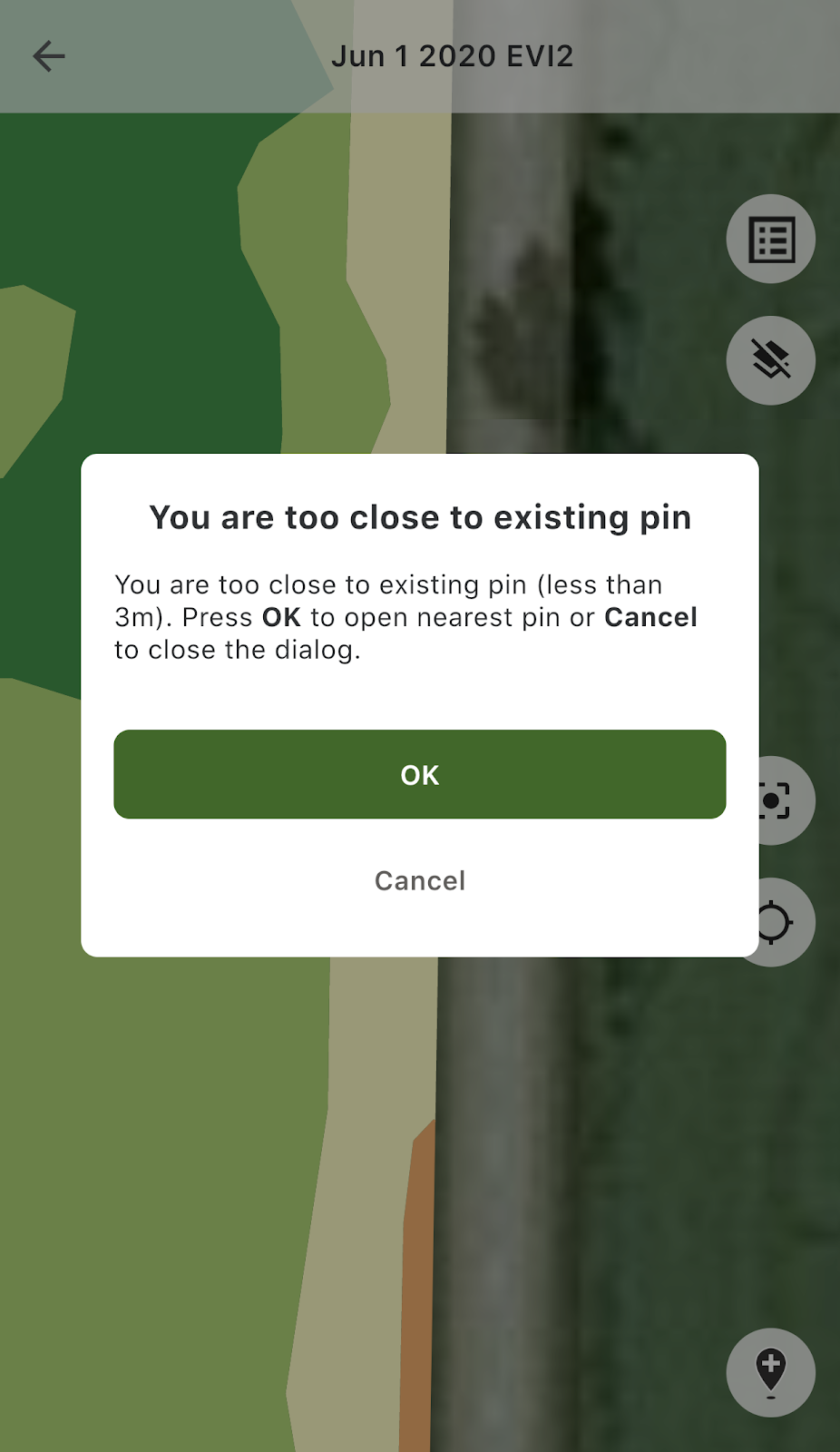
Se você estiver perto de um pino existente e tentar adicionar um novo pino, verá a seguinte mensagem:
Nesse caso, você pode tocar em “OK” para abrir o pino mais próximo, ou em “Cancelar” para fechar a mensagem pop-up.
---
# Agent Instructions
This documentation is published with GitBook. GitBook is the documentation platform designed so that both humans and AI agents can read, navigate, and reason over technical content effectively. Learn more at gitbook.com.
## Querying This Documentation
If you need additional information that is not directly available in this page, you can query the documentation by asking a question.
Perform an HTTP GET request on the following URL with the `ask` and `goal` query parameters:
```
GET https://docs.geopard.tech/geopard-tutorials/pt-br/tour-do-produto-aplicativo-mobile/trabalhando-offline.md?ask=&goal=
```
`ask` is the immediate question: it should be specific, self-contained, and written in natural language.
`goal` is what the user is ultimately trying to achieve, the reason they need the answer. Sharing it helps GitBook give you a better, more relevant answer. A goal is most helpful when it describes the outcome the user wants rather than restating the question. For example, with `ask=how do I create an API token`, a goal like `automate deployments from our CI pipeline` lets GitBook tailor the answer to that use case.
The response will contain a direct answer to the question and relevant excerpts and sources from the documentation.
Use this mechanism when the answer is not explicitly present in the current page, you need clarification or additional context, or you want to retrieve related documentation sections.