> For the complete documentation index, see [llms.txt](https://docs.geopard.tech/geopard-tutorials/llms.txt). Markdown versions of documentation pages are available by appending `.md` to page URLs; this page is available as [Markdown](https://docs.geopard.tech/geopard-tutorials/pt-br/dicas-rapidas-de-gis/qgis-dividir-shapefiles-de-multiplos-talhoes.md).

# QGIS: Dividir shapefiles de múltiplos talhões

Divida um shapefile com vários talhões em shapefiles separados de limites de talhão no QGIS para importação no GeoPard.

Se um shapefile contiver vários polígonos de talhão, divida-o antes de importar. O GeoPard importa um limite de talhão por shapefile. Este fluxo de trabalho no QGIS ajuda você a preparar arquivos limpos mais rapidamente e a evitar problemas de importação.

### Antes de começar

* Certifique-se de que a camada tenha um nome ou ID de talhão único.
* Crie com antecedência uma pasta de saída vazia.
* Remova `/`, `\`, e caracteres especiais semelhantes dos nomes dos talhões.

### Divida um shapefile com vários talhões no QGIS

#### 1. Abra o shapefile no QGIS

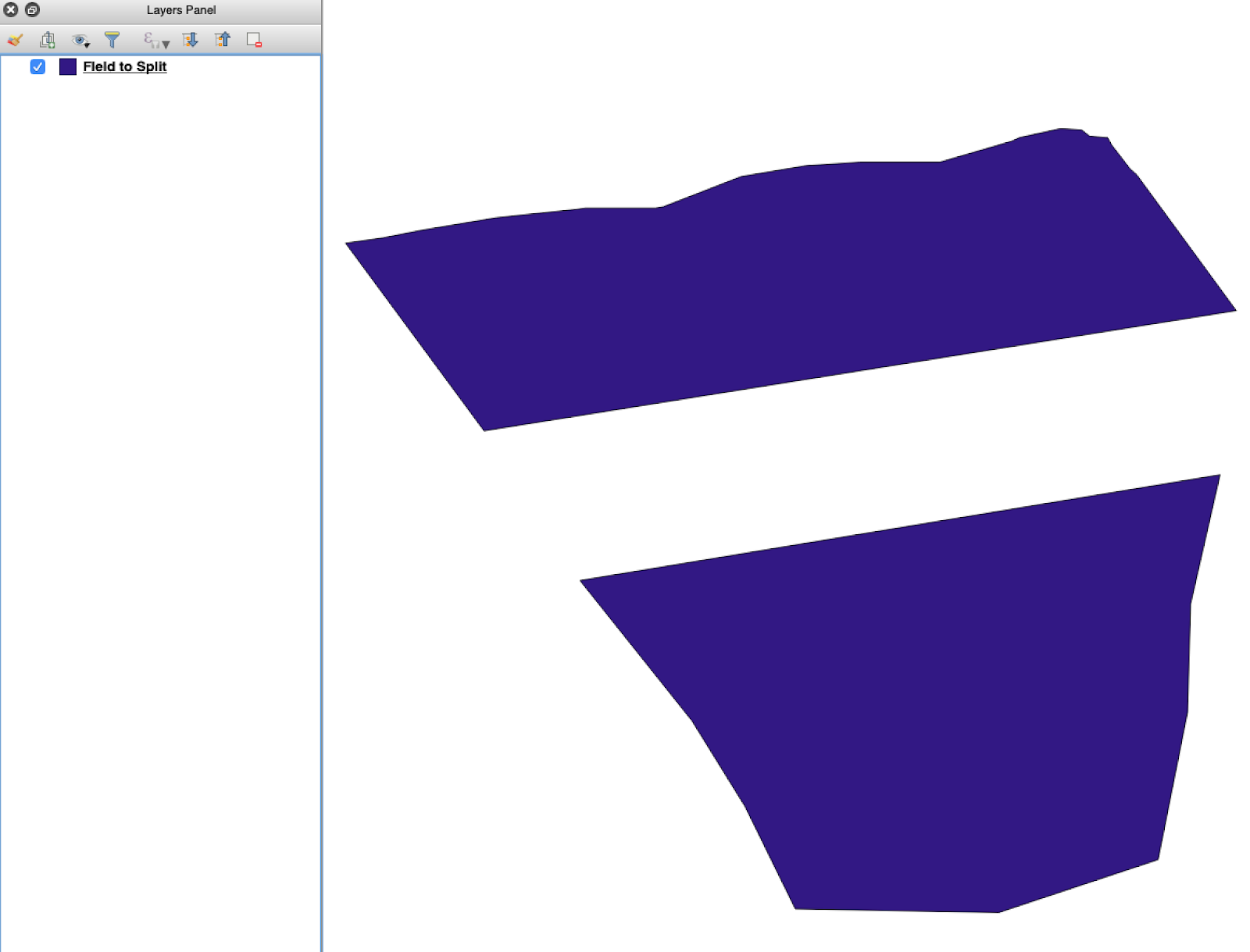
Abra o shapefile de origem no QGIS. Confirme que ele contém vários polígonos de talhão.

<figure><img src="https://lh5.googleusercontent.com/G8ooE_FarMCXvt6CjpvfwgRIiIwLVcSki84FFUiBelII7dZVLJHPN2K_Dj4As-VZNXYsut1q2JGtYEir3GCVfWqwKe4UAI9r9OcIM87jOkDRfiGes_wmD6zTmUyZpUZXgkQBUaW8RCsdaUKY18kaVQ" alt=""><figcaption><p>Camada inicial de limite de talhão com vários polígonos.</p></figcaption></figure>

#### 2. Abra a ferramenta de divisão

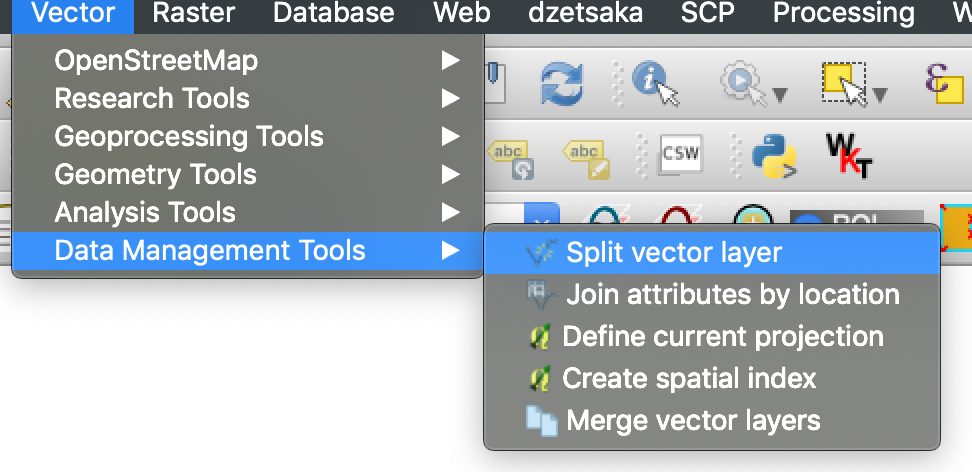
Abra as opções da camada e escolha **Dividir camada vetorial**.

<figure><img src="https://lh4.googleusercontent.com/g5B3A43gGlRbUBv2hkAt8xVT7UXzLvj06KB99R471uQQAIZLdoHFPmopQfz9ntwflEEN70DDUuMp7LQGqPocfzkBWbVc27Fm3pPCu2kWhbfnaG54TKGKmj4gKJw7sA10NKJf6ezJ62JVLtMlpSAl1Q" alt=""><figcaption><p>Abra o fluxo de trabalho de divisão.</p></figcaption></figure>

#### 3. Escolha a camada, o atributo e a pasta de saída

Defina:

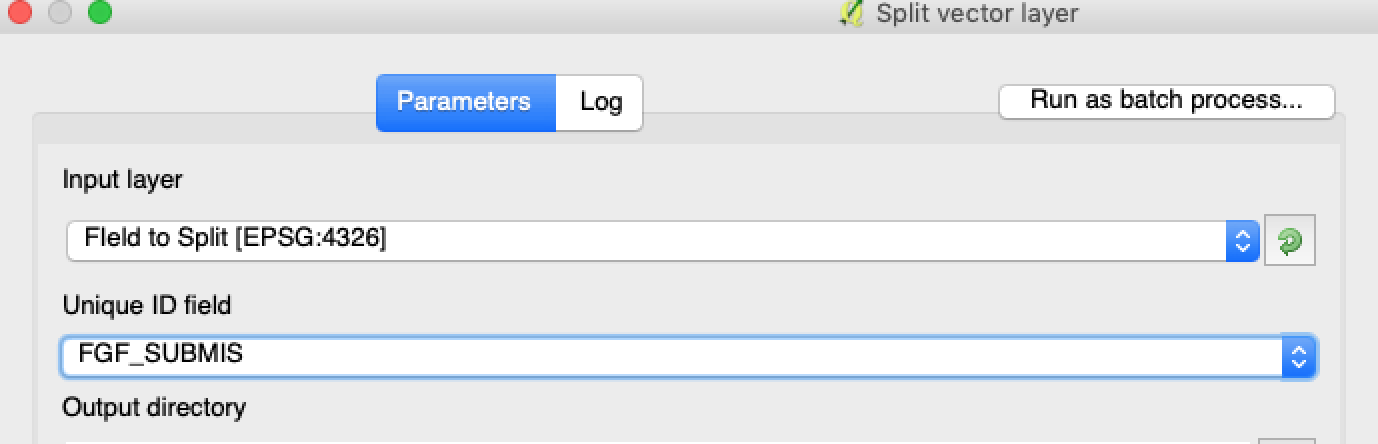
1. A camada a ser dividida.
2. Um atributo único para cada talhão.
3. O diretório de saída.

<figure><img src="https://lh3.googleusercontent.com/oWwaxwcCPhOp6kIlpDM4z0CK_J_Q6QGCoIdXhr-vMrpQrf_HOLT5ZfHYExEk7J0QIYdPKunOdhe14S9Ay_-FtwGnTnq19GdtnWC4cUcEhEOXIGj7vZdZPsCovszX0sVdz1bF-yraci-5g09ZNJRocw" alt=""><figcaption><p>Selecione a camada de origem e o atributo de divisão.</p></figcaption></figure>

#### 4. Defina o formato de saída

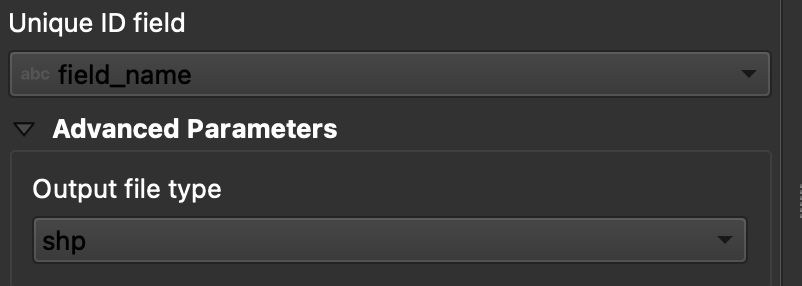
Escolha **ESRI Shapefile** como formato de saída.

<figure><img src="https://lh6.googleusercontent.com/tDOJ7vPBHqCy8peu5Xb97FkYz43HZXnniWwYj6-UXcaMyJaEvuWqx6ew40n9OvXM9OGrPGof0rWasEcgQFjh9SEakNXKW4K4n3Ei56B6jwttr_NW30naaD4OYNJERbQeqeX7bE4JJNd_HwYlgdKIqg" alt=""><figcaption><p>Defina a pasta de saída e o formato shapefile.</p></figcaption></figure>

#### 5. Execute a divisão

Clique em **Executar**. O QGIS cria um arquivo por polígono. Cada polígono se torna um shapefile separado de limite de talhão.

#### 6. Converta `.gpkg` arquivos para `.shp` se necessário

Algumas configurações do QGIS criam arquivos `.gpkg` primeiro. Se isso acontecer, abra cada arquivo e salve-o novamente como **ESRI Shapefile**.

1. Clique com o botão direito na camada.
2. Selecione **Exportar** → **Salvar feições como**.
3. Escolha **ESRI Shapefile**.
4. Defina o nome e o local do arquivo.
5. Remova atributos desnecessários, se preciso.

### Resultado

Agora você tem um shapefile por talhão. Cada arquivo está pronto para o upload do limite de talhão no GeoPard. Isso economiza tempo de configuração e reduz retrabalho evitável na importação.

### Guias relacionados do QGIS

* [QGIS: Converter CSV para SHP](/geopard-tutorials/pt-br/dicas-rapidas-de-gis/qgis-converter-csv-para-shp.md)
* [QGIS: Reprojetar Shapefile](/geopard-tutorials/pt-br/dicas-rapidas-de-gis/qgis-reprojetar-shapefile.md)


---

# Agent Instructions
This documentation is published with GitBook. GitBook is the documentation platform designed so that both humans and AI agents can read, navigate, and reason over technical content effectively. Learn more at gitbook.com.

## Querying This Documentation
If you need additional information that is not directly available in this page, you can query the documentation by asking a question.

Perform an HTTP GET request on the following URL with the `ask` and `goal` query parameters:

```
GET https://docs.geopard.tech/geopard-tutorials/pt-br/dicas-rapidas-de-gis/qgis-dividir-shapefiles-de-multiplos-talhoes.md?ask=<question>&goal=<user_goal>
```

`ask` is the immediate question: it should be specific, self-contained, and written in natural language.
`goal` is what the user is ultimately trying to achieve, the reason they need the answer. Sharing it helps GitBook give you a better, more relevant answer. A goal is most helpful when it describes the outcome the user wants rather than restating the question. For example, with `ask=how do I create an API token`, a goal like `automate deployments from our CI pipeline` lets GitBook tailor the answer to that use case.

The response will contain a direct answer to the question and relevant excerpts and sources from the documentation.

Use this mechanism when the answer is not explicitly present in the current page, you need clarification or additional context, or you want to retrieve related documentation sections.