# Using Data Classification

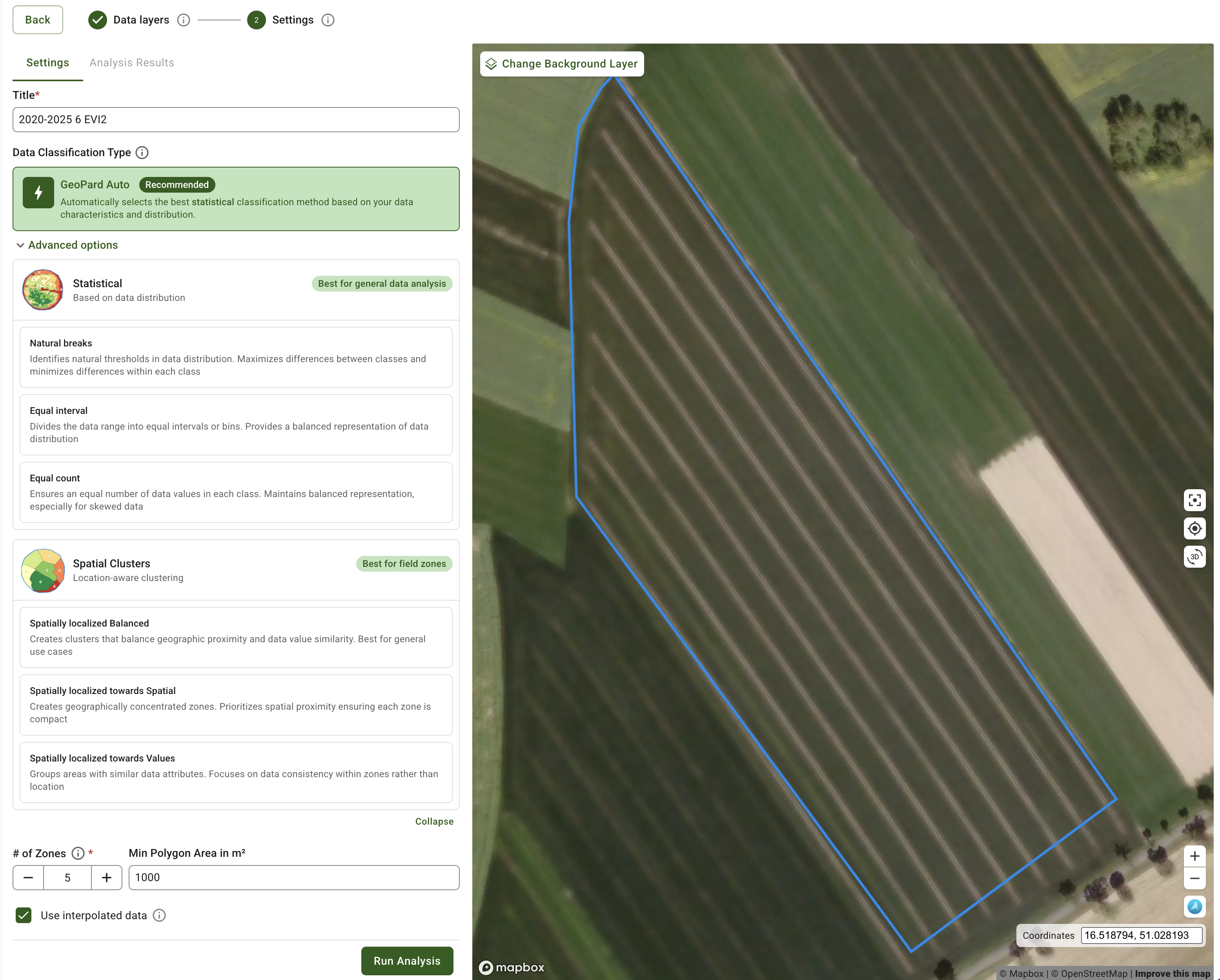
Data classification is a crucial step in the analysis and visualization of geographic data. GeoPard offers several classification methods to help users effectively understand and interpret their data. Common options in GeoPard are AUTO classification, Natural Breaks, Equal Interval, Equal Count (Area), and Spatially Localized classification. Each method fits a different use case, as described below:

## AUTO classification

Auto classification selects an appropriate classification approach **based on the data distribution and zones areas**. It helps you get to a usable Zones Map faster, with less trial-and-error when comparing classification methods manually.

This option is useful when you want a strong starting point and need to save time during map creation. You can still review the result and adjust other zone settings before saving.

<figure><img src="/spaces/YICBELdyAXXebKAzfLOR/files/tQq4y4Lv2XL3UYfgqNLF" alt=""><figcaption><p>AUTO classification</p></figcaption></figure>

## 1. Natural Breaks Classification

The Natural Breaks classification identifies "natural" thresholds or breakpoints in the data distribution to create distinct groups. It maximizes differences between classes and minimizes differences within each class. Natural Breaks is useful for data with clear patterns or clusters, allowing effective exploration and analysis.

<figure><img src="/files/iGPiPviWqk2jQIu0cfa7" alt=""><figcaption><p>Natural Breaks Classification</p></figcaption></figure>

## 2. Equal Interval Classification

The Equal Interval classification divides the data range into equal intervals or bins. It provides a balanced representation of data distribution, making it easy to interpret and compare values within each interval. Equal Interval is suitable for evenly distributed data without distinct patterns.

<figure><img src="/files/bKaBE023rwa4vnH7SXOp" alt=""><figcaption><p>Equal Interval Classification</p></figcaption></figure>

## 3. Equal Count (Area) Classification

The Equal Count classification ensures an equal number of data values in each class. It maintains a balanced representation, especially for skewed or unevenly distributed data. Equal Count enables fair comparisons between areas or regions, providing consistent analysis and visualization.

The goal is to create zones with relatively similar area sizes, but rounding operations and zone quality enhancements may introduce slight variations. Therefore, using vegetation indexes with higher granularity, such as EVI2, MCARI1, or WDRVI, results in more precise outcomes. And [the final geometries of the zones are fine-tuned to improve accuracy](https://geopard.tech/blog/432ca9jhnt-zones-quality/).

<figure><img src="/files/1hrq47hflCK5B9cMq7bX" alt=""><figcaption><p>Equal Count (Area) Classification</p></figcaption></figure>

## 4. Spatially Localized Classification

The Spatially Localized classification clusters data geospatially, creating localized zones. Its primary use case is planning Zones for Soil Sampling, enabling efficient segmentation of Fields into manageable areas.

To offer greater flexibility, Spatially Localized classification includes three options: **Towards Spatial**, **Towards Values**, and **Balanced**.

### 4.1. Balanced Option of Spatially Localized

The **Balanced** option provides a middle ground between **Towards Spatial** and **Towards Values**. It creates a Zones Map with clusters that balance geographic proximity and data value similarity. This approach works well when both spatial compactness and data consistency matter.

<figure><img src="/files/rnGfOGEvuC5GiMiVUd0M" alt=""><figcaption><p>Spatially Localized Classification (Balanced Option)</p></figcaption></figure>

### 4.2. Towards Values of Spatially Localized

The **Towards Values** option of Spatially Localized Classification produces zones clustered by data values rather than geographic proximity. It groups areas with similar attributes, such as vegetation or soil quality, to create a Zones Map where data consistency inside each zone matters most.

<figure><img src="/files/VGsBKssbLsCj4YZBuLO8" alt=""><figcaption><p>Spatially Localized Classification (towards Values Option)</p></figcaption></figure>

### 4.3. Towards Spatial of Spatially Localized

The **Towards Spatial** option of Spatially Localized Classification focuses on creating zones that are more geographically concentrated. It creates a Zones Map with clusters that prioritize proximity and keep each zone spatially compact. It is ideal when physical location matters most, such as logistics or spatial sampling.

<figure><img src="/files/ZKFAdPjYg5rN2W7a1cef" alt=""><figcaption><p>Spatially Localized Classification (towards Spatial Option)</p></figcaption></figure>


---

# Agent Instructions: Querying This Documentation

If you need additional information that is not directly available in this page, you can query the documentation dynamically by asking a question.

Perform an HTTP GET request on the current page URL with the `ask` query parameter:

```
GET https://docs.geopard.tech/geopard-tutorials/product-tour-web-app/zones-maps-and-analytics/using-data-classification.md?ask=<question>
```

The question should be specific, self-contained, and written in natural language.
The response will contain a direct answer to the question and relevant excerpts and sources from the documentation.

Use this mechanism when the answer is not explicitly present in the current page, you need clarification or additional context, or you want to retrieve related documentation sections.
