> For the complete documentation index, see [llms.txt](https://docs.geopard.tech/geopard-tutorials/llms.txt). Markdown versions of documentation pages are available by appending `.md` to page URLs; this page is available as [Markdown](https://docs.geopard.tech/geopard-tutorials/product-tour-web-app/import-precision-agriculture-data/soil-lab-results-csv-excel-smart-import.md).
# Soil Lab results (CSV/Excel) - Smart Import
GeoPard Agriculture is the first platform to truly “solve” soil lab result format chaos - with automated smart import.
## OVERVIEW
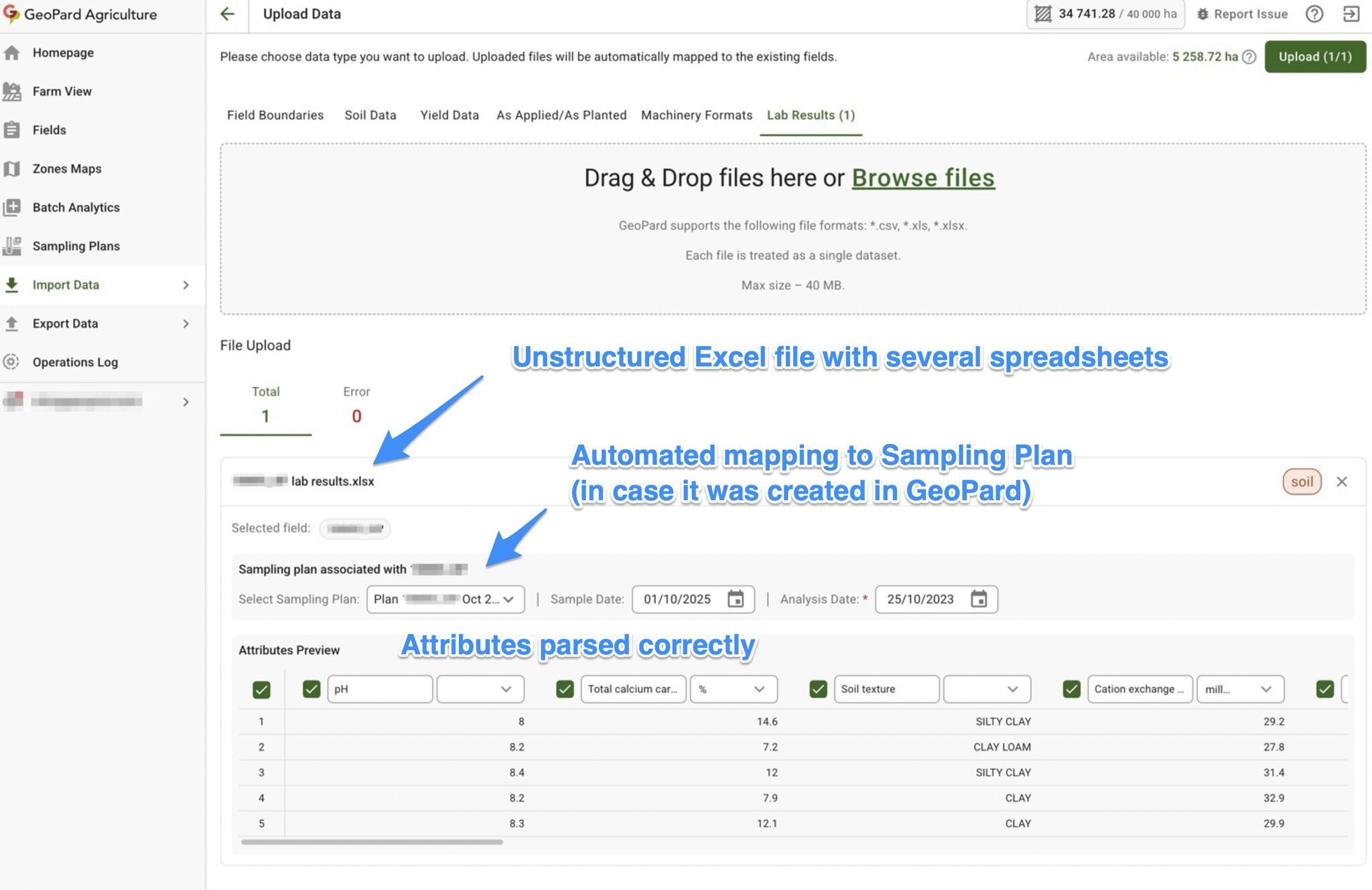
Soil lab files are often messy: different templates, languages, column names, units, and even multiple spreadsheets in one Excel. Smart Import auto-understands these files and converts them into consistent sampling-point data for clean analytics and recommendations.
Automated parsing of csv/excel soil lab results
## SUPPORTED FILES
* CSV (.csv)
* Excel (.xls, .xlsx), including multi-sheet workbooks
* Multiple files per upload (40 MB per file)
## WHAT HAPPENS AUTOMATICALLY
* Auto-parsing: finds the real table + headers (even in “non-standard” layouts)
* Multi-language support: recognizes common lab attribute names across languages/local naming
* Smart mapping: detects macro + micronutrients and builds a mapping preview (editable)
* Units mapping + normalization: detects units, converts to consistent units, flags odd/mixed units
* Field matching: maps points to fields via GeoPard Sampling Plan, or via coordinates in the file
## HOW GEOPARD MATCHES LAB RESULTS TO FIELDS
GeoPard can match lab results to the right field in four ways:
1. **Sampling Plan ID and Zone ID**\
Use separate columns for the unique Sampling Plan ID and Zone ID. This is the most reliable option for zonal composite sampling from a GeoPard-generated sampling plan.
2. **Point coordinates (`Lon` / `Lat`)**\
Use two columns for longitude and latitude. GeoPard matches the point spatially when it falls within a field boundary. Use this method for core-point sampling only.
3. **WKT geometry**\
Use one column with WKT geometry. GeoPard matches the geometry spatially to the field boundary.
4. **Field Name / Field ID**\
Use a text column with the field name or field ID. GeoPard compares it with the field `Name`. \
`Field ID` is the GeoPard field UUID (you can find it on any field page in the browser URL, ex. fieldId]\(#user-content-fn-1)[^1] ).
## HOW TO IMPORT
1. Import Data → Upload Files → Lab Results
2. Upload CSV/XLS/XLSX
3. Select field / sampling plan (if available) + dates
4. Review mapping + units in the preview
5. Upload
## Connecting to Planning
Best works with [Soil Sampling - Automated Planning](/geopard-tutorials/product-tour-web-app/soil-sampling-automated-planning.md) or files with coordinates.
## Available for all users.
[^1]: UUID of the field, you need to have it in the imported excel or csv document.
---
# Agent Instructions
This documentation is published with GitBook. GitBook is the documentation platform designed so that both humans and AI agents can read, navigate, and reason over technical content effectively. Learn more at gitbook.com.
## Querying This Documentation
If you need additional information that is not directly available in this page, you can query the documentation by asking a question.
Perform an HTTP GET request on the following URL with the `ask` and `goal` query parameters:
```
GET https://docs.geopard.tech/geopard-tutorials/product-tour-web-app/import-precision-agriculture-data/soil-lab-results-csv-excel-smart-import.md?ask=&goal=
```
`ask` is the immediate question: it should be specific, self-contained, and written in natural language.
`goal` is what the user is ultimately trying to achieve, the reason they need the answer. Sharing it helps GitBook give you a better, more relevant answer. A goal is most helpful when it describes the outcome the user wants rather than restating the question. For example, with `ask=how do I create an API token`, a goal like `automate deployments from our CI pipeline` lets GitBook tailor the answer to that use case.
The response will contain a direct answer to the question and relevant excerpts and sources from the documentation.
Use this mechanism when the answer is not explicitly present in the current page, you need clarification or additional context, or you want to retrieve related documentation sections.