> For the complete documentation index, see [llms.txt](https://docs.geopard.tech/geopard-tutorials/llms.txt). Markdown versions of documentation pages are available by appending `.md` to page URLs; this page is available as [Markdown](https://docs.geopard.tech/geopard-tutorials/nor/korte-gis-tips/qgis-handtering-av-avlingsdata.md).
# QGIS: Håndtering av avlingsdata
Forbered og rens avlingsdata i QGIS før du importerer eller analyserer dem i GeoPard.
OVERSIKT
Brukerveiledning med trinnvis beskrivelse for å løse følgende problemer med data fra avlingsmonitor:
1. Manglende projeksjonsfil (.prj) i shapefilen
2. Bruk konverteringsregler for hvert attributt i shapefilen (basert på kb/ha til bu/ac-eksempel)
Programvaren som skal brukes er QGIS ([LENKE](https://qgis.org/en/site/forusers/download.html)).
Nedlasting og installasjon er obligatorisk.
### MANGLENDE PROJESJONSFIL
1. Åpne shapefilen med avlingsdata. Dra filen inn i QGIS-vinduet.
2. Shapefilen blir tilgjengelig for videre behandling i Lag-panelet.
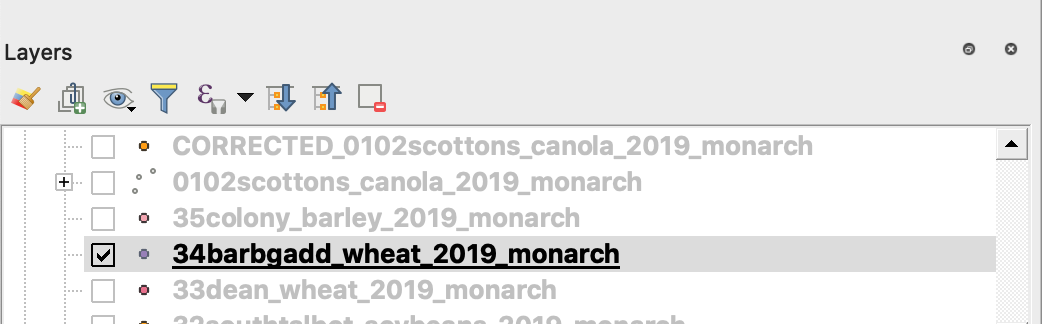
3. Start lagringsprosessen
4. 1. Høyreklikk på shapefilen
2. Velg Eksporter -> Lagre objekter som ...
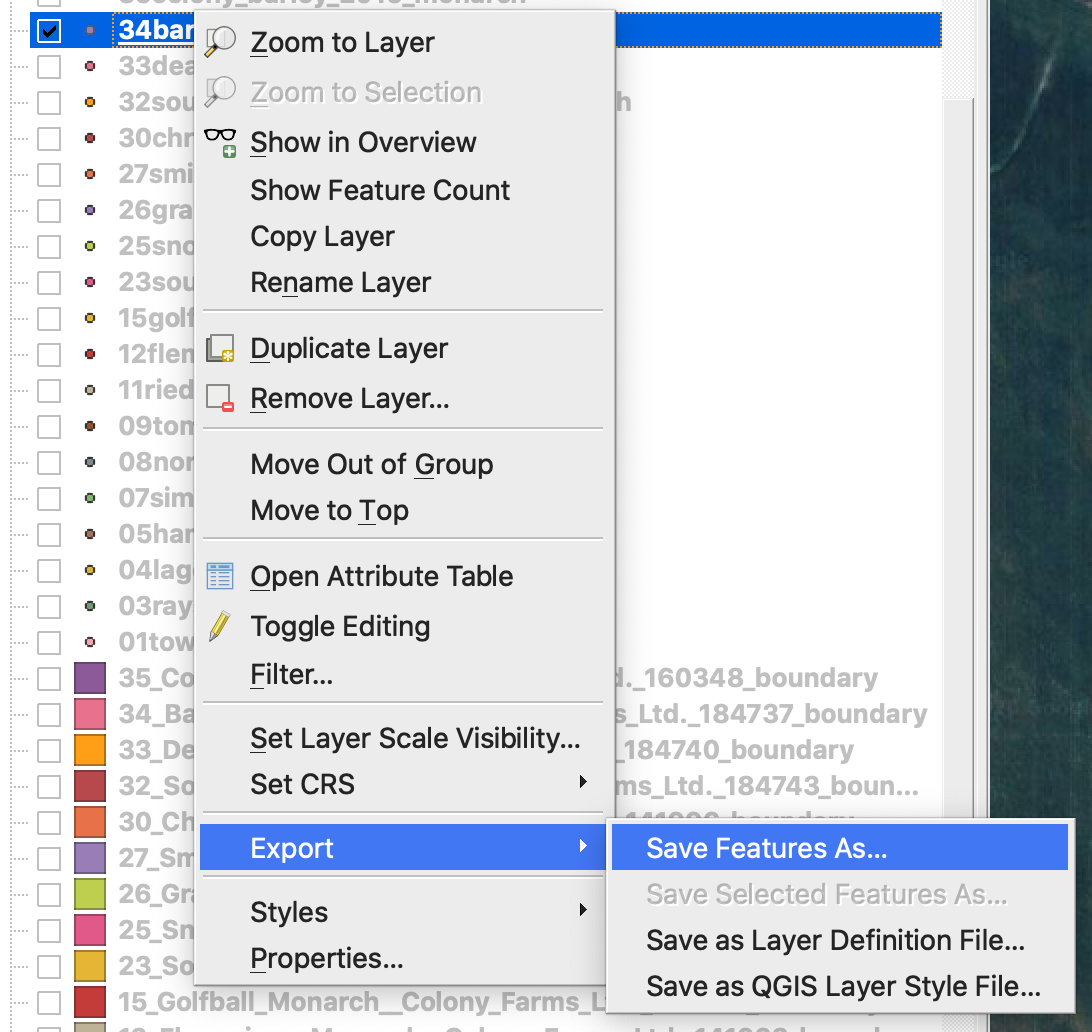
4. Velg
5. 1. Format -> ESRI Shapefile,
2. Filnavn -> klikk … og velg ønsket mappe og filnavn,
3. CRS -> EPSG:4326
4. Koding -> UTF8
5. Legg til lagret fil i kartet (valgfritt hvis du vil se den direkte i QGIS)
6. Geometri-type -> Punkt
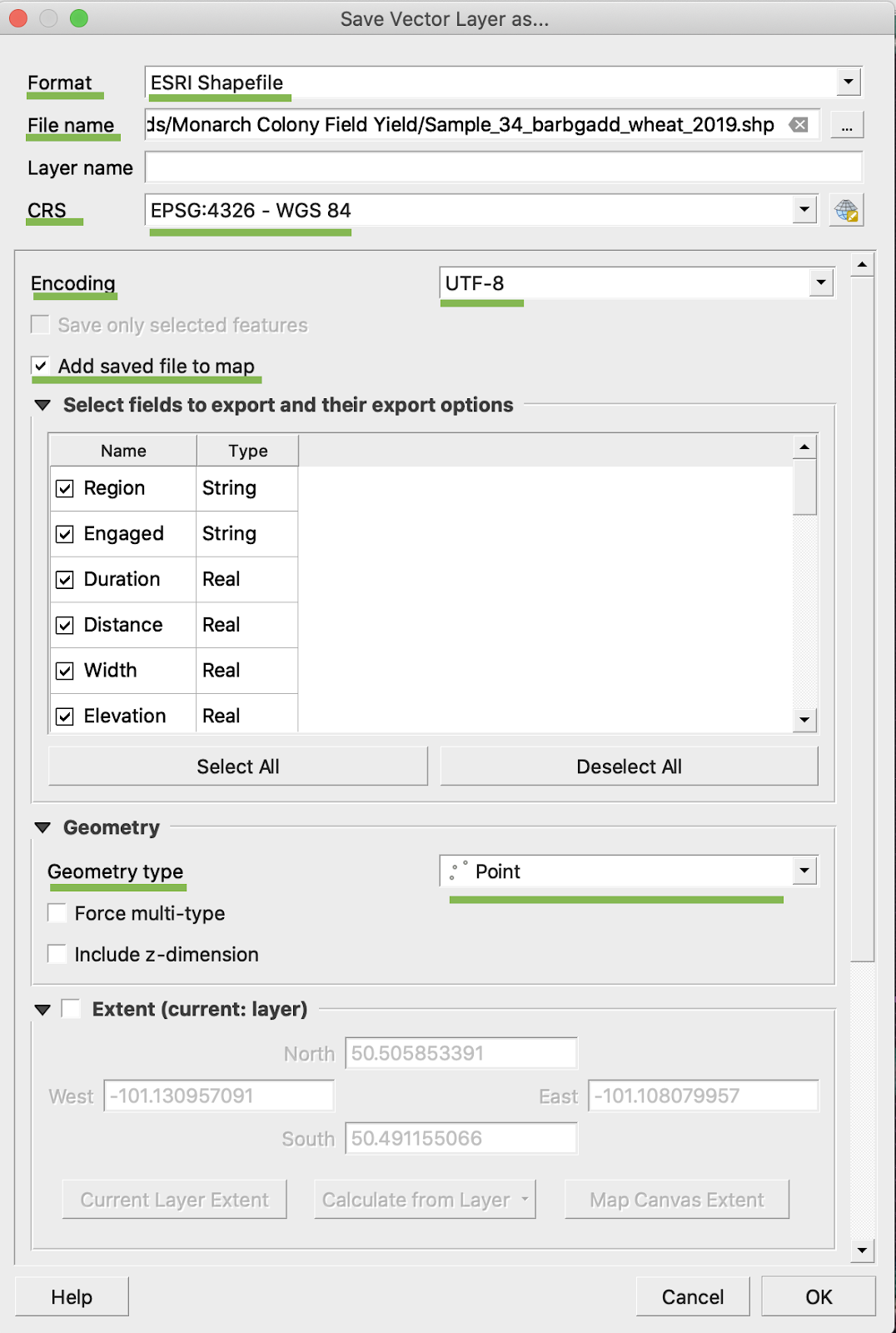
5. Klikk OK
6. En ekstra shapefil med de samme avlingsdataene er opprettet. Projeksjonsfilen (.prj) ble lagt til.
\
### KONVERTERING TIL BU/AC
1. Høyreklikk på shapefilen og velg Åpne attributtabell
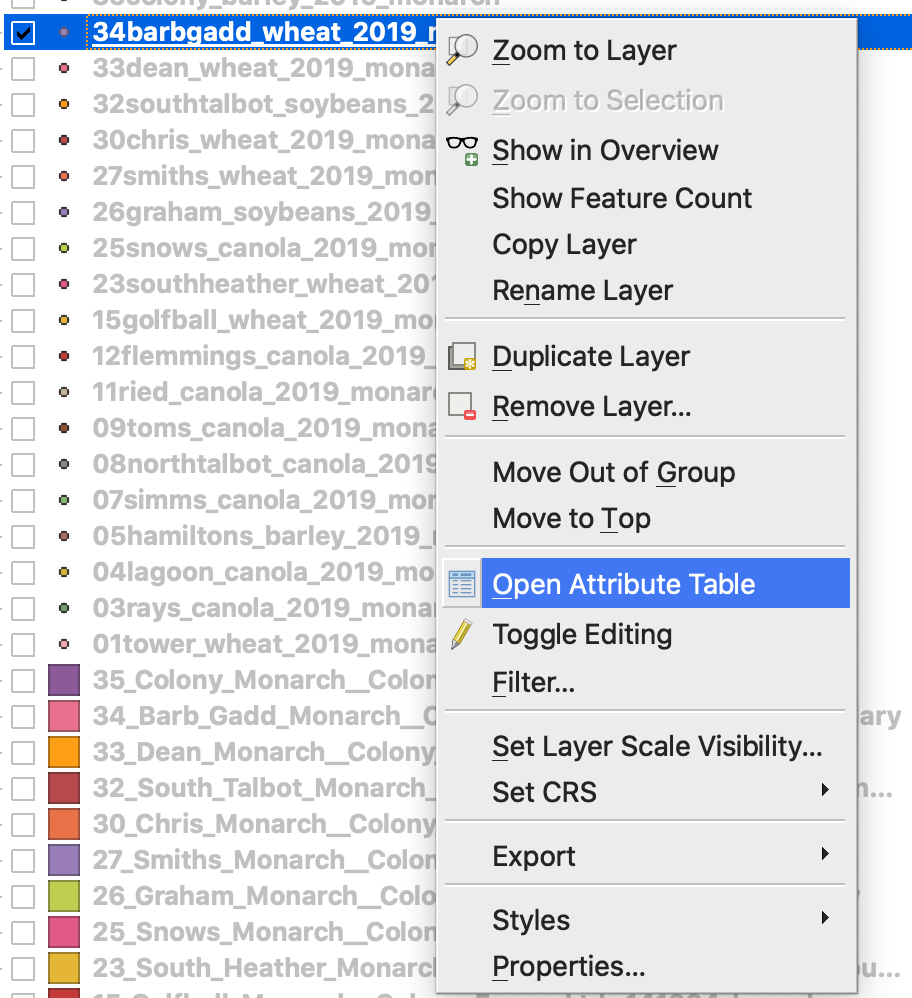
2. Klikk Åpne feltkalkulator
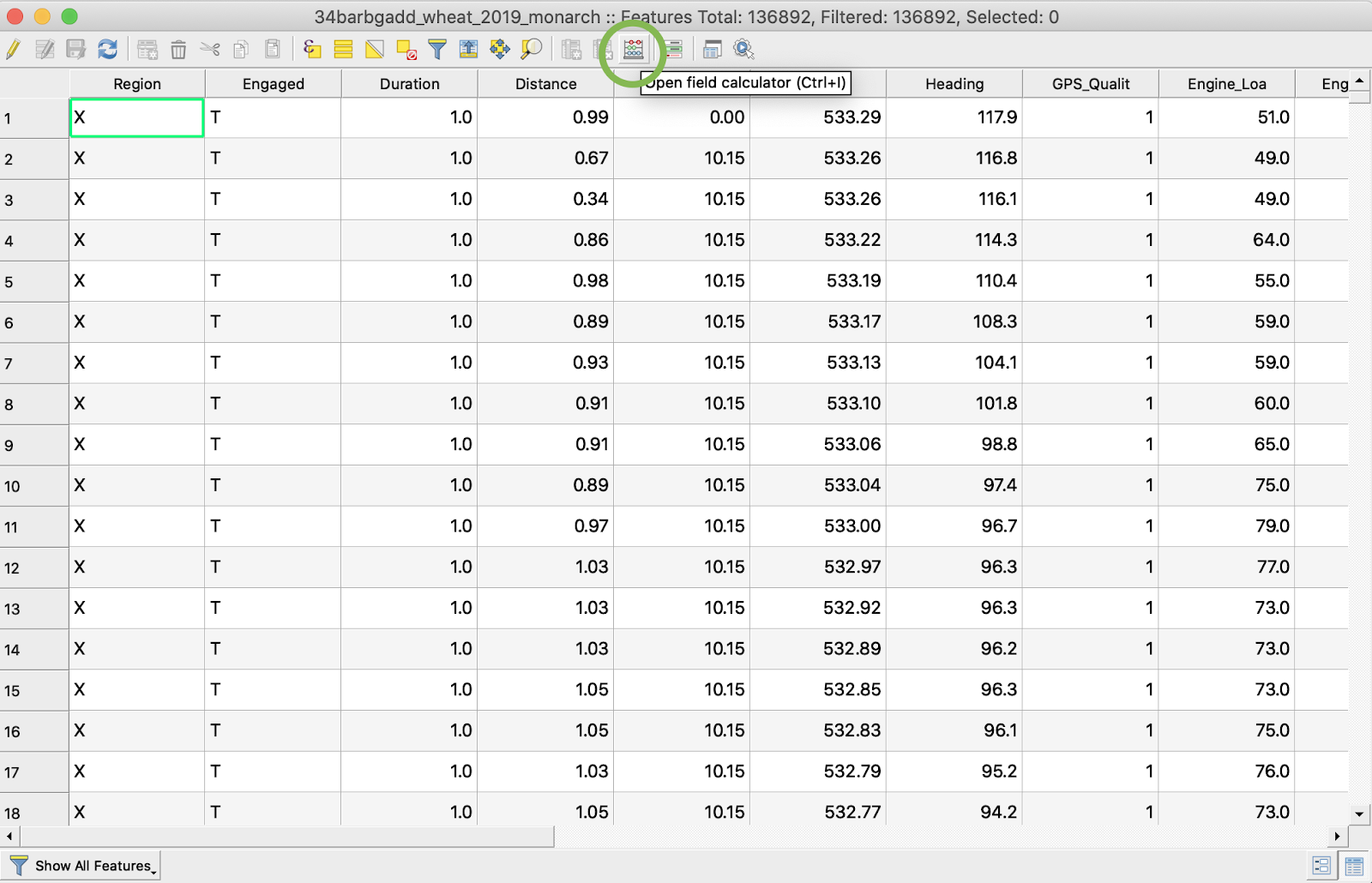
3. Opprett et nytt felt
4. 1. Merk av for Opprett et nytt felt
2. Skriv inn Utdatafeltnavn -> DryYieldBu
3. Velg Utdatafelttype -> Desimaltall (reelt)
4. Endre Presisjon -> 4
5. Legg inn regel for å konvertere kg/ha til bu/ac -> "Dry\_Yield" \* 0.0149
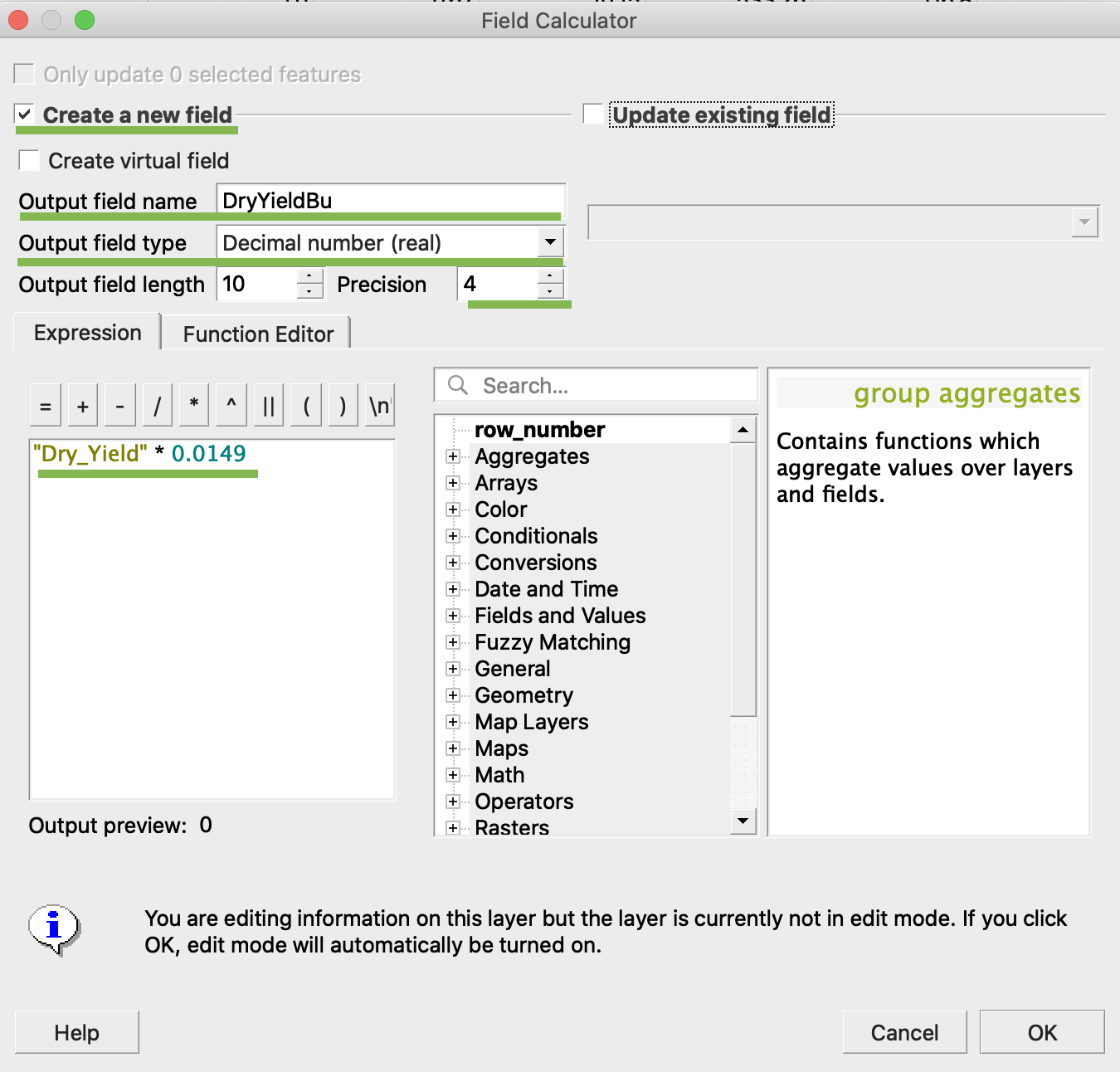
4. Klikk OK
5. Det ekstra attributtet DryYieldBu har dukket opp i tabellen
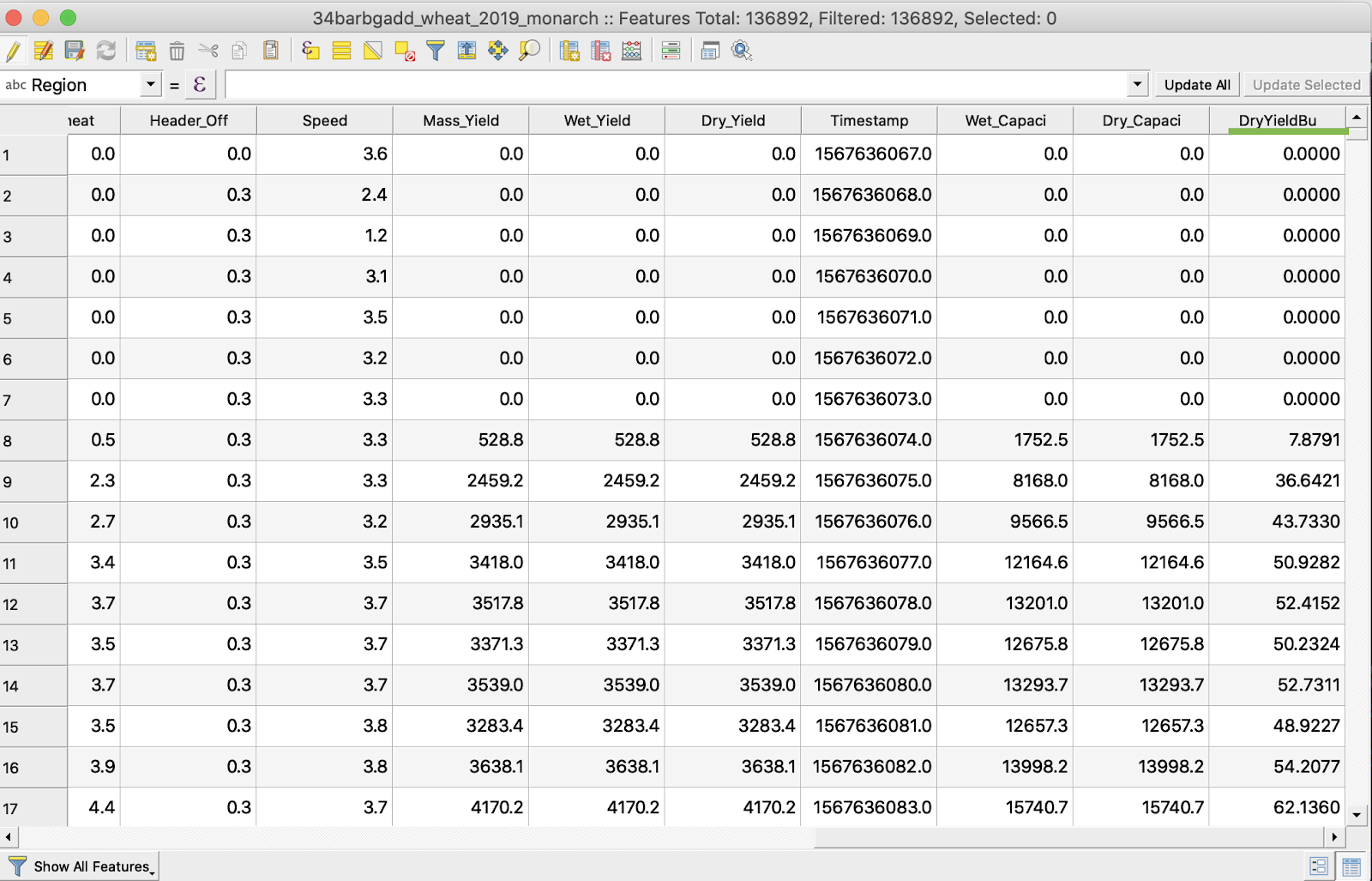
6. Lagre endringene
7. 1. Høyreklikk på den aktuelle shapefilen
2. Velg Slå redigering av/på
\
\
\
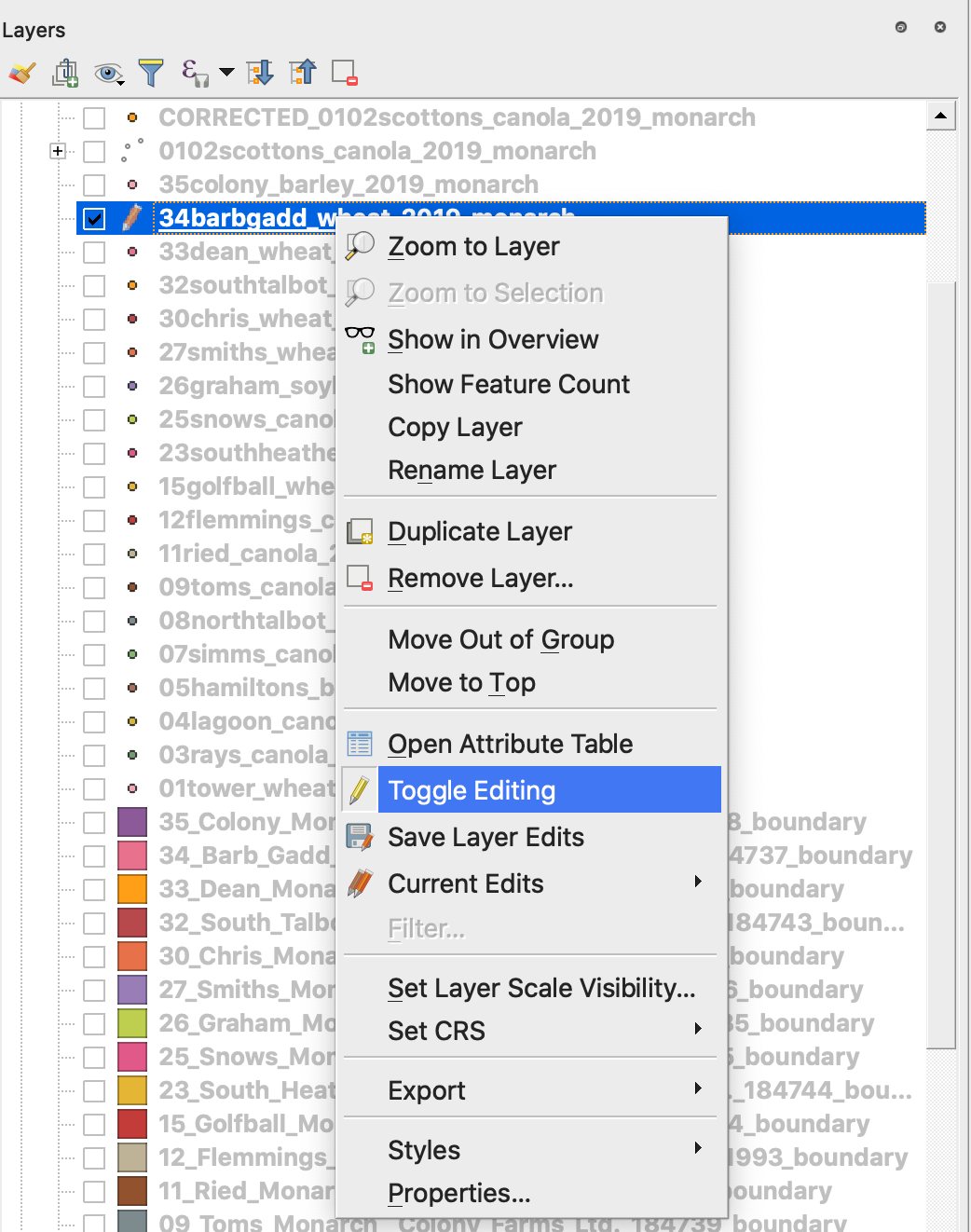
7. Bekreft lagring av endringene
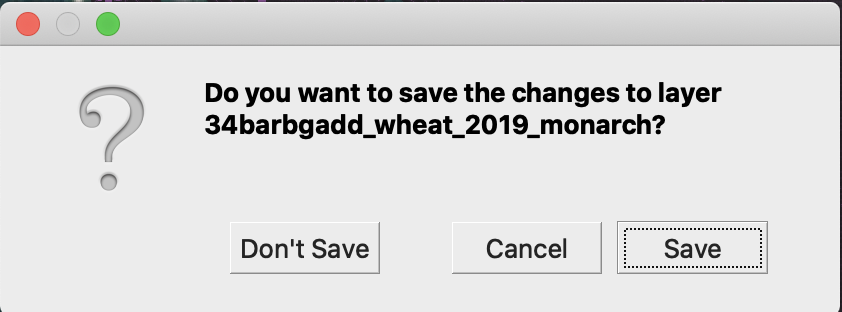
Den aktuelle shapefilen er ikke lenger merket med blyant. Dataene i shapefilen ble oppdatert.
---
# Agent Instructions
This documentation is published with GitBook. GitBook is the documentation platform designed so that both humans and AI agents can read, navigate, and reason over technical content effectively. Learn more at gitbook.com.
## Querying This Documentation
If you need additional information that is not directly available in this page, you can query the documentation by asking a question.
Perform an HTTP GET request on the following URL with the `ask` and `goal` query parameters:
```
GET https://docs.geopard.tech/geopard-tutorials/nor/korte-gis-tips/qgis-handtering-av-avlingsdata.md?ask=&goal=
```
`ask` is the immediate question: it should be specific, self-contained, and written in natural language.
`goal` is what the user is ultimately trying to achieve, the reason they need the answer. Sharing it helps GitBook give you a better, more relevant answer. A goal is most helpful when it describes the outcome the user wants rather than restating the question. For example, with `ask=how do I create an API token`, a goal like `automate deployments from our CI pipeline` lets GitBook tailor the answer to that use case.
The response will contain a direct answer to the question and relevant excerpts and sources from the documentation.
Use this mechanism when the answer is not explicitly present in the current page, you need clarification or additional context, or you want to retrieve related documentation sections.