> For the complete documentation index, see [llms.txt](https://docs.geopard.tech/geopard-tutorials/llms.txt). Markdown versions of documentation pages are available by appending `.md` to page URLs; this page is available as [Markdown](https://docs.geopard.tech/geopard-tutorials/nor/produktomvisning-nettapp/sonekart-og-analyser.md).

# Sonekart og analyser

Lag forvaltningssoner fra bilder, avling, jord, topografi og ligninger for bedre beslutninger om variabel tildeling.

Brukere kan gå inn i opprettelsesflyten for Sonekart på to måter. Den første innebærer **Lag sonekart** -knappen, som lar brukere velge hvordan Sonekartet skal bygges opp. Den andre metoden er ved å **Klone** et eksisterende Sonekart for å teste parametere og endringer uten å måtte endre valg av sonekartflyt.

## Vis sonekart

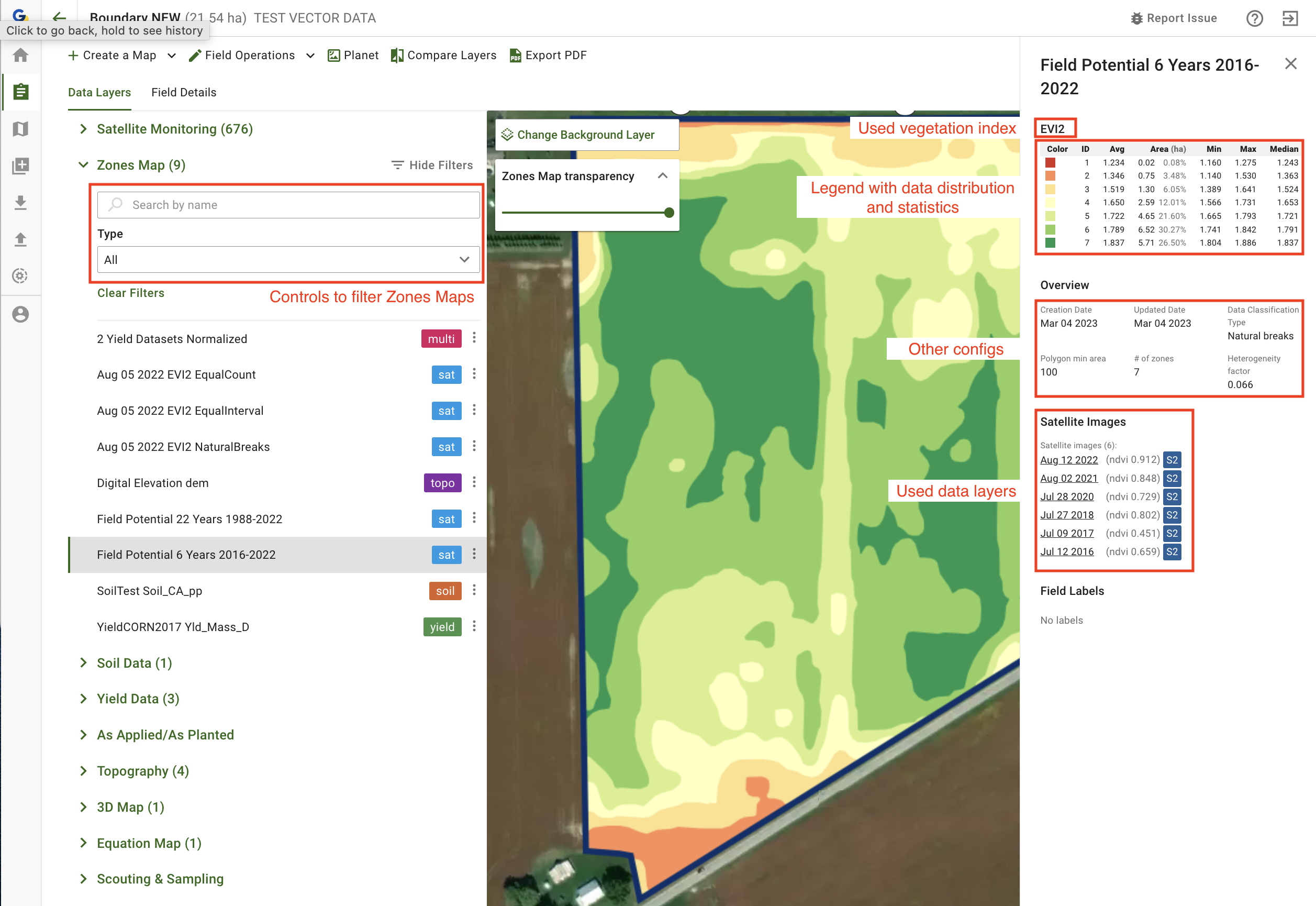
I de påfølgende skjermbildene finner du en kort oversikt over de tilgjengelige kontrollene, laget for å hjelpe deg å forstå hvilken informasjon som ligger i hver del av skjermen.

<figure><img src="https://4236156289-files.gitbook.io/~/files/v0/b/gitbook-x-prod.appspot.com/o/spaces%2FYICBELdyAXXebKAzfLOR%2Fuploads%2Fxq40oN6Fp3OTLVB3vxAn%2Fimage.png?alt=media&amp;token=05cbc074-02d2-4219-bdc4-0554998436d9" alt=""><figcaption><p>Kontroller for sonekart</p></figcaption></figure>

<figure><img src="https://4236156289-files.gitbook.io/~/files/v0/b/gitbook-x-prod.appspot.com/o/spaces%2FYICBELdyAXXebKAzfLOR%2Fuploads%2F6qMbc4RgZYE5WC4KKuAJ%2Fimage.png?alt=media&amp;token=e2bda194-60c7-4e34-baa2-434bc94b3ee9" alt=""><figcaption><p>Kontroller for sonekart</p></figcaption></figure>

## Bruk knappen Opprett sonekart

For å opprette et sonekart for skiftet ditt, åpne det fra skiftelisten og klikk deretter på **Lag sonekart** -knappen:

<figure><img src="https://lh5.googleusercontent.com/7IapbLUHoeZR3k-q_yNsfktTcTTbd7sJbLdflCuRCauAHm88Ckro45eeRObbCDU2SvcOj3yzBpRRUHdqYaME8cYYAodwpLQVohl3HloDgzdG4VhIEdD9f6M9gdV4uh2Ogj9ioGG1" alt="This image has an empty alt attribute; its file name is 24-1.png" width="563"><figcaption><p>Start flyt for å opprette sonekart</p></figcaption></figure>

Du går videre til verktøyet Soneoppretter, der du må velge hvilken type sonekart du vil opprette.

<figure><img src="https://lh6.googleusercontent.com/M5yZVRKrPxTeEzqGoNxeTo_pIY8lZhPmRK_CfkaarMSTtUzaTmih2fE_JCN8Xazjj3KeSTeJ7LatqzbInUtWDydLFnyL3Lv4dF65TGC0AS-ivaAleEszHnz8-CjotlhMZAJl4fz9" alt="This image has an empty alt attribute; its file name is image-1.png" width="563"><figcaption><p>Tilgjengelig type for å opprette sonekart</p></figcaption></figure>

Flere alternativer for hvordan de ulike typene brukes, er beskrevet i de følgende avsnittene:

1. [Opprette sonekart ved hjelp av satellittbilder](/geopard-tutorials/nor/produktomvisning-nettapp/sonekart-og-analyser/lag-et-sonekart-ved-hjelp-av-satellittbilder.md)
2. [Opprette sonekart ved hjelp av jord-/avlings-/utførte tiltak-data](/geopard-tutorials/nor/produktomvisning-nettapp/sonekart-og-analyser/lag-et-sonekart-ved-hjelp-av-jord-avlings-eller-paforingsdata.md)
3. [Opprette sonekart ved hjelp av topografi](/geopard-tutorials/nor/produktomvisning-nettapp/sonekart-og-analyser/lag-et-sonekart-ved-hjelp-av-topografi.md)
4. [Opprette sonekart ved hjelp av mal](/geopard-tutorials/nor/produktomvisning-nettapp/sonekart-og-analyser/lag-et-sonekart-ved-hjelp-av-en-mal.md)
5. [Bruk av dataklassifisering](/geopard-tutorials/nor/produktomvisning-nettapp/sonekart-og-analyser/bruke-dataklassifisering.md)
6. [Hvordan tilordne VRA](/geopard-tutorials/nor/produktomvisning-nettapp/sonekart-og-analyser/tildel-variable-mengder-i-soner-verktoy-for-fordeling-av-landbruksinnsats.md)
7. [Rediger sonekart: Slå sammen og del opp](/geopard-tutorials/nor/produktomvisning-nettapp/sonekart-og-analyser/rediger-sonekart-sla-sammen-og-del-opp.md)
8. [Soner over flere år](/geopard-tutorials/nor/produktomvisning-nettapp/sonekart-og-analyser/flerarssoner.md)
9. [Analyse i flere lag](/geopard-tutorials/nor/produktomvisning-nettapp/sonekart-og-analyser/flerlagsanalyser.md)

## Klone eksisterende sonekart

For å klone et eksisterende sonekart, klikk <img src="https://4236156289-files.gitbook.io/~/files/v0/b/gitbook-x-prod.appspot.com/o/spaces%2FYICBELdyAXXebKAzfLOR%2Fuploads%2F3vG8QyQkqzewbqEGatt6%2Fimage.png?alt=media&amp;token=740d067b-4388-47b8-b28f-b308efc70c00" alt="" data-size="line"> -knappen og velg **Klone** -alternativet. Denne handlingen tar deg inn i sonekartflyten, forhåndslastet med de tidligere brukte innstillingene, som datalag, antall soner og andre innstillinger.

<figure><img src="https://4236156289-files.gitbook.io/~/files/v0/b/gitbook-x-prod.appspot.com/o/spaces%2FYICBELdyAXXebKAzfLOR%2Fuploads%2FLZZvkkL1VF7uAFBMBbuR%2Fimage.png?alt=media&amp;token=cf13456d-7817-4ce8-b861-c7d08286e983" alt="" width="563"><figcaption><p>Start for å klone det eksisterende sonekartet</p></figcaption></figure>


---

# Agent Instructions
This documentation is published with GitBook. GitBook is the documentation platform designed so that both humans and AI agents can read, navigate, and reason over technical content effectively. Learn more at gitbook.com.

## Querying This Documentation
If you need additional information that is not directly available in this page, you can query the documentation by asking a question.

Perform an HTTP GET request on the following URL with the `ask` and `goal` query parameters:

```
GET https://docs.geopard.tech/geopard-tutorials/nor/produktomvisning-nettapp/sonekart-og-analyser.md?ask=<question>&goal=<user_goal>
```

`ask` is the immediate question: it should be specific, self-contained, and written in natural language.
`goal` is what the user is ultimately trying to achieve, the reason they need the answer. Sharing it helps GitBook give you a better, more relevant answer. A goal is most helpful when it describes the outcome the user wants rather than restating the question. For example, with `ask=how do I create an API token`, a goal like `automate deployments from our CI pipeline` lets GitBook tailor the answer to that use case.

The response will contain a direct answer to the question and relevant excerpts and sources from the documentation.

Use this mechanism when the answer is not explicitly present in the current page, you need clarification or additional context, or you want to retrieve related documentation sections.