> For the complete documentation index, see [llms.txt](https://docs.geopard.tech/geopard-tutorials/llms.txt). Markdown versions of documentation pages are available by appending `.md` to page URLs; this page is available as [Markdown](https://docs.geopard.tech/geopard-tutorials/nor/produktomvisning-mobilapp/arbeide-frakoblet.md).
# Arbeide frakoblet
Bruk GeoPard-mobilappen frakoblet og hold skiftearbeidet i gang uten dekning.
Arbeid offline
Før du begynner å bruke GeoPard-mobilappen, anbefaler vi at du lagrer påloggingsopplysningene dine, slik at du ikke får problemer med å få tilgang til appen når du ikke har nettforbindelse.
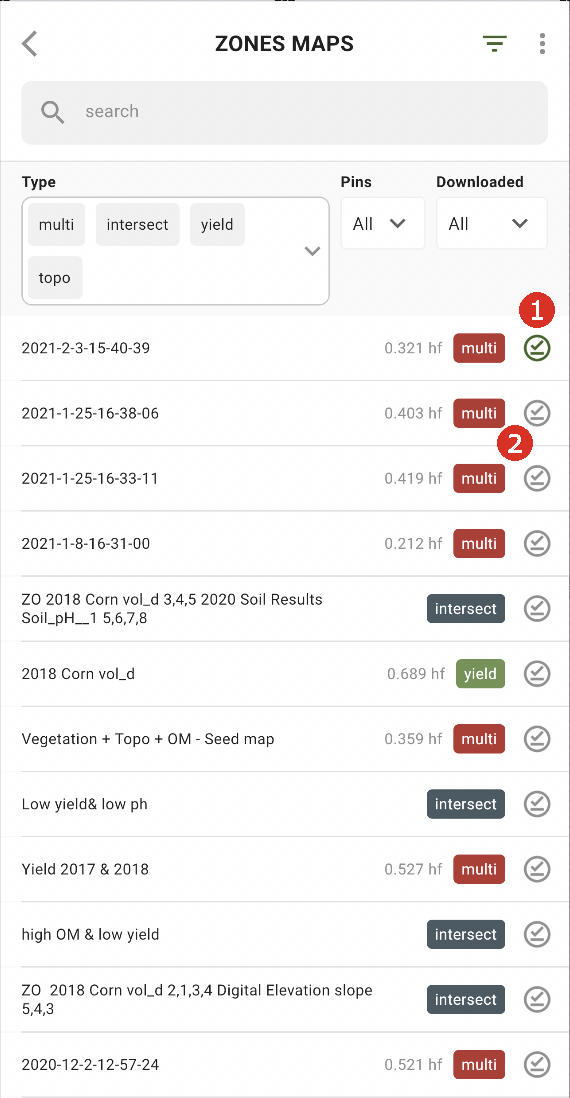
For å kunne jobbe offline må du laste ned Kart over soner til smarttelefonen din. Trykk på nedlastingsknappen ved siden av Kart over soner du vil laste ned (2).
Når kartet er lastet ned til enheten din, vil det ha en grønn hake ved siden av seg (1).
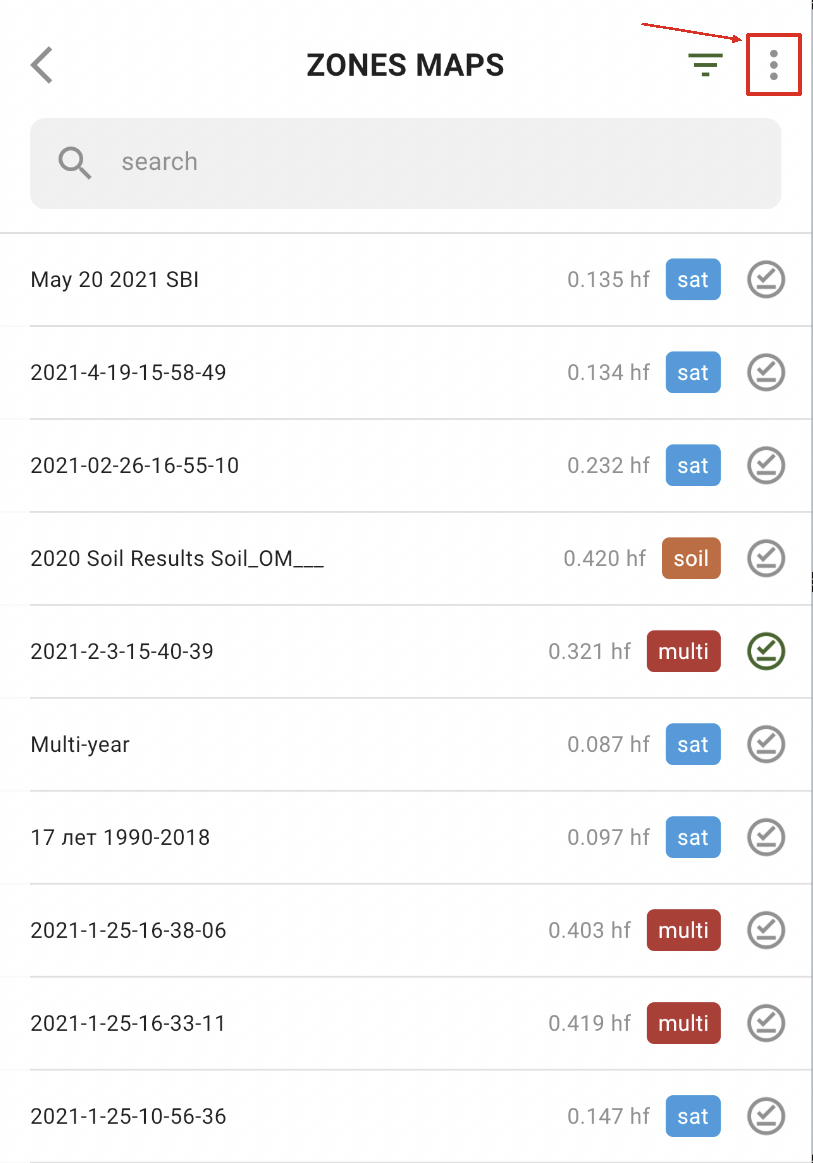
For å laste ned alle sonekartene samtidig, trykk på Flere-valget:
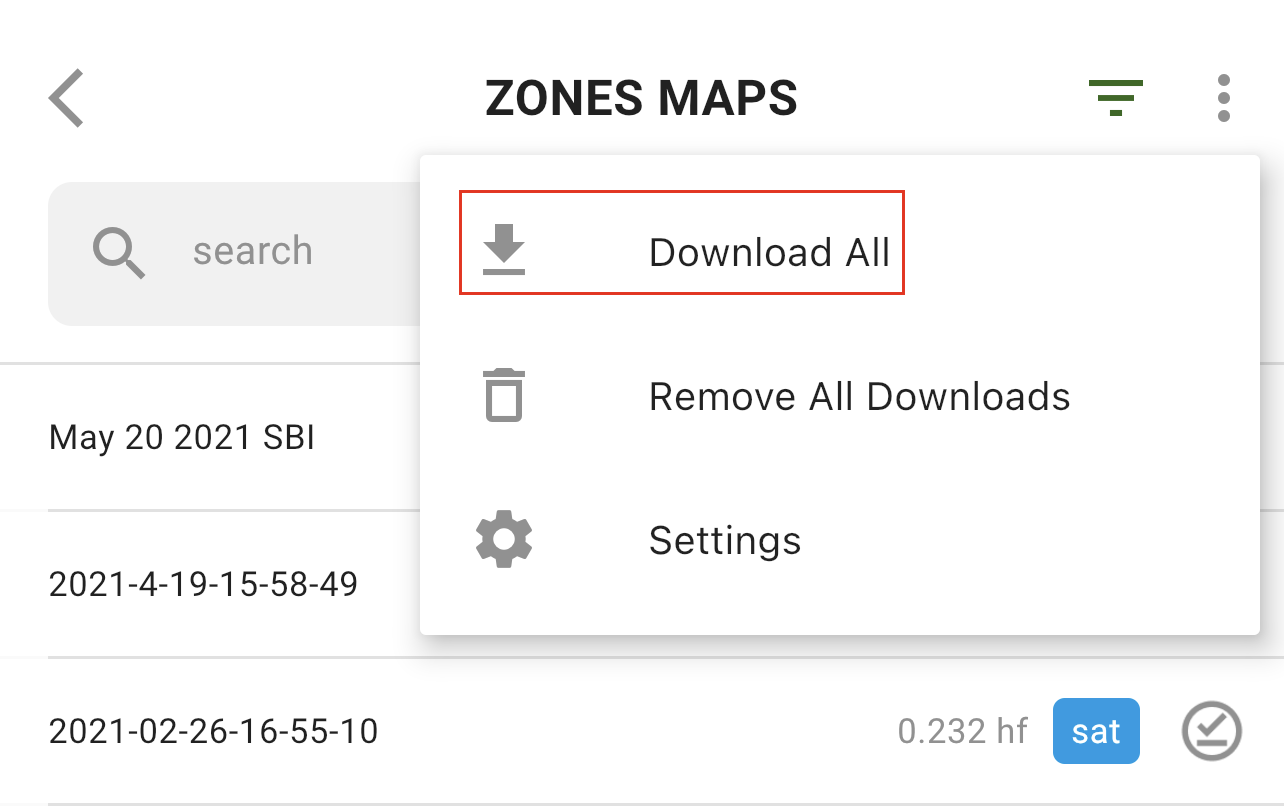
og velg alternativet «Last ned alle»:
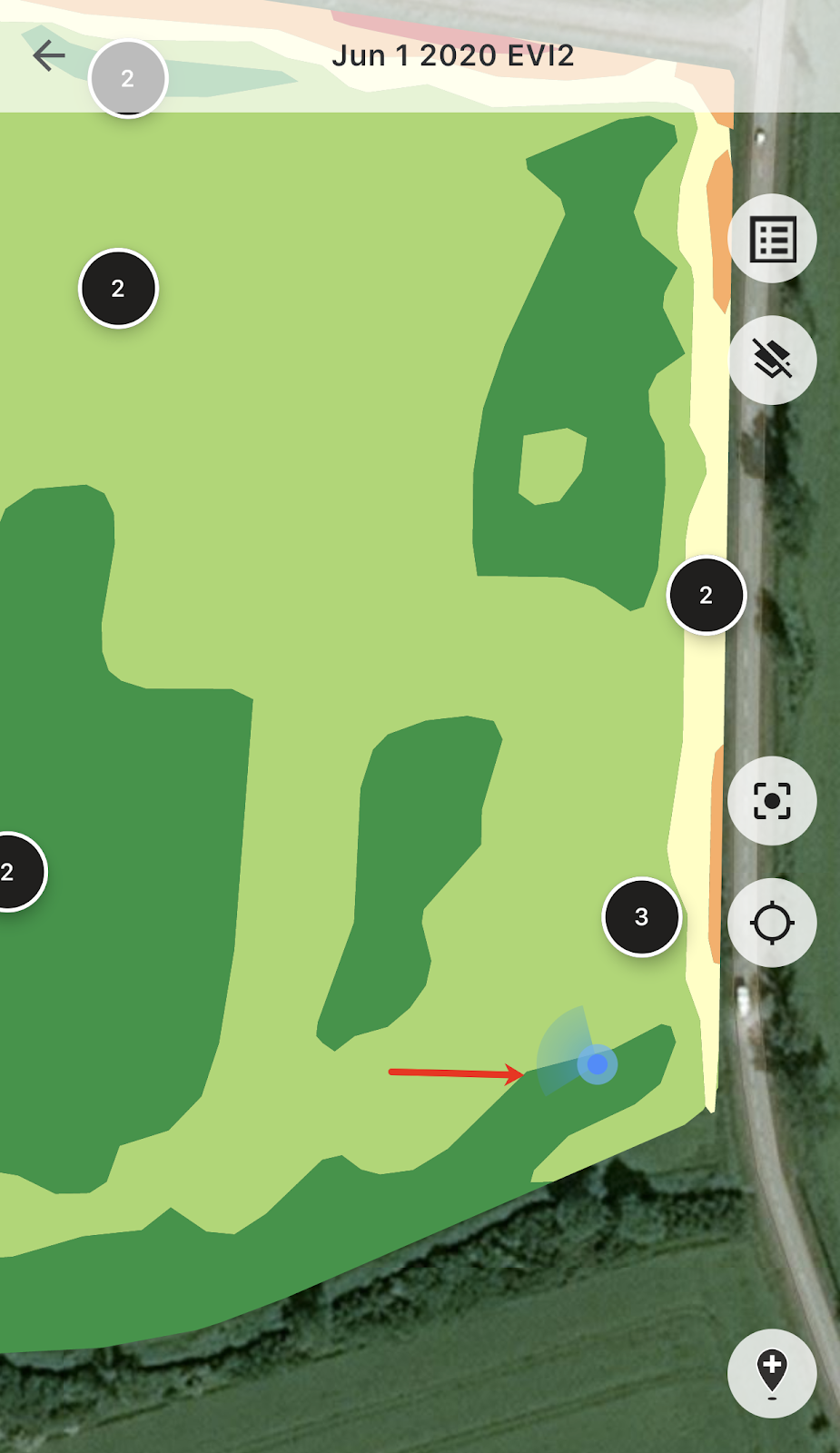
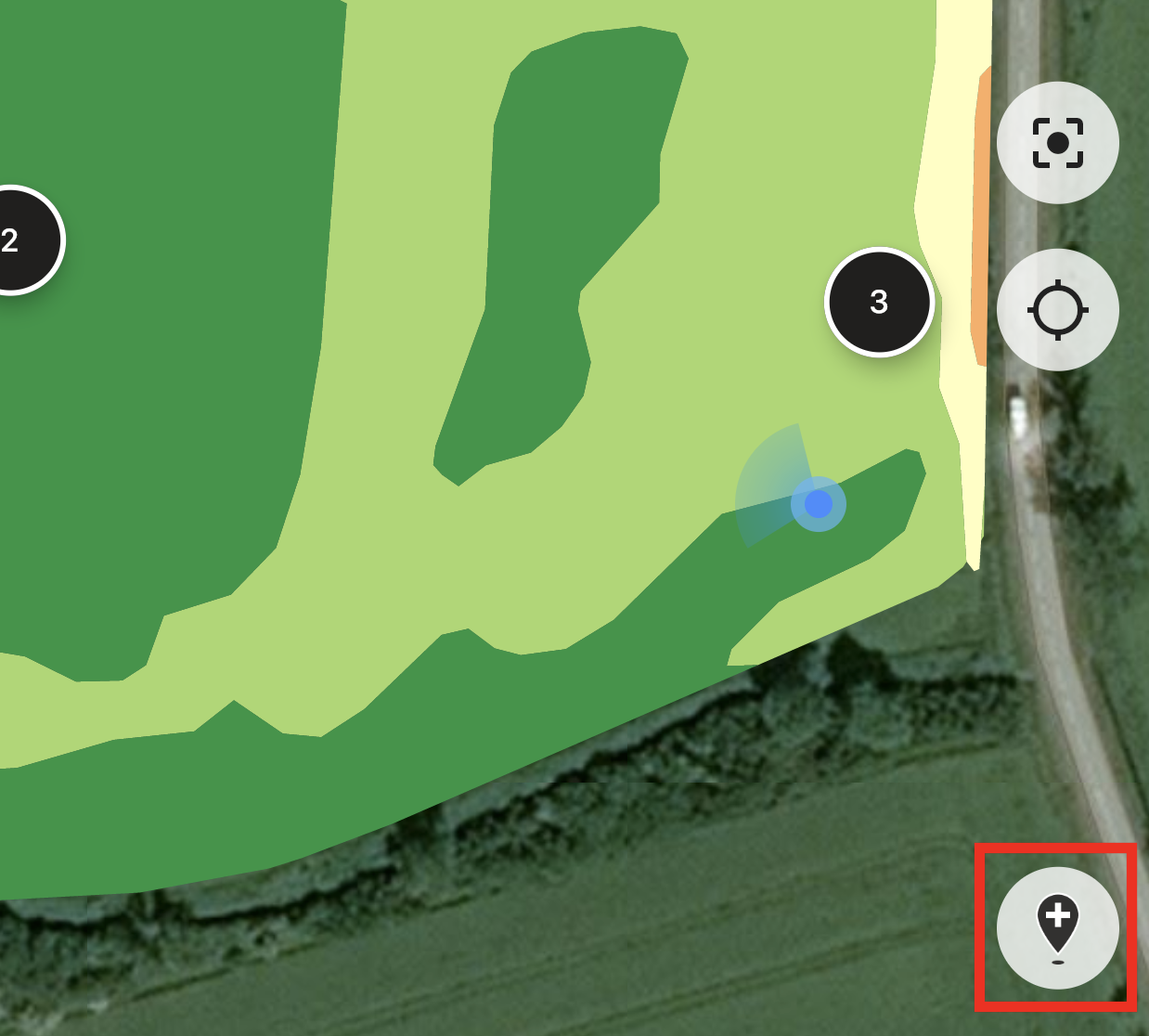
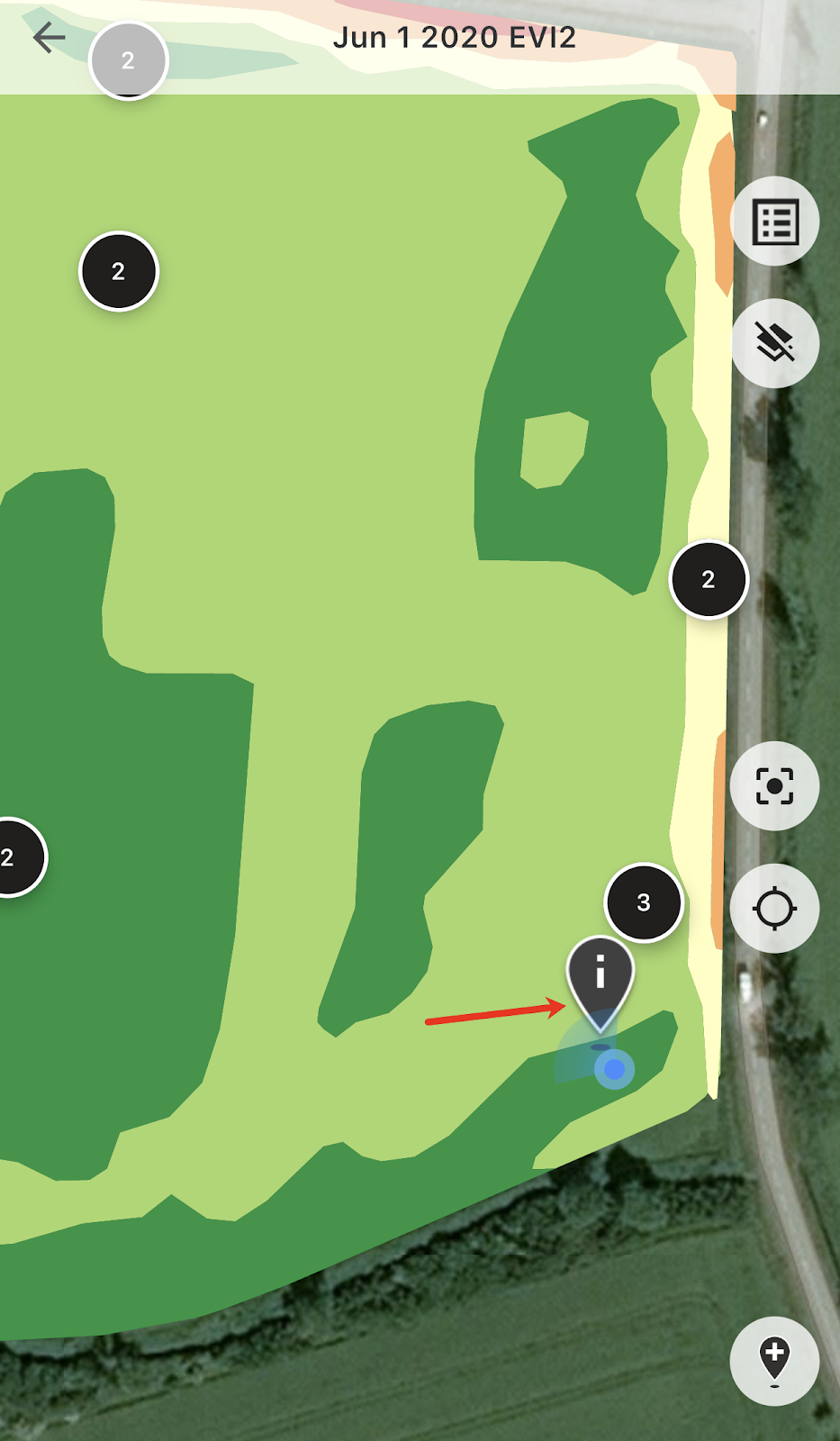
Når du er ute på jordet, kan du spore posisjonen din og se retningen du beveger deg i.
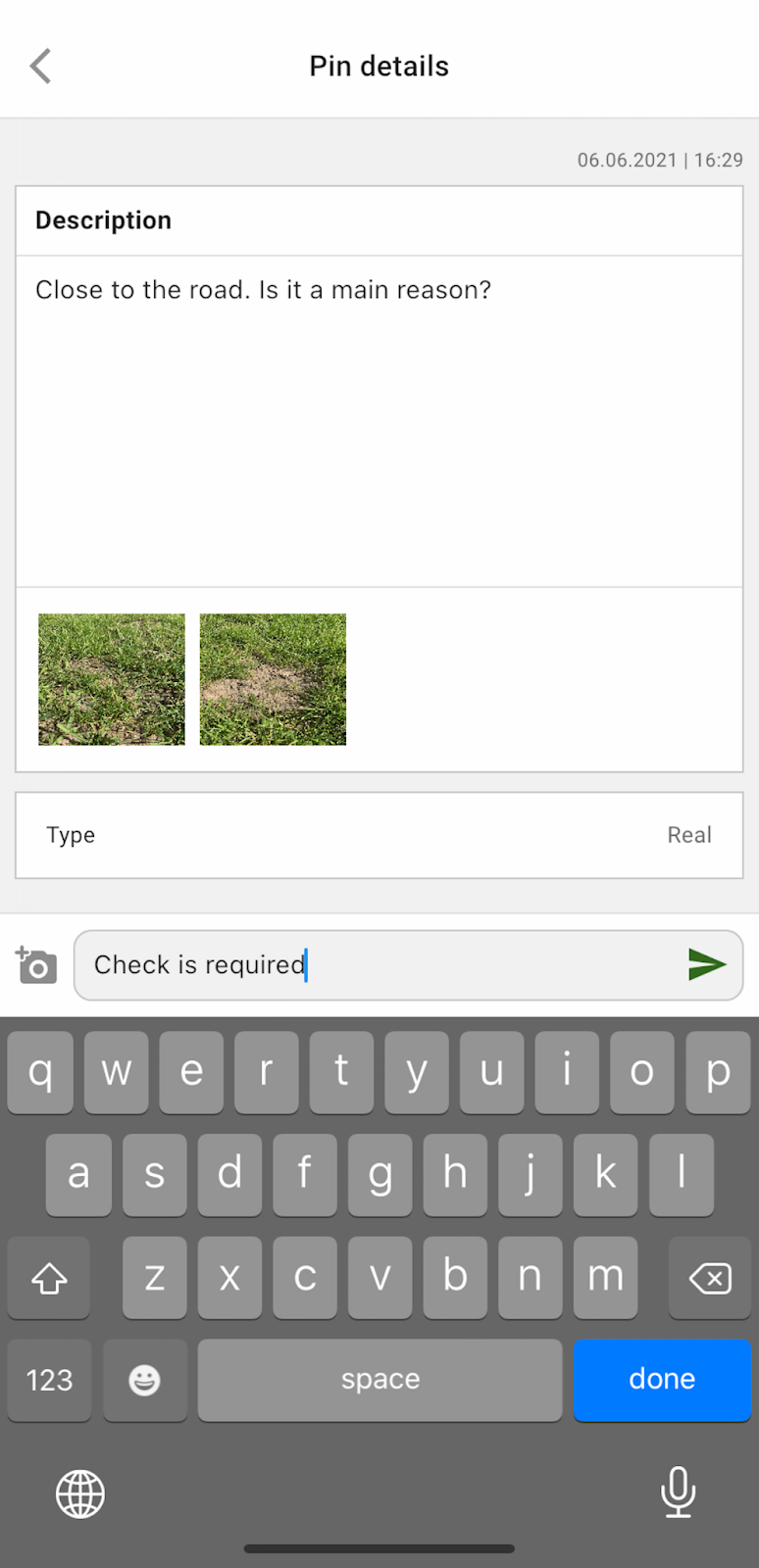
Du kan trykke på en hvilken som helst av de planlagte pinnene og legge til/redigere kommentarer.
Eller hvis du oppdager noe som krever oppmerksomhet (avvik eller åkergrensen er feil), trykk på knappen Legg til ny pinne.
Skriv inn kommentarene dine og trykk på «Lagre»-knappen for å legge til en ny pinne på Kart over soner.
Pinnene du legger til med mobilenheten din har et annet ikon enn de planlagte pinnene du legger til i nettapplikasjonen.
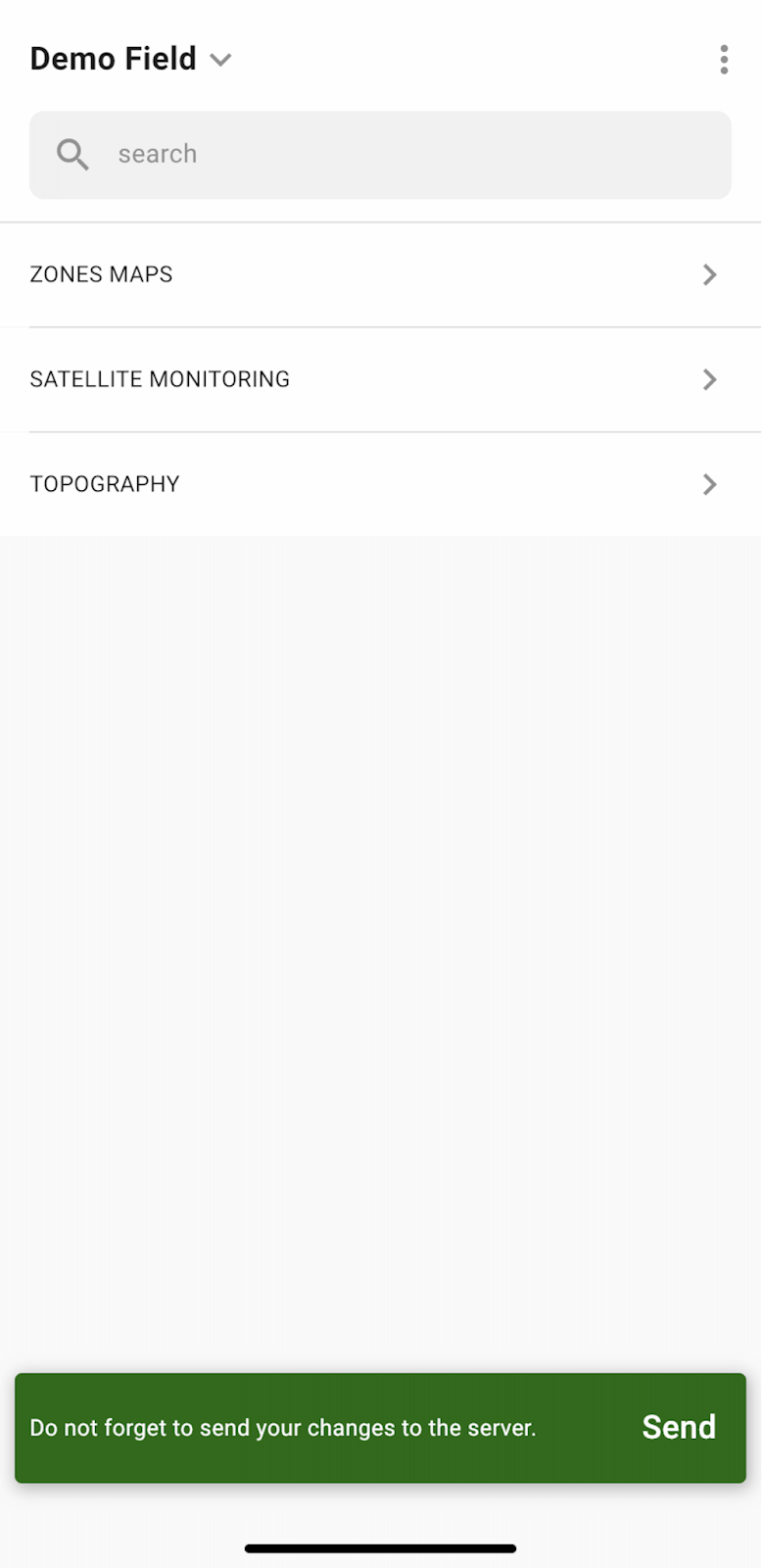
Når du er ferdig med arbeidet ute på jordet og har lagt til/redigert pinner, vil du se et varsel som ber deg laste opp endringene dine til serveren. Eller, hvis du arbeider offline, vil du bli bedt om å laste opp endringene dine når du er koblet til nettverket.
Trykk på «Send» for å synkronisere endringene dine med serveren.
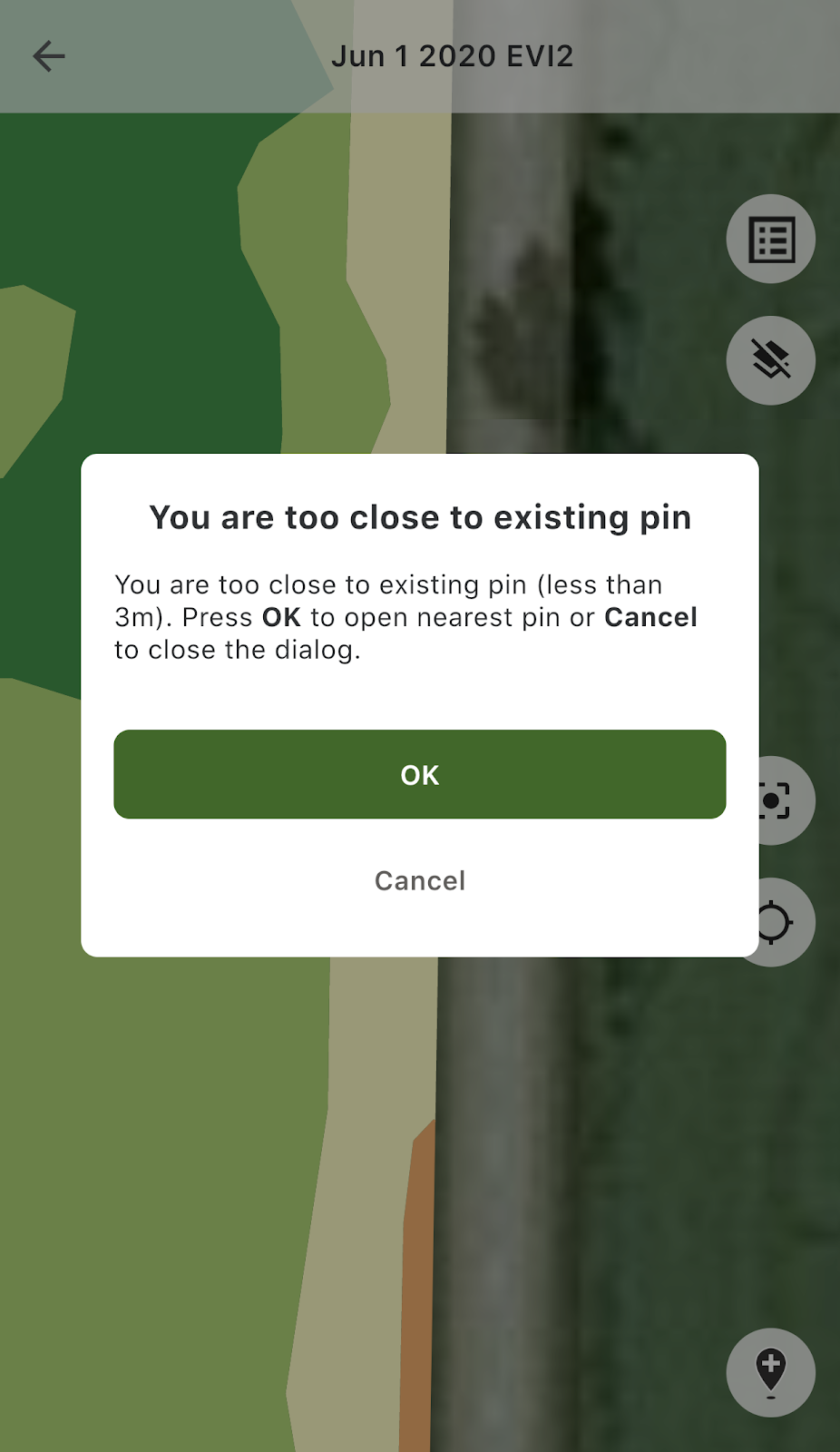
Hvis du er nær en eksisterende pinne og prøver å legge til en ny pinne, vil du se følgende melding:
I så fall kan du trykke enten «OK» for å åpne nærmeste pinne, eller «Avbryt» for å lukke popup-meldingen.
---
# Agent Instructions
This documentation is published with GitBook. GitBook is the documentation platform designed so that both humans and AI agents can read, navigate, and reason over technical content effectively. Learn more at gitbook.com.
## Querying This Documentation
If you need additional information that is not directly available in this page, you can query the documentation by asking a question.
Perform an HTTP GET request on the following URL with the `ask` and `goal` query parameters:
```
GET https://docs.geopard.tech/geopard-tutorials/nor/produktomvisning-mobilapp/arbeide-frakoblet.md?ask=&goal=
```
`ask` is the immediate question: it should be specific, self-contained, and written in natural language.
`goal` is what the user is ultimately trying to achieve, the reason they need the answer. Sharing it helps GitBook give you a better, more relevant answer. A goal is most helpful when it describes the outcome the user wants rather than restating the question. For example, with `ask=how do I create an API token`, a goal like `automate deployments from our CI pipeline` lets GitBook tailor the answer to that use case.
The response will contain a direct answer to the question and relevant excerpts and sources from the documentation.
Use this mechanism when the answer is not explicitly present in the current page, you need clarification or additional context, or you want to retrieve related documentation sections.