> For the complete documentation index, see [llms.txt](https://docs.geopard.tech/geopard-tutorials/llms.txt). Markdown versions of documentation pages are available by appending `.md` to page URLs; this page is available as [Markdown](https://docs.geopard.tech/geopard-tutorials/nl/snelle-gis-tips/qgis-shapefiles-met-meerdere-percelen-splitsen.md).
# QGIS: shapefiles met meerdere percelen splitsen
Splits een shapefile met meerdere percelen in QGIS in afzonderlijke shapefiles met perceelsgrenzen voor import in GeoPard.
Als één shapefile meerdere veldpolygonen bevat, splits deze dan vóór import. GeoPard importeert één veldgrens per shapefile. Deze QGIS-workflow helpt je om sneller nette bestanden voor te bereiden en importproblemen te voorkomen.
### Voordat je begint
* Zorg ervoor dat de laag een unieke veldnaam of ID heeft.
* Maak vooraf een lege uitvoermap aan.
* Verwijderen `/`, `\`, en soortgelijke speciale tekens uit veldnamen.
### Een shapefile met meerdere velden splitsen in QGIS
#### 1. Open de shapefile in QGIS
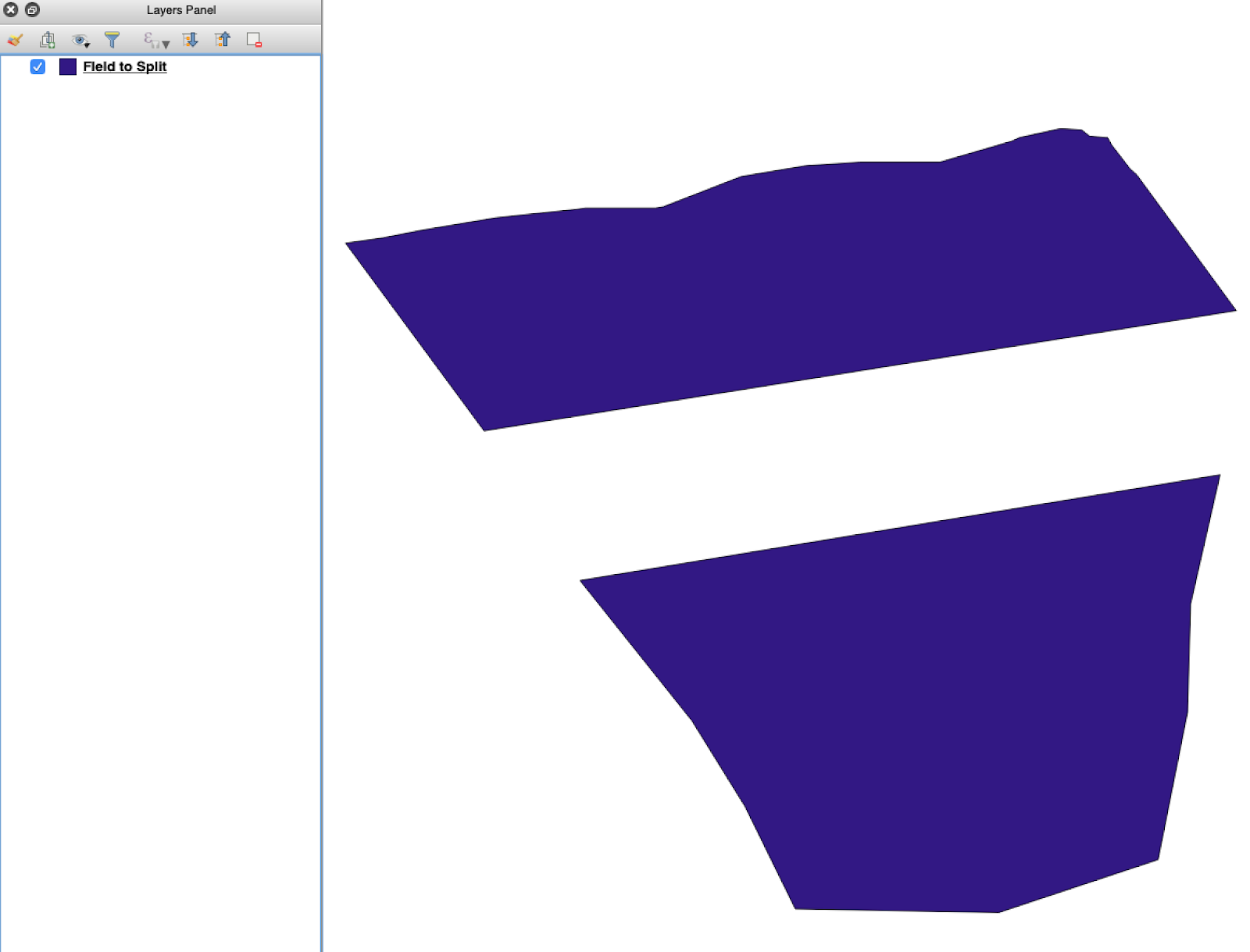
Open de bron-shapefile in QGIS. Controleer of deze meerdere veldpolygonen bevat.
Initiële veldgrenslaag met meerdere polygonen.
#### 2. Open de splitsingstool
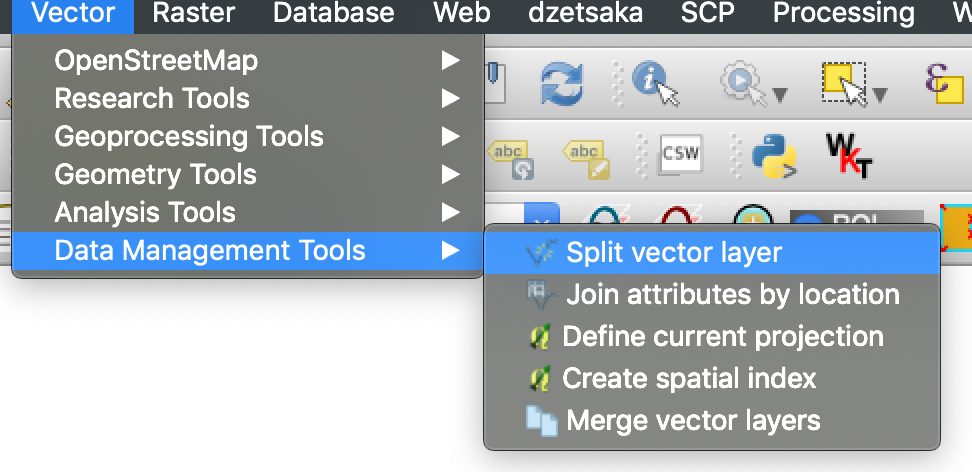
Open de laagopties en kies **Vectorlaag splitsen**.
Open de splitsingsworkflow.
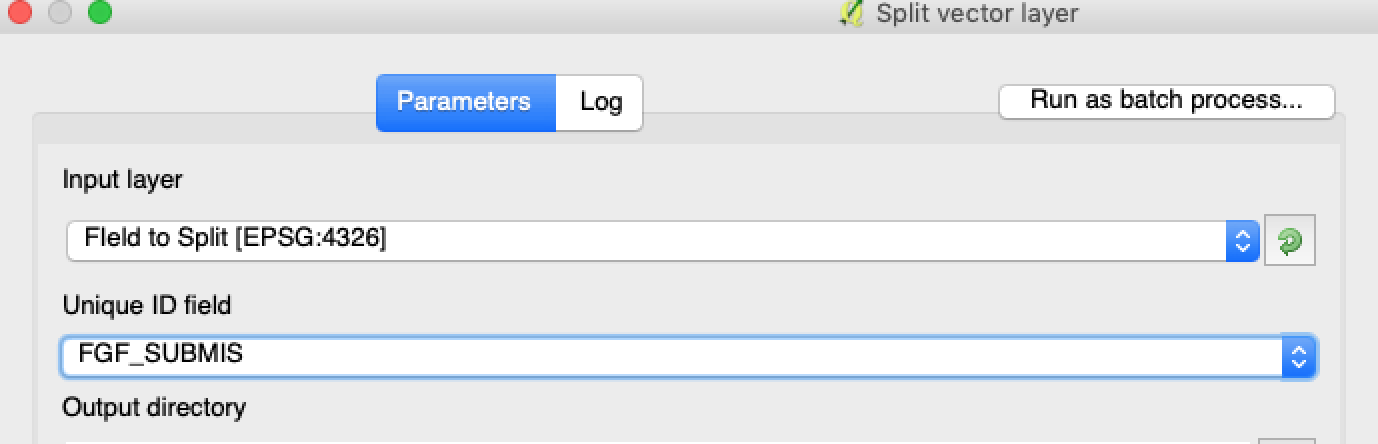
#### 3. Kies de laag, het attribuut en de uitvoermap
Stel in:
1. De laag die gesplitst moet worden.
2. Een uniek attribuut voor elk perceel.
3. De uitvoermap.
Selecteer de bronlaag en het splitsattribuut.
#### 4. Stel het uitvoerformaat in
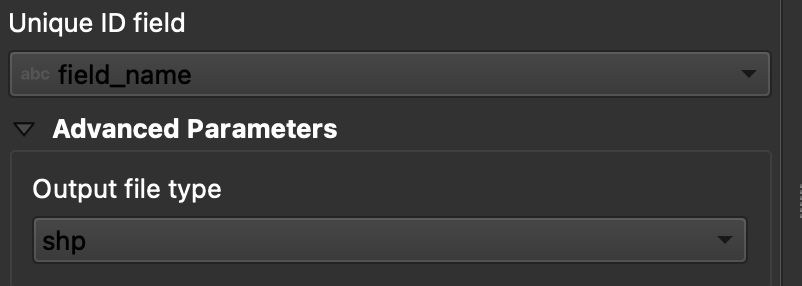
Kies **ESRI Shapefile** als uitvoerformaat.
Stel de uitvoermap en het shapefile-formaat in.
#### 5. Voer de splitsing uit
Klik op **Uitvoeren**. QGIS maakt één bestand per polygoon aan. Elke polygoon wordt een afzonderlijke shapefile voor de veldgrens.
#### 6. Converteer `.gpkg` bestanden naar `.shp` indien nodig
Sommige QGIS-installaties maken eerst `.gpkg` bestanden aan. Als dat gebeurt, open dan elk bestand en sla het opnieuw op als **ESRI Shapefile**.
1. Klik met de rechtermuisknop op de laag.
2. Selecteer **Exporteren** → **Opslaan als objecten**.
3. Kies **ESRI Shapefile**.
4. Stel de bestandsnaam en locatie in.
5. Verwijder indien nodig onnodige attributen.
### Resultaat
Je hebt nu één shapefile per perceel. Elk bestand is klaar om de veldgrens te uploaden in GeoPard. Dit bespaart insteltijd en vermindert vermijdbaar herstelwerk bij import.
### Gerelateerde QGIS-handleidingen
* [QGIS: CSV naar SHP converteren](/geopard-tutorials/nl/snelle-gis-tips/qgis-csv-naar-shp-converteren.md)
* [QGIS: Shapefile opnieuw projecteren](/geopard-tutorials/nl/snelle-gis-tips/qgis-shapefile-opnieuw-projecteren.md)
---
# Agent Instructions
This documentation is published with GitBook. GitBook is the documentation platform designed so that both humans and AI agents can read, navigate, and reason over technical content effectively. Learn more at gitbook.com.
## Querying This Documentation
If you need additional information that is not directly available in this page, you can query the documentation by asking a question.
Perform an HTTP GET request on the following URL with the `ask` and `goal` query parameters:
```
GET https://docs.geopard.tech/geopard-tutorials/nl/snelle-gis-tips/qgis-shapefiles-met-meerdere-percelen-splitsen.md?ask=&goal=
```
`ask` is the immediate question: it should be specific, self-contained, and written in natural language.
`goal` is what the user is ultimately trying to achieve, the reason they need the answer. Sharing it helps GitBook give you a better, more relevant answer. A goal is most helpful when it describes the outcome the user wants rather than restating the question. For example, with `ask=how do I create an API token`, a goal like `automate deployments from our CI pipeline` lets GitBook tailor the answer to that use case.
The response will contain a direct answer to the question and relevant excerpts and sources from the documentation.
Use this mechanism when the answer is not explicitly present in the current page, you need clarification or additional context, or you want to retrieve related documentation sections.