> For the complete documentation index, see [llms.txt](https://docs.geopard.tech/geopard-tutorials/llms.txt). Markdown versions of documentation pages are available by appending `.md` to page URLs; this page is available as [Markdown](https://docs.geopard.tech/geopard-tutorials/nl/snelle-gis-tips/qgis-opbrengstgegevens-bewerken.md).
# QGIS: opbrengstgegevens bewerken
Bereid opbrengstgegevens voor en maak ze schoon in QGIS voordat je ze importeert of analyseert in GeoPard.
OVERZICHT
Handleiding met stap-voor-stapbeschrijving om de volgende problemen met gegevens van de opbrengstmonitor op te lossen:
1. Ontbrekend projectiebestand (.prj) in shapefile
2. Pas conversieregels toe voor elk attribuut in de shapefile (op basis van kb/ha naar bu/ac voorbeeld)
De te gebruiken software is QGIS ([LINK](https://qgis.org/en/site/forusers/download.html)).
Downloaden en installeren zijn verplicht.
### ONTBREKEND PROJECTIEBESTAND
1. Open de shapefile met opbrengstgegevens. Verplaats het bestand naar het QGIS-venster.
2. De shapefile wordt beschikbaar voor verdere bewerkingen in het lagenpaneel.
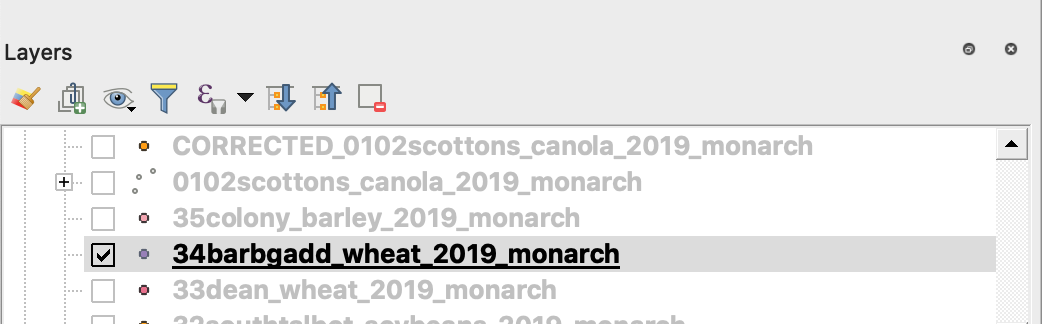
3. Start het opslagproces
4. 1. Klik met de rechtermuisknop op de shapefile
2. Kies Exporteren -> Objecten opslaan als ...
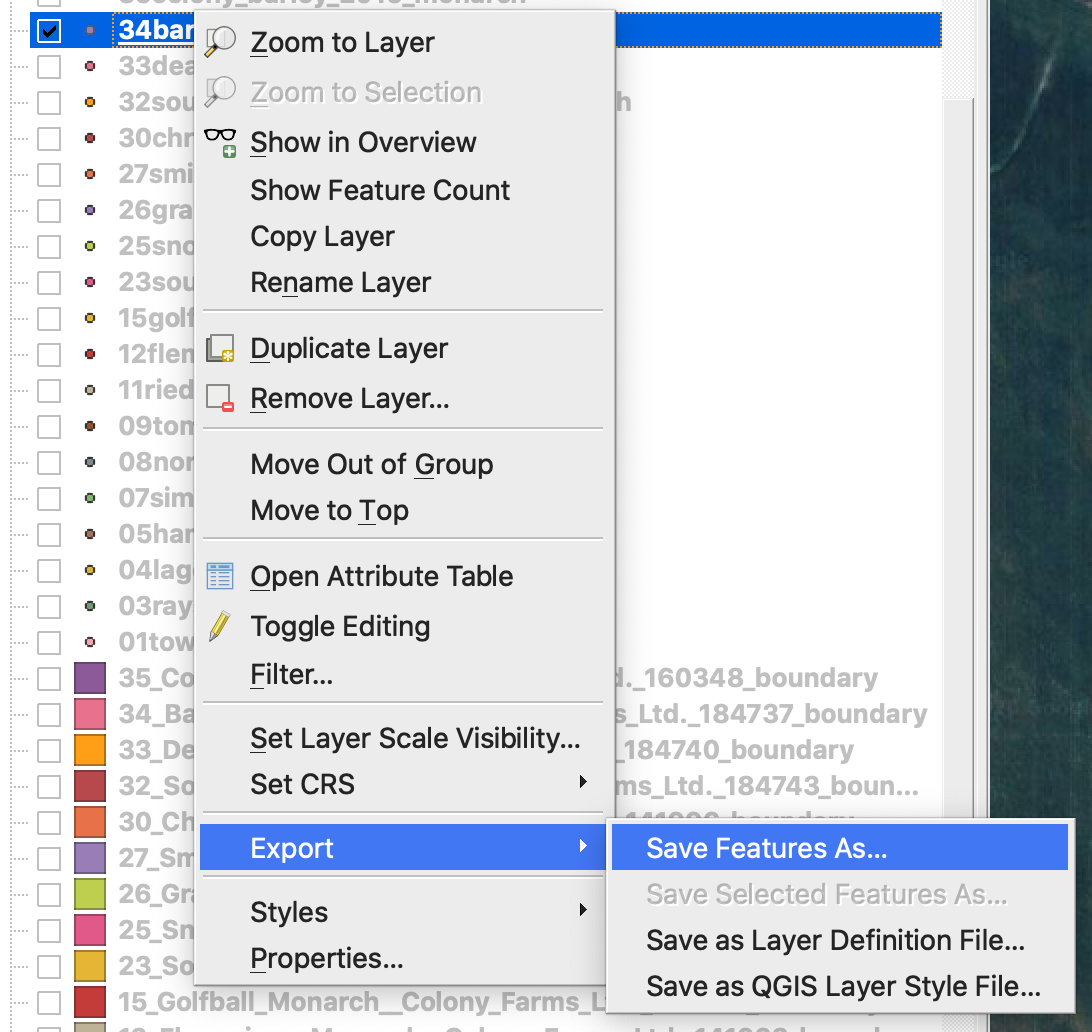
4. Kies
5. 1. Formaat -> ESRI Shapefile,
2. Bestandsnaam -> klik … en selecteer de gewenste map en bestandsnaam,
3. CRS -> EPSG:4326
4. Codering -> UTF8
5. Opgeslagen bestand aan kaart toevoegen (optioneel als je het direct in QGIS wilt zien)
6. Geometrietype -> Punt
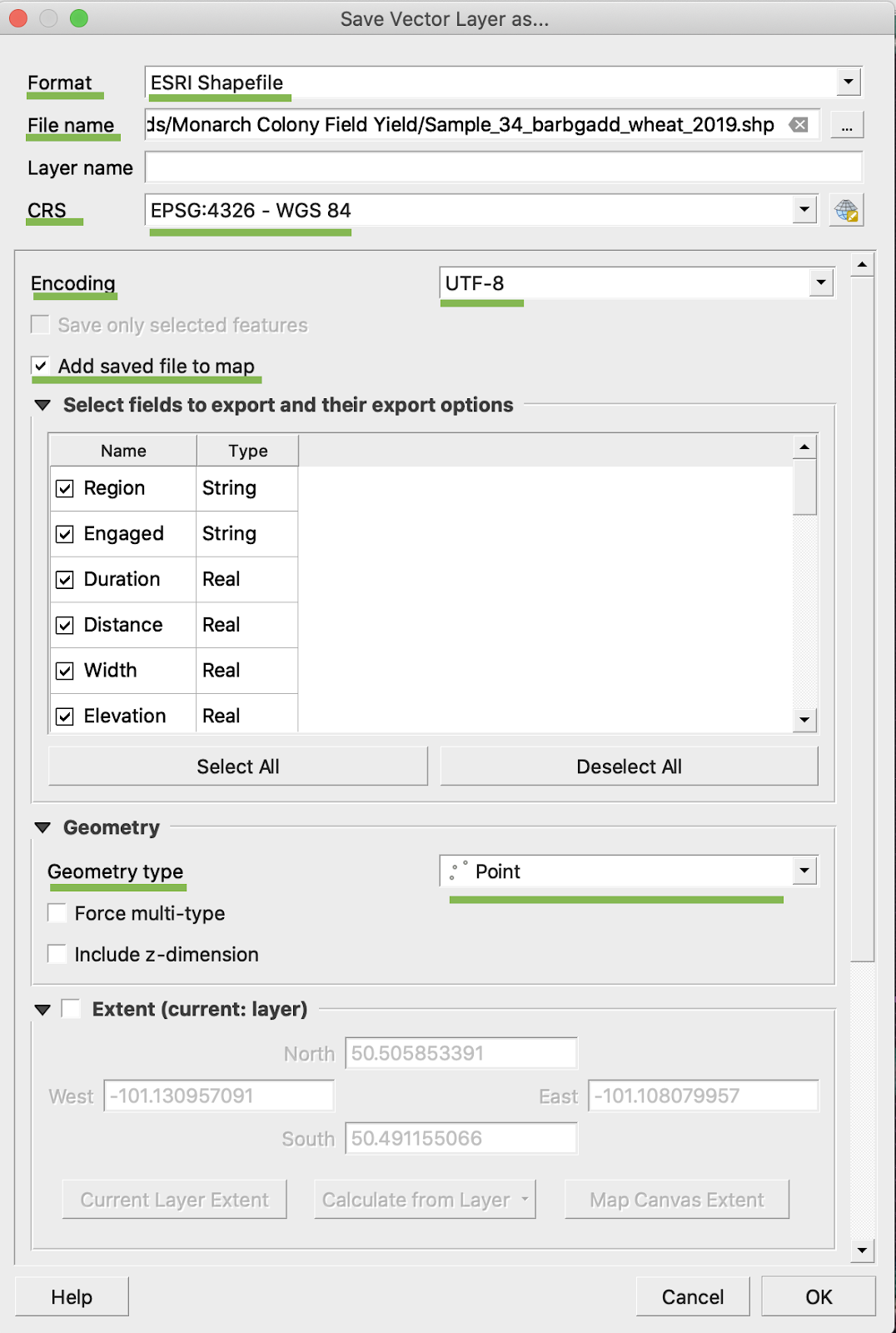
5. Klik op Ok
6. Er wordt een extra shapefile met dezelfde opbrengstgegevens aangemaakt. Het projectiebestand (.prj) is toegevoegd.
\
### BU/AC-CONVERSIE
1. Klik met de rechtermuisknop op de shapefile en kies Attributentabel openen
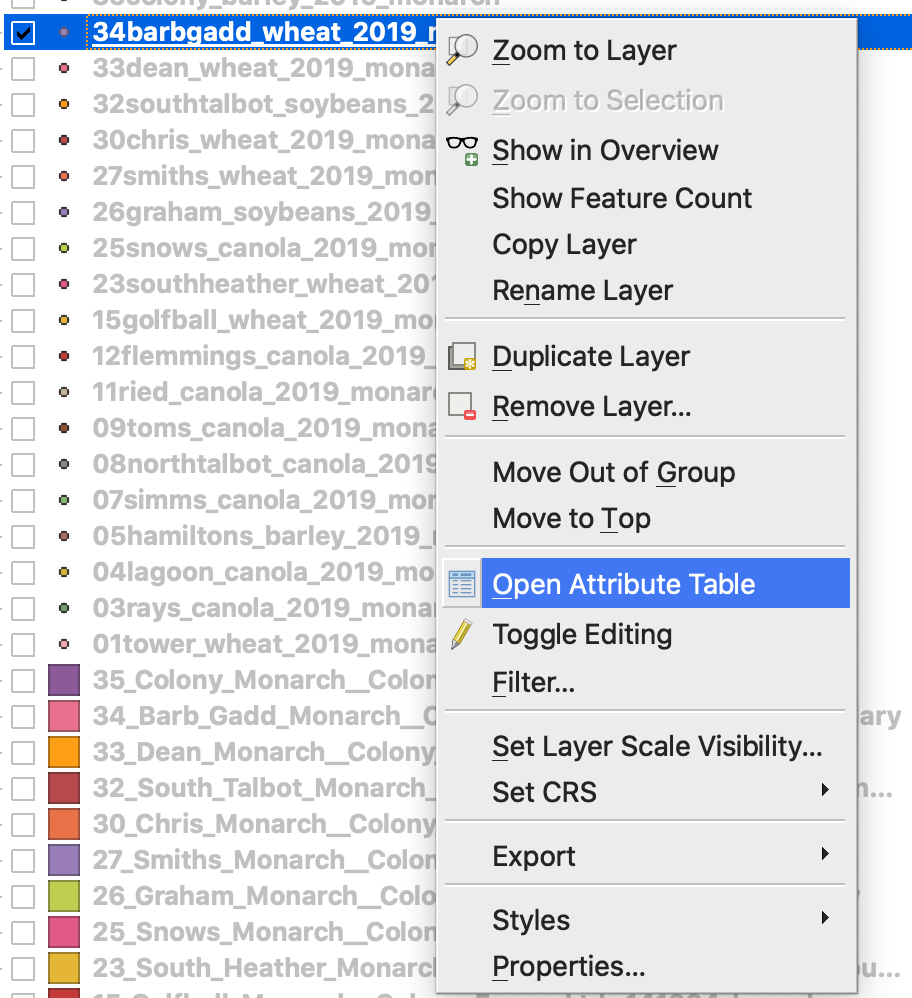
2. Klik op Veldcalculator openen
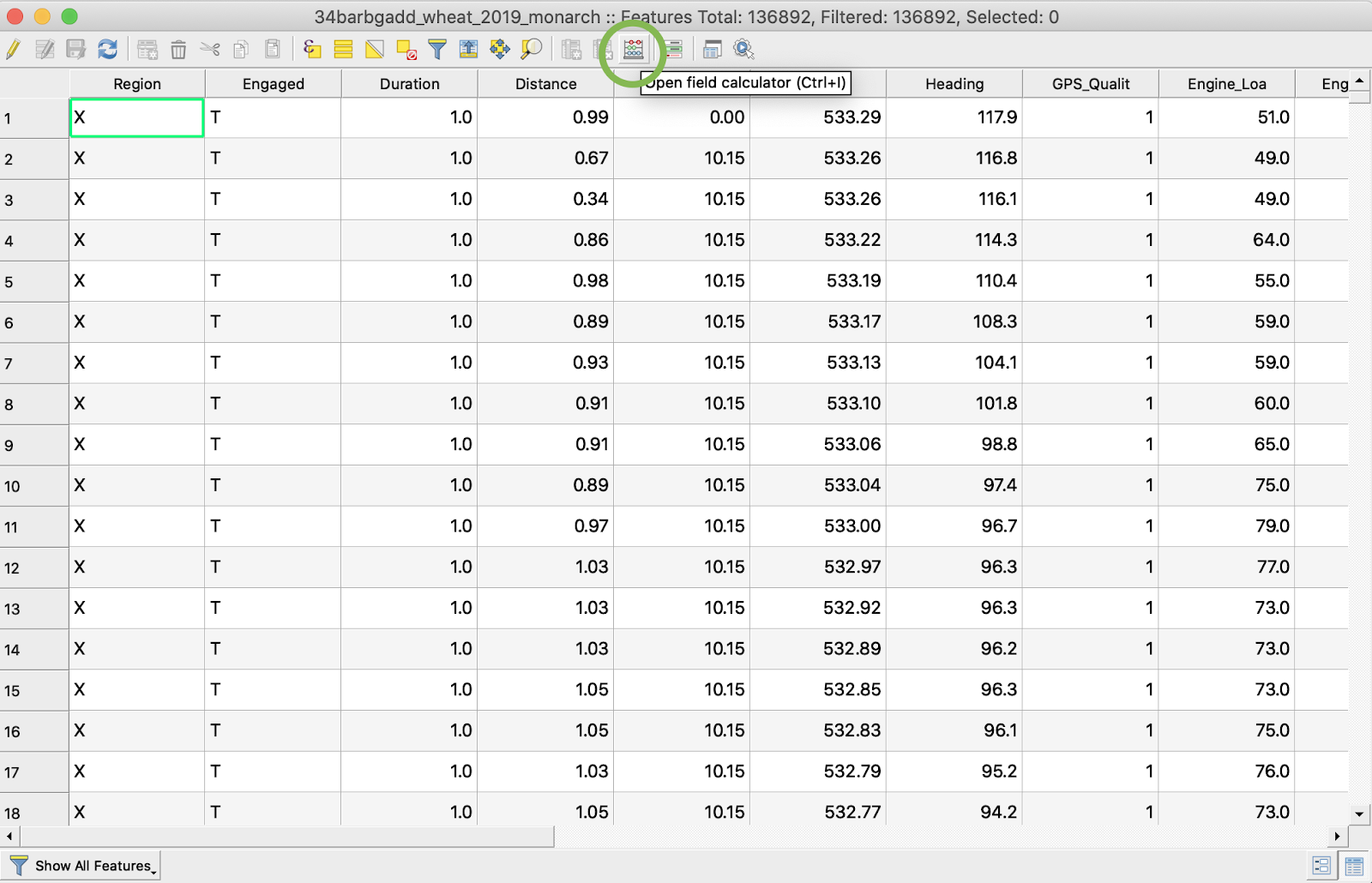
3. Maak een nieuw veld aan
4. 1. Vink Nieuw veld aanmaken aan
2. Voer uitvoerveldnaam in -> DryYieldBu
3. Kies uitvoerveldtype -> Decimaal getal (reëel)
4. Wijzig precisie -> 4
5. Gebruik de regel om kg/ha naar bu/ac om te rekenen -> "Dry\_Yield" \* 0,0149
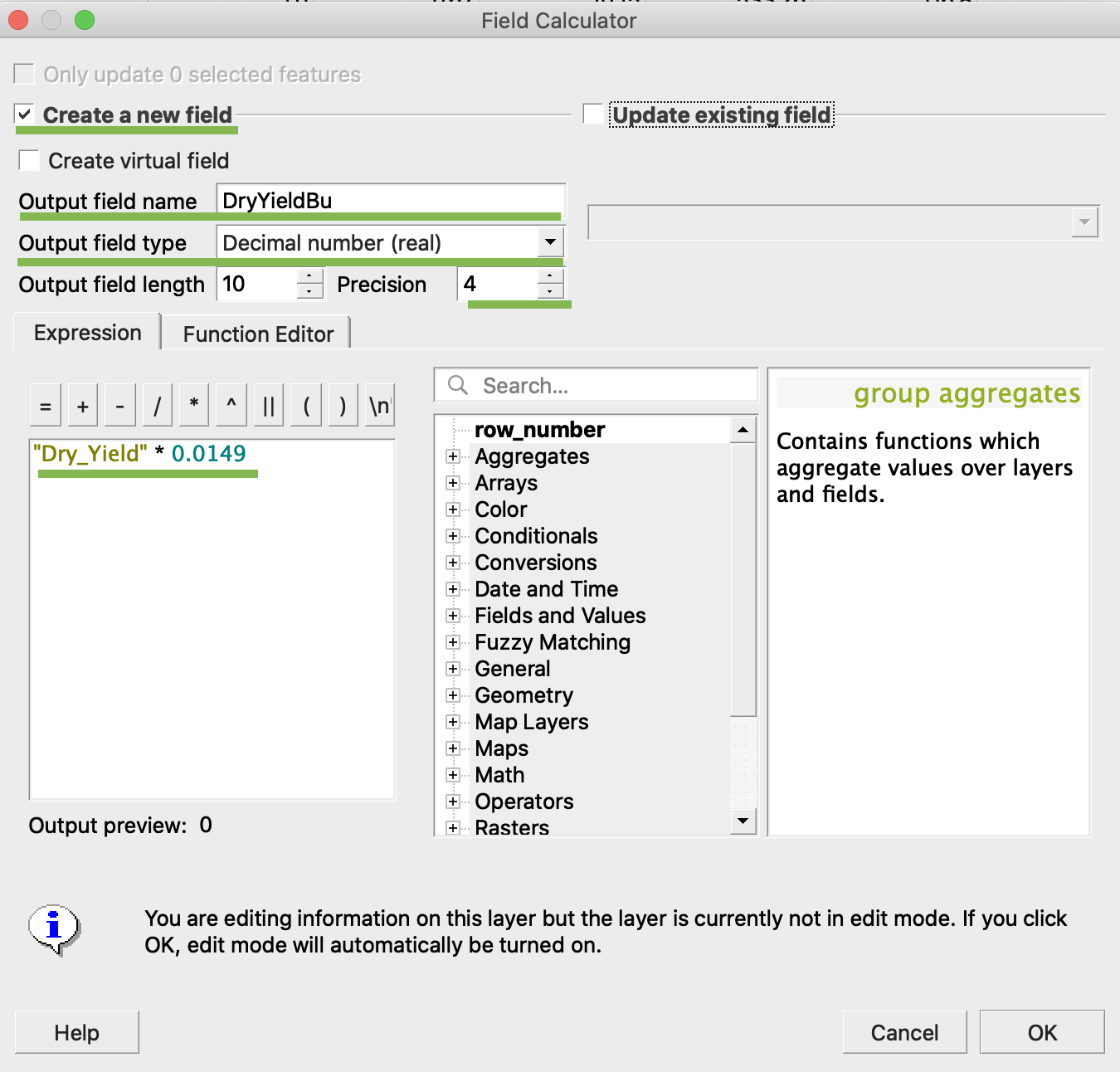
4. Klik op Ok
5. Het extra attribuut DryYieldBu is in de tabel verschenen
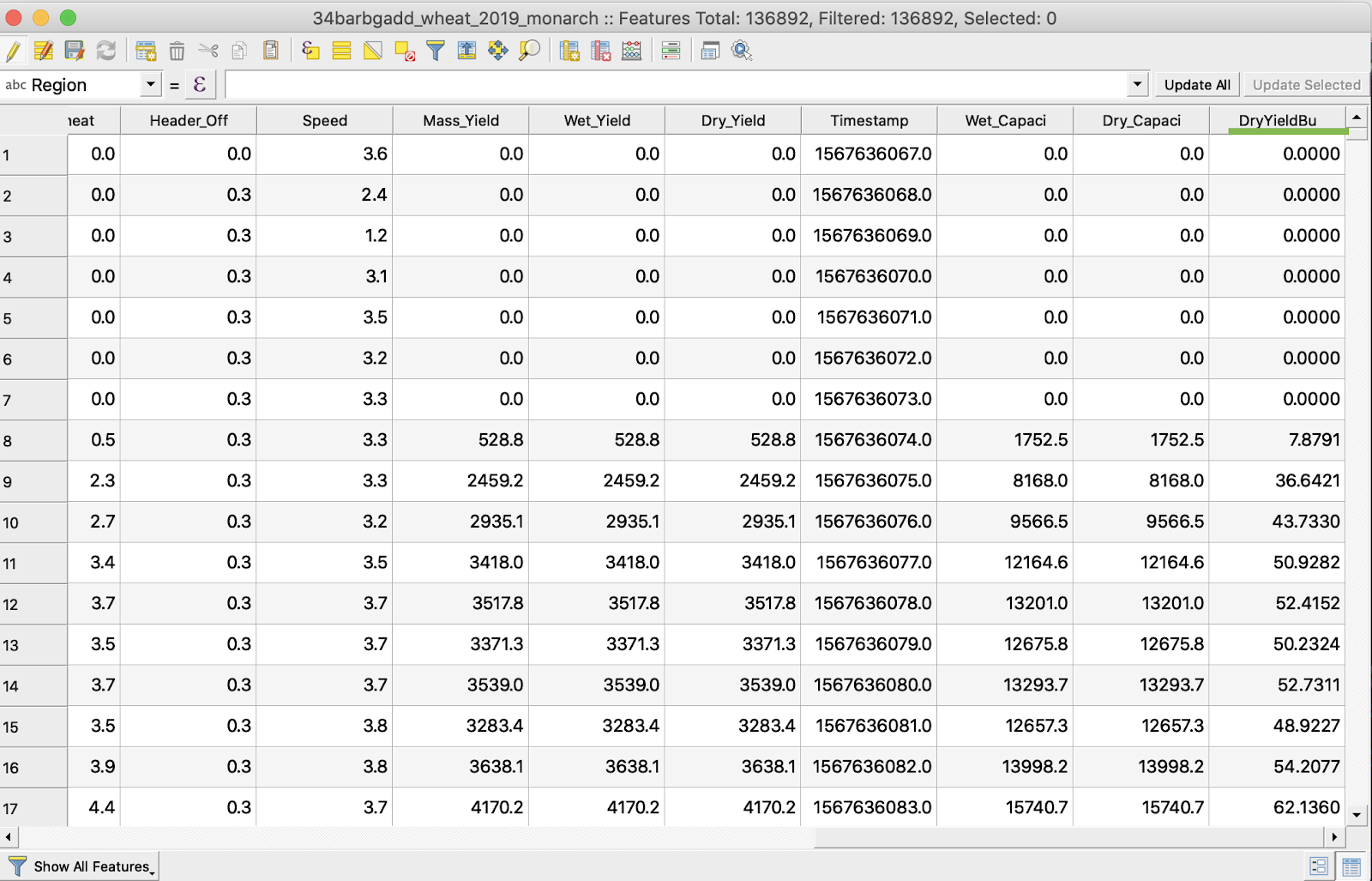
6. Sla de wijzigingen op
7. 1. Klik met de rechtermuisknop op de gewenste shapefile
2. Kies Bewerken aan/uit
\
\
\
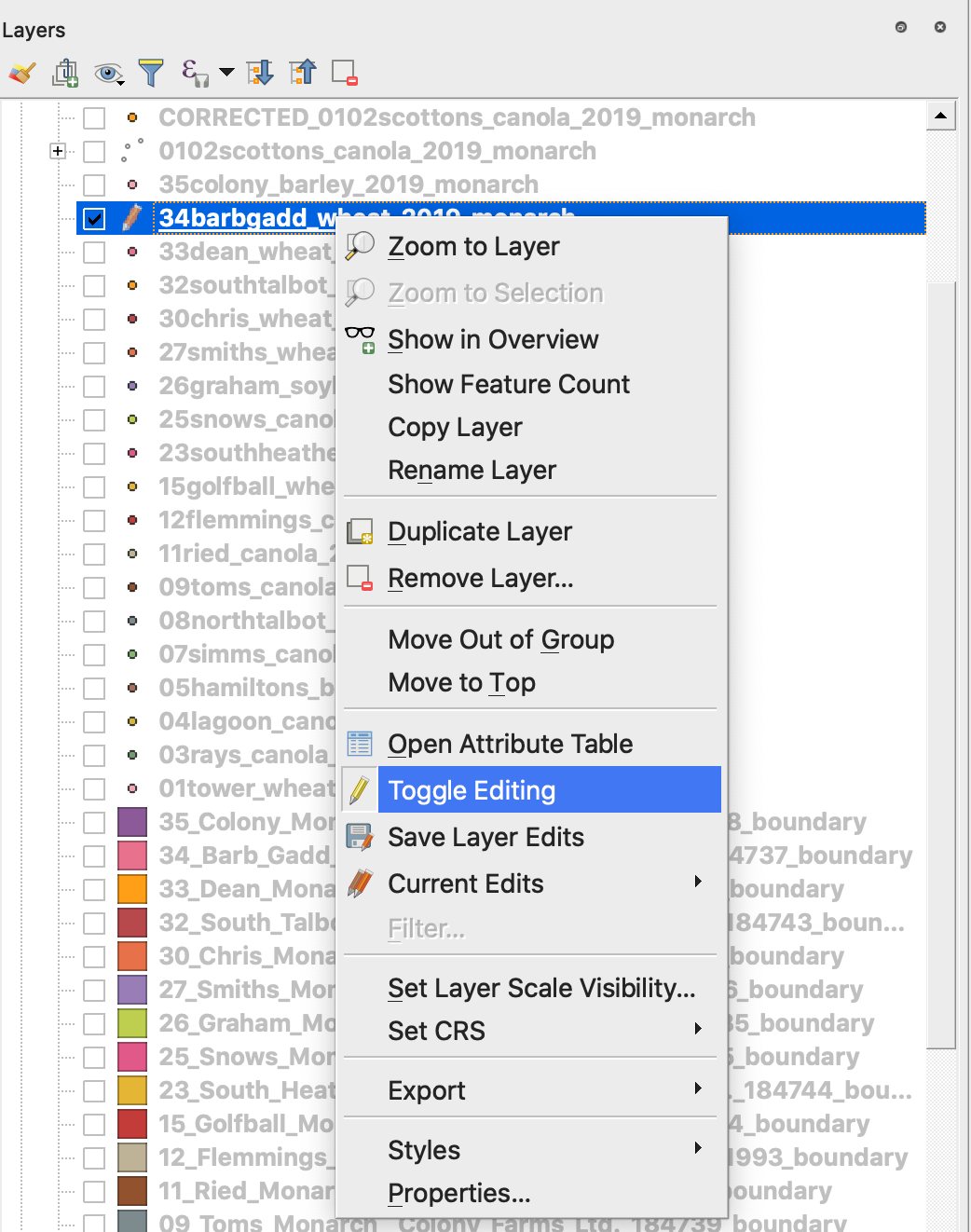
7. Bevestig het opslaan van de wijzigingen
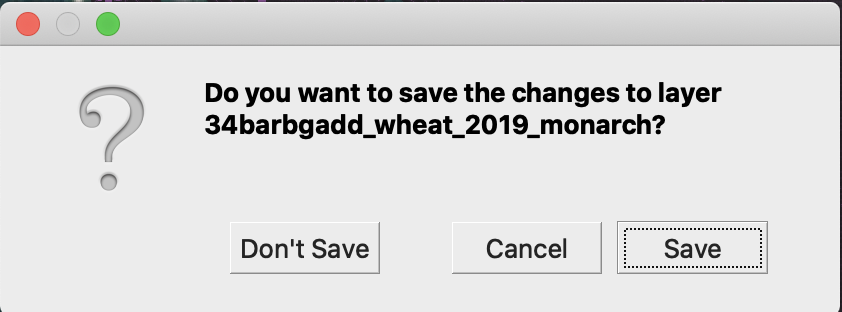
De gewenste shapefile is niet langer gemarkeerd met een potlood. De gegevens in de shapefile zijn bijgewerkt.
---
# Agent Instructions
This documentation is published with GitBook. GitBook is the documentation platform designed so that both humans and AI agents can read, navigate, and reason over technical content effectively. Learn more at gitbook.com.
## Querying This Documentation
If you need additional information that is not directly available in this page, you can query the documentation by asking a question.
Perform an HTTP GET request on the following URL with the `ask` and `goal` query parameters:
```
GET https://docs.geopard.tech/geopard-tutorials/nl/snelle-gis-tips/qgis-opbrengstgegevens-bewerken.md?ask=&goal=
```
`ask` is the immediate question: it should be specific, self-contained, and written in natural language.
`goal` is what the user is ultimately trying to achieve, the reason they need the answer. Sharing it helps GitBook give you a better, more relevant answer. A goal is most helpful when it describes the outcome the user wants rather than restating the question. For example, with `ask=how do I create an API token`, a goal like `automate deployments from our CI pipeline` lets GitBook tailor the answer to that use case.
The response will contain a direct answer to the question and relevant excerpts and sources from the documentation.
Use this mechanism when the answer is not explicitly present in the current page, you need clarification or additional context, or you want to retrieve related documentation sections.