> For the complete documentation index, see [llms.txt](https://docs.geopard.tech/geopard-tutorials/llms.txt). Markdown versions of documentation pages are available by appending `.md` to page URLs; this page is available as [Markdown](https://docs.geopard.tech/geopard-tutorials/nl/producttour-webapp/zonenkaarten-en-analyses/een-zonenkaart-maken-met-een-sjabloon.md).
# Een zonenkaart maken met een sjabloon
Herbruik een opgeslagen zonesjabloon om het aanmaken van managementzones over percelen te standaardiseren.
Het gebruik van een sjabloon voor een Zones-kaart is handig wanneer u een nieuwe kaart wilt maken op basis van de gegevens en instellingen van een bestaande Zones-kaart, en daarna nieuwe gegevens wilt toevoegen. U kunt bijvoorbeeld een Zones-kaart met satellietgegevens van 3 jaar hebben en een nieuwe afbeelding van het huidige jaar willen toevoegen, terwijl u hetzelfde aantal zones en dezelfde vegetatie-index behoudt.
Het proces is hetzelfde als bij het maken van een nieuwe Zones-kaart, maar nu gebruikt u een reeds bestaande Zones-kaart als startpunt.
1. Selecteer het perceel in de boomstructuur en klik op de **Zones-kaart maken** knop, selecteer **Kloon een bestaande Zones-kaart**, en klik vervolgens op **Volgende**.
2. Selecteer in de volgende stap de Zones-kaart die u als sjabloon wilt gebruiken. Klik **Volgende**.
3. Dezelfde criteria worden toegepast met dezelfde index. U ziet vooraf geselecteerde afbeeldingen die worden gebruikt in de sjabloonanalyse. Hier kunt u een afbeelding (afbeeldingen) selecteren die u wilt toevoegen of vervangen.
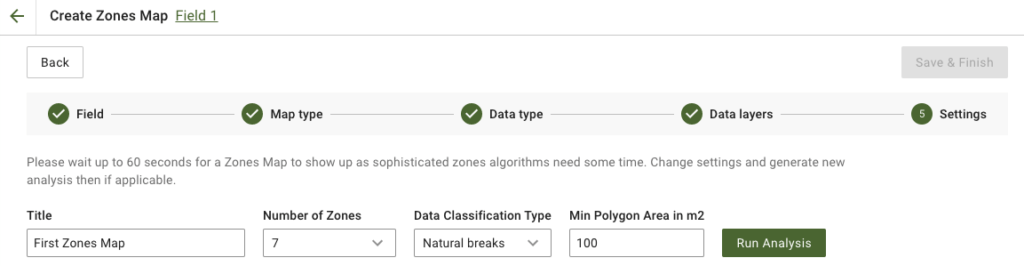
4. In de volgende stap kunt u de titel bewerken, het aantal zones wijzigen, [een type gegevensclassificatie selecteren](/geopard-tutorials/nl/producttour-webapp/zonenkaarten-en-analyses/met-dataclassificatie-werken.md), en het minimale polygoonoppervlak in vierkante meters definiëren. Klik op **Analyse uitvoeren** om verder te gaan.
De analyse kan, afhankelijk van de door u opgegeven parameters, tot 60 seconden duren.
5. Klik, zodra deze is voltooid, op **Opslaan en voltooien**.
Nadat het is opgeslagen, ziet u het volgende bericht:
U kunt nog een Zones-kaart maken, doseringen toewijzen of de Zones-kaart openen die u zojuist hebt gemaakt.
---
# Agent Instructions
This documentation is published with GitBook. GitBook is the documentation platform designed so that both humans and AI agents can read, navigate, and reason over technical content effectively. Learn more at gitbook.com.
## Querying This Documentation
If you need additional information that is not directly available in this page, you can query the documentation by asking a question.
Perform an HTTP GET request on the following URL with the `ask` and `goal` query parameters:
```
GET https://docs.geopard.tech/geopard-tutorials/nl/producttour-webapp/zonenkaarten-en-analyses/een-zonenkaart-maken-met-een-sjabloon.md?ask=&goal=
```
`ask` is the immediate question: it should be specific, self-contained, and written in natural language.
`goal` is what the user is ultimately trying to achieve, the reason they need the answer. Sharing it helps GitBook give you a better, more relevant answer. A goal is most helpful when it describes the outcome the user wants rather than restating the question. For example, with `ask=how do I create an API token`, a goal like `automate deployments from our CI pipeline` lets GitBook tailor the answer to that use case.
The response will contain a direct answer to the question and relevant excerpts and sources from the documentation.
Use this mechanism when the answer is not explicitly present in the current page, you need clarification or additional context, or you want to retrieve related documentation sections.