> For the complete documentation index, see [llms.txt](https://docs.geopard.tech/geopard-tutorials/llms.txt). Markdown versions of documentation pages are available by appending `.md` to page URLs; this page is available as [Markdown](https://docs.geopard.tech/geopard-tutorials/nl/producttour-webapp/precisielandbouwgegevens-importeren/bodemlaboratoriumresultaten-csv-excel-slim-importeren.md).
# Bodemlaboratoriumresultaten (CSV/Excel) - Slim importeren
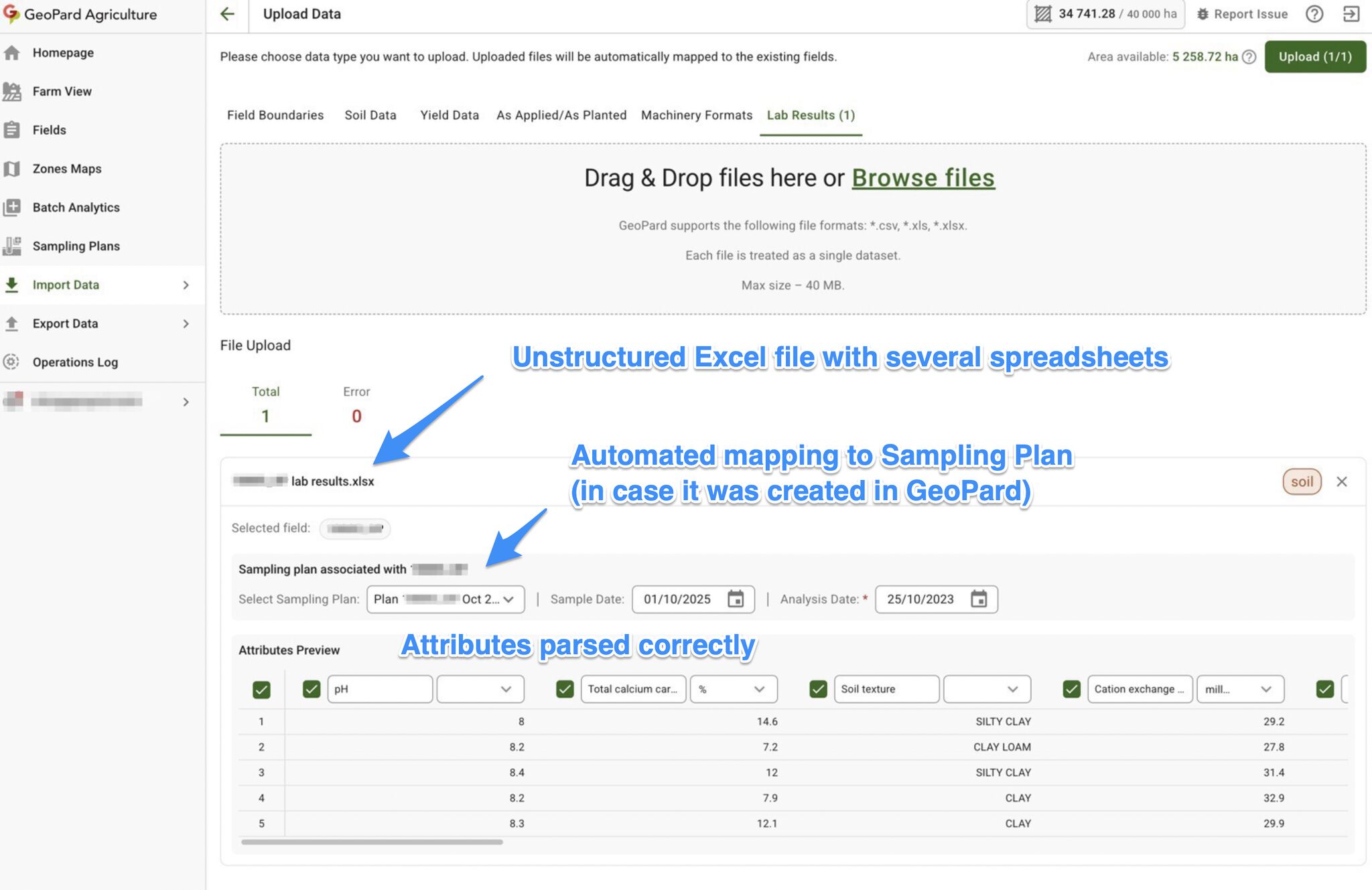
GeoPard Agriculture is het eerste platform dat echt de chaos rond formaten van bodemlabresultaten oplost - met geautomatiseerd slim importeren.
## OVERZICHT
Bodemlabbestanden zijn vaak rommelig: verschillende sjablonen, talen, kolomnamen, eenheden en zelfs meerdere spreadsheets in één Excel-bestand. Smart Import herkent deze bestanden automatisch en zet ze om naar consistente gegevens per bemonsteringspunt voor heldere analyses en adviezen.
Geautomatiseerde parsing van csv-/excel-resultaten van bodemlaboratoria
## ONDERSTEUNDE BESTANDEN
* CSV (.csv)
* Excel (.xls, .xlsx), inclusief werkmappen met meerdere werkbladen
* Meerdere bestanden per upload (40 MB per bestand)
## WAT ER AUTOMATISCH GEBEURT
* Automatische parsing: vindt de echte tabel + kopteksten (zelfs in “niet-standaard” lay-outs)
* Ondersteuning voor meerdere talen: herkent gangbare laboratoriumattribuutnamen in verschillende talen/lokale benamingen
* Slimme koppeling: detecteert macro- en micronutriënten en maakt een koppelingsvoorbeeld (bewerkbaar)
* Eenheidskoppeling + normalisatie: detecteert eenheden, zet om naar consistente eenheden, markeert afwijkende/gemengde eenheden
* Veldkoppeling: koppelt punten aan percelen via GeoPard Sampling Plan, of via coördinaten in het bestand
## HOE GEOPARD LABRESULTATEN AAN PERCELEN KOPPELT
GeoPard kan labresultaten op vier manieren aan het juiste perceel koppelen:
1. **Bemonsteringsplan-ID en zone-ID**\
Gebruik aparte kolommen voor de unieke bemonsteringsplan-ID en zone-ID. Dit is de meest betrouwbare optie voor zonegewijze samengestelde bemonstering op basis van een door GeoPard gegenereerd bemonsteringsplan.
2. **Puntcoördinaten (`Lengtegraad` / `Breedtegraad`)**\
Gebruik twee kolommen voor lengte- en breedtegraad. GeoPard koppelt het punt ruimtelijk wanneer het binnen een perceelsgrens valt. Gebruik deze methode alleen voor bemonstering op kernpunten.
3. **WKT-geometrie**\
Gebruik één kolom met WKT-geometrie. GeoPard koppelt de geometrie ruimtelijk aan de perceelsgrens.
4. **Perceelsnaam / perceels-ID**\
Gebruik een tekstkolom met de perceelsnaam of perceels-ID. GeoPard vergelijkt deze met het perceel `Naam`. \
`Perceels-ID` is de UUID van het GeoPard-perceel (je vindt die op elke perceelpagina in de URL van de browser, bijv. perceelsId]\(#user-content-fn-1)[^1] ).
## HOE TE IMPORTEREN
1. Gegevens importeren → Bestanden uploaden → Labresultaten
2. Upload CSV/XLS/XLSX
3. Selecteer perceel / bemonsteringsplan (indien beschikbaar) + datums
4. Controleer de koppeling + eenheden in de preview
5. Uploaden
## Verbinden met Planning
Werkt het best met [Bodembemonstering - Geautomatiseerde planning](/geopard-tutorials/nl/producttour-webapp/bodembemonstering-geautomatiseerde-planning.md) of bestanden met coördinaten.
## Beschikbaar voor alle gebruikers.
[^1]: UUID van het perceel, die moet aanwezig zijn in het geïmporteerde Excel- of CSV-document.
---
# Agent Instructions
This documentation is published with GitBook. GitBook is the documentation platform designed so that both humans and AI agents can read, navigate, and reason over technical content effectively. Learn more at gitbook.com.
## Querying This Documentation
If you need additional information that is not directly available in this page, you can query the documentation by asking a question.
Perform an HTTP GET request on the following URL with the `ask` and `goal` query parameters:
```
GET https://docs.geopard.tech/geopard-tutorials/nl/producttour-webapp/precisielandbouwgegevens-importeren/bodemlaboratoriumresultaten-csv-excel-slim-importeren.md?ask=&goal=
```
`ask` is the immediate question: it should be specific, self-contained, and written in natural language.
`goal` is what the user is ultimately trying to achieve, the reason they need the answer. Sharing it helps GitBook give you a better, more relevant answer. A goal is most helpful when it describes the outcome the user wants rather than restating the question. For example, with `ask=how do I create an API token`, a goal like `automate deployments from our CI pipeline` lets GitBook tailor the answer to that use case.
The response will contain a direct answer to the question and relevant excerpts and sources from the documentation.
Use this mechanism when the answer is not explicitly present in the current page, you need clarification or additional context, or you want to retrieve related documentation sections.