> For the complete documentation index, see [llms.txt](https://docs.geopard.tech/geopard-tutorials/llms.txt). Markdown versions of documentation pages are available by appending `.md` to page URLs; this page is available as [Markdown](https://docs.geopard.tech/geopard-tutorials/nl/producttour-webapp/john-deere-operations-center-integration/6.-export-rx-maps-to-john-deere-operations-center-as-files.md).
# Stuur taakkaartbestanden naar John Deere Operations Center
Upload GeoPard-zones en taakkaarten op basis van vergelijkingen naar Bestanden in de juiste Operations Center-organisatie. Stuur ze vervolgens naar het display of kopieer ze naar een USB-stick.
GeoPard uploadt een taakkaart of vergelijkingskaart naar het gedeelte Bestanden van de John Deere-organisatie die je kiest. Vanuit Bestanden verstuur je het voorschrift via draadloze gegevensoverdracht naar de display, of kopieer je het naar een USB-stick als de machine geen verbinding heeft. Gebruik bestanden wanneer de machinist de taak in de cabine instelt; gebruik een Werkplan wanneer het kantoor dit doet. Een organisatienaam in grijs betekent dat GeoPard er nog geen toegang toe heeft.
{% hint style="success" %}
Verstuur je eerste voorschrift naar Operations Center: [Gratis starten](https://app.geopard.tech/auth/sign-up?utm_source=docs\&utm_medium=cta\&utm_campaign=6.-export-rx-maps-to-john-deere-operations-center-as-files)
{% endhint %}
4\. Exporteren naar John Deere Operations Center
4.1 Klanten van GeoPard kunnen gegevens (Rx VRA-voorschriften of andere gegevenslagen) vanuit GeoPard exporteren naar John Deere Operations Center. De eerste stap is [inloggen](https://app.geopard.tech/auth/sign-in) en naar het tabblad **Exporteren naar MyJohnDeere** gaan.
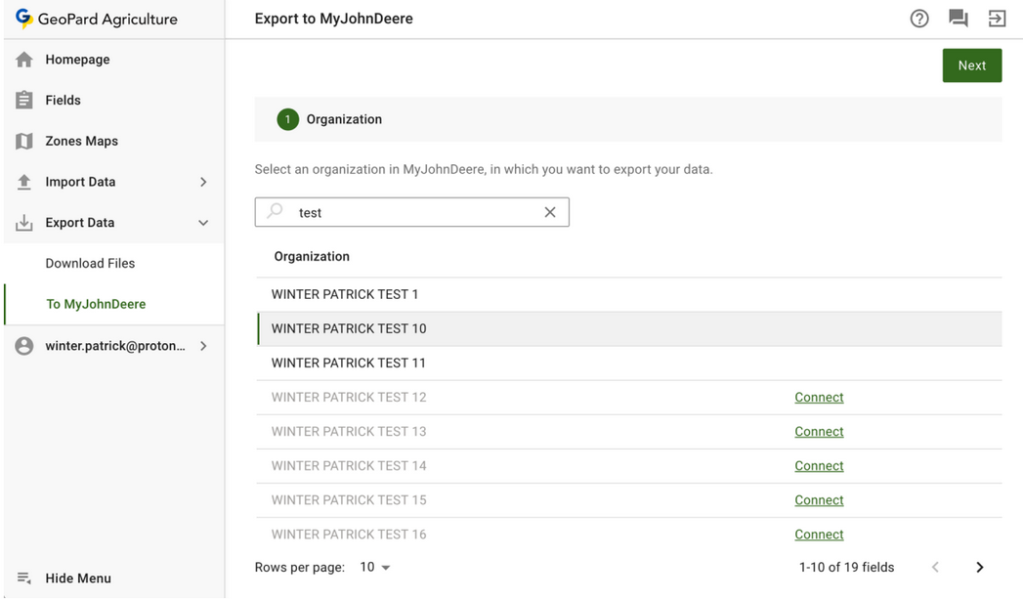
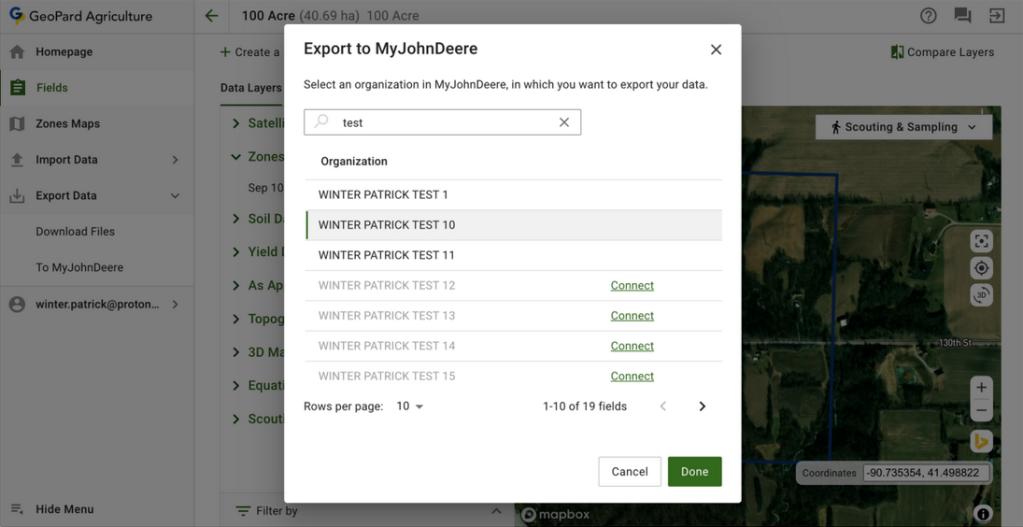
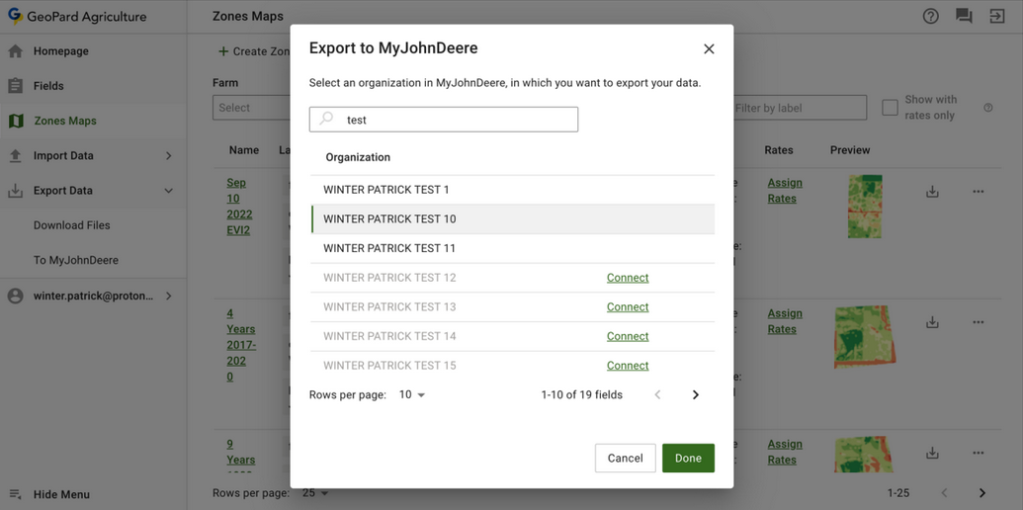
4.2 De gebruiker moet een bestemmingsorganisatie selecteren waar GeoPard bestanden naartoe uploadt. Er kan op tekst worden gezocht. Als de John Deere-organisatie is uitgeschakeld (de **naam is grijs**), moet de gebruiker toegang verlenen tot John Deere Operations Center. Raadpleeg [GeoPard-profiel koppelen aan de John Deere-organisatie](https://docs.geopard.tech/geopard-tutorials/nl/producttour-webapp/john-deere-operations-center-integration/3.-connect-to-john-deere-organizations.md).
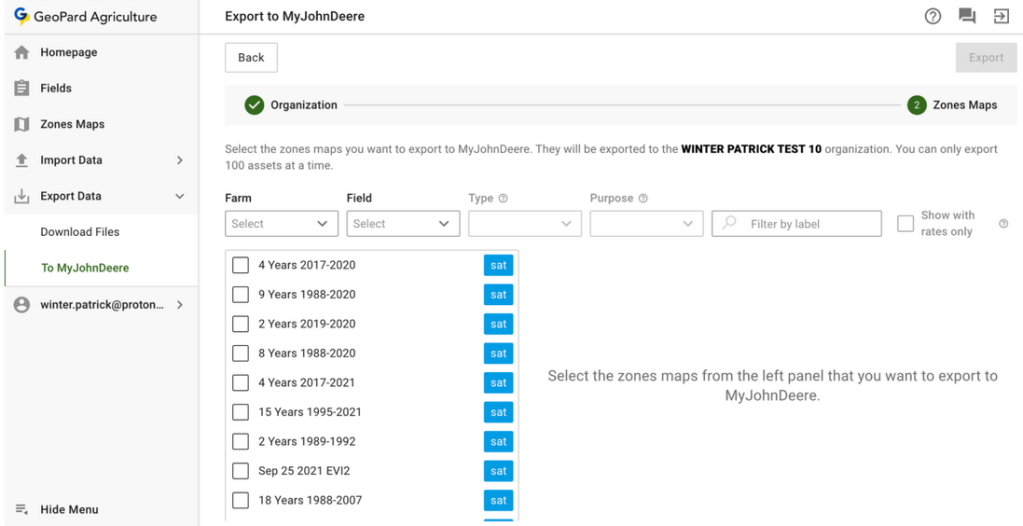
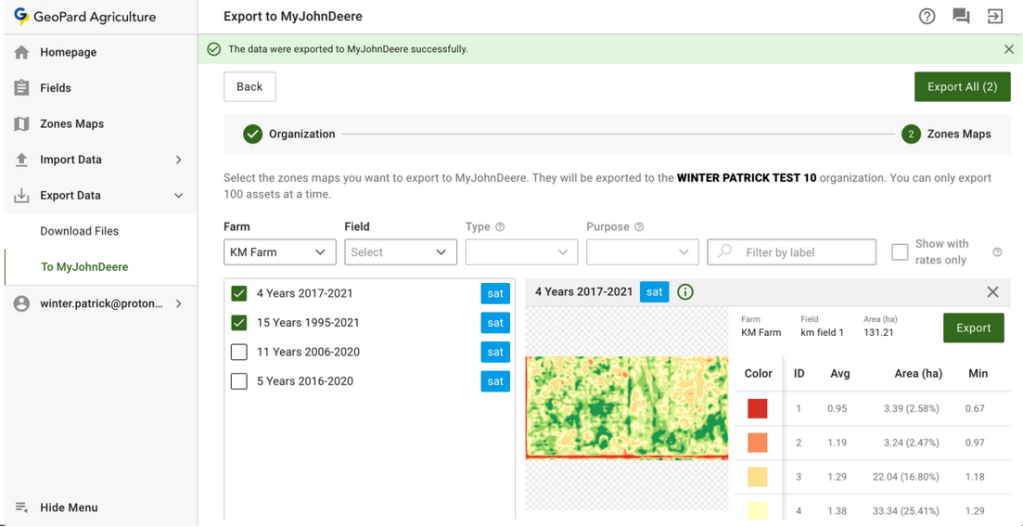
4.3 Vervolgens selecteert de gebruiker de bestanden die GeoPard naar John Deere Operations Center uploadt.
4.4 De gebruiker kan de bestanden filteren.
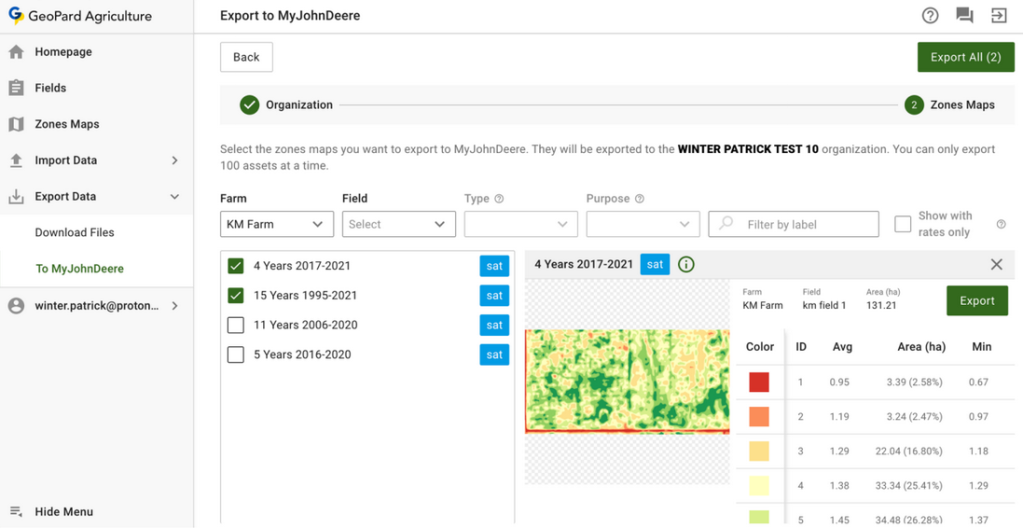
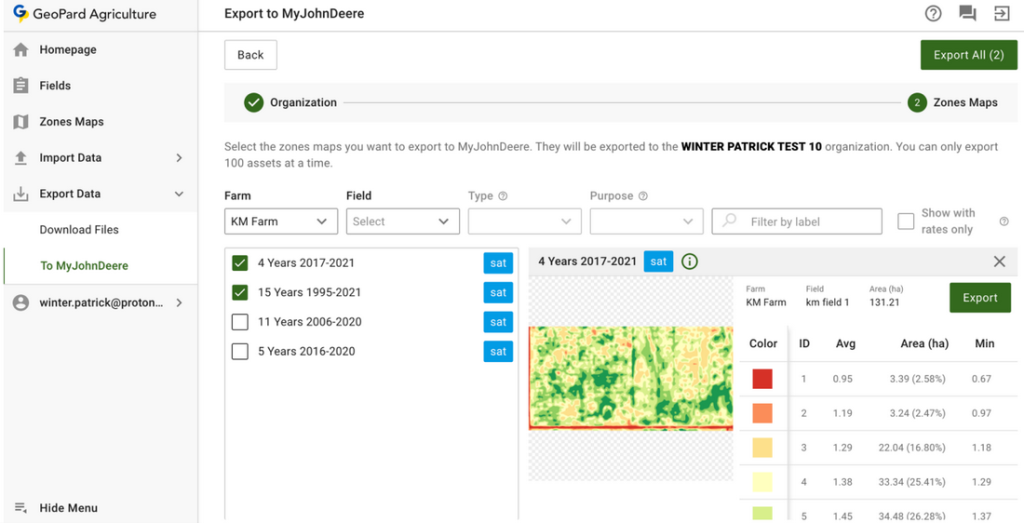
4.5 Nadat alle bestanden zijn geselecteerd, kan de gebruiker ze allemaal uploaden door op de knop **Alles exporteren** te klikken, of afzonderlijke bestanden uploaden door op de knop **Exporteren** te klikken.
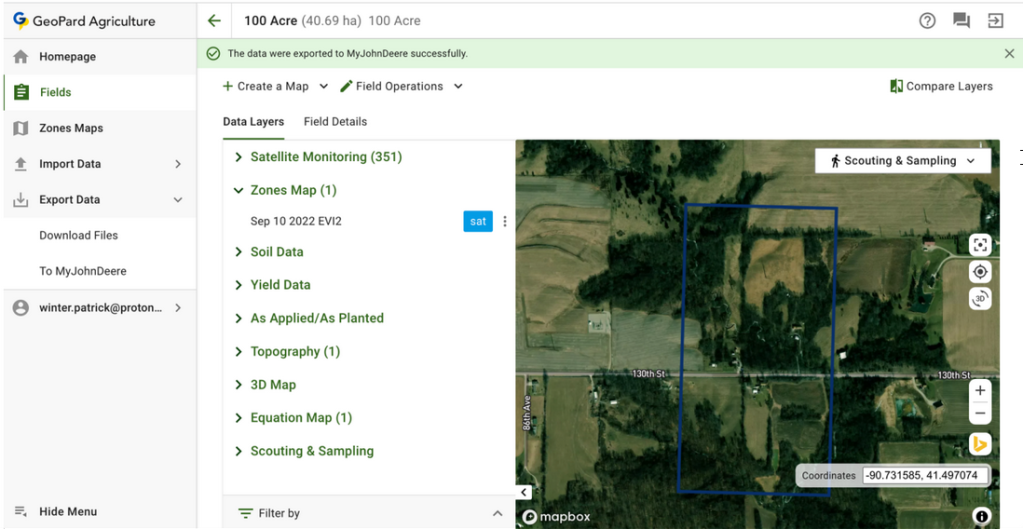
4.6 Na het klikken ziet de gebruiker een bericht met het resultaat van de bewerking.
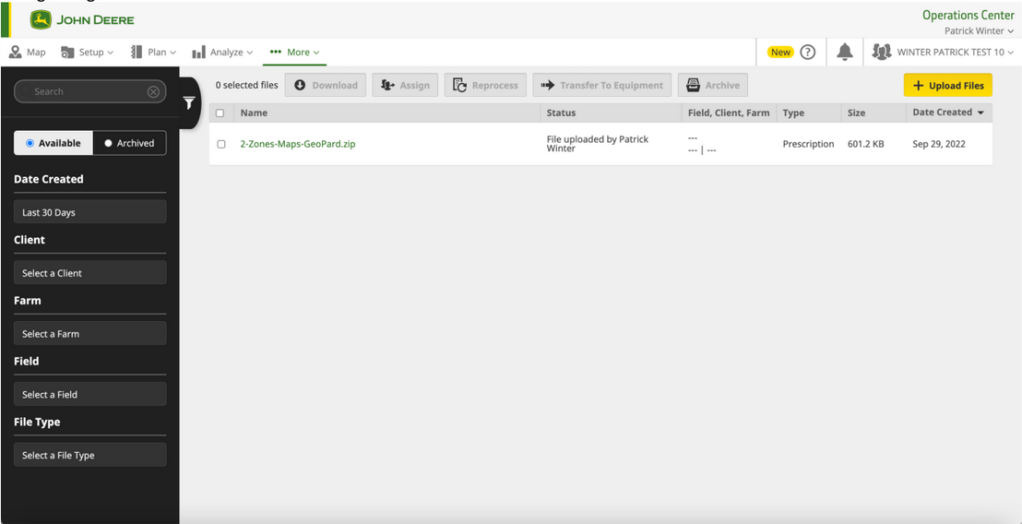
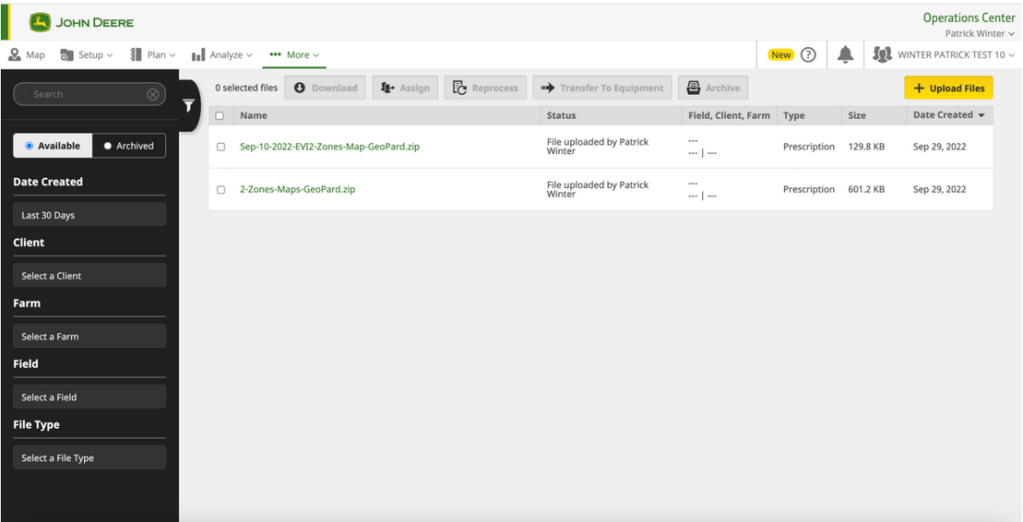
4.7 Vervolgens ziet de gebruiker het resultaat in John Deere Operations Center ([https://files.deere.com](https://files.deere.com/)). *Let goed op welke organisaties de gebruiker selecteert in GeoPard Agriculture en John Deere Operations Center.*
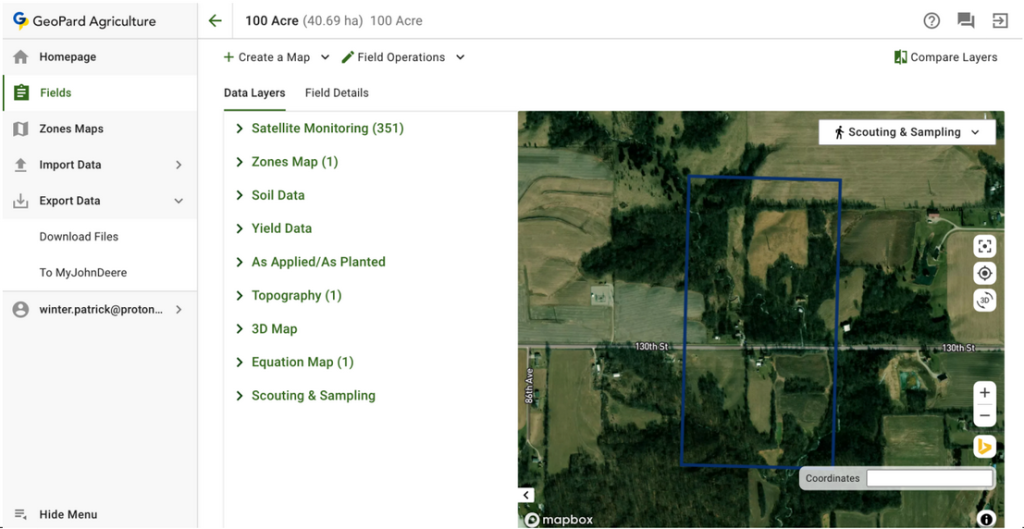
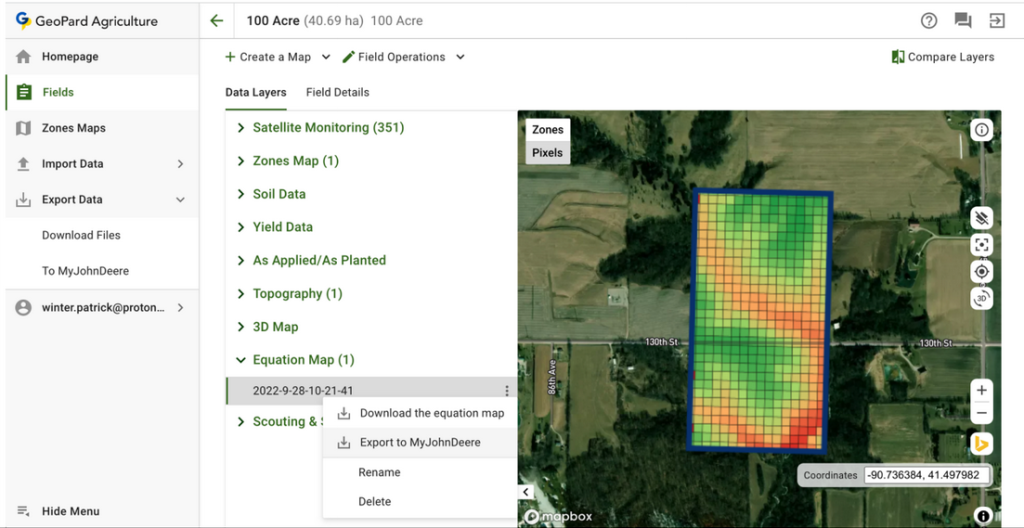
4.8 Klanten van GeoPard kunnen taakkaarten (Rx VRA-voorschriften) en vergelijkingskaarten vanuit het tabblad Percelen exporteren naar John Deere Operations Center.
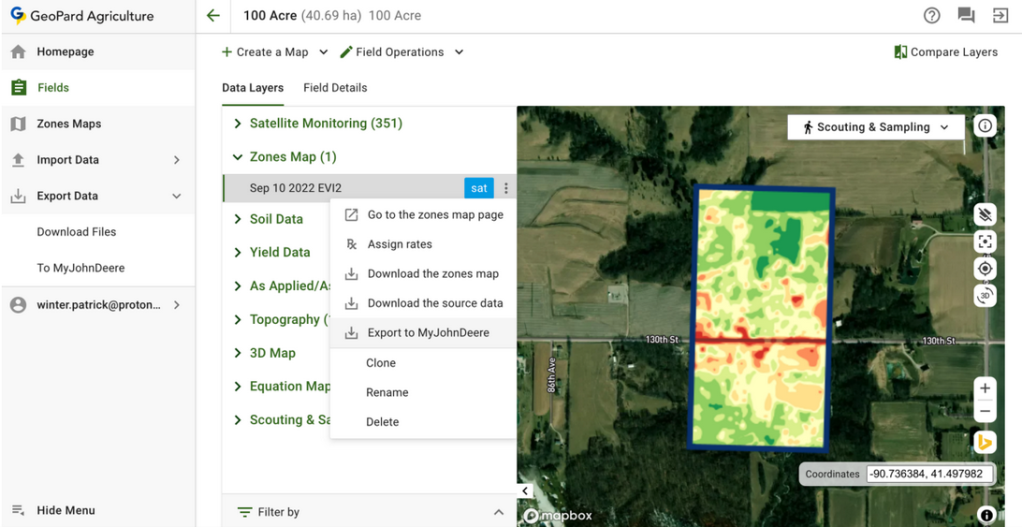
4.8.1 Nadat de gebruiker een taakkaart heeft geselecteerd, klikt die op **Exporteren naar MyJohnDeere** in het bijbehorende menu.
4.8.2 Nadat de gebruiker een vergelijkingskaart heeft geselecteerd, klikt die op **Exporteren naar MyJohnDeere** in het bijbehorende menu.
4.8.3 Vervolgens selecteert de gebruiker een bestemmingsorganisatie van John Deere waar GeoPard het bestand naartoe uploadt. Er kan op tekst worden gezocht. Als de John Deere-organisatie is uitgeschakeld (de **naam is grijs**), moet de gebruiker toegang verlenen tot John Deere Operations Center en [GeoPard-profiel koppelen aan de John Deere-organisatie](https://docs.geopard.tech/geopard-tutorials/nl/producttour-webapp/john-deere-operations-center-integration/3.-connect-to-john-deere-organizations.md).
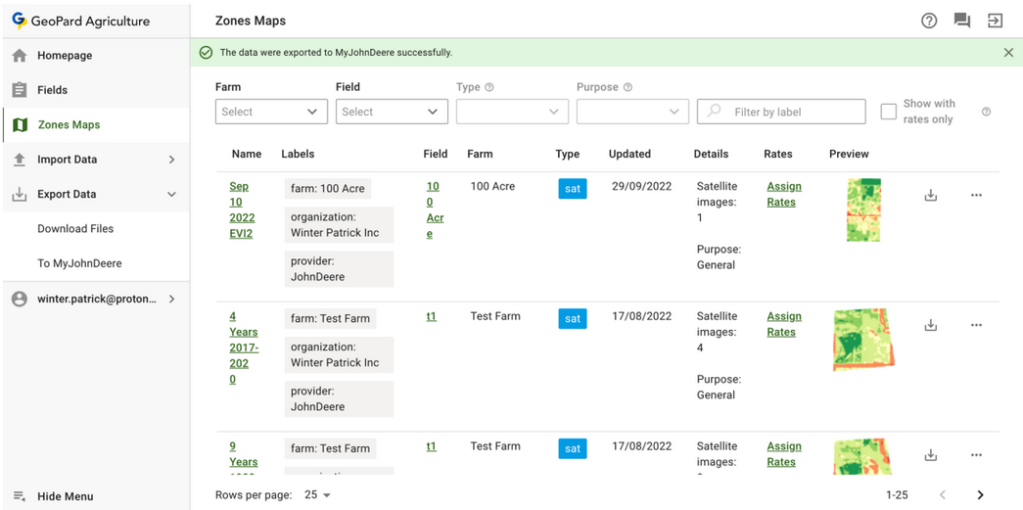
4.8.4 Nadat de gebruiker op de knop **Gereed** heeft geklikt, ziet die een bericht met het resultaat van de bewerking.
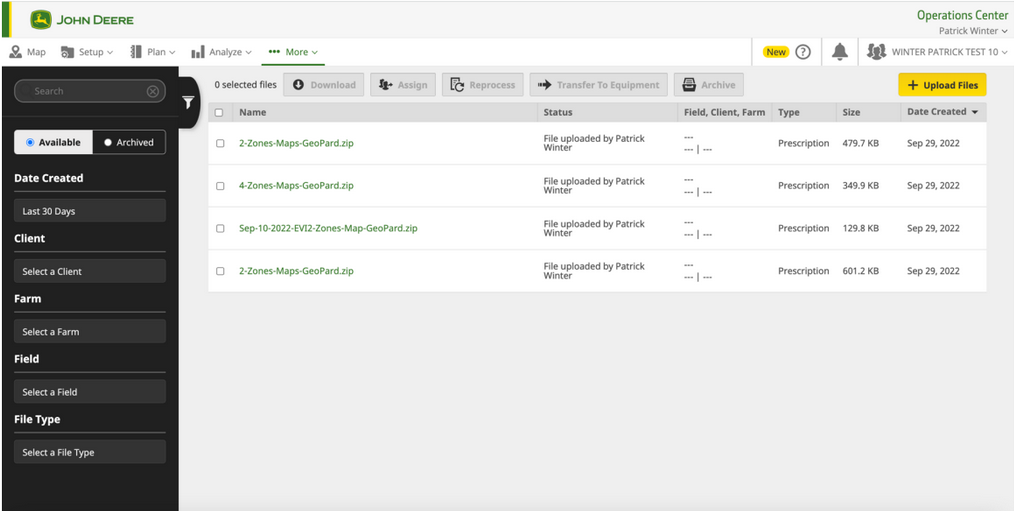
4.8.5 Vervolgens ziet de gebruiker het resultaat in John Deere Operations Center ([https://files.deere.com](https://files.deere.com/)).\
\&#xNAN;*Let goed op welke organisaties de gebruiker selecteert in GeoPard Agriculture en John Deere Operations Center.*
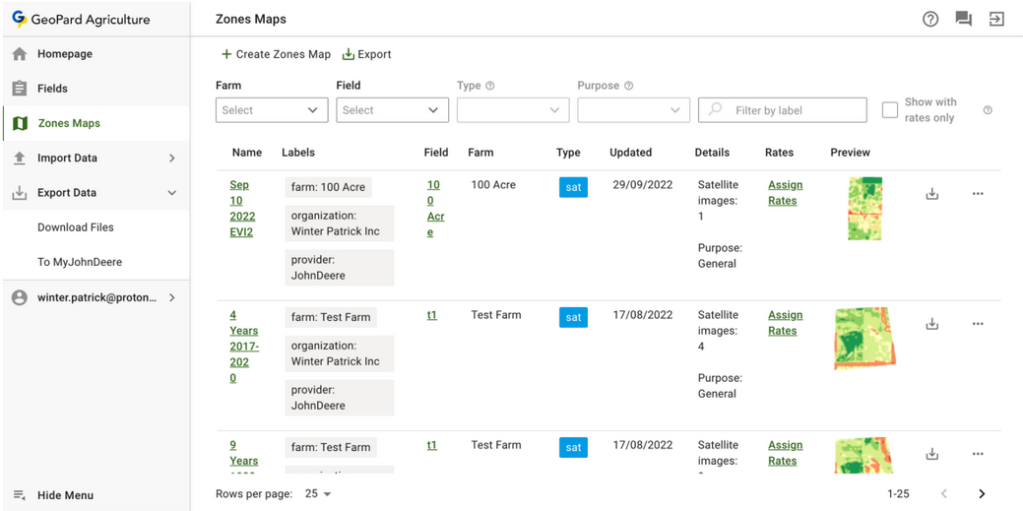
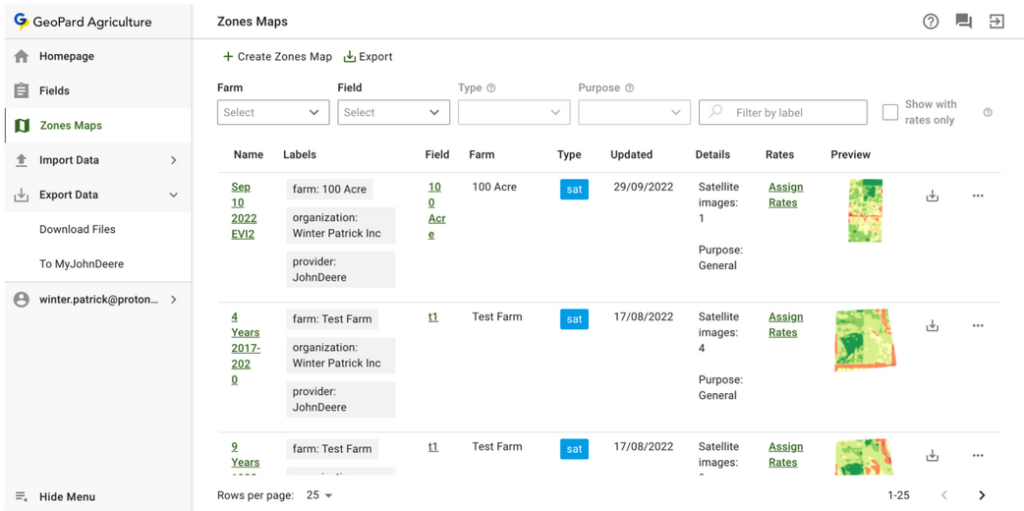
4.9 Klanten van GeoPard kunnen taakkaarten (Rx VRA-voorschriften) vanuit het tabblad **Taakkaarten** exporteren naar John Deere Operations Center.
4.9.1 De gebruiker kan één taakkaart exporteren door op de bijbehorende exportknop te klikken.
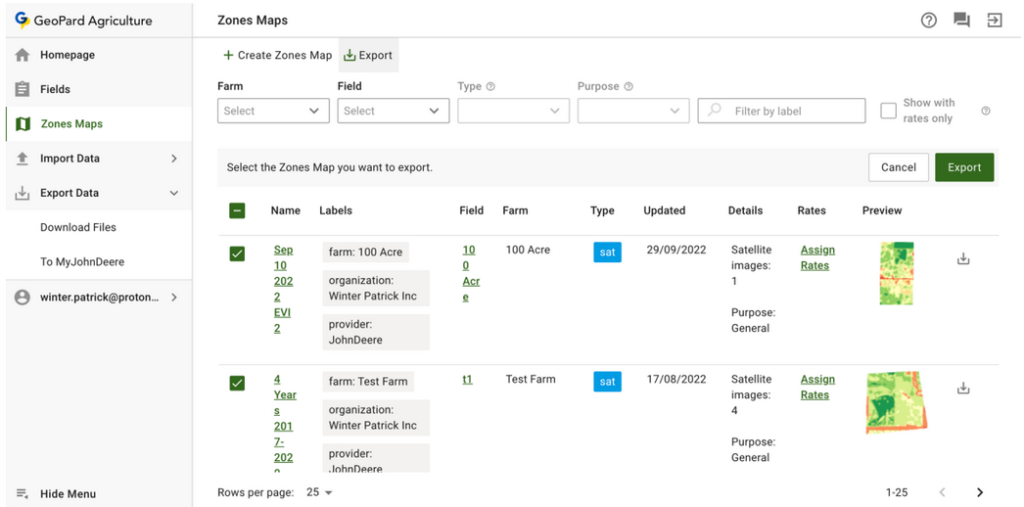
4.9.2 De gebruiker kan meerdere taakkaarten exporteren door op de bijbehorende exportknop te klikken en items te selecteren.
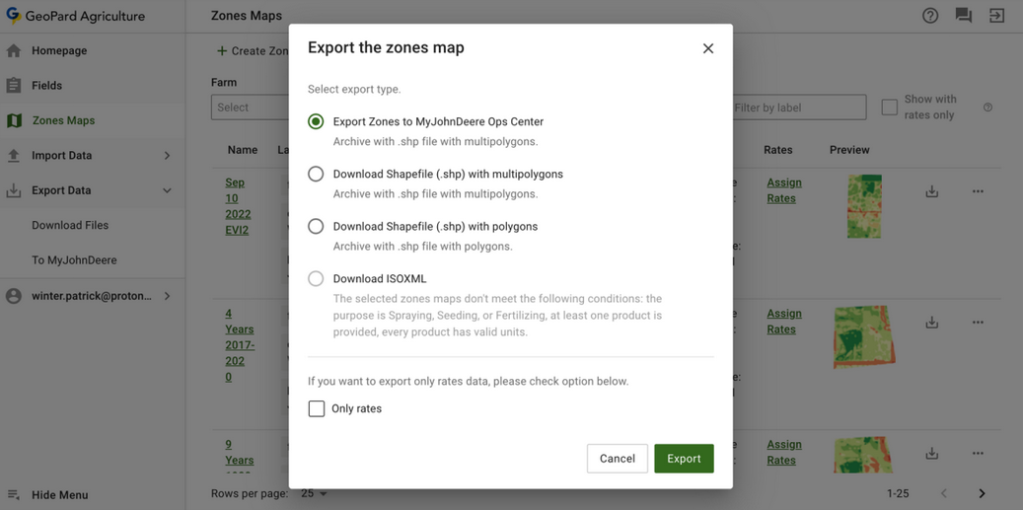
4.9.3 Nadat de gebruiker op de knop **Exporteren** heeft geklikt, ziet de gebruiker **De kaarten van de zones exporteren** pop-upvenster, waarna de gebruiker **Zones exporteren naar MyJohnDeere Ops Center** de optie selecteert en op de **Exporteren** knop klikt.
4.9.4 Vervolgens selecteert de gebruiker een bestemmingsorganisatie in John Deere waar GeoPard het bestand naartoe uploadt. De gebruiker kan zoeken op tekst. Als de John Deere-organisatie is uitgeschakeld (de **naam wordt grijs weergegeven**), moet de gebruiker toegang toevoegen tot John Deere Operations Center. Zie [GeoPard-profiel koppelen aan de John Deere-organisatie](https://docs.geopard.tech/geopard-tutorials/nl/producttour-webapp/john-deere-operations-center-integration/3.-connect-to-john-deere-organizations.md).
4.9.5 Nadat de gebruiker op de knop **Gereed** heeft geklikt, verschijnt er een bericht met het resultaat van de bewerking.
4.9.6 Vervolgens kan de gebruiker het resultaat bekijken in John Deere Operations Center ([https://files.deere.com](https://files.deere.com/)). Let goed op welke organisaties de gebruiker selecteert in GeoPard Agriculture en John Deere Operations Center.
{% hint style="success" %}
Verstuur je eerste voorschrift naar Operations Center: [Gratis starten](https://app.geopard.tech/auth/sign-up?utm_source=docs\&utm_medium=cta\&utm_campaign=6.-export-rx-maps-to-john-deere-operations-center-as-files)
{% endhint %}
---
# Agent Instructions
This documentation is published with GitBook. GitBook is the documentation platform designed so that both humans and AI agents can read, navigate, and reason over technical content effectively. Learn more at gitbook.com.
## Querying This Documentation
If you need additional information that is not directly available in this page, you can query the documentation by asking a question.
Perform an HTTP GET request on the following URL with the `ask` and `goal` query parameters:
```
GET https://docs.geopard.tech/geopard-tutorials/nl/producttour-webapp/john-deere-operations-center-integration/6.-export-rx-maps-to-john-deere-operations-center-as-files.md?ask=&goal=
```
`ask` is the immediate question: it should be specific, self-contained, and written in natural language.
`goal` is what the user is ultimately trying to achieve, the reason they need the answer. Sharing it helps GitBook give you a better, more relevant answer. A goal is most helpful when it describes the outcome the user wants rather than restating the question. For example, with `ask=how do I create an API token`, a goal like `automate deployments from our CI pipeline` lets GitBook tailor the answer to that use case.
The response will contain a direct answer to the question and relevant excerpts and sources from the documentation.
Use this mechanism when the answer is not explicitly present in the current page, you need clarification or additional context, or you want to retrieve related documentation sections.