> For the complete documentation index, see [llms.txt](https://docs.geopard.tech/geopard-tutorials/llms.txt). Markdown versions of documentation pages are available by appending `.md` to page URLs; this page is available as [Markdown](https://docs.geopard.tech/geopard-tutorials/nl/producttour-webapp/integratie-met-john-deere-operations-center/11.-synchroniseer-een-perceel-met-john-deere-operations-center.md).
# 11. Synchroniseer een perceel met John Deere Operations Center
Stuur een perceel on demand naar John Deere Operations Center en houd de grens en hiërarchie up-to-date.
GeoPard laat u een enkel perceel op aanvraag synchroniseren met John Deere Operations Center.
Gebruik dit direct nadat u een perceel hebt toegevoegd. Gebruik het opnieuw nadat u de grens hebt gewijzigd of de klant- en bedrijfshiërarchie hebt bijgewerkt.
GeoPard bepaalt automatisch of het perceel in John Deere Operations Center moet worden aangemaakt of dat een bestaand perceel opnieuw moet worden gesynchroniseerd. U hoeft de huidige status niet eerst te controleren.
{% hint style="info" %}
De **Perceel synchroniseren met John Deere Operations Center** actie is alleen zichtbaar wanneer uw GeoPard-account is verbonden met John Deere. Als u deze niet ziet, voltooi dan [Verbinden met John Deere Operations Center](https://docs.geopard.tech/geopard-tutorials/product-tour-web-app/john-deere-operations-center-integration/2.-connect-to-john-deere-operations-center).
{% endhint %}
### Voordat u begint
Synchronisatie hangt af van twee configuratiestappen. Als een van beide ontbreekt, mislukt de synchronisatie.
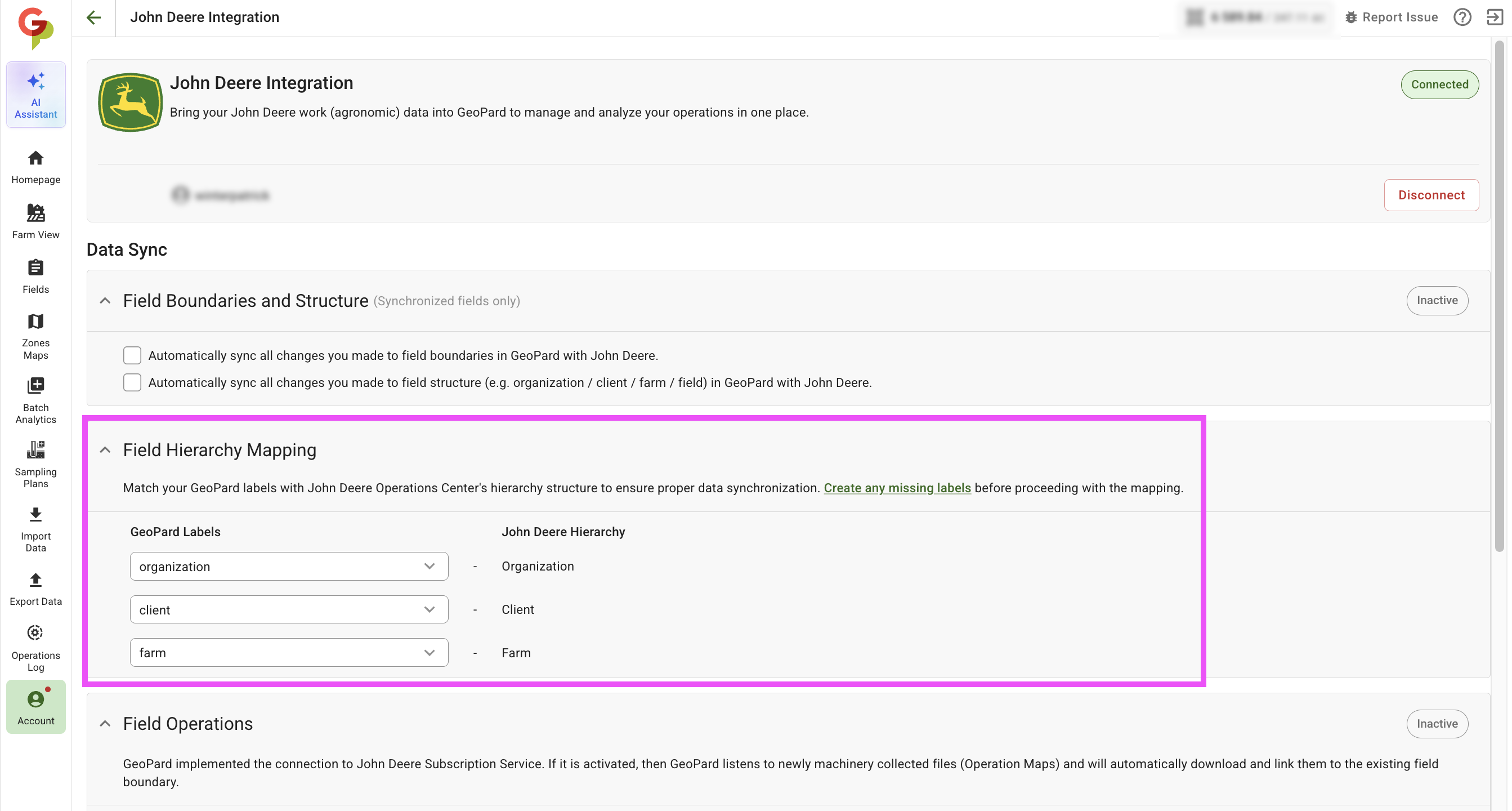
#### 1. Koppel GeoPard-labels aan de John Deere-hiërarchie
GeoPard ordent percelen met labels. John Deere gebruikt een **Organisatie → Klant → Bedrijf** hiërarchie.
Koppel op de integratiepagina van John Deere uw GeoPard-labels aan deze John Deere-niveaus:
* `organisatie` → Organisatie
* `klant` → Klant
* `bedrijf` → Bedrijf
Als er nog geen overeenkomend label bestaat, maak het dan eerst aan. Zie [Een label toevoegen](https://docs.geopard.tech/geopard-tutorials/product-tour-web-app/farm-and-field-setup/add-a-label).
#### 2. Voeg overeenkomende labels toe aan het perceel
Open het perceel en controleer **Perceelgegevens** → **Labels**.
Het perceel moet de waarden bevatten die overeenkomen met uw koppeling. Bijvoorbeeld:
* `organisatie: AgriCore Solutions`
* `klant: GreenField`
* `bedrijf: Green Valley Farm`
Deze waarden plaatsen het perceel in het juiste **Organisatie → Klant → Bedrijf** pad in John Deere Operations Center.
### Perceel synchroniseren
1. Open het perceel dat u naar John Deere Operations Center wilt verzenden.
2. Klik op **Exporteren** → **Perceel synchroniseren met John Deere Operations Center**.
3. Wacht op de meldingsuitkomst.
### Wat er gebeurt wanneer u op
GeoPard controleert of het perceel al is gekoppeld aan John Deere Operations Center.
* Als het perceel nog niet bestaat in John Deere Operations Center, maakt GeoPard het automatisch aan op basis van de bedrijfs- en klantlabels van het perceel.
* Als het perceel al bestaat in John Deere Operations Center, werkt GeoPard tijdens de synchronisatie automatisch de grens, het bedrijf en de klantgegevens bij.
### Resultaten die u ziet
Nadat de actie is uitgevoerd, toont GeoPard een van deze meldingen:
* **Perceel aangemaakt in John Deere Operations Center** — het perceel had geen John Deere-koppeling en is succesvol aangemaakt.
* **Perceel opnieuw gesynchroniseerd met John Deere Operations Center** — het perceel was al gekoppeld en de grens en hiërarchie zijn bijgewerkt.
* **Synchronisatie mislukt** — het perceel kon niet worden gesynchroniseerd.
### Probleemoplossing
Als de synchronisatie mislukt, controleer dan eerst deze punten:
* Uw GeoPard-account is verbonden met John Deere. Zie [2. Verbinden met John Deere Operations Center](https://docs.geopard.tech/geopard-tutorials/product-tour-web-app/john-deere-operations-center-integration/2.-connect-to-john-deere-operations-center).
* Uw John Deere-organisatie is ingeschakeld in GeoPard. Zie [3. Verbinden met John Deere-organisaties](https://docs.geopard.tech/geopard-tutorials/product-tour-web-app/john-deere-operations-center-integration/3.-connect-to-john-deere-organizations).
* Het perceel heeft alle gekoppelde labels, met de juiste waarden.
* De labelkoppeling komt overeen met het beoogde **Organisatie → Klant → Bedrijf** pad.
De meest voorkomende oorzaak van mislukking is ontbrekende of niet-overeenkomende perceellabels.
---
# Agent Instructions
This documentation is published with GitBook. GitBook is the documentation platform designed so that both humans and AI agents can read, navigate, and reason over technical content effectively. Learn more at gitbook.com.
## Querying This Documentation
If you need additional information that is not directly available in this page, you can query the documentation by asking a question.
Perform an HTTP GET request on the following URL with the `ask` and `goal` query parameters:
```
GET https://docs.geopard.tech/geopard-tutorials/nl/producttour-webapp/integratie-met-john-deere-operations-center/11.-synchroniseer-een-perceel-met-john-deere-operations-center.md?ask=&goal=
```
`ask` is the immediate question: it should be specific, self-contained, and written in natural language.
`goal` is what the user is ultimately trying to achieve, the reason they need the answer. Sharing it helps GitBook give you a better, more relevant answer. A goal is most helpful when it describes the outcome the user wants rather than restating the question. For example, with `ask=how do I create an API token`, a goal like `automate deployments from our CI pipeline` lets GitBook tailor the answer to that use case.
The response will contain a direct answer to the question and relevant excerpts and sources from the documentation.
Use this mechanism when the answer is not explicitly present in the current page, you need clarification or additional context, or you want to retrieve related documentation sections.