> For the complete documentation index, see [llms.txt](https://docs.geopard.tech/geopard-tutorials/llms.txt). Markdown versions of documentation pages are available by appending `.md` to page URLs; this page is available as [Markdown](https://docs.geopard.tech/geopard-tutorials/lva/produkta-apskats-timekla-lietotne/john-deere-operations-center-integration/6.-export-rx-maps-to-john-deere-operations-center-as-files.md).
# Nosūtiet mēslošanas vai sējas normu karšu failus uz John Deere Operations Center
Augšupielādējiet GeoPard zonas un normu kartes sadaļā Files pareizajā Operations Center organizācijā, pēc tam nosūtiet tās uz displeju vai iekopējiet USB datu nesējā.
GeoPard augšupielādē zonu karti vai vienādojumu karti jūsu izvēlētās John Deere organizācijas sadaļā Files. Sadaļā Files varat nosūtīt uzdevuma karti uz displeju, izmantojot bezvadu datu pārsūtīšanu, vai kopēt to USB zibatmiņā, ja mašīnai nav savienojuma. Izmantojiet failus, ja operators darbu iestata kabīnē; izmantojiet darba plānu, ja to iestata birojā. Organizācijas nosaukums pelēkā krāsā norāda, ka GeoPard tai vēl nav piekļuves.
{% hint style="success" %}
Nosūtiet savu pirmo uzdevuma karti uz Operations Center: [Sākt bez maksas](https://app.geopard.tech/auth/sign-up?utm_source=docs\&utm_medium=cta\&utm_campaign=6.-export-rx-maps-to-john-deere-operations-center-as-files)
{% endhint %}
4\. Eksportēšana uz John Deere Operations Center
4.1 GeoPard klientiem ir iespēja eksportēt datus (Rx VRA uzdevuma kartes vai citus datu slāņus) no GeoPard uz John Deere Operations Center. Vispirms ir [jāpierakstās](https://app.geopard.tech/auth/sign-in) un jāatver cilne **Eksportēt uz MyJohnDeere** .
4.2 Lietotājam jāizvēlas mērķa organizācija, uz kuru GeoPard augšupielādēs failus. Organizāciju var meklēt pēc teksta. Ja John Deere organizācija ir deaktivizēta (tās **nosaukums ir pelēkā krāsā**), lietotājam jāpiešķir piekļuve John Deere Operations Center; skatiet sadaļu [GeoPard profila savienošana ar John Deere organizāciju](https://docs.geopard.tech/geopard-tutorials/lva/produkta-apskats-timekla-lietotne/john-deere-operations-center-integration/3.-connect-to-john-deere-organizations.md).
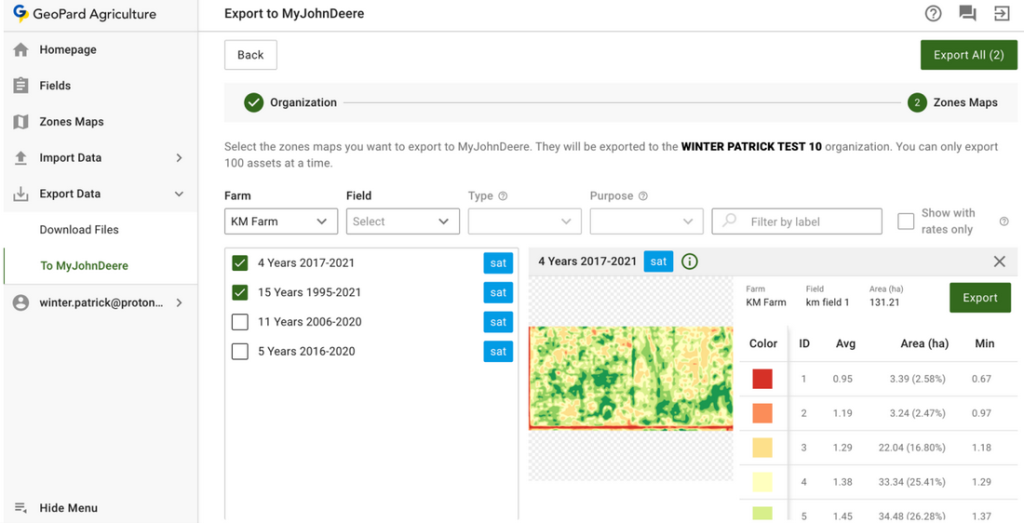
4.3 Pēc tam lietotājs atlasa līdzekļus, kurus GeoPard augšupielādēs John Deere Operations Center.
4.4 Lietotājs var filtrēt līdzekļus.
4.5 Kad visi līdzekļi atlasīti, lietotājs var tos augšupielādēt, noklikšķinot uz pogas **Eksportēt visu** vai augšupielādēt atsevišķus līdzekļus, noklikšķinot uz pogas **Eksportēt** .
4.6 Pēc noklikšķināšanas lietotājam tiks parādīts ziņojums par darbības rezultātu.
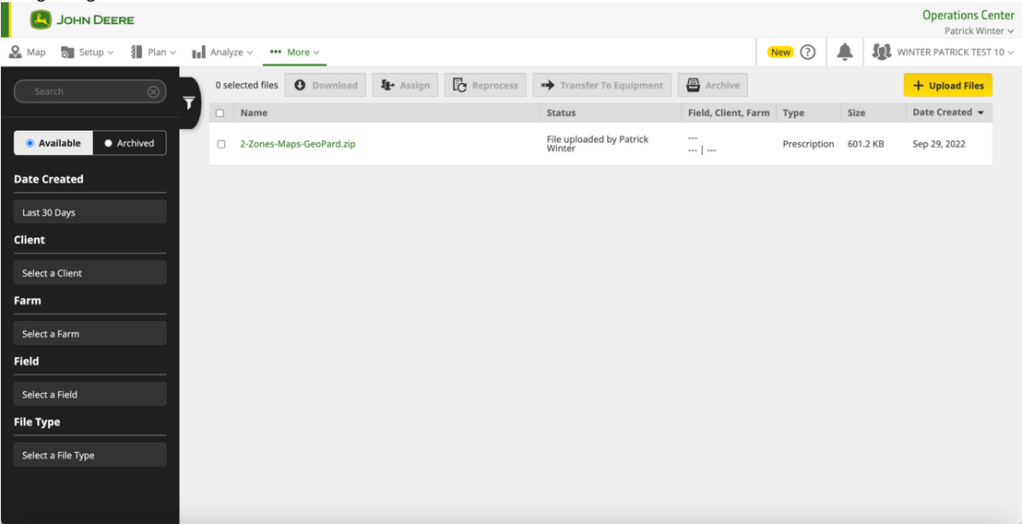
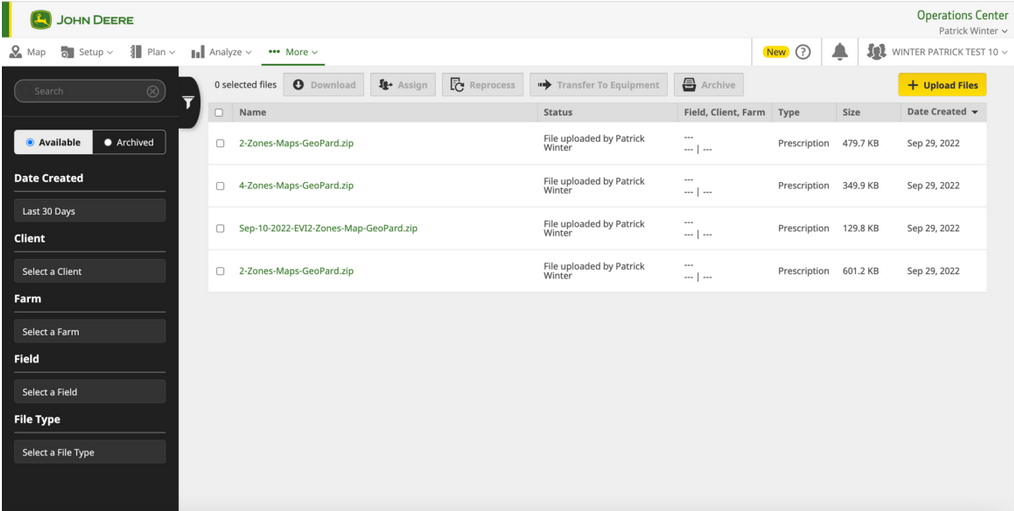
4.7 Pēc tam lietotājam rezultāts jāredz John Deere Operations Center ([https://files.deere.com](https://files.deere.com/)). *Pievērsiet uzmanību organizācijām, kuras lietotājs izvēlas GeoPard Agriculture un John Deere Operations Center.*
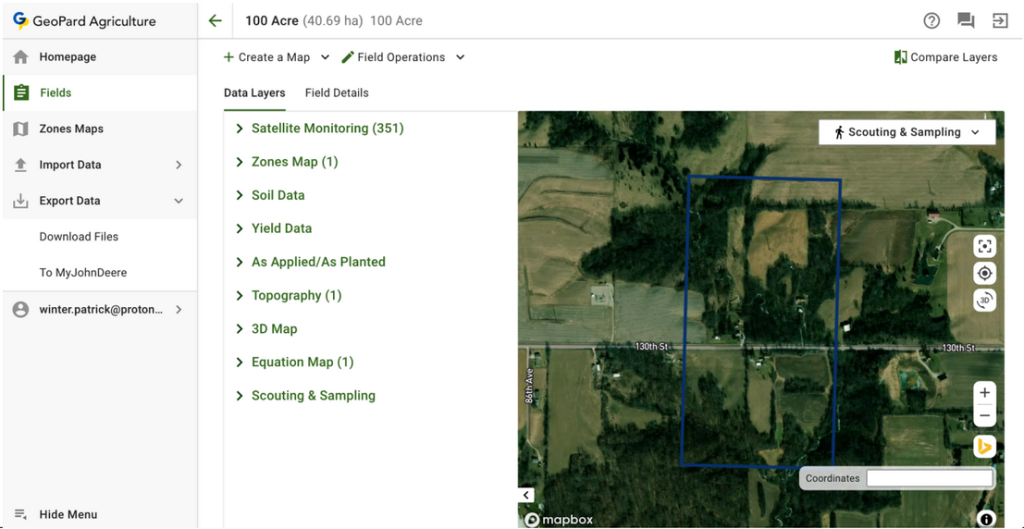
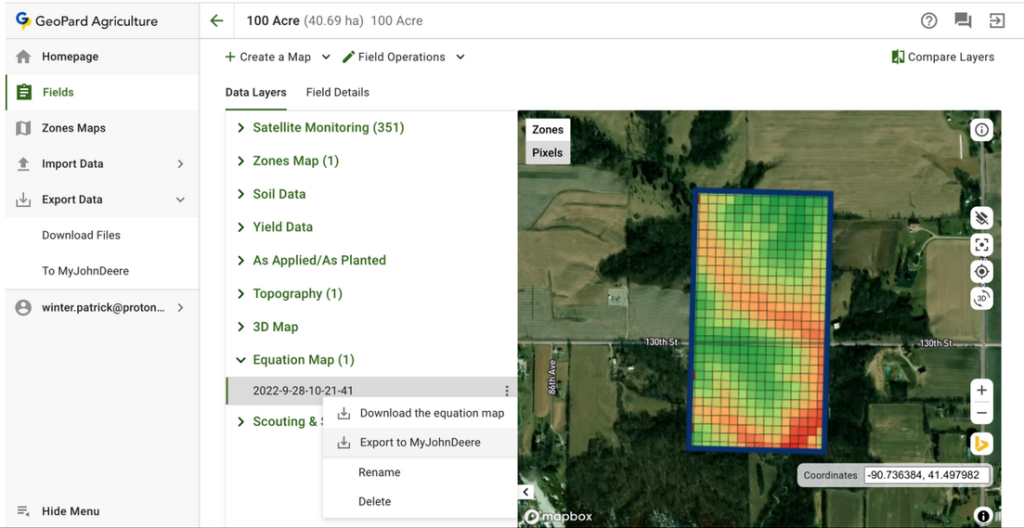
4.8 GeoPard klientiem ir iespēja eksportēt zonu kartes (Rx VRA uzdevuma kartes) un vienādojumu kartes uz John Deere Operations Center no cilnes Field.
4.8.1 Pēc zonu kartes atlasīšanas lietotājam attiecīgajā izvēlnē jānoklikšķina uz **Eksportēt uz MyJohnDeere** .
4.8.2 Pēc vienādojumu kartes atlasīšanas lietotājam attiecīgajā izvēlnē jānoklikšķina uz **Eksportēt uz MyJohnDeere** .
4.8.3 Pēc tam lietotājs atlasa mērķa John Deere organizāciju, uz kuru GeoPard augšupielādēs failu. Organizāciju var meklēt pēc teksta. Ja John Deere organizācija ir deaktivizēta (tās **nosaukums ir pelēkā krāsā**), lietotājam jāpiešķir piekļuve John Deere Operations Center un jāskatās sadaļa [GeoPard profila savienošana ar John Deere organizāciju](https://docs.geopard.tech/geopard-tutorials/lva/produkta-apskats-timekla-lietotne/john-deere-operations-center-integration/3.-connect-to-john-deere-organizations.md).
4.8.4 Pēc noklikšķināšanas uz pogas **Gatavs** lietotājam tiks parādīts ziņojums par darbības rezultātu.
4.8.5 Pēc tam lietotājam rezultāts jāredz John Deere Operations Center ([https://files.deere.com](https://files.deere.com/)).\
\&#xNAN;*Pievērsiet uzmanību organizācijām, kuras lietotājs izvēlas GeoPard Agriculture un John Deere Operations Center.*
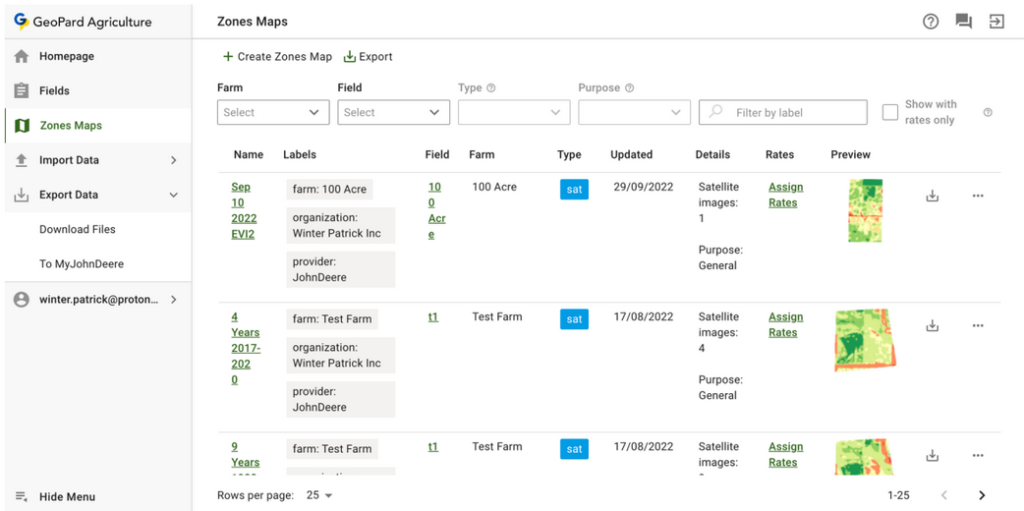
4.9 GeoPard klientiem ir iespēja eksportēt zonu kartes (Rx VRA uzdevuma kartes) uz John Deere Operations Center no cilnes **Zonu kartes** .
4.9.1 Lietotājs var eksportēt vienu zonu karti, noklikšķinot uz atbilstošās eksporta pogas.
4.9.2 Lietotājs var eksportēt vairākas zonu kartes, noklikšķinot uz atbilstošās eksporta pogas un atlasot vienumus.
4.9.3 Pēc noklikšķināšanas uz pogas **Eksportēt** lietotājs redzēs **Eksportēt zonu kartes** uznirstošajā logā lietotājam jāizvēlas **Eksportēt zonas uz MyJohnDeere Ops Center** opcija un jānoklikšķina uz **Eksportēt** pogas.
4.9.4 Pēc tam lietotājs izvēlas galamērķa John Deere organizāciju, uz kuru GeoPard augšupielādēs failu. Organizāciju var meklēt pēc teksta. Ja John Deere organizācija ir atspējota ( **tās nosaukums ir pelēkā krāsā**), lietotājam jāpievieno piekļuve John Deere Operations Center. Skatiet [GeoPard profila savienošana ar John Deere organizāciju](https://docs.geopard.tech/geopard-tutorials/lva/produkta-apskats-timekla-lietotne/john-deere-operations-center-integration/3.-connect-to-john-deere-organizations.md).
4.9.5 Pēc noklikšķināšanas uz pogas **Gatavs** lietotājam tiks parādīts paziņojums par darbības rezultātu.
4.9.6 Pēc tam rezultāts būs redzams John Deere Operations Center ([https://files.deere.com](https://files.deere.com/)). Rūpīgi pārbaudiet, kuras organizācijas lietotājs izvēlas GeoPard Agriculture un John Deere Operations Center.
{% hint style="success" %}
Nosūtiet savu pirmo uzdevuma karti uz Operations Center: [Sākt bez maksas](https://app.geopard.tech/auth/sign-up?utm_source=docs\&utm_medium=cta\&utm_campaign=6.-export-rx-maps-to-john-deere-operations-center-as-files)
{% endhint %}
---
# Agent Instructions
This documentation is published with GitBook. GitBook is the documentation platform designed so that both humans and AI agents can read, navigate, and reason over technical content effectively. Learn more at gitbook.com.
## Querying This Documentation
If you need additional information that is not directly available in this page, you can query the documentation by asking a question.
Perform an HTTP GET request on the following URL with the `ask` and `goal` query parameters:
```
GET https://docs.geopard.tech/geopard-tutorials/lva/produkta-apskats-timekla-lietotne/john-deere-operations-center-integration/6.-export-rx-maps-to-john-deere-operations-center-as-files.md?ask=&goal=
```
`ask` is the immediate question: it should be specific, self-contained, and written in natural language.
`goal` is what the user is ultimately trying to achieve, the reason they need the answer. Sharing it helps GitBook give you a better, more relevant answer. A goal is most helpful when it describes the outcome the user wants rather than restating the question. For example, with `ask=how do I create an API token`, a goal like `automate deployments from our CI pipeline` lets GitBook tailor the answer to that use case.
The response will contain a direct answer to the question and relevant excerpts and sources from the documentation.
Use this mechanism when the answer is not explicitly present in the current page, you need clarification or additional context, or you want to retrieve related documentation sections.