> For the complete documentation index, see [llms.txt](https://docs.geopard.tech/geopard-tutorials/llms.txt). Markdown versions of documentation pages are available by appending `.md` to page URLs; this page is available as [Markdown](https://docs.geopard.tech/geopard-tutorials/lva/produkta-apskats-timekla-lietotne/john-deere-operations-center-integracija/datu-koplietosanas-iespejas/3.-partnerorganizacijas-koplietosana.md).

# 3. "Partnerorganizācijas" koplietošana

Kopīgojiet John Deere datus caur partnerorganizācijām dīleru un konsultantu darbplūsmām.

1. Lai koplietotu organizācijas datus ar partnerorganizāciju, organizācijas īpašniekam jāatver lapa "Setup" >> "Team" (vai <https://team.deere.com/>), jāizvēlas organizācija (piemēram, VY Org 02) un jānoklikšķina uz pogas "Partner Organization".<br>

   <figure><img src="https://1923267647-files.gitbook.io/~/files/v0/b/gitbook-x-prod.appspot.com/o/spaces%2FYICBELdyAXXebKAzfLOR%2Fuploads%2FPGflTce14xRJV67ime38%2Fimage.png?alt=media&amp;token=2f0b9006-a01c-4827-a1d6-f746c9023606" alt=""><figcaption></figcaption></figure>
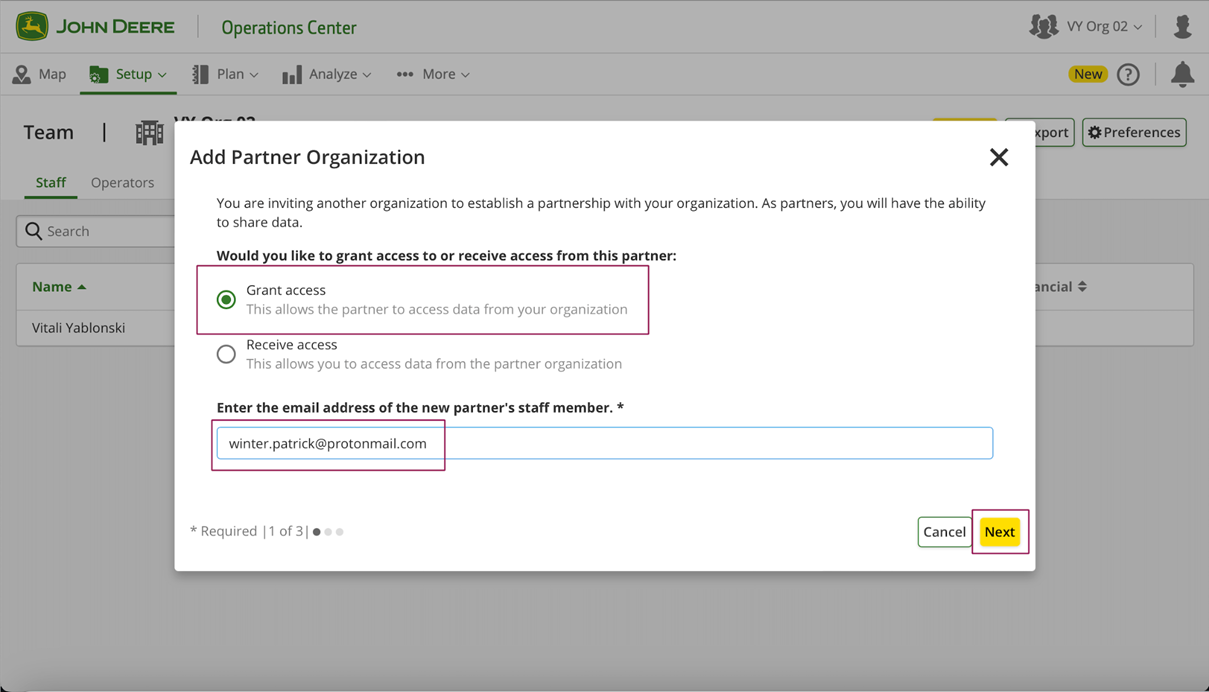
2. Izvēlieties opciju "Grant Access", ievadiet partnerorganizācijas e-pasta adresi un noklikšķiniet uz pogas "Next".<br>

   <figure><img src="https://1923267647-files.gitbook.io/~/files/v0/b/gitbook-x-prod.appspot.com/o/spaces%2FYICBELdyAXXebKAzfLOR%2Fuploads%2FROu1FRkkIygszCkSykyv%2Fimage.png?alt=media&amp;token=60bbd7cf-b6f0-4978-8a7a-054de57a9773" alt=""><figcaption></figcaption></figure>
3. Norādiet <mark style="background-color:green;">pieejas līmeni "Organization Management" uz 1</mark> ar<mark style="background-color:green;">atzīmējot izvēles rūtiņu "Share Organization Data with Connected Software Companies"</mark> un <mark style="background-color:green;">pieejas līmeni "Locations" uz 3</mark> un noklikšķiniet uz pogas "Next".<br>

   <figure><img src="https://1923267647-files.gitbook.io/~/files/v0/b/gitbook-x-prod.appspot.com/o/spaces%2FYICBELdyAXXebKAzfLOR%2Fuploads%2FoHhJlLK1pjLCmeNWLuqz%2Fimage.png?alt=media&amp;token=f49237b0-f431-4934-8581-4050c76375d0" alt=""><figcaption></figcaption></figure>
4. Noklikšķiniet uz pogas "Done".<br>

   <figure><img src="https://1923267647-files.gitbook.io/~/files/v0/b/gitbook-x-prod.appspot.com/o/spaces%2FYICBELdyAXXebKAzfLOR%2Fuploads%2F9XPehE24NVrrJcrZso6l%2Fimage.png?alt=media&amp;token=fb45dd72-4136-4c79-a0c2-4b75b60efac2" alt=""><figcaption></figcaption></figure>
5. Tabula rāda pieprasījuma rezultātu: apstiprināts/noraidīts/pending.\ <br>

   <figure><img src="https://1923267647-files.gitbook.io/~/files/v0/b/gitbook-x-prod.appspot.com/o/spaces%2FYICBELdyAXXebKAzfLOR%2Fuploads%2FYjlliAnz8ZluQvYNsBa9%2Fimage.png?alt=media&amp;token=857c0ffd-ca98-4c7e-a026-08be73bf8362" alt=""><figcaption></figcaption></figure>
6. Pēc tam partnera konts par to saņem e-pasta paziņojumu, kā arī apstiprinājuma uznirstošo logu par pirmo ielogošanos John Deere Ops Center. Partnerim jānoklikšķina uz pogas "Continue To Team".<br>

   <figure><img src="https://1923267647-files.gitbook.io/~/files/v0/b/gitbook-x-prod.appspot.com/o/spaces%2FYICBELdyAXXebKAzfLOR%2Fuploads%2FM8iAFaFtJFoNWbe7rx4K%2Fimage.png?alt=media&amp;token=5603f4da-0530-48bd-a6c0-2bfbeefbf2a7" alt=""><figcaption></figcaption></figure>
7. Partnerim jāizvēlas koplietošanai paredzētā partnerorganizācija un jānoklikšķina uz pogas "Review permissions".<br>

   <figure><img src="https://1923267647-files.gitbook.io/~/files/v0/b/gitbook-x-prod.appspot.com/o/spaces%2FYICBELdyAXXebKAzfLOR%2Fuploads%2FrqDu55aHjsARtMV1OAs9%2Fimage.png?alt=media&amp;token=4cb88957-6027-46ba-a322-d7a18199a34a" alt=""><figcaption></figcaption></figure>
8. Pārskatiet un noklikšķiniet uz pogas "Next".<br>

   <figure><img src="https://1923267647-files.gitbook.io/~/files/v0/b/gitbook-x-prod.appspot.com/o/spaces%2FYICBELdyAXXebKAzfLOR%2Fuploads%2FshulzJCox7yU4OCjfkpS%2Fimage.png?alt=media&amp;token=cf5ee0e9-32e4-42c0-9666-c14747e523d1" alt=""><figcaption></figcaption></figure>
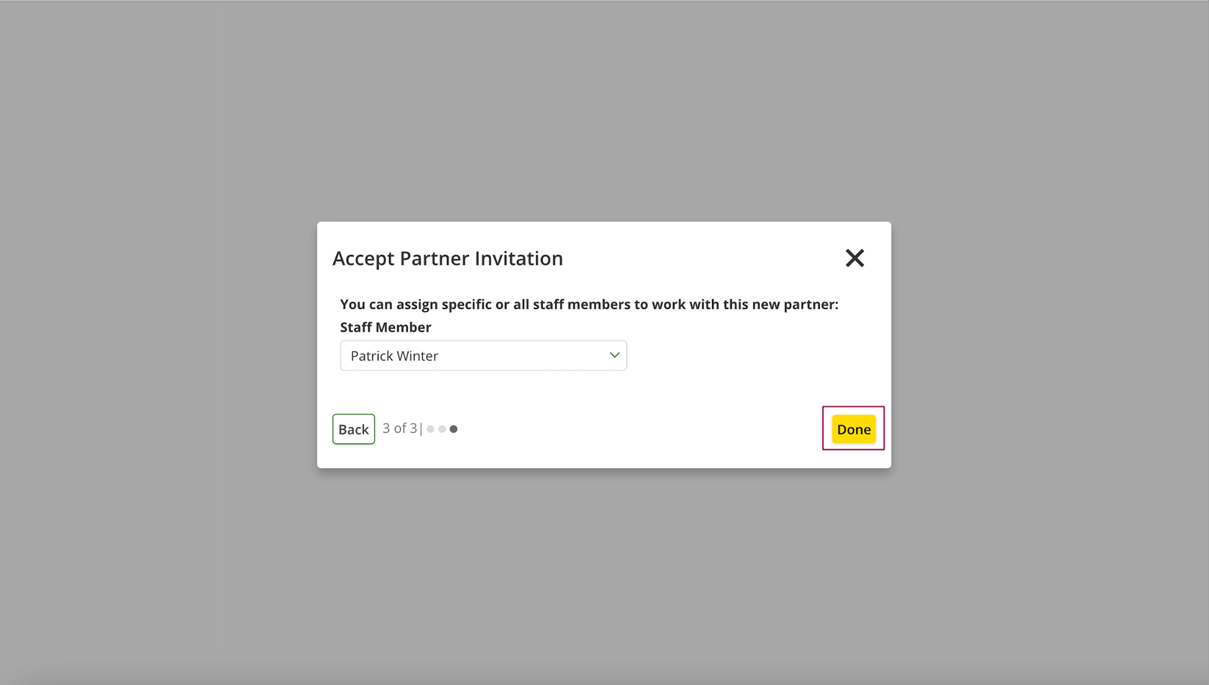
9. Izvēlieties sava profila nosaukumu un noklikšķiniet uz pogas "Done".<br>

   <figure><img src="https://1923267647-files.gitbook.io/~/files/v0/b/gitbook-x-prod.appspot.com/o/spaces%2FYICBELdyAXXebKAzfLOR%2Fuploads%2FmMzmi5ezMeDKf6YnlZN7%2Fimage.png?alt=media&amp;token=3d262170-faa3-4d90-82ea-96baddb69eb5" alt=""><figcaption></figcaption></figure>
10. Pēc apstiprināšanas partnerim zem koplietotās organizācijas (piemēram, Winter Patrick Test 4) jāredz jauna organizācija (piemēram, VY Org 02).<br>

    <figure><img src="https://1923267647-files.gitbook.io/~/files/v0/b/gitbook-x-prod.appspot.com/o/spaces%2FYICBELdyAXXebKAzfLOR%2Fuploads%2FmTsmtds0BLRHwSPljx3l%2Fimage.png?alt=media&amp;token=6a3a488e-4d64-49fc-8abe-e6b4d3114265" alt=""><figcaption></figcaption></figure>
11. GeoPard lietotnē jāparādās jaunajai organizācijai, pēc tam partnerim jānoklikšķina uz saites "Connect" (piemēram, VY Org 02).<br>

    <figure><img src="https://1923267647-files.gitbook.io/~/files/v0/b/gitbook-x-prod.appspot.com/o/spaces%2FYICBELdyAXXebKAzfLOR%2Fuploads%2Fw9ArcXxSHwbz33RgOqPk%2Fimage.png?alt=media&amp;token=bd3d6027-50b0-4f65-a714-5891ce2f876f" alt=""><figcaption></figcaption></figure>
12. Partnerim sarakstā jāizvēlas jaunā organizācija (piemēram, VY Org 02).<br>

    <figure><img src="https://1923267647-files.gitbook.io/~/files/v0/b/gitbook-x-prod.appspot.com/o/spaces%2FYICBELdyAXXebKAzfLOR%2Fuploads%2FORvfuZbo8TpcnhDEei5j%2Fimage.png?alt=media&amp;token=c0b5d60c-f491-4588-8465-9d0bd776eaf0" alt=""><figcaption></figcaption></figure>
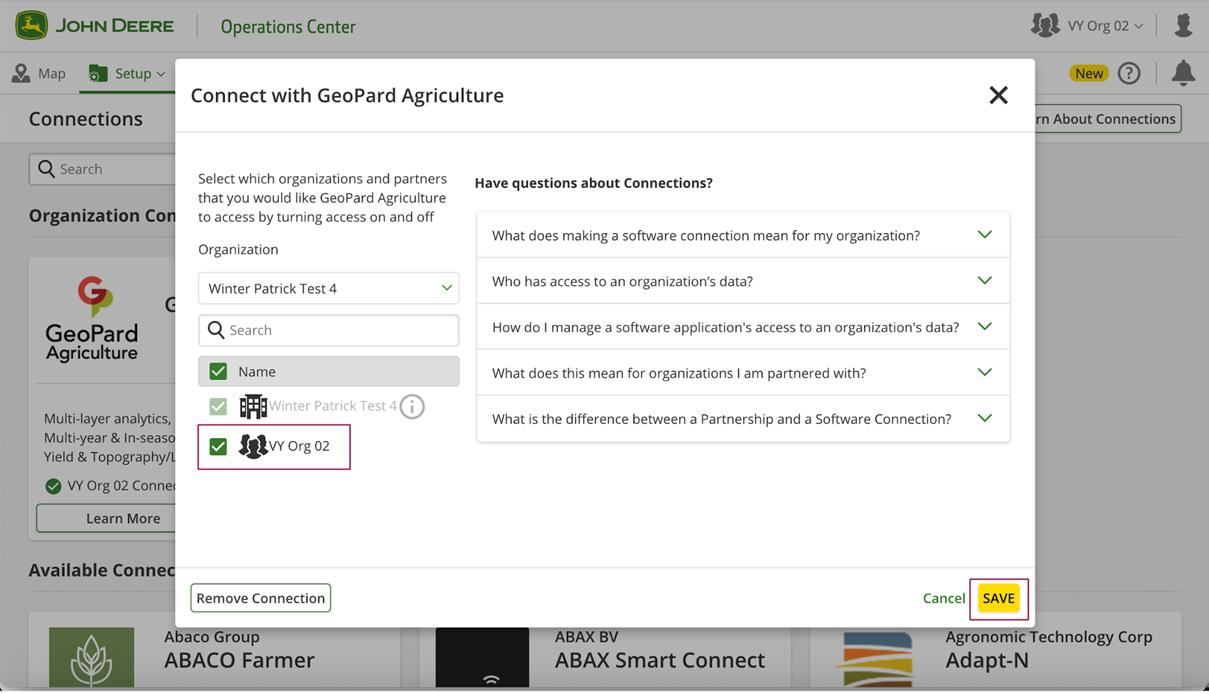
13. Izvēlieties jauno organizāciju un noklikšķiniet uz pogas "Save".<br>

    <figure><img src="https://1923267647-files.gitbook.io/~/files/v0/b/gitbook-x-prod.appspot.com/o/spaces%2FYICBELdyAXXebKAzfLOR%2Fuploads%2FZaIqFMicVruKa0No0rfi%2Fimage.png?alt=media&amp;token=5028cf7a-04f9-4033-97d8-9776b67ccf79" alt=""><figcaption></figcaption></figure>
14. Pēc tam GeoPard lietotne ir gatava darbam ar jauno organizāciju.<br>

    <figure><img src="https://1923267647-files.gitbook.io/~/files/v0/b/gitbook-x-prod.appspot.com/o/spaces%2FYICBELdyAXXebKAzfLOR%2Fuploads%2FtPXFe6ikFmYoGorhUvqB%2Fimage.png?alt=media&amp;token=e0c04b1c-573c-4bfb-968e-4a9ea230d394" alt=""><figcaption></figcaption></figure>


---

# Agent Instructions
This documentation is published with GitBook. GitBook is the documentation platform designed so that both humans and AI agents can read, navigate, and reason over technical content effectively. Learn more at gitbook.com.

## Querying This Documentation
If you need additional information that is not directly available in this page, you can query the documentation by asking a question.

Perform an HTTP GET request on the following URL with the `ask` and `goal` query parameters:

```
GET https://docs.geopard.tech/geopard-tutorials/lva/produkta-apskats-timekla-lietotne/john-deere-operations-center-integracija/datu-koplietosanas-iespejas/3.-partnerorganizacijas-koplietosana.md?ask=<question>&goal=<user_goal>
```

`ask` is the immediate question: it should be specific, self-contained, and written in natural language.
`goal` is what the user is ultimately trying to achieve, the reason they need the answer. Sharing it helps GitBook give you a better, more relevant answer. A goal is most helpful when it describes the outcome the user wants rather than restating the question. For example, with `ask=how do I create an API token`, a goal like `automate deployments from our CI pipeline` lets GitBook tailor the answer to that use case.

The response will contain a direct answer to the question and relevant excerpts and sources from the documentation.

Use this mechanism when the answer is not explicitly present in the current page, you need clarification or additional context, or you want to retrieve related documentation sections.