> For the complete documentation index, see [llms.txt](https://docs.geopard.tech/geopard-tutorials/llms.txt). Markdown versions of documentation pages are available by appending `.md` to page URLs; this page is available as [Markdown](https://docs.geopard.tech/geopard-tutorials/lva/produkta-apskats-timekla-lietotne/john-deere-operations-center-integration/8.-export-rx-maps-to-john-deere-operations-center-as-work-plans.md).

# Nosūtiet mēslošanas vai sējas normu karti uz John Deere displeju kā darbu plānu

Pārvērtiet GeoPard mēslošanas vai sējas normu karti par Operations Center darbu plānu ar norādītu lauku, produktu un normām, pēc tam atveriet to Gen 4 vai G5 displejā. Darbības un problēmu novēršana.

Darba plānā uz kabīni kopā ar lauku, darbu un produktu tiek nosūtīta arī izkliedes norma, tāpēc operators Gen 4 vai G5 displejā atver vienu darba uzdevumu, nevis ielādē failu. Izveidojiet normas GeoPard, eksportējiet zonu karti uz Operations Center kā darba plānu, un tā būs pieejama Work Planner, lai to nosūtītu pievienotajām mašīnām. Laukam vispirms jābūt sinhronizētam ar Operations Center; ja tas nav izdarīts, eksportēšana tiek pārtraukta.

{% hint style="success" %}
Izveidojiet izkliedes karti savā laukā un nosūtiet to uz Operations Center: [Sākt bez maksas](https://app.geopard.tech/auth/sign-up?utm_source=docs\&utm_medium=cta\&utm_campaign=8.-export-rx-maps-to-john-deere-operations-center-as-work-plans)
{% endhint %}

## Pārbaudīt piekļuves tiesības

### Pārbaude GeoPard

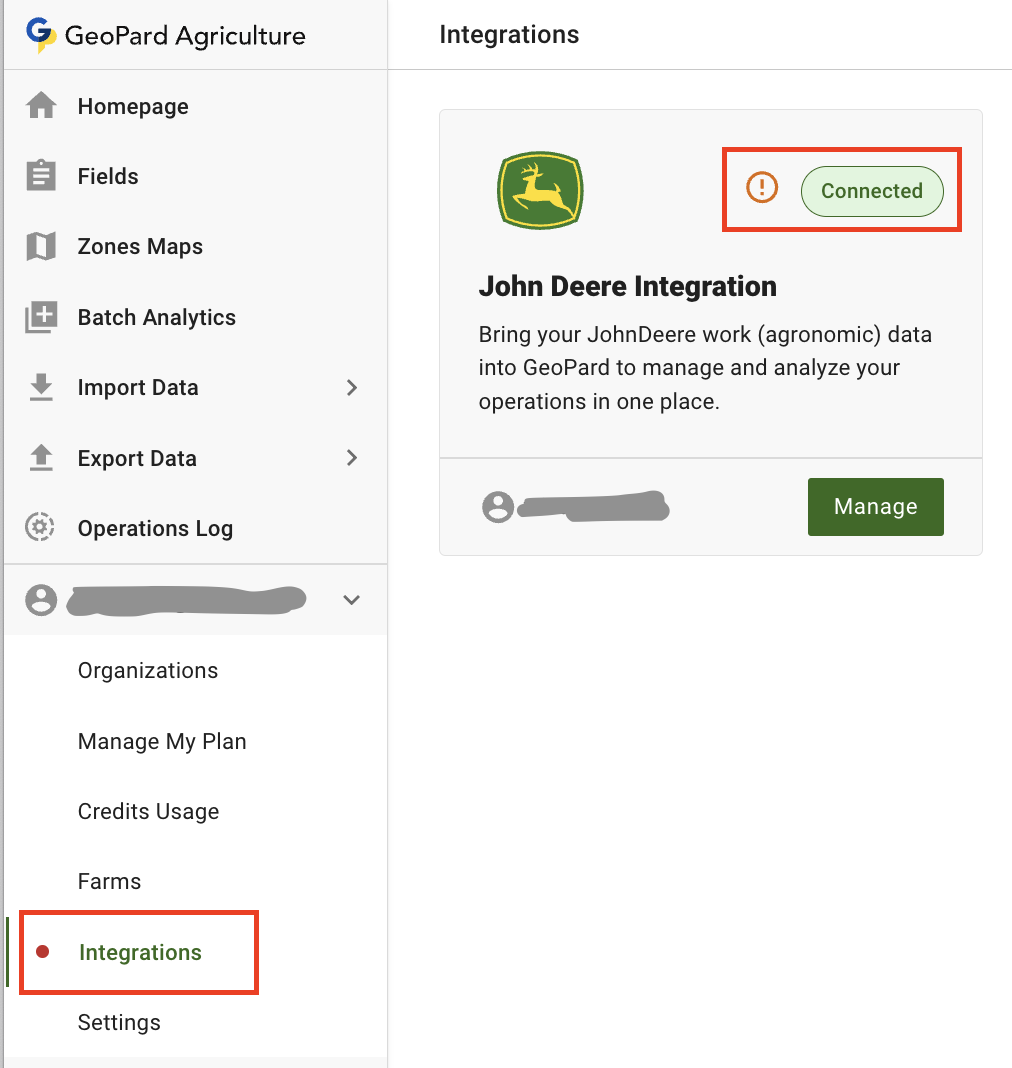
Pārbaudiet, vai GeoPard ir pietiekamas piekļuves tiesības, lai John Deere Operations Center izveidotu darba plānus. [Pierakstieties](https://app.geopard.tech/auth/sign-in), lietotāja izvēlnē atveriet John Deere integrācijas lapu (Integrations) un pārbaudiet ziņojumu.\
Ja šāds ziņojums ir redzams, GeoPard <> John Deere savienojums ir jāatjaunina.

<figure><img src="https://1923267647-files.gitbook.io/~/files/v0/b/gitbook-x-prod.appspot.com/o/spaces%2FYICBELdyAXXebKAzfLOR%2Fuploads%2F0Jp6Csi60DSuUjYmnqjj%2Fimage.png?alt=media&amp;token=8e346192-731e-421c-910f-00676fd864be" alt="" width="375"><figcaption><p>Pārbaude: nepieciešamas papildu piekļuves tiesības</p></figcaption></figure>

<figure><img src="https://1923267647-files.gitbook.io/~/files/v0/b/gitbook-x-prod.appspot.com/o/spaces%2FYICBELdyAXXebKAzfLOR%2Fuploads%2F1yU6IXMeIly8hWnXnZyn%2Fimage.png?alt=media&amp;token=38488f7c-8724-4eba-932d-b10fec2aac11" alt=""><figcaption><p>Pārbaude: nepieciešamas papildu piekļuves tiesības</p></figcaption></figure>

{% hint style="warning" %}
Esam novērojuši, ka izmaiņas stājas spēkā tikai pēc atkārtotas pierakstīšanās John Deere Operations Center (1) un GeoPard (2).
{% endhint %}

### Pārbaude John Deere Operations Center

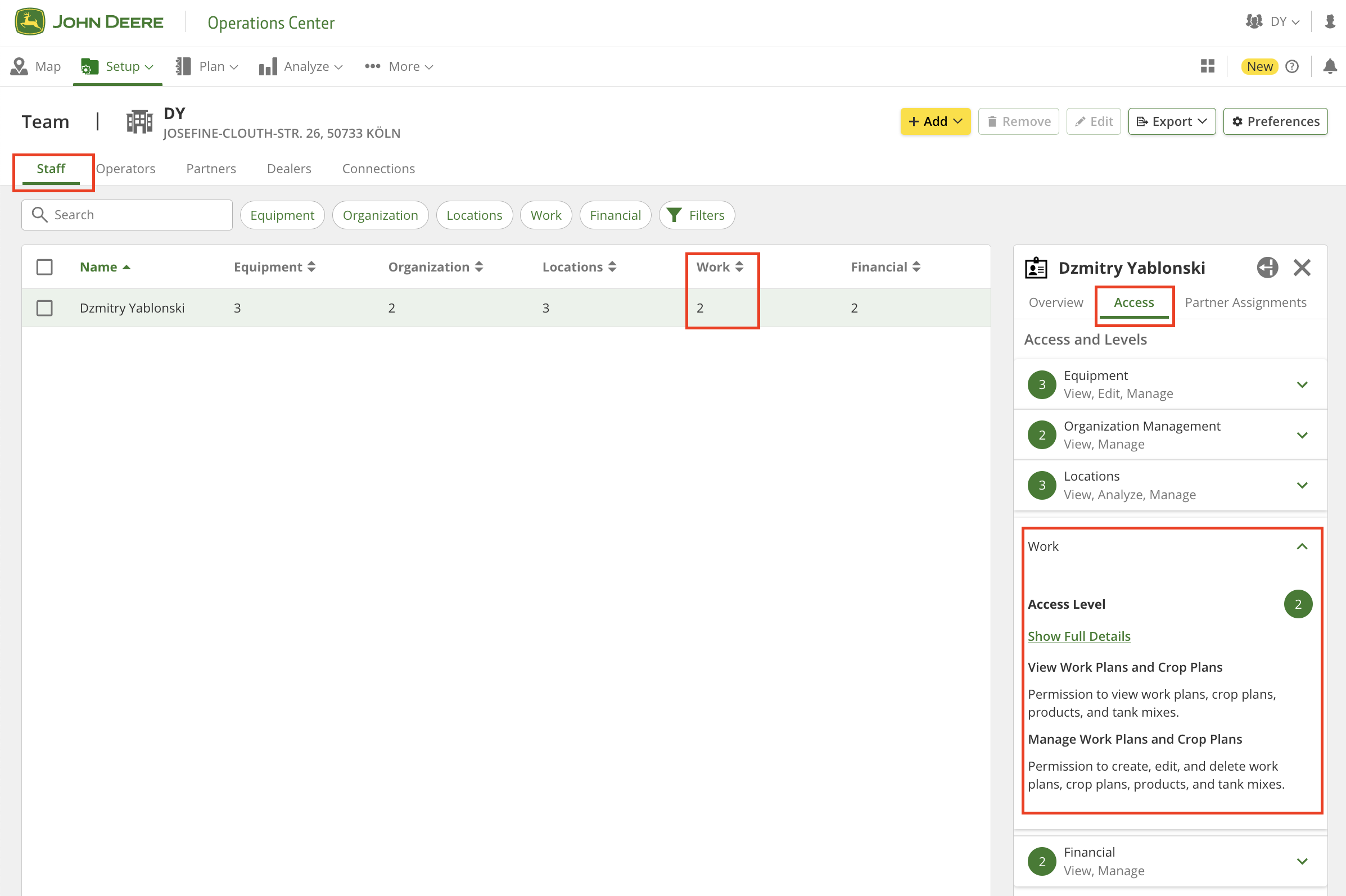
Lai vēlreiz pārliecinātos, ka GeoPard ir pietiekamas piekļuves tiesības, dodieties uz lapu "Setup" > "Team" (vai <https://team.deere.com/>) un pārliecinieties, ka <mark style="background-color:green;">piekļuves līmenim "Work" ir iestatīta vērtība 2</mark>.

<figure><img src="https://1923267647-files.gitbook.io/~/files/v0/b/gitbook-x-prod.appspot.com/o/spaces%2FYICBELdyAXXebKAzfLOR%2Fuploads%2FSfssJ9D987PMbGKmgDHF%2Fimage.png?alt=media&amp;token=fbca8ca8-b688-4089-bb5d-512a951b7bfb" alt=""><figcaption><p>Pārbaude: John Deere piekļuves tiesības</p></figcaption></figure>

<figure><img src="https://1923267647-files.gitbook.io/~/files/v0/b/gitbook-x-prod.appspot.com/o/spaces%2FYICBELdyAXXebKAzfLOR%2Fuploads%2F3JdS4p7UnmDAja41XUhP%2Fimage.png?alt=media&amp;token=0a5dad44-fd46-40eb-bc44-c38edf32b320" alt=""><figcaption><p>Pārbaude: John Deere piekļuves tiesības</p></figcaption></figure>

## Video pamācība

Šajā pamācībā padziļināti izskaidrotas GeoPard integrācijas ar John Deere Work Planner galvenās funkcijas.

{% embed url="<https://youtu.be/op1o-Y3r6bg?si=cUQHzVwVvt-eFzFm>" %}
Darba plāna iespēju pārskats
{% endembed %}

Tālākajās sadaļās sniegts detalizēts pārskats par katru procesa darbību.

## Pirmais darba plāns

### Izkliedes kartes sagatavošana

Lai izkliedes karti (zonu karti ar piešķirtām normām) eksportētu, jāizpilda šādi nosacījumi:

1. Zonu kartei jābūt [piešķirtām normām](https://docs.geopard.tech/geopard-tutorials/lva/produkta-apskats-timekla-lietotne/zones-maps-and-analytics/assign-variable-rates-in-zones-ag-input-rates-distribution-tool.md).
2. Laukam jābūt sinhronizētam ar John Deere Operations Center — tam jābūt vai nu[ importētam no John Deere Operations Center](https://docs.geopard.tech/geopard-tutorials/lva/produkta-apskats-timekla-lietotne/john-deere-operations-center-integration/4.-import-into-geopard-from-john-deere-operations-center.md) vai [eksportētam uz to](https://docs.geopard.tech/geopard-tutorials/lva/produkta-apskats-timekla-lietotne/john-deere-operations-center-integration/7.-export-field-boundaries-to-john-deere-operations-center.md).

### Sākt darba plāna izveidi

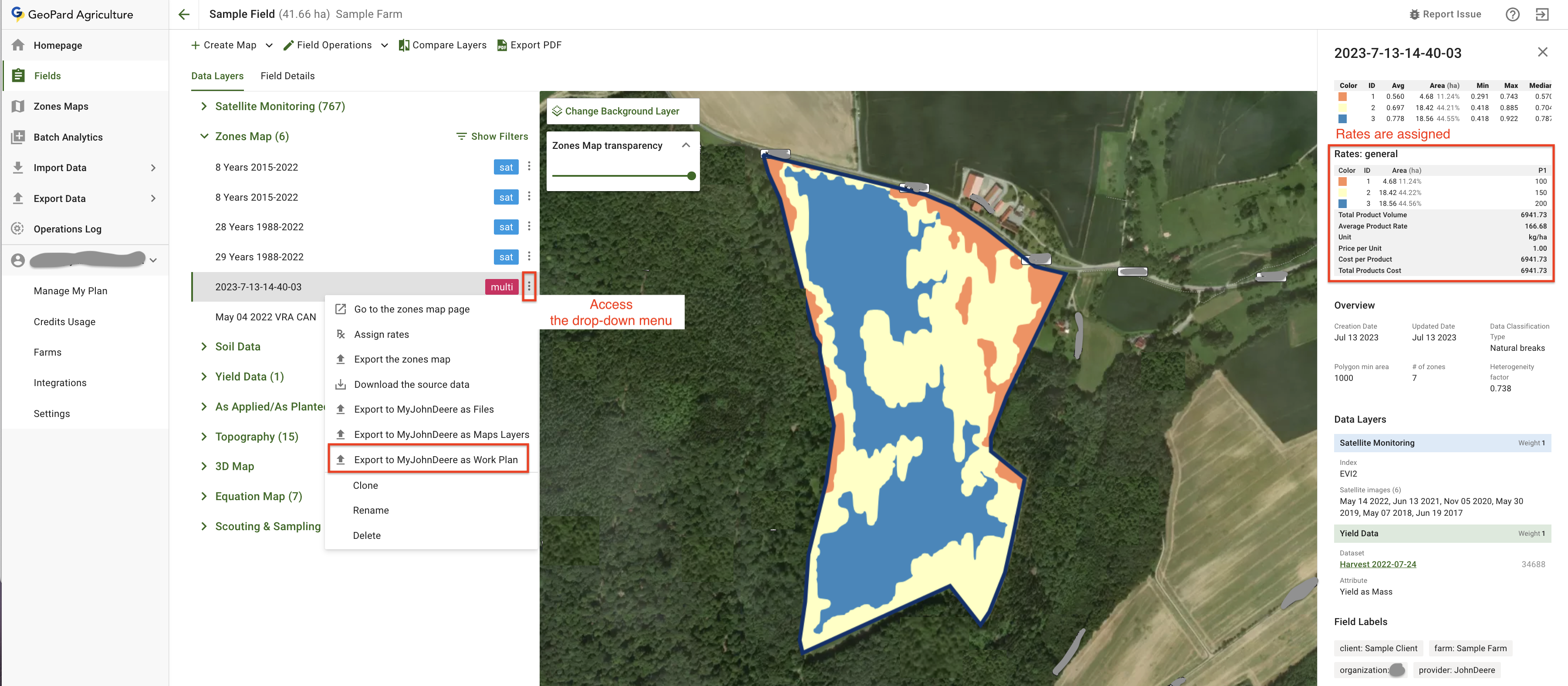
Eksportējiet izkliedes karti uz John Deere Operations Center kā darba plānu, noklikšķinot uz nolaižamās izvēlnes.

<figure><img src="https://1923267647-files.gitbook.io/~/files/v0/b/gitbook-x-prod.appspot.com/o/spaces%2FYICBELdyAXXebKAzfLOR%2Fuploads%2FctGSCyhsBOOfmzfRhfXc%2Fimage.png?alt=media&amp;token=6415bc85-e8a6-4461-8626-10e5381f4504" alt=""><figcaption><p>Sākt darba plāna izveidi</p></figcaption></figure>

Pēc tam tiks atvērts darba plāna konfigurēšanas režīms, kurā varat norādīt izveidojamā darba plāna veidu (1), atlasīt iekļaujamās GeoPard kartes (2) un piešķirt produktus (3).

<figure><img src="https://1923267647-files.gitbook.io/~/files/v0/b/gitbook-x-prod.appspot.com/o/spaces%2FYICBELdyAXXebKAzfLOR%2Fuploads%2FKNEkHb0ykbBJ4de80H0z%2Fimage.png?alt=media&amp;token=20a5175b-35da-45ed-85ba-7a1f2bbadd5a" alt="" width="375"><figcaption><p>Darba plāna konfigurēšanas ekrāns</p></figcaption></figure>

### Vairākas izkliedes kartes darba plānā

Ir divu veidu darba plāni: **Sēja** un **Apstrāde**. Ja vēlaties apvienot sējas un mēslošanas darbus, izmantojot dažādas izkliedes kartes, varat pievienot vairākas kartes šim **Sēja** veidam.

<figure><img src="https://1923267647-files.gitbook.io/~/files/v0/b/gitbook-x-prod.appspot.com/o/spaces%2FYICBELdyAXXebKAzfLOR%2Fuploads%2Fi0f0hDobJpSWhIKhnp7S%2Fimage.png?alt=media&amp;token=332ed239-6288-4a64-b016-e41a8da7286b" alt="" width="375"><figcaption><p>Pievienot 2. apstrādi (1. DARBĪBA)</p></figcaption></figure>

<figure><img src="https://1923267647-files.gitbook.io/~/files/v0/b/gitbook-x-prod.appspot.com/o/spaces%2FYICBELdyAXXebKAzfLOR%2Fuploads%2FkIuo7xQ1mruga7YeA1KH%2Fimage.png?alt=media&amp;token=aa4f81b8-2762-4e79-9fa8-31fdb26b312c" alt="" width="375"><figcaption><p>Pievienot 2. apstrādi (2. DARBĪBA)</p></figcaption></figure>

<figure><img src="https://1923267647-files.gitbook.io/~/files/v0/b/gitbook-x-prod.appspot.com/o/spaces%2FYICBELdyAXXebKAzfLOR%2Fuploads%2FaRXQcNAWQtHmKLkcqfvy%2Fimage.png?alt=media&amp;token=cf733b58-68aa-46b2-aace-bd9f6e293ee1" alt="" width="375"><figcaption><p>Pievienot 2. apstrādi (3. DARBĪBA)</p></figcaption></figure>

### Piešķirt produktus

{% hint style="warning" %}
Produktu saraksts tiek iegūts no John Deere Operations Center. Tāpēc sēklu šķirnes, mēslošanas līdzekļi, ķimikālijas (tostarp maisījumi tvertnē) un maisījumi iepriekš jāsagatavo šajā sistēmā.
{% endhint %}

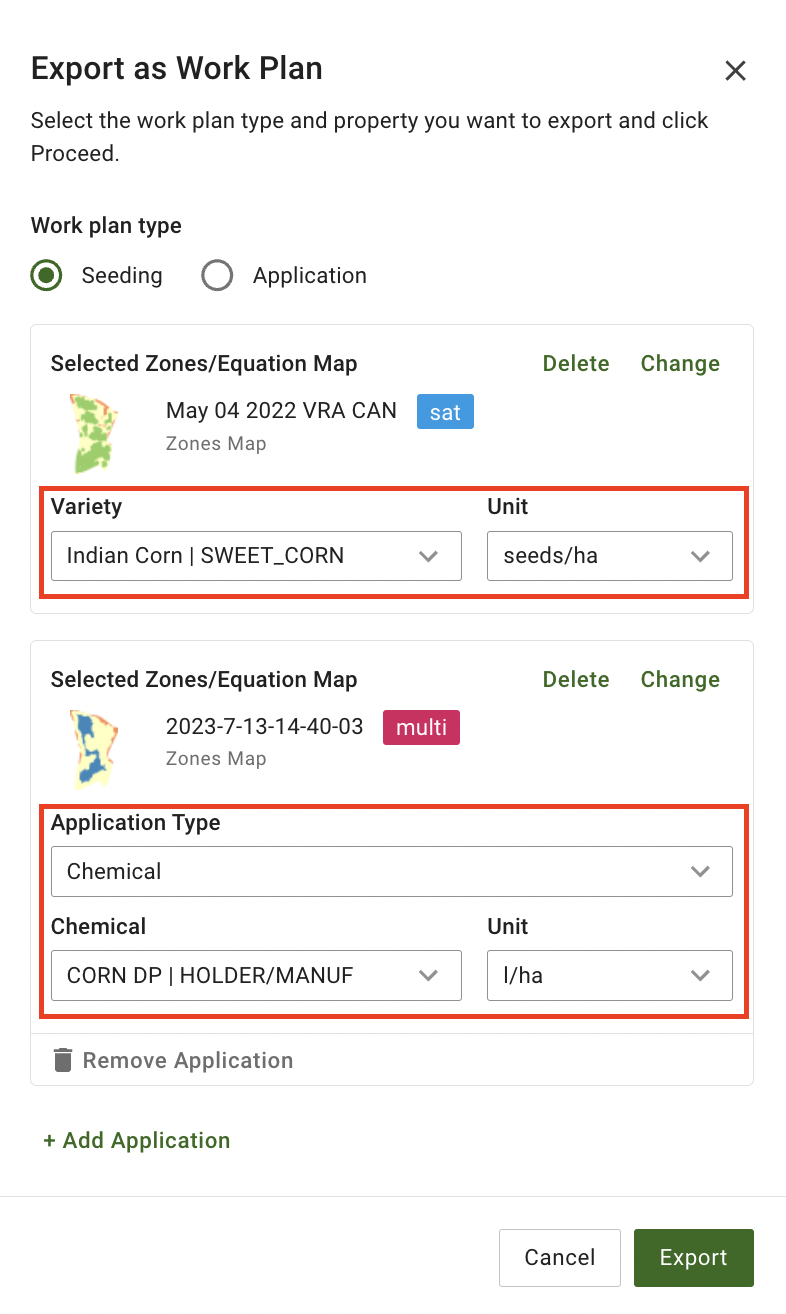
Atlasiet produktus un mērvienības attiecīgajās nolaižamajās izvēlnēs.

<figure><img src="https://1923267647-files.gitbook.io/~/files/v0/b/gitbook-x-prod.appspot.com/o/spaces%2FYICBELdyAXXebKAzfLOR%2Fuploads%2FWGDa7kpcN60lNAu7zmL3%2Fimage.png?alt=media&amp;token=1596274c-d68a-41b5-b33f-4eacd59a6385" alt="" width="375"><figcaption><p>Atlasīt produktus un mērvienības</p></figcaption></figure>

Ja atlasītajam apstrādes veidam nav pieejamu produktu, GeoPard aicinās tos pievienot John Deere Operations Center.

<figure><img src="https://1923267647-files.gitbook.io/~/files/v0/b/gitbook-x-prod.appspot.com/o/spaces%2FYICBELdyAXXebKAzfLOR%2Fuploads%2FH4vkHkc3MNvR7g3TW2Q4%2Fimage.png?alt=media&amp;token=de989efb-82fd-438e-b4cc-59ec88cd713d" alt="" width="375"><figcaption><p>Aicinājums pievienot produktus</p></figcaption></figure>

### Eksportēt uz John Deere

Noklikšķiniet uz pogas Export, lai nosūtītu konfigurēto darba plānu uz John Deere Operations Center.

<figure><img src="https://1923267647-files.gitbook.io/~/files/v0/b/gitbook-x-prod.appspot.com/o/spaces%2FYICBELdyAXXebKAzfLOR%2Fuploads%2FhG3ZVzzY1rYBtLb2YYv6%2Fimage.png?alt=media&amp;token=aa951ae7-d62c-4862-b3ef-2f8e8443e7ed" alt="" width="375"><figcaption><p>Eksportēt darba plānu</p></figcaption></figure>

Noklikšķinot uz pogas “Doties uz darba plānu”, jūs tiksiet novirzīts tieši uz tikko izveidoto darba plānu John Deere Operations Center.

<figure><img src="https://1923267647-files.gitbook.io/~/files/v0/b/gitbook-x-prod.appspot.com/o/spaces%2FYICBELdyAXXebKAzfLOR%2Fuploads%2Ff0TGoZkx33xkNFL2xLrh%2Fimage.png?alt=media&amp;token=deb06487-40d4-4d71-9a4b-0377347e0edb" alt="" width="252"><figcaption><p>Atvērt tikko eksportēto darba plānu</p></figcaption></figure>

<figure><img src="https://1923267647-files.gitbook.io/~/files/v0/b/gitbook-x-prod.appspot.com/o/spaces%2FYICBELdyAXXebKAzfLOR%2Fuploads%2FW0kKxn2n6W8wvoTQk1MI%2Fimage.png?alt=media&amp;token=4ef3e173-d00c-4591-a595-7fe8ca69bd9a" alt=""><figcaption><p>Tikko eksportētais darba plāns John Deere Operations Center</p></figcaption></figure>

Tikko eksportēto darba plānu var atrast arī [John Deere Operations Center lapā “Darba plānotājs”](https://work-planner.deere.com/).

<figure><img src="https://1923267647-files.gitbook.io/~/files/v0/b/gitbook-x-prod.appspot.com/o/spaces%2FYICBELdyAXXebKAzfLOR%2Fuploads%2F32uhEKFVQ35SIGi9WS0W%2Fimage.png?alt=media&amp;token=f60da8f7-0f71-4b65-aea9-073e8d036518" alt=""><figcaption><p>Tikko eksportētais darba plānotājs John Deere Operations Center</p></figcaption></figure>

## Paplašināts darba plāns ar vairākiem produktiem

Bieži tiek lūgts izmantot vienu ZonesMap vairākām darbībām, piemēram, dažādu produktu izkliedēšanai. GeoPard un John Deere Operations Center integrācija nodrošina šo iespēju. Tālāk sniegti detalizēti norādījumi pa soļiem.

### Izkliedes kartes sagatavošana

Lai eksportētu jebkuru Rx karti (ZonesMap ar piešķirtām normām), ir jāievēro šādi ZonesMap nosacījumi:

1. ZonesMap ir jābūt [piešķirtām normām](https://docs.geopard.tech/geopard-tutorials/lva/produkta-apskats-timekla-lietotne/zones-maps-and-analytics/assign-variable-rates-in-zones-ag-input-rates-distribution-tool.md), <mark style="background-color:green;">un mūsu gadījumā — vairāk nekā vienam produktam.</mark>
2. Laukam jābūt sinhronizētam ar John Deere Operations Center — tam jābūt vai nu[ importētam no John Deere Operations Center](https://docs.geopard.tech/geopard-tutorials/lva/produkta-apskats-timekla-lietotne/john-deere-operations-center-integration/4.-import-into-geopard-from-john-deere-operations-center.md) vai [eksportētam uz to](https://docs.geopard.tech/geopard-tutorials/lva/produkta-apskats-timekla-lietotne/john-deere-operations-center-integration/7.-export-field-boundaries-to-john-deere-operations-center.md).

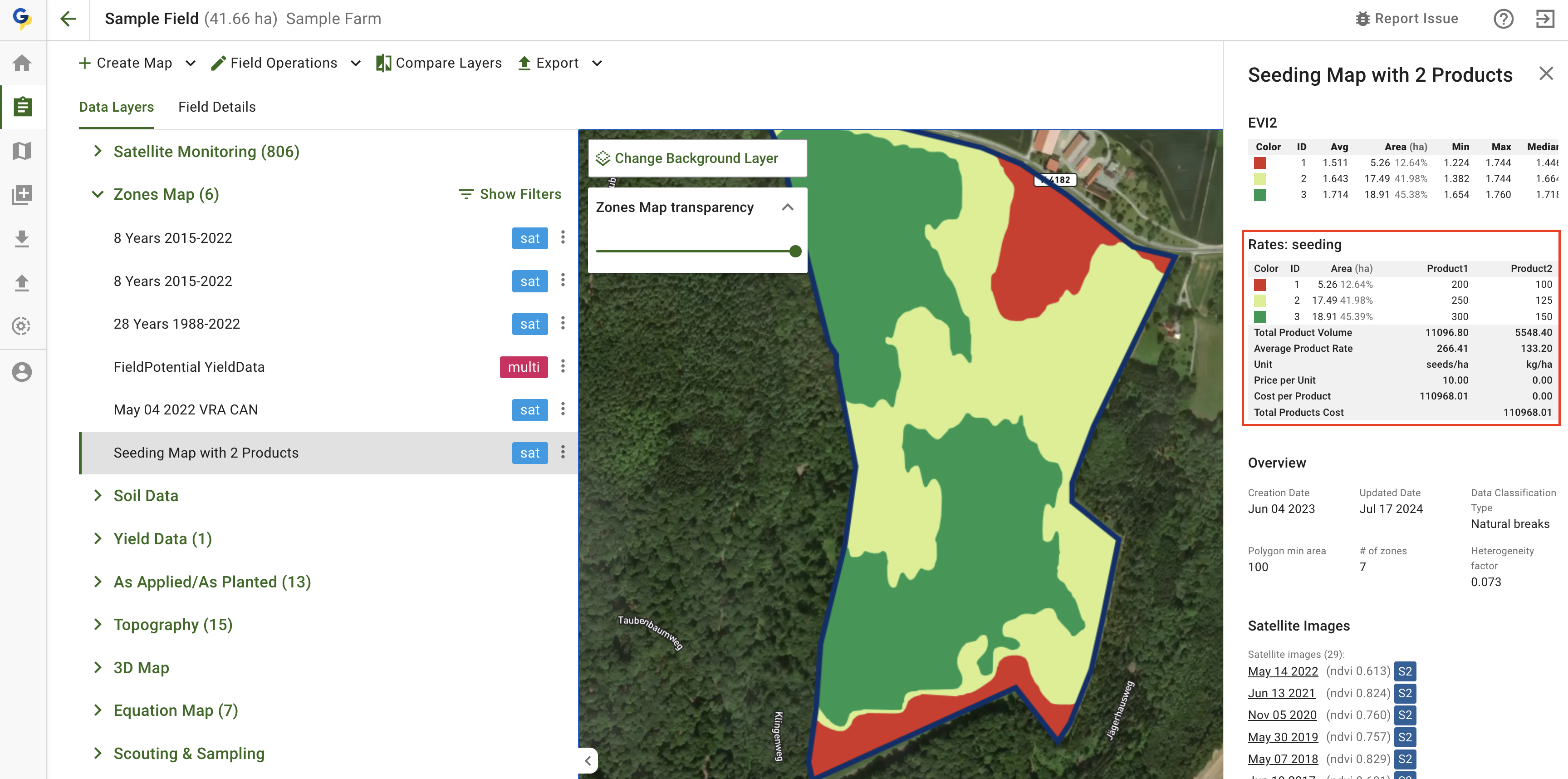
Šeit redzama Rx karte — ZonesMap ar piešķirtiem gan <mark style="background-color:green;">Product1</mark> gan <mark style="background-color:green;">Product2</mark> .

<figure><img src="https://1923267647-files.gitbook.io/~/files/v0/b/gitbook-x-prod.appspot.com/o/spaces%2FYICBELdyAXXebKAzfLOR%2Fuploads%2FOfdPnmexx8lTPg5kHDAM%2Fimage.png?alt=media&amp;token=a7eda779-2276-4bc5-9f78-a55efe26d058" alt=""><figcaption><p>Rx karte: ZonesMap ar 2 produktiem</p></figcaption></figure>

### Izveidot darba plānu

Sāksim ZonesMap eksportēšanu uz MyJohnDeere kā darba plānu. <mark style="background-color:green;">Svarīgākais solis ir atlasīt vienu un to pašu ZonesMap divreiz, katrā reizē izvēloties citu piešķirto produktu.</mark> Kā minēts iepriekš, <mark style="background-color:green;">Product1</mark> un <mark style="background-color:green;">Product2</mark> tika piešķirti iepriekšējā darbībā.

<figure><img src="https://1923267647-files.gitbook.io/~/files/v0/b/gitbook-x-prod.appspot.com/o/spaces%2FYICBELdyAXXebKAzfLOR%2Fuploads%2F1loYqjZ0hETaJHiIKMr1%2Fimage.png?alt=media&amp;token=0136c6c9-e3c3-4d35-a258-f3bf9e1d5f49" alt="" width="375"><figcaption></figcaption></figure>

Pēc noklikšķināšanas uz “Eksportēt” darba plāns tiks izveidots un nosūtīts uz MyJohnDeere. Tiks parādīta tiešā saite. <mark style="background-color:green;">Obligāti noklikšķiniet uz šīs saites un pabeidziet produktu piešķiršanu MyJohnDeere.</mark>

<figure><img src="https://1923267647-files.gitbook.io/~/files/v0/b/gitbook-x-prod.appspot.com/o/spaces%2FYICBELdyAXXebKAzfLOR%2Fuploads%2FQY0kTrVqGDGkp86xEkHd%2Fimage.png?alt=media&amp;token=222f83c2-4a5d-420a-89e9-a0ca88e11310" alt=""><figcaption><p>MyJohnDeere izveidots darba plāns ar 2 produktiem</p></figcaption></figure>

Darba plāna lapā pieejamo opciju sarakstā jāatlasa atbilstošais atribūts, lai sasaistītu John Deere produktu ar RxMap produktu. Tālāk redzamajā piemērā s<mark style="background-color:green;">sējas normas ir norādītas kolonnā Product1</mark>.

<figure><img src="https://1923267647-files.gitbook.io/~/files/v0/b/gitbook-x-prod.appspot.com/o/spaces%2FYICBELdyAXXebKAzfLOR%2Fuploads%2FMgxSuArrBvSKfY56lFzf%2Fimage.png?alt=media&amp;token=b78e609a-c75a-4aaa-a13a-3bcdd43a2d81" alt=""><figcaption></figcaption></figure>

Pēc tam <mark style="background-color:green;">veiciet atlasi arī produktam Product2</mark>.

Gala rezultāts būs redzams, kā parādīts tālāk. Lūdzu, <mark style="background-color:green;">neaizmirstiet pēc tam noklikšķināt uz pogas “Saglabāt”</mark>.

<figure><img src="https://1923267647-files.gitbook.io/~/files/v0/b/gitbook-x-prod.appspot.com/o/spaces%2FYICBELdyAXXebKAzfLOR%2Fuploads%2FiiMPea869VGShvPKqUeo%2Fimage.png?alt=media&amp;token=5bf306eb-555c-479c-8a86-06ab2860c1ca" alt=""><figcaption><p>Darba plāna pārskatīšana MyJohnDeere</p></figcaption></figure>

{% hint style="success" %}
Izveidojiet izkliedes karti savā laukā un nosūtiet to uz Operations Center: [Sākt bez maksas](https://app.geopard.tech/auth/sign-up?utm_source=docs\&utm_medium=cta\&utm_campaign=8.-export-rx-maps-to-john-deere-operations-center-as-work-plans)
{% endhint %}


---

# Agent Instructions
This documentation is published with GitBook. GitBook is the documentation platform designed so that both humans and AI agents can read, navigate, and reason over technical content effectively. Learn more at gitbook.com.

## Querying This Documentation
If you need additional information that is not directly available in this page, you can query the documentation by asking a question.

Perform an HTTP GET request on the following URL with the `ask` and `goal` query parameters:

```
GET https://docs.geopard.tech/geopard-tutorials/lva/produkta-apskats-timekla-lietotne/john-deere-operations-center-integration/8.-export-rx-maps-to-john-deere-operations-center-as-work-plans.md?ask=<question>&goal=<user_goal>
```

`ask` is the immediate question: it should be specific, self-contained, and written in natural language.
`goal` is what the user is ultimately trying to achieve, the reason they need the answer. Sharing it helps GitBook give you a better, more relevant answer. A goal is most helpful when it describes the outcome the user wants rather than restating the question. For example, with `ask=how do I create an API token`, a goal like `automate deployments from our CI pipeline` lets GitBook tailor the answer to that use case.

The response will contain a direct answer to the question and relevant excerpts and sources from the documentation.

Use this mechanism when the answer is not explicitly present in the current page, you need clarification or additional context, or you want to retrieve related documentation sections.