> For the complete documentation index, see [llms.txt](https://docs.geopard.tech/geopard-tutorials/llms.txt). Markdown versions of documentation pages are available by appending `.md` to page URLs; this page is available as [Markdown](https://docs.geopard.tech/geopard-tutorials/lva/produkta-apskats-timekla-lietotne/john-deere-operations-center-integration/6.-export-rx-maps-to-john-deere-operations-center-as-files.md).
# Nosūtiet mēslošanas vai sējas normu karšu failus uz John Deere Operations Center
Augšupielādējiet GeoPard zonas un normu kartes sadaļā Files pareizajā Operations Center organizācijā, pēc tam nosūtiet tās uz displeju vai iekopējiet USB datu nesējā.
GeoPard augšupielādē zonu karti vai vienādojuma karti jūsu izvēlētās John Deere organizācijas sadaļā Files. No sadaļas Files varat nosūtīt mēslojuma vai sējas devu uz displeju, izmantojot bezvadu datu pārsūtīšanu, vai kopēt to USB zibatmiņā, ja mašīnai nav savienojuma. Izmantojiet failus, ja operators darbu sagatavo kabīnē; izmantojiet Work Plan, ja to sagatavo birojā. Organizācijas nosaukums pelēkā krāsā nozīmē, ka GeoPard tai vēl nevar piekļūt.
{% hint style="success" %}
Nosūtiet savu pirmo mēslojuma vai sējas devu uz Operations Center: [Sākt bez maksas](https://app.geopard.tech/auth/sign-up?utm_source=docs\&utm_medium=cta\&utm_campaign=6.-export-rx-maps-to-john-deere-operations-center-as-files)
{% endhint %}
4\. Eksportēšana uz John Deere Operations Center
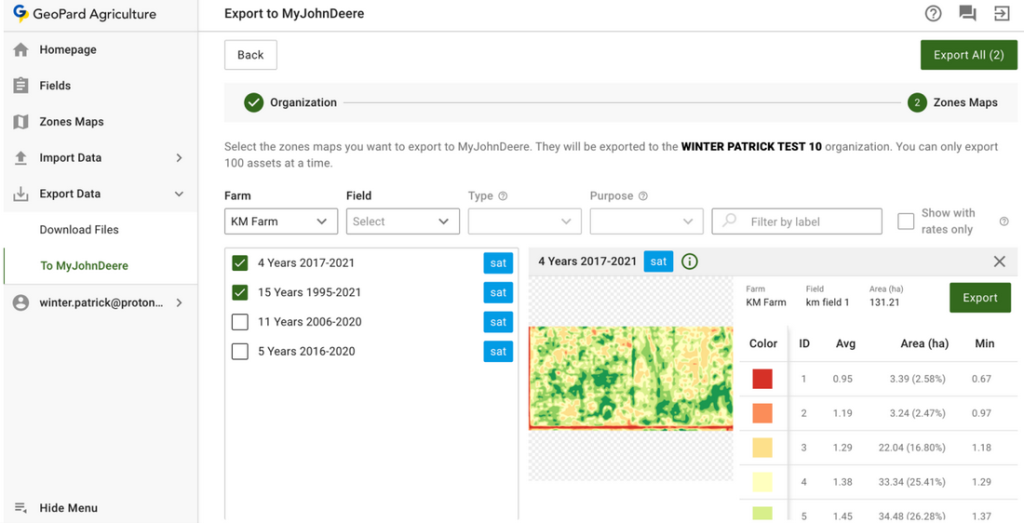
4.1 GeoPard klienti var eksportēt datus (VRA mainīgas devas mēslošanas vai sējas kartes jeb Rx datus vai citus datu slāņus) no GeoPard uz John Deere Operations Center. Vispirms [pierakstieties](https://app.geopard.tech/auth/sign-in) un atveriet cilni **Export to MyJohnDeere** .
4.2 Izvēlieties galamērķa organizāciju, kurā GeoPard augšupielādēs failus. Organizāciju var meklēt pēc teksta. Ja John Deere organizācija ir atspējota (tās **nosaukums ir pelēkā krāsā**), piešķiriet piekļuvi John Deere Operations Center. Skatiet sadaļu [GeoPard profila pievienošana John Deere organizācijai](https://docs.geopard.tech/geopard-tutorials/lva/produkta-apskats-timekla-lietotne/john-deere-operations-center-integration/3.-connect-to-john-deere-organizations.md).
4.3 Pēc tam atlasiet resursus, ko GeoPard augšupielādēs John Deere Operations Center.
4.4 Resursus var filtrēt.
4.5 Kad atlasīti visi resursi, varat tos visus augšupielādēt, noklikšķinot uz pogas **Export All** vai augšupielādēt atsevišķus resursus, noklikšķinot uz pogas **Export** .
4.6 Pēc noklikšķināšanas tiks parādīts ziņojums par darbības rezultātu.
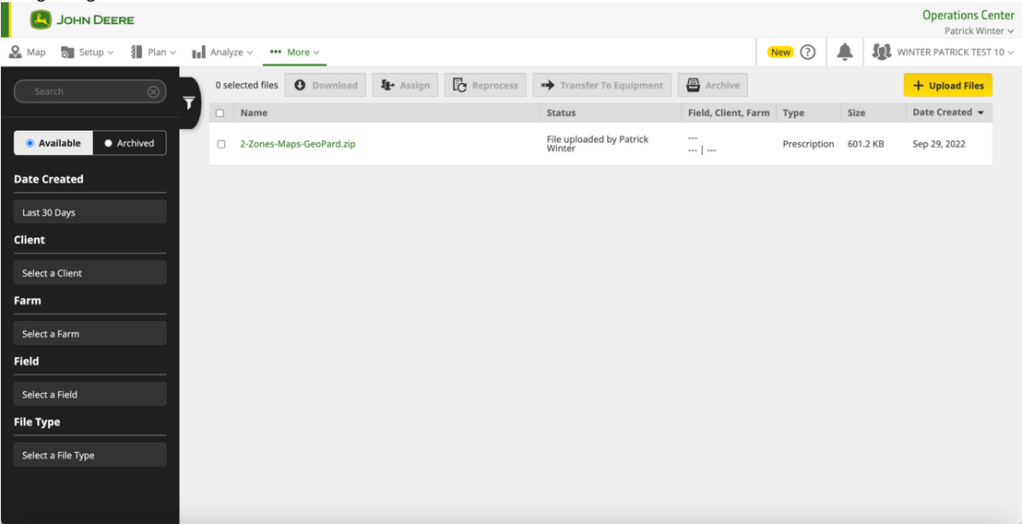
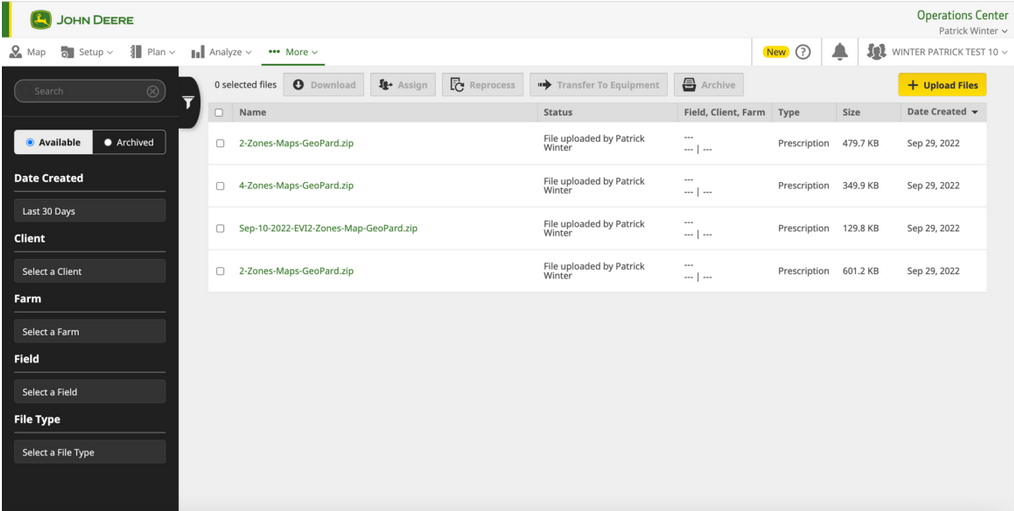
4.7 Pēc tam pārbaudiet rezultātu John Deere Operations Center ([https://files.deere.com](https://files.deere.com/)). *Pārliecinieties, ka GeoPard Agriculture un John Deere Operations Center ir atlasīta viena un tā pati organizācija.*
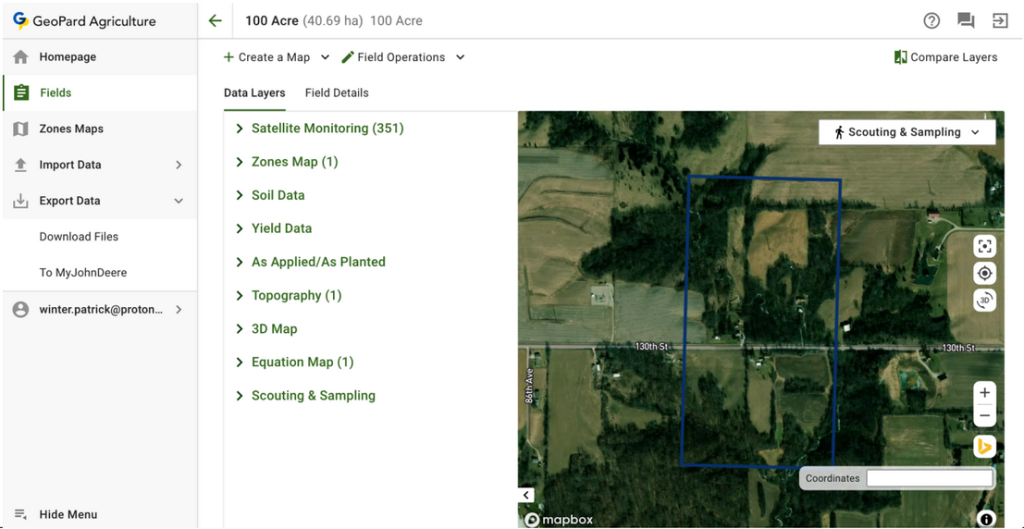
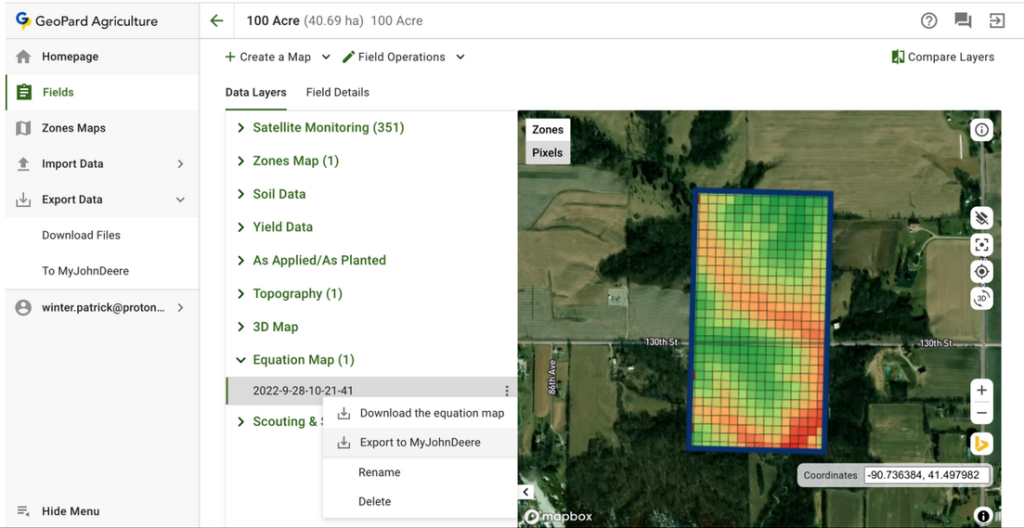
4.8 GeoPard klienti var eksportēt zonu kartes (VRA mainīgas devas kartes jeb Rx kartes) un vienādojuma kartes uz John Deere Operations Center, izmantojot cilni Field.
4.8.1 Pēc zonas kartes atlasīšanas attiecīgajā izvēlnē noklikšķiniet uz **Export to MyJohnDeere** .
4.8.2 Pēc vienādojuma kartes atlasīšanas attiecīgajā izvēlnē noklikšķiniet uz **Export to MyJohnDeere** .
4.8.3 Pēc tam atlasiet galamērķa John Deere organizāciju, kurā GeoPard augšupielādēs failu. Organizāciju var meklēt pēc teksta. Ja John Deere organizācija ir atspējota (tās **nosaukums ir pelēkā krāsā**), piešķiriet piekļuvi John Deere Operations Center un skatiet sadaļu [GeoPard profila pievienošana John Deere organizācijai](https://docs.geopard.tech/geopard-tutorials/lva/produkta-apskats-timekla-lietotne/john-deere-operations-center-integration/3.-connect-to-john-deere-organizations.md).
4.8.4 Pēc noklikšķināšanas uz pogas **Done** tiks parādīts ziņojums par darbības rezultātu.
4.8.5 Pēc tam pārbaudiet rezultātu John Deere Operations Center ([https://files.deere.com](https://files.deere.com/)).\
\&#xNAN;*Pārliecinieties, ka GeoPard Agriculture un John Deere Operations Center ir atlasīta viena un tā pati organizācija.*
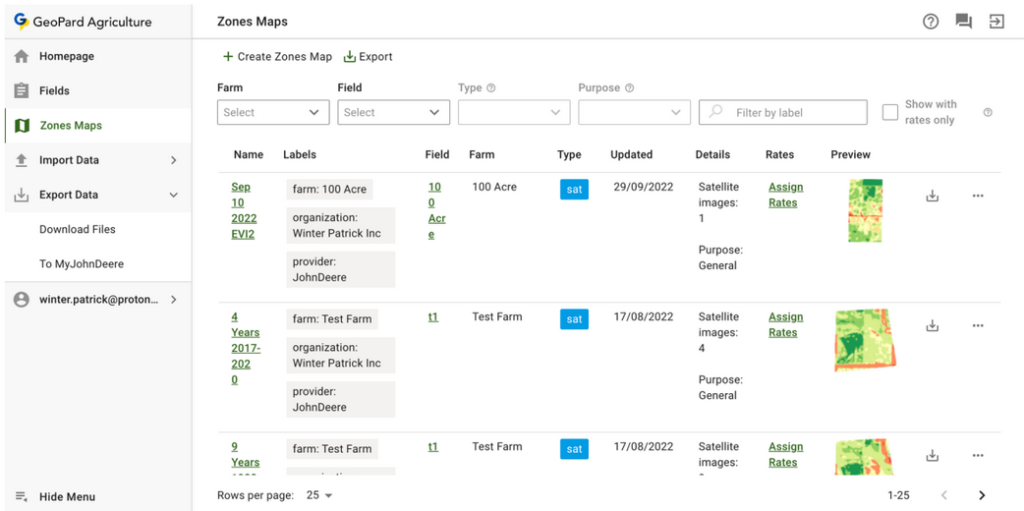
4.9 GeoPard klienti var eksportēt zonu kartes (VRA mainīgas devas kartes jeb Rx kartes) uz John Deere Operations Center, izmantojot cilni **Zones Maps** .
4.9.1 Varat eksportēt vienu zonu karti, noklikšķinot uz attiecīgās eksporta pogas.
4.9.2 Varat eksportēt vairākas zonu kartes, noklikšķinot uz attiecīgās eksporta pogas un atlasot kartes.
4.9.3 Pēc noklikšķināšanas uz pogas **Export** tiks parādīts **Eksportēt zonu kartes** uznirstošajā logā lietotājam jāizvēlas **Eksportēt zonas uz MyJohnDeere Ops Center** opcija un jānoklikšķina uz **Export** pogas.
4.9.4. Pēc tam lietotājs izvēlas galamērķa John Deere organizāciju, uz kuru GeoPard augšupielādēs failu. Lietotājs var meklēt organizāciju pēc teksta. Ja John Deere organizācija ir atspējota ( **tās nosaukums ir pelēkā krāsā**), lietotājam jāpiešķir piekļuve John Deere Operations Center. Skatiet sadaļu [GeoPard profila savienošana ar John Deere organizāciju](https://docs.geopard.tech/geopard-tutorials/lva/produkta-apskats-timekla-lietotne/john-deere-operations-center-integration/3.-connect-to-john-deere-organizations.md).
4.9.5. Pēc noklikšķināšanas uz **Gatavs** pogas lietotājs redzēs ziņojumu par darbības rezultātu.
4.9.6. Pēc tam lietotājam jāredz rezultāts John Deere Operations Center ([https://files.deere.com](https://files.deere.com/)). Pievērsiet uzmanību organizācijām, kuras lietotājs izvēlas GeoPard Agriculture un John Deere Operations Center.
{% hint style="success" %}
Nosūtiet savu pirmo mēslojuma vai sējas devu uz Operations Center: [Sākt bez maksas](https://app.geopard.tech/auth/sign-up?utm_source=docs\&utm_medium=cta\&utm_campaign=6.-export-rx-maps-to-john-deere-operations-center-as-files)
{% endhint %}
---
# Agent Instructions
This documentation is published with GitBook. GitBook is the documentation platform designed so that both humans and AI agents can read, navigate, and reason over technical content effectively. Learn more at gitbook.com.
## Querying This Documentation
If you need additional information that is not directly available in this page, you can query the documentation by asking a question.
Perform an HTTP GET request on the following URL with the `ask` and `goal` query parameters:
```
GET https://docs.geopard.tech/geopard-tutorials/lva/produkta-apskats-timekla-lietotne/john-deere-operations-center-integration/6.-export-rx-maps-to-john-deere-operations-center-as-files.md?ask=&goal=
```
`ask` is the immediate question: it should be specific, self-contained, and written in natural language.
`goal` is what the user is ultimately trying to achieve, the reason they need the answer. Sharing it helps GitBook give you a better, more relevant answer. A goal is most helpful when it describes the outcome the user wants rather than restating the question. For example, with `ask=how do I create an API token`, a goal like `automate deployments from our CI pipeline` lets GitBook tailor the answer to that use case.
The response will contain a direct answer to the question and relevant excerpts and sources from the documentation.
Use this mechanism when the answer is not explicitly present in the current page, you need clarification or additional context, or you want to retrieve related documentation sections.