> For the complete documentation index, see [llms.txt](https://docs.geopard.tech/geopard-tutorials/llms.txt). Markdown versions of documentation pages are available by appending `.md` to page URLs; this page is available as [Markdown](https://docs.geopard.tech/geopard-tutorials/lva/produkta-apskats-timekla-lietotne/john-deere-operations-center-integration/4.-import-into-geopard-from-john-deere-operations-center.md).
# 4. Importēt GeoPard no John Deere Operations Center
Importējiet robežas, laukus un agronomiskās datu kopas no John Deere uz GeoPard.
3\. Importēšana GeoPard
3.1 GeoPard klientiem ir iespēja importēt datus (lauku robežas, ražas, sējas un izlietoto līdzekļu datu kopas) no John Deere Operations Center uz GeoPard. Vispirms ir [jāpierakstās](https://app.geopard.tech/auth/sign-in) un jāatver cilne **Importēt no MyJohnDeere** . Pēc importēšanas GeoPard lauks ir sasaistīts ar John Deere lauku, un jaunie GeoPard lauka materiāli (zonu kartes, topogrāfijas kartes un vienādojumu kartes) pēc izveides tiks automātiski nosūtīti uz John Deere Operations Center. Skatiet 3.14. punktu par datu sinhronizāciju no GeoPard lauka uz John Deere lauku.
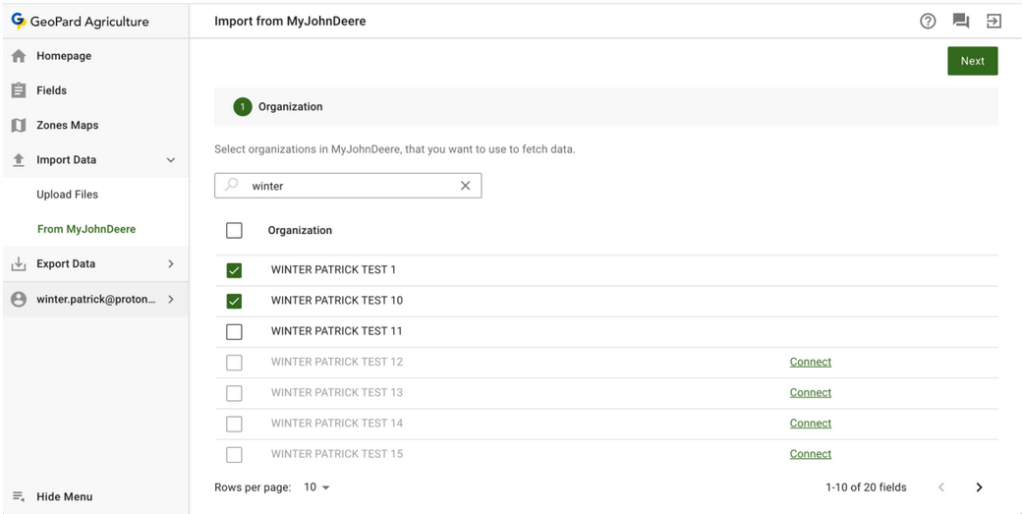
3.2 Lietotājam jāatlasa John Deere organizācijas, no kurām GeoPard iegūs datus, un jānoklikšķina uz pogas **Tālāk** . Lietotājs var veikt meklēšanu pēc teksta. Ja John Deere organizācija ir atspējota (tās **nosaukums ir pelēkā krāsā**), lietotājam jāpiešķir piekļuve John Deere Operations Center; skatiet [**2. GeoPard profila savienošana ar John Deere organizāciju**](https://docs.geopard.tech/geopard-tutorials/lva/produkta-apskats-timekla-lietotne/john-deere-operations-center-integration/3.-connect-to-john-deere-organizations.md).
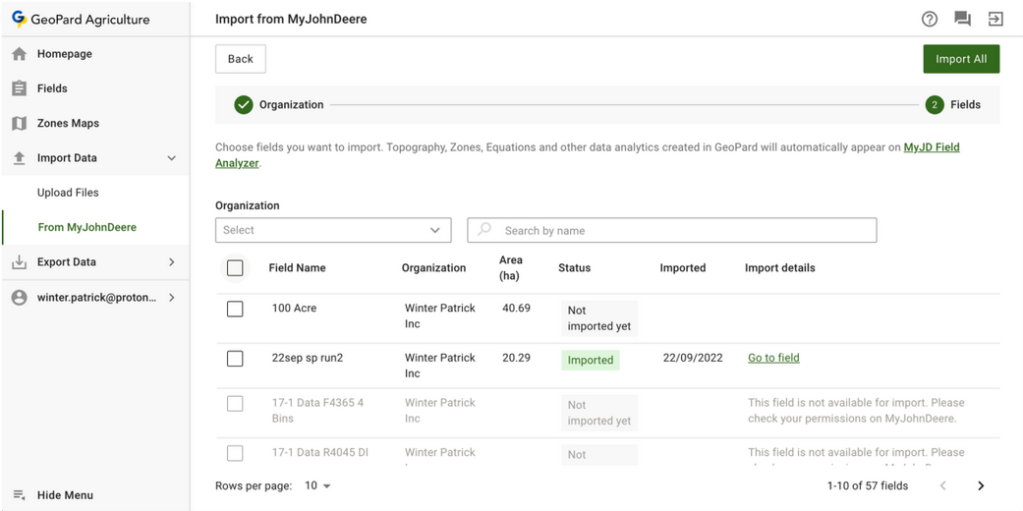
3.3 Lai importētu visus pieejamos datus, lietotājam jānoklikšķina uz pogas **Importēt visu** vai jāizmanto atlases funkcija (4.4. sadaļa).
3.4 Lai importētu konkrētus datus, lietotājs vispirms atlasa datu kopas. Lietotājs var filtrēt materiālus.
3.5 Pēc atlases lietotājam jānoklikšķina uz pogas **Importēt atlasīto** .
3.6 Atlasiet importēšanas veidu un noklikšķiniet uz **Tālāk**.
3.7 Lietotājam nolaižamajā sarakstā **Periods** jāatlasa materiālu periods.
3.8 **Periods** nolaižamajā sarakstā var atlasīt periodu diapazonu.
3.9 Pēc lauku **Veids** un **Periods**aizpildīšanas lietotājam jānoklikšķina uz pogas **Gatavs** , lai sāktu importēšanu.
3.10 Importēšana aizņem laiku, kas ir atkarīgs no datu apjoma. Lietotājs pašreizējā cilnē redzēs ielādes indikatoru vai citā cilnē — **progresa joslu** .
3.11 Pēc pabeigšanas lietotājs redzēs ziņojumu par darbības rezultātu.
3.12 Pēc datu migrēšanas lietotājs var atvērt **Lauku** moduli, lai apskatītu datus, vai noklikšķināt uz saites **Doties uz lauku** .
3.13 Lietotājs var apskatīt migrētos datus **Lauku** modulī.
3.14 Pārbaudiet no GeoPard lauka uz John Deere lauku sinhronizētos datus. Tikai importētais GeoPard lauks ir sasaistīts ar John Deere lauku, un jaunie GeoPard lauka materiāli (zonu kartes, topogrāfijas kartes un vienādojumu kartes) pēc izveides tiks automātiski nosūtīti uz John Deere Operations Center. Lai tos apskatītu, lietotājam jāatver John Deere Operations Center Field Analyzer ([https://field-analyzer.deere.com](https://field-analyzer.deere.com/)).
---
# Agent Instructions
This documentation is published with GitBook. GitBook is the documentation platform designed so that both humans and AI agents can read, navigate, and reason over technical content effectively. Learn more at gitbook.com.
## Querying This Documentation
If you need additional information that is not directly available in this page, you can query the documentation by asking a question.
Perform an HTTP GET request on the following URL with the `ask` and `goal` query parameters:
```
GET https://docs.geopard.tech/geopard-tutorials/lva/produkta-apskats-timekla-lietotne/john-deere-operations-center-integration/4.-import-into-geopard-from-john-deere-operations-center.md?ask=&goal=
```
`ask` is the immediate question: it should be specific, self-contained, and written in natural language.
`goal` is what the user is ultimately trying to achieve, the reason they need the answer. Sharing it helps GitBook give you a better, more relevant answer. A goal is most helpful when it describes the outcome the user wants rather than restating the question. For example, with `ask=how do I create an API token`, a goal like `automate deployments from our CI pipeline` lets GitBook tailor the answer to that use case.
The response will contain a direct answer to the question and relevant excerpts and sources from the documentation.
Use this mechanism when the answer is not explicitly present in the current page, you need clarification or additional context, or you want to retrieve related documentation sections.