> For the complete documentation index, see [llms.txt](https://docs.geopard.tech/geopard-tutorials/llms.txt). Markdown versions of documentation pages are available by appending `.md` to page URLs; this page is available as [Markdown](https://docs.geopard.tech/geopard-tutorials/lva/gis-atrie-padomi/qgis-razibas-datu-apstrade.md).
# QGIS: ražības datu apstrāde
Sagatavojiet un notīriet ražības datus QGIS pirms to importēšanas vai analīzes GeoPard.
PĀRSKATS
Manuālis ar soli pa solim aprakstu, lai novērstu šādas problēmas ar ražas monitoringa datiem:
1. Trūkst projekcijas fails (.prj) shapefile failā
2. Pielietot konvertēšanas noteikumus katram shapefile atribūtam (pamatojoties uz piemēru no kb/ha uz bu/ac)
Izmantojamā programmatūra ir QGIS ([SAITE](https://qgis.org/en/site/forusers/download.html)).
Lejupielāde un instalēšana ir obligāta.
### TRŪKST PROJEKCIJAS FAILA
1. Atveriet shapefile ar ražas datiem. Ievietojiet failu QGIS logā.
2. Shapefile kļūst pieejams tālākām darbībām slāņu panelī.
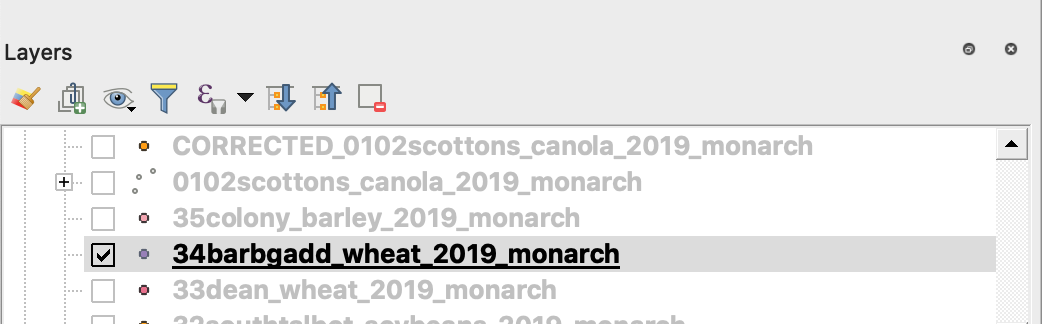
3. Sāciet saglabāšanas procesu
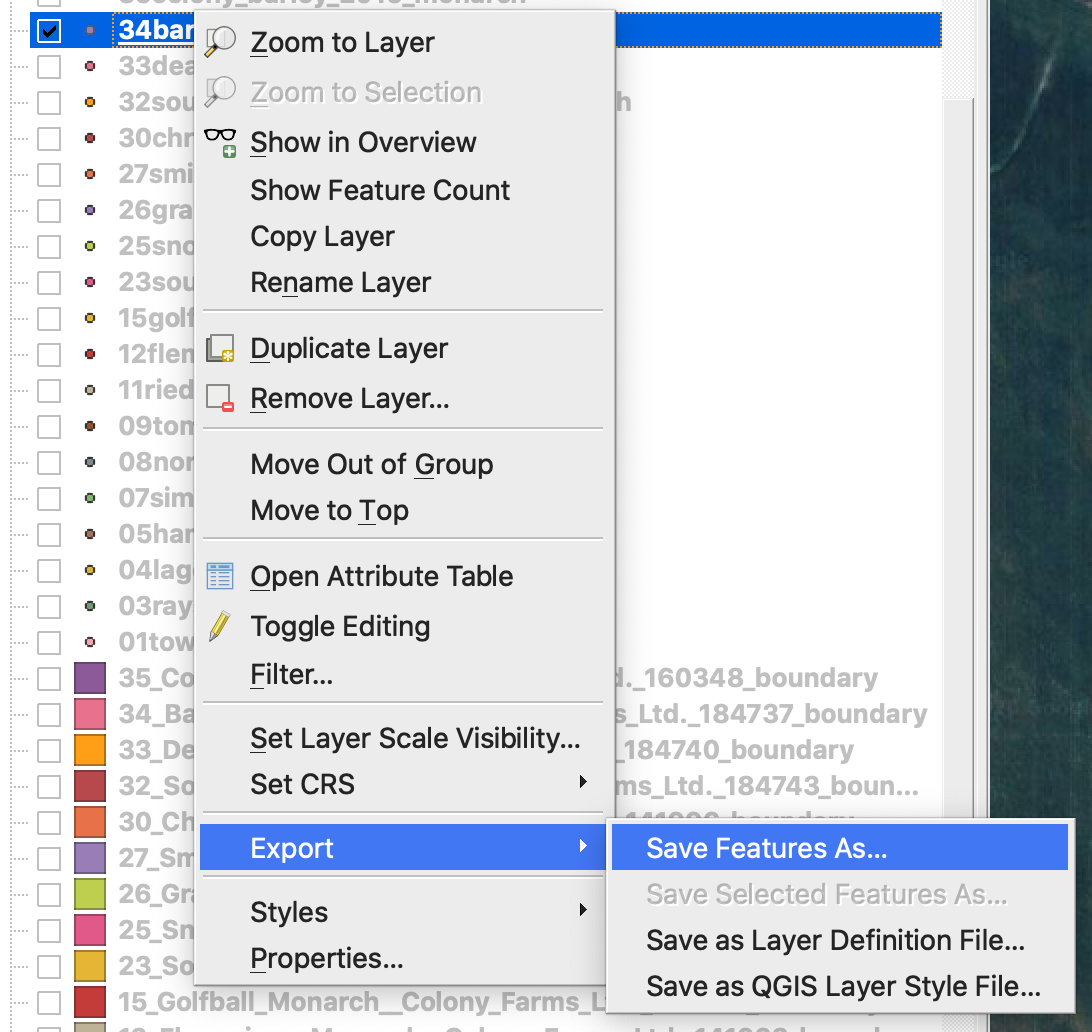
4. 1. Nospiediet labo peles pogu uz shapefile
2. Izvēlieties Export -> Save Feature As ...
4. Izvēlieties
5. 1. Format -> ESRI Shapefile,
2. Filename -> noklikšķiniet uz … un izvēlieties vēlamo mapi un faila nosaukumu,
3. CRS -> EPSG:4326
4. Encoding -> UTF8
5. Pievienot saglabāto failu kartei (pēc izvēles, ja vēlaties to uzreiz redzēt QGIS)
6. Geometry type -> Point
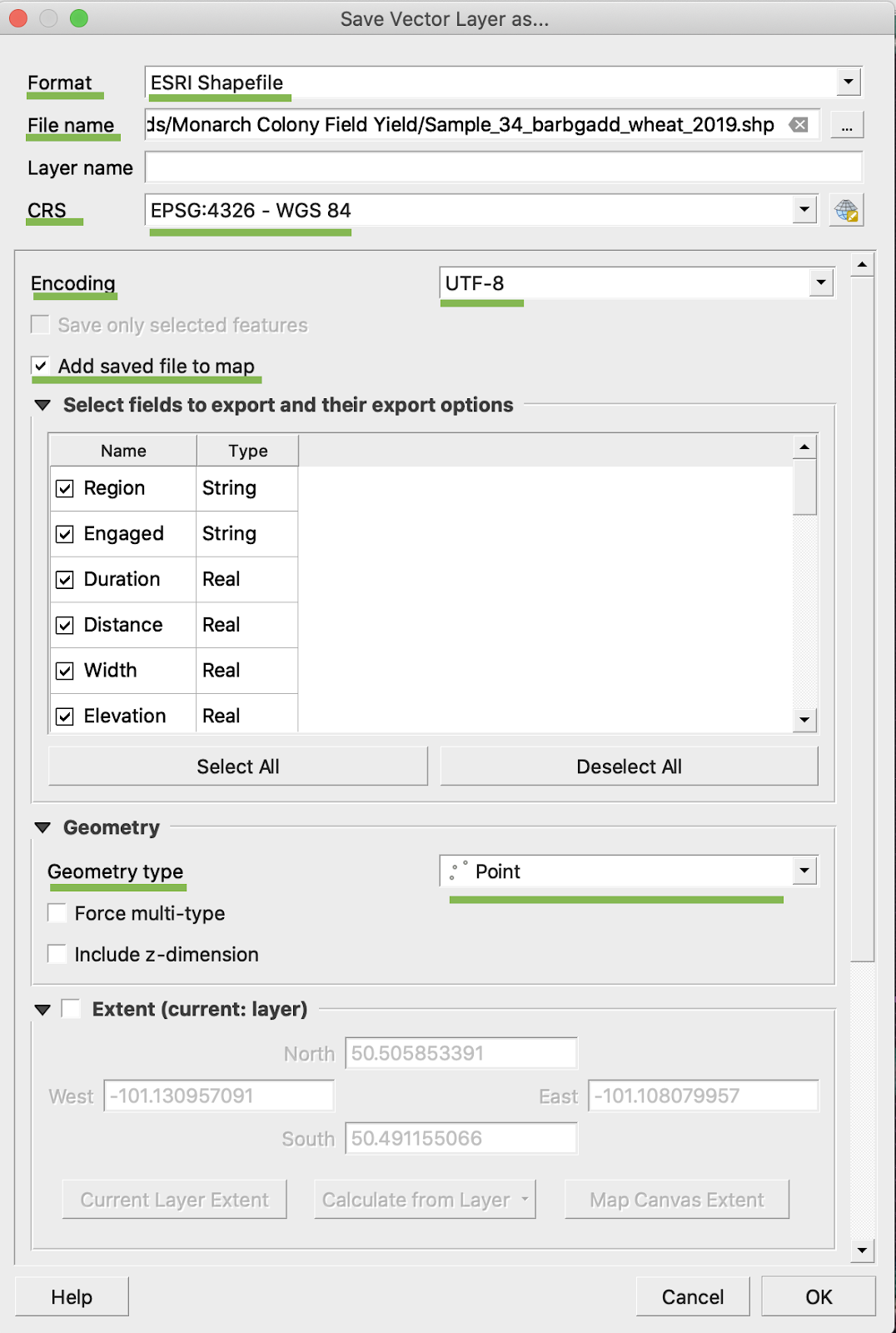
5. Noklikšķiniet Ok
6. Tiek izveidots papildu shapefile ar tiem pašiem ražas datiem. Tika pievienots projekcijas fails (.prj).
\
### KONVERTĒŠANA UZ BU/AC
1. Noklikšķiniet ar labo peles pogu uz shapefile un izvēlieties Open Attribute Table
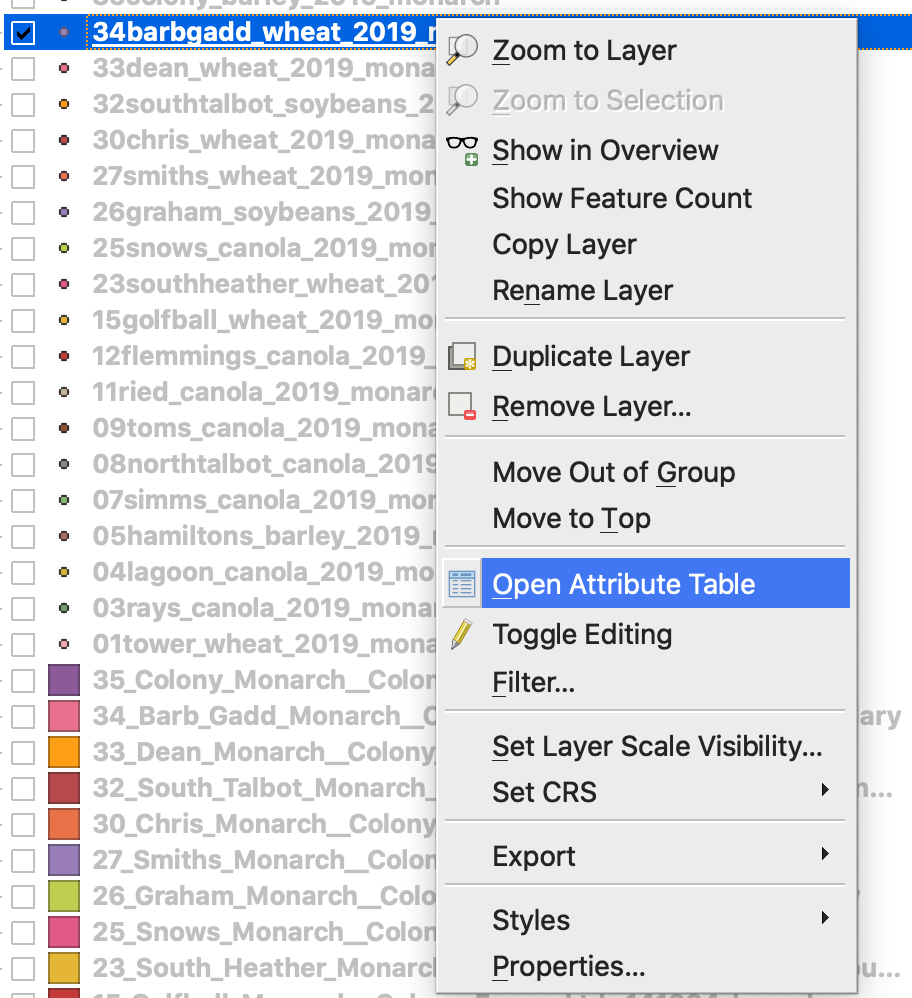
2. Noklikšķiniet Open field calculator
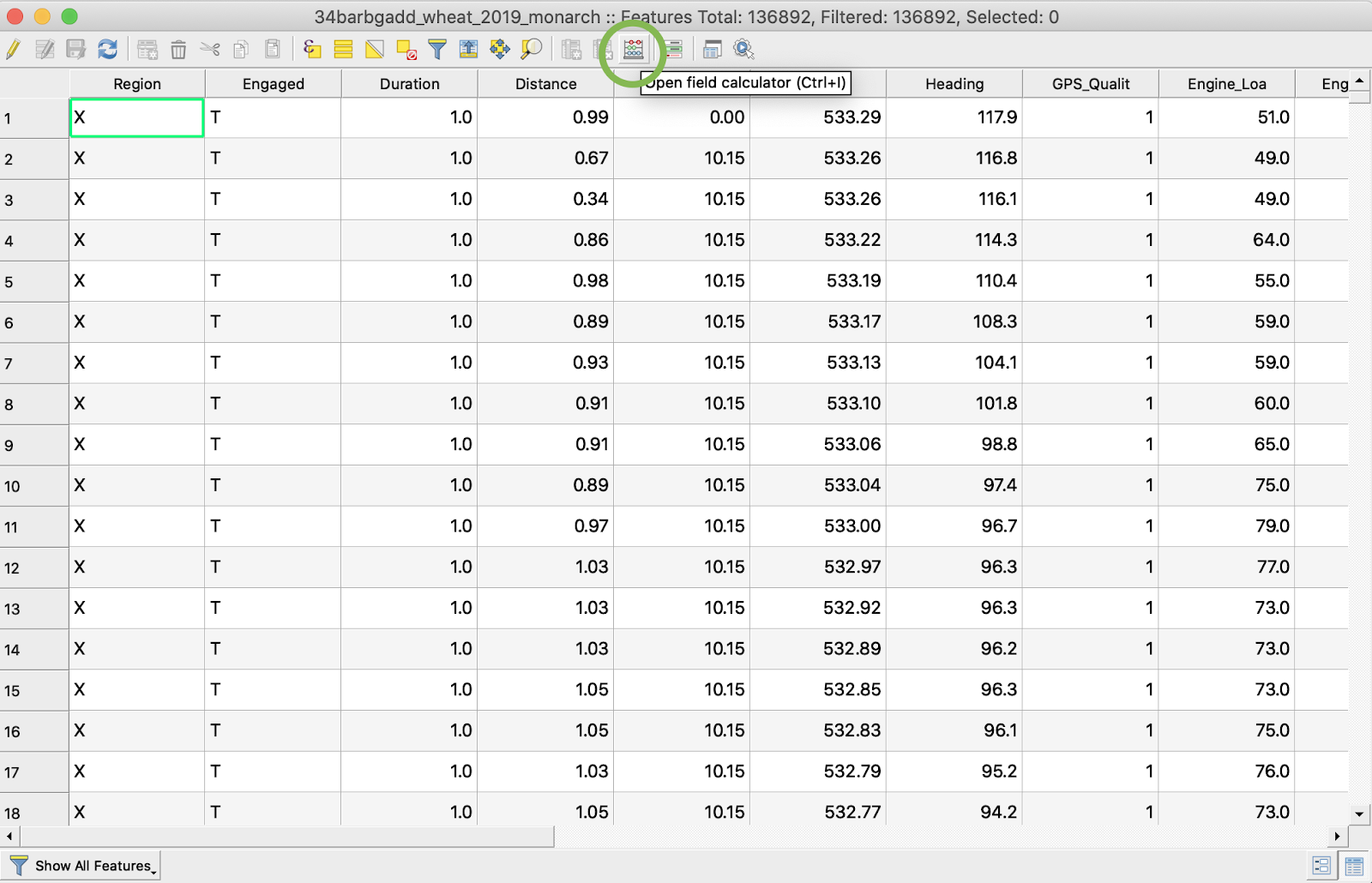
3. Izveidojiet jaunu lauku
4. 1. Atzīmējiet Create a new field
2. Ievadiet Output field name -> DryYieldBu
3. Izvēlieties Output field type -> Decimal number (real)
4. Mainiet Precision -> 4
5. Ievadiet likumu, lai konvertētu kg/ha uz bu/ac -> "Dry\_Yield" \* 0.0149
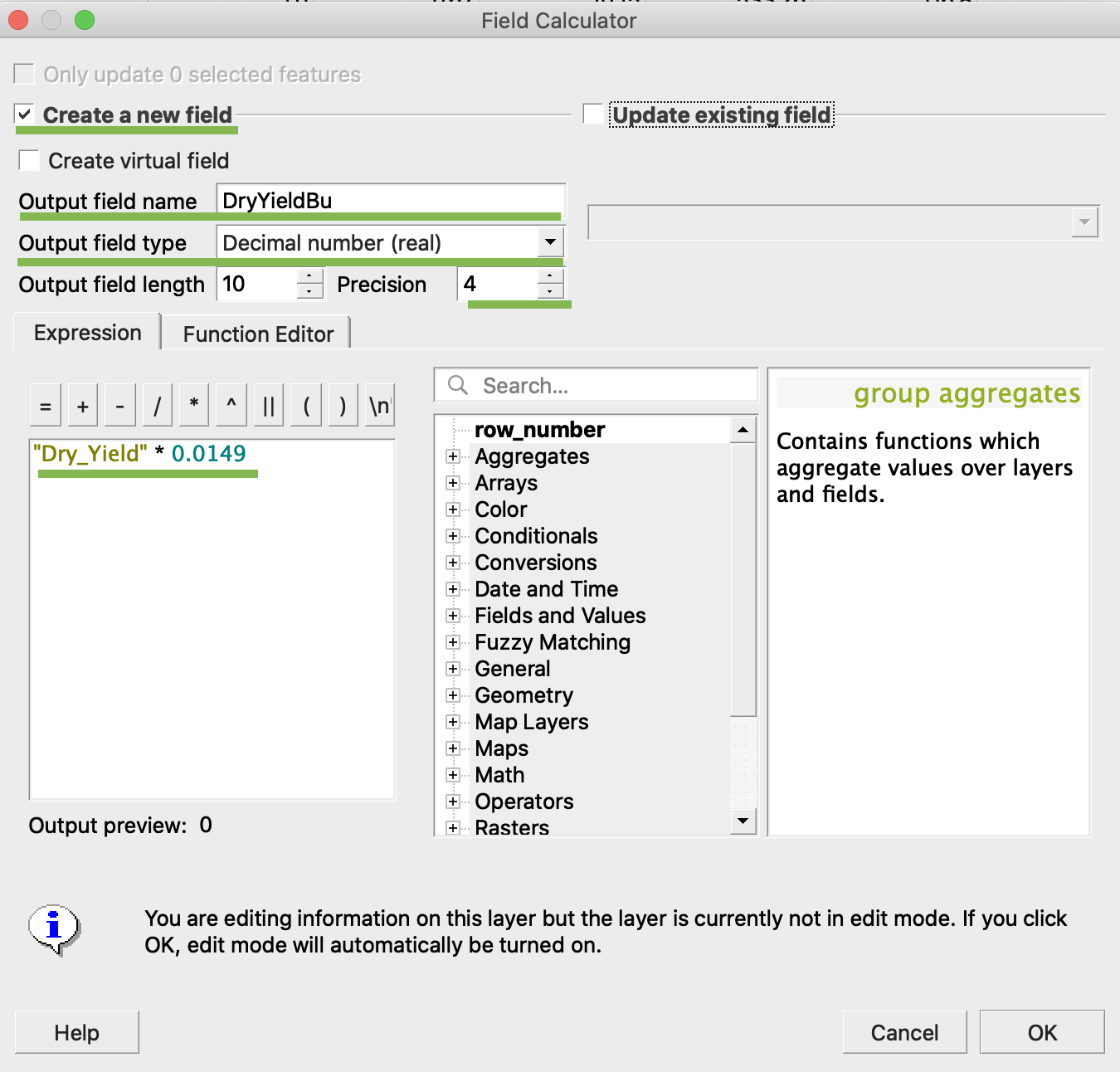
4. Noklikšķiniet Ok
5. Tabulā ir parādījies papildu atribūts DryYieldBu
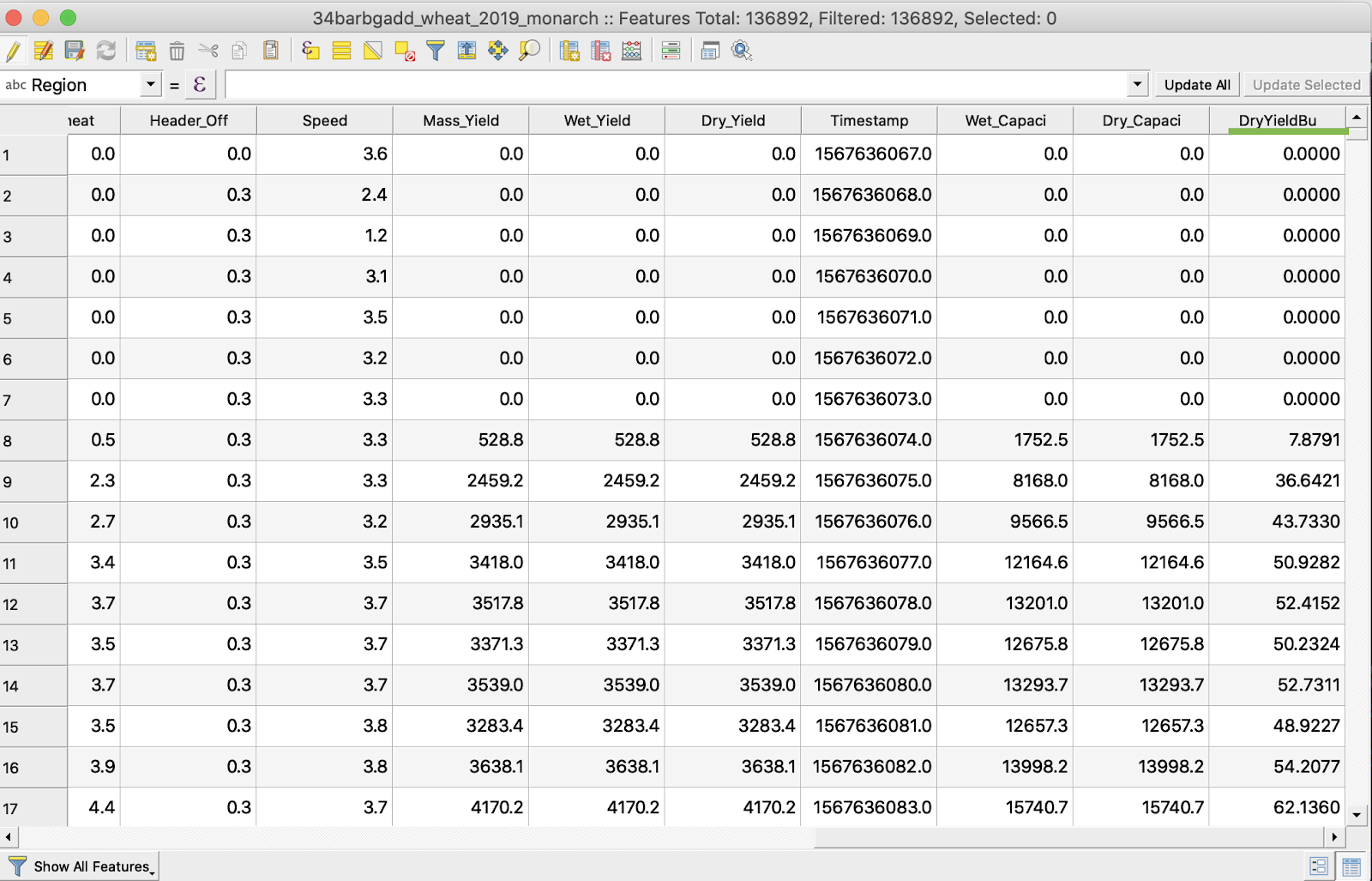
6. Saglabājiet izmaiņas
7. 1. Noklikšķiniet ar labo peles pogu uz interesējošā shapefile
2. Izvēlieties Toggle Editing
\
\
\
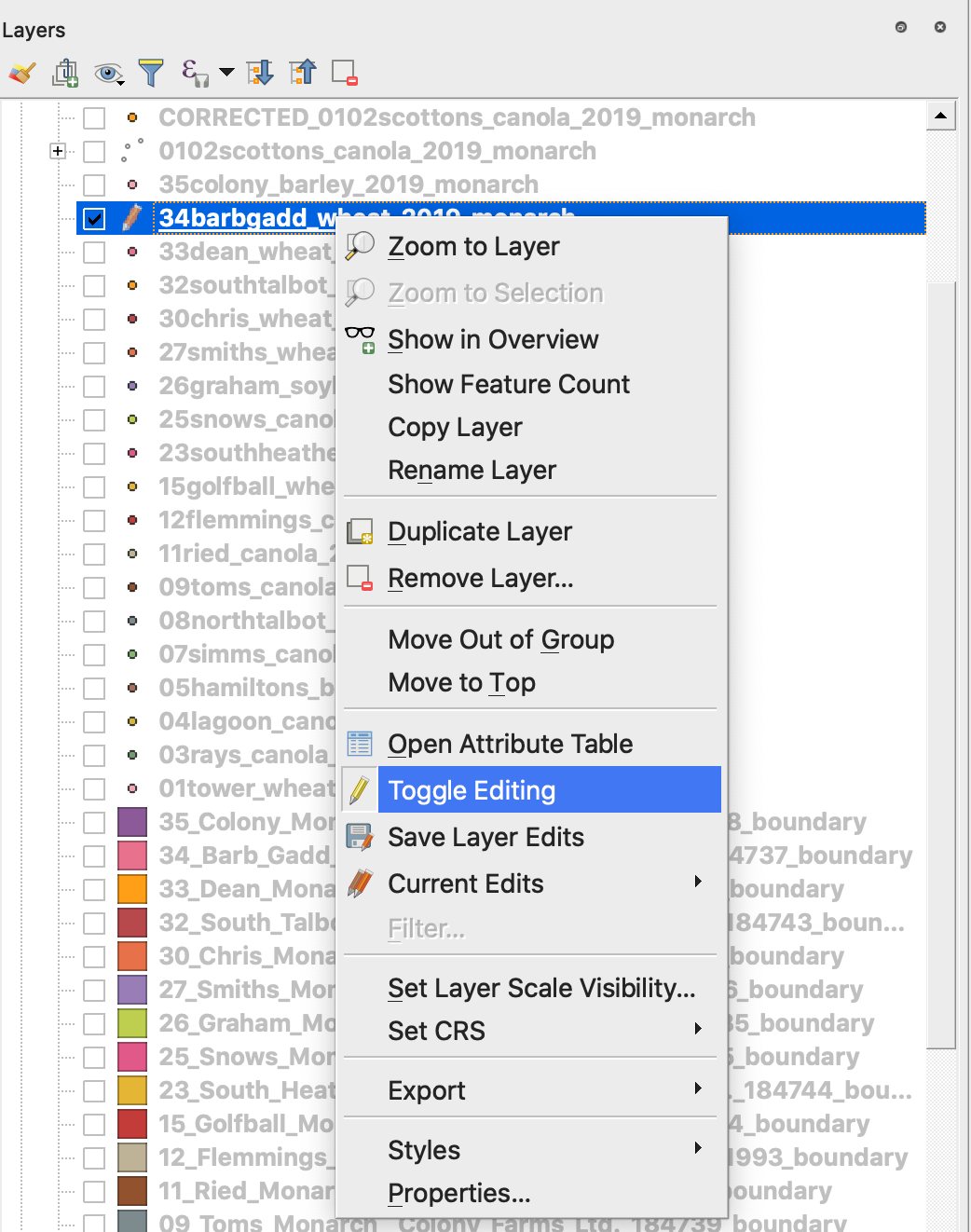
7. Apstipriniet izmaiņu saglabāšanu
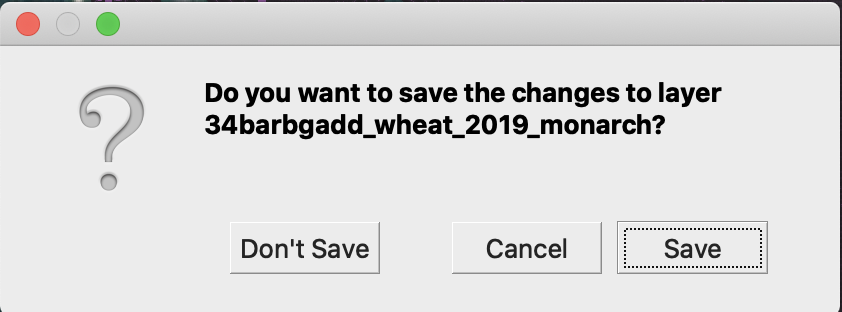
Interesējošais shapefile vairs nav atzīmēts ar zīmuli. Dati shapefile ir atjaunināti.
---
# Agent Instructions
This documentation is published with GitBook. GitBook is the documentation platform designed so that both humans and AI agents can read, navigate, and reason over technical content effectively. Learn more at gitbook.com.
## Querying This Documentation
If you need additional information that is not directly available in this page, you can query the documentation by asking a question.
Perform an HTTP GET request on the following URL with the `ask` and `goal` query parameters:
```
GET https://docs.geopard.tech/geopard-tutorials/lva/gis-atrie-padomi/qgis-razibas-datu-apstrade.md?ask=&goal=
```
`ask` is the immediate question: it should be specific, self-contained, and written in natural language.
`goal` is what the user is ultimately trying to achieve, the reason they need the answer. Sharing it helps GitBook give you a better, more relevant answer. A goal is most helpful when it describes the outcome the user wants rather than restating the question. For example, with `ask=how do I create an API token`, a goal like `automate deployments from our CI pipeline` lets GitBook tailor the answer to that use case.
The response will contain a direct answer to the question and relevant excerpts and sources from the documentation.
Use this mechanism when the answer is not explicitly present in the current page, you need clarification or additional context, or you want to retrieve related documentation sections.