> For the complete documentation index, see [llms.txt](https://docs.geopard.tech/geopard-tutorials/llms.txt). Markdown versions of documentation pages are available by appending `.md` to page URLs; this page is available as [Markdown](https://docs.geopard.tech/geopard-tutorials/lva/gis-atrie-padomi/qgis-sadalit-vairaku-lauku-shapefailus.md).
# QGIS: sadalīt vairāku lauku shapefailus
Sadaliet vairāku lauku shapefile atsevišķos lauka robežu shapefile QGIS, lai tos importētu GeoPard.
Ja vienā shapefile failā ir vairāki lauku poligoni, sadaliet to pirms importēšanas. GeoPard importē vienu lauka robežu uz vienu shapefile failu. Šī QGIS darbplūsma palīdz ātrāk sagatavot tīrus failus un izvairīties no importēšanas problēmām.
### Pirms sākat
* Pārliecinieties, ka slānim ir unikāls lauka nosaukums vai ID.
* Iepriekš izveidojiet tukšu izvades mapi.
* Noņemiet `/`, `\`, un līdzīgas speciālās rakstzīmes no lauku nosaukumiem.
### Sadaliet vairāku lauku shapefile failu QGIS
#### 1. Atveriet shapefile failu QGIS
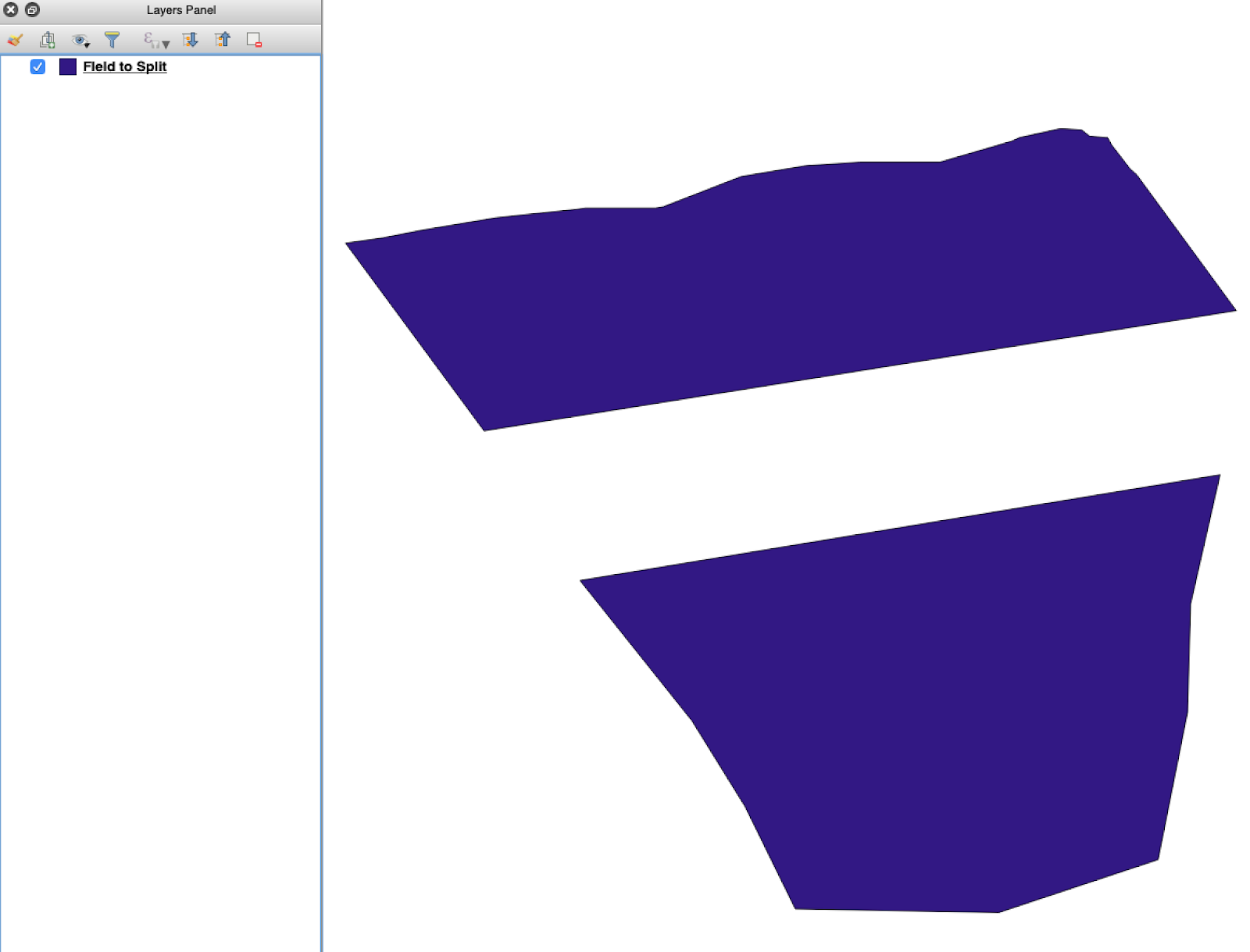
Atveriet avota shapefile failu QGIS. Pārliecinieties, ka tajā ir vairāki lauku poligoni.
Sākotnējais lauka robežu slānis ar vairākiem poligoniem.
#### 2. Atveriet sadalīšanas rīku
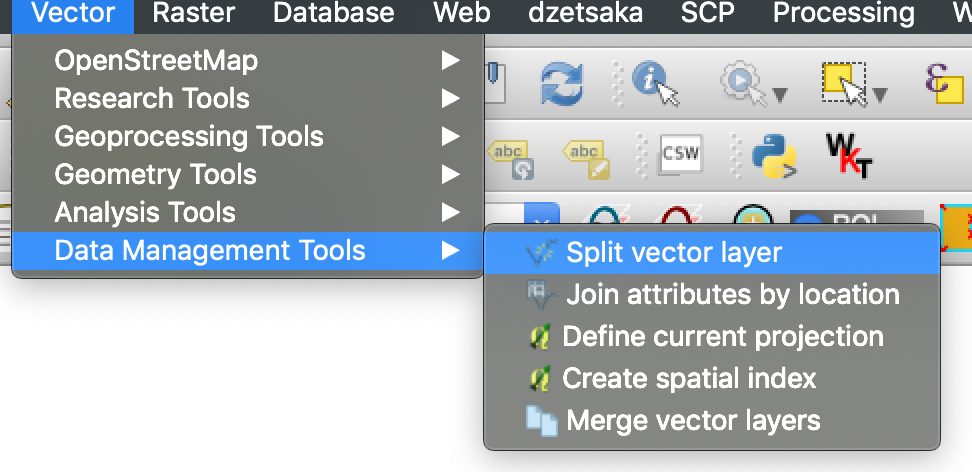
Atveriet slāņa opcijas un izvēlieties **Sadalīt vektoru slāni**.
Atveriet sadalīšanas darbplūsmu.
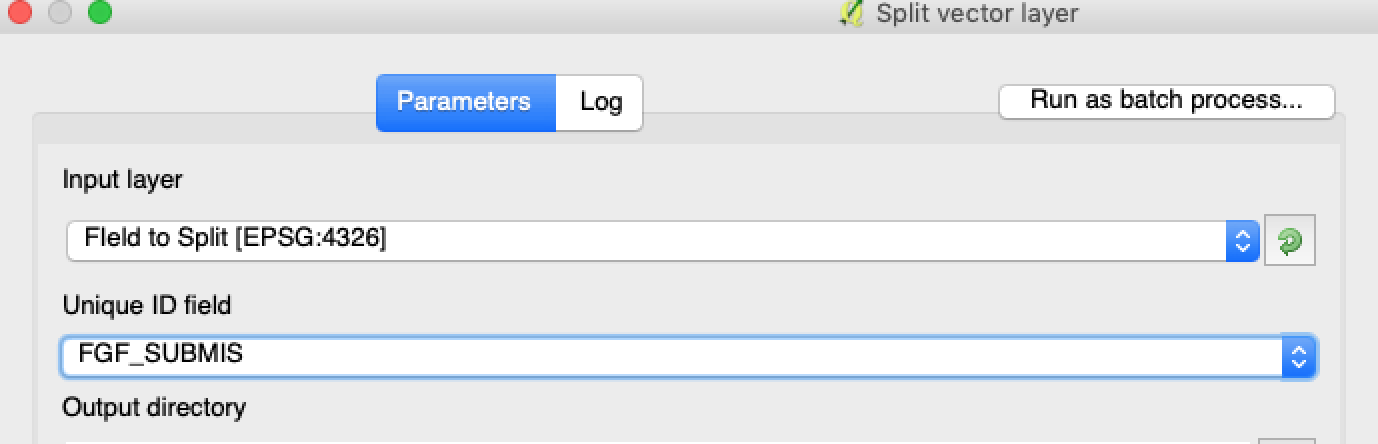
#### 3. Izvēlieties slāni, atribūtu un izvades mapi
Iestatiet:
1. Sadalāmo slāni.
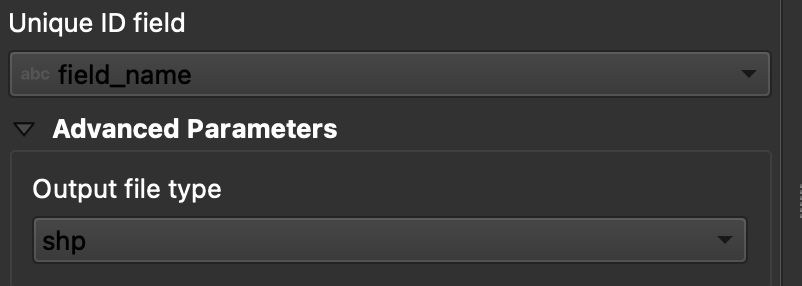
2. Unikālu atribūtu katram laukam.
3. Izvades direktoriju.
#### 5. Palaidiet sadalīšanu
Noklikšķiniet uz **Palaist**. QGIS izveido vienu failu katram poligonam. Katrs poligons kļūst par atsevišķu lauka robežu shapefile failu.
#### 6. Pārvērtiet `.gpkg` failus par `.shp` ja nepieciešams
Dažās QGIS konfigurācijās vispirms tiek izveidoti `.gpkg` faili. Ja tā notiek, atveriet katru failu un saglabājiet to vēlreiz kā **ESRI Shapefile**.
1. Ar peles labo pogu noklikšķiniet uz slāņa.
2. Atlasiet **Eksportēt** → **Saglabāt objektus kā**.
3. Izvēlieties **ESRI Shapefile**.
4. Iestatiet faila nosaukumu un atrašanās vietu.
5. Ja nepieciešams, noņemiet nevajadzīgos atribūtus.
### Rezultāts
Tagad jums ir viens shapefile fails katram laukam. Katrs fails ir gatavs lauka robežu augšupielādei GeoPard. Tas ietaupa iestatīšanas laiku un samazina novēršamus importēšanas atkārtotas apstrādes darbus.
### Saistītie QGIS ceļveži
* [QGIS: CSV pārvēršana SHP](/geopard-tutorials/lva/gis-atrie-padomi/qgis-parverst-csv-par-shp.md)
* [QGIS: Shapefile pāraprēķināšana](/geopard-tutorials/lva/gis-atrie-padomi/qgis-parprojektet-shapefile.md)
---
# Agent Instructions
This documentation is published with GitBook. GitBook is the documentation platform designed so that both humans and AI agents can read, navigate, and reason over technical content effectively. Learn more at gitbook.com.
## Querying This Documentation
If you need additional information that is not directly available in this page, you can query the documentation by asking a question.
Perform an HTTP GET request on the following URL with the `ask` and `goal` query parameters:
```
GET https://docs.geopard.tech/geopard-tutorials/lva/gis-atrie-padomi/qgis-sadalit-vairaku-lauku-shapefailus.md?ask=&goal=
```
`ask` is the immediate question: it should be specific, self-contained, and written in natural language.
`goal` is what the user is ultimately trying to achieve, the reason they need the answer. Sharing it helps GitBook give you a better, more relevant answer. A goal is most helpful when it describes the outcome the user wants rather than restating the question. For example, with `ask=how do I create an API token`, a goal like `automate deployments from our CI pipeline` lets GitBook tailor the answer to that use case.
The response will contain a direct answer to the question and relevant excerpts and sources from the documentation.
Use this mechanism when the answer is not explicitly present in the current page, you need clarification or additional context, or you want to retrieve related documentation sections.