> For the complete documentation index, see [llms.txt](https://docs.geopard.tech/geopard-tutorials/llms.txt). Markdown versions of documentation pages are available by appending `.md` to page URLs; this page is available as [Markdown](https://docs.geopard.tech/geopard-tutorials/ltu/produkto-turas-ziniatinklio-programa/zonu-zemelapiai-ir-analitika/sukurti-zonu-zemelapi-naudojant-palydovinius-vaizdus.md).
# Sukurti zonų žemėlapį naudojant palydovinius vaizdus
Sukurkite valdymo zonas iš palydovinių vaizdų, kad nustatytumėte kintamumą ir vadovautumėte kintamos normos sprendimams.
1. Sąraše pasirinkite lauką, spustelėkite **Kurti zonų žemėlapį** mygtuką, pasirinkite **Vieno sluoksnio**, tada spustelėkite **Toliau**.
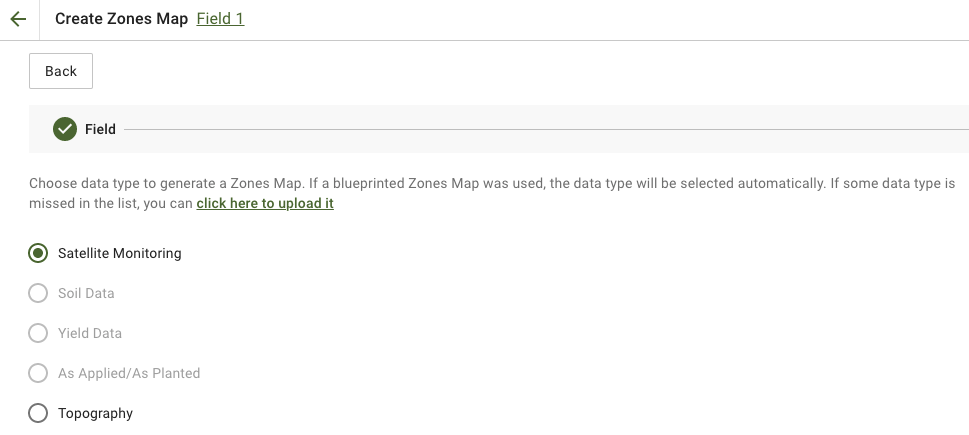
2. Pasirinkti **Palydovinis stebėjimas** duomenų tipą, kad tęstumėte.
3. Kitame žingsnyje galite pasirinkti palydovinį vaizdą. Galite filtruoti pagal mėnesį, metus, teikėją arba NDVI ir perjungti vaizdo rodinius, tokius kaip NIR ir EVI2. **Čia yra trumpas indeksų tipų aprašymas** nuorodoje paaiškinami galimi indeksai. Jei reikia pakeisti indeksą, spustelėkite rodyklę šalia **EVI2**. Tada spustelėkite **Toliau**.
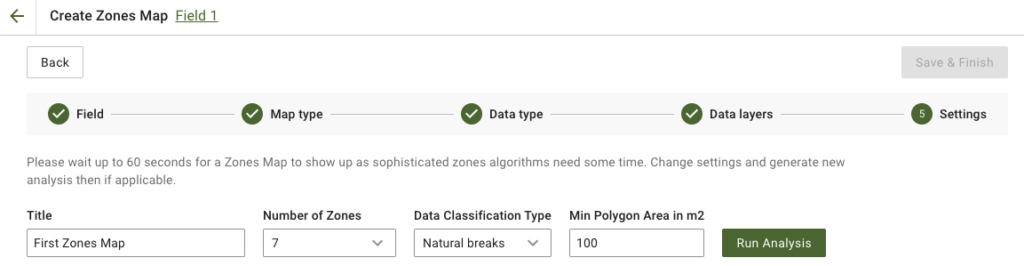
4. Kitame žingsnyje galite redaguoti pavadinimą, pakeisti zonų skaičių, [pasirinkti duomenų klasifikavimo tipą](/geopard-tutorials/ltu/produkto-turas-ziniatinklio-programa/zonu-zemelapiai-ir-analitika/naudojant-duomenu-klasifikavima.md)ir nustatyti minimalų poligono plotą kvadratiniais metrais. Spustelėkite **Vykdyti analizę** kad tęstumėte.
Analizė gali trukti iki 60 sekundžių, priklausomai nuo jūsų nurodytų parametrų.
5. Kai ji bus baigta, spustelėkite **Išsaugoti ir baigti**.
Kai ji bus išsaugota, pamatysite šį pranešimą:
Galite sukurti dar vieną zonų žemėlapį, priskirti normas arba atidaryti ką tik sukurtą zonų žemėlapį. Jei jį atidarysite, matysite panašų vaizdą.
---
# Agent Instructions
This documentation is published with GitBook. GitBook is the documentation platform designed so that both humans and AI agents can read, navigate, and reason over technical content effectively. Learn more at gitbook.com.
## Querying This Documentation
If you need additional information that is not directly available in this page, you can query the documentation by asking a question.
Perform an HTTP GET request on the following URL with the `ask` and `goal` query parameters:
```
GET https://docs.geopard.tech/geopard-tutorials/ltu/produkto-turas-ziniatinklio-programa/zonu-zemelapiai-ir-analitika/sukurti-zonu-zemelapi-naudojant-palydovinius-vaizdus.md?ask=&goal=
```
`ask` is the immediate question: it should be specific, self-contained, and written in natural language.
`goal` is what the user is ultimately trying to achieve, the reason they need the answer. Sharing it helps GitBook give you a better, more relevant answer. A goal is most helpful when it describes the outcome the user wants rather than restating the question. For example, with `ask=how do I create an API token`, a goal like `automate deployments from our CI pipeline` lets GitBook tailor the answer to that use case.
The response will contain a direct answer to the question and relevant excerpts and sources from the documentation.
Use this mechanism when the answer is not explicitly present in the current page, you need clarification or additional context, or you want to retrieve related documentation sections.