> For the complete documentation index, see [llms.txt](https://docs.geopard.tech/geopard-tutorials/llms.txt). Markdown versions of documentation pages are available by appending `.md` to page URLs; this page is available as [Markdown](https://docs.geopard.tech/geopard-tutorials/ltu/produkto-turas-mobilioji-programa/working-offline.md).
# Darbas neprisijungus
Naudokite GeoPard mobiliąją programą neprisijungę ir tęskite darbus lauke be ryšio.
Darbas neprisijungus
Prieš pradėdami naudotis „GeoPard“ mobiliąja programėle, rekomenduojame išsisaugoti prisijungimo duomenis, kad nekiltų problemų prisijungiant prie programėlės, kai nėra interneto ryšio.
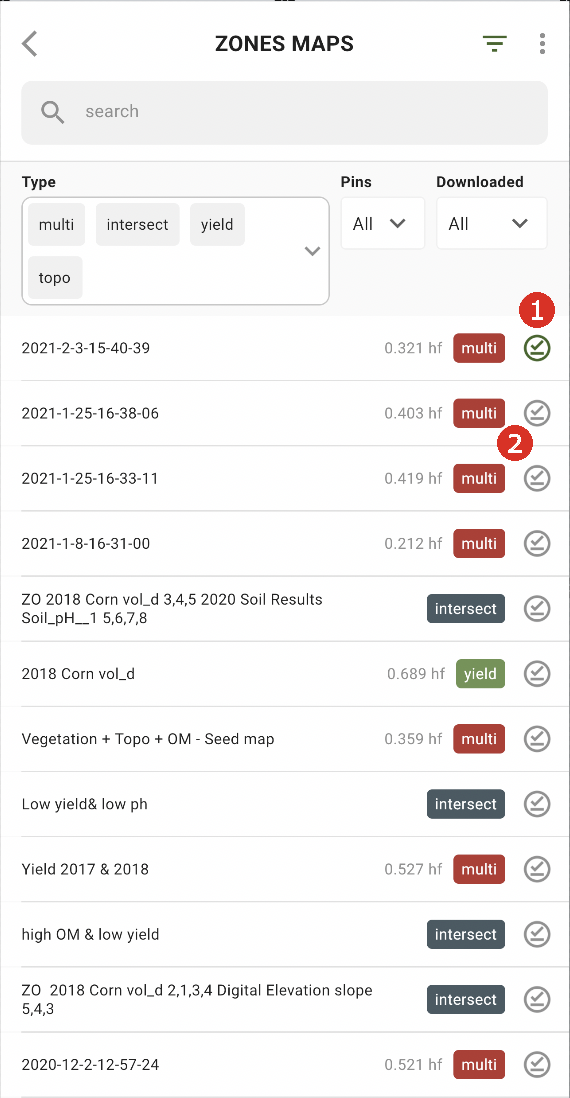
Kad galėtumėte dirbti neprisijungę, turite atsisiųsti zonų žemėlapį į išmanųjį telefoną. Šalia norimo atsisiųsti zonų žemėlapio palieskite atsisiuntimo mygtuką (2).
Atsisiuntus žemėlapį į įrenginį, šalia jo bus rodoma žalia varnelė (1).
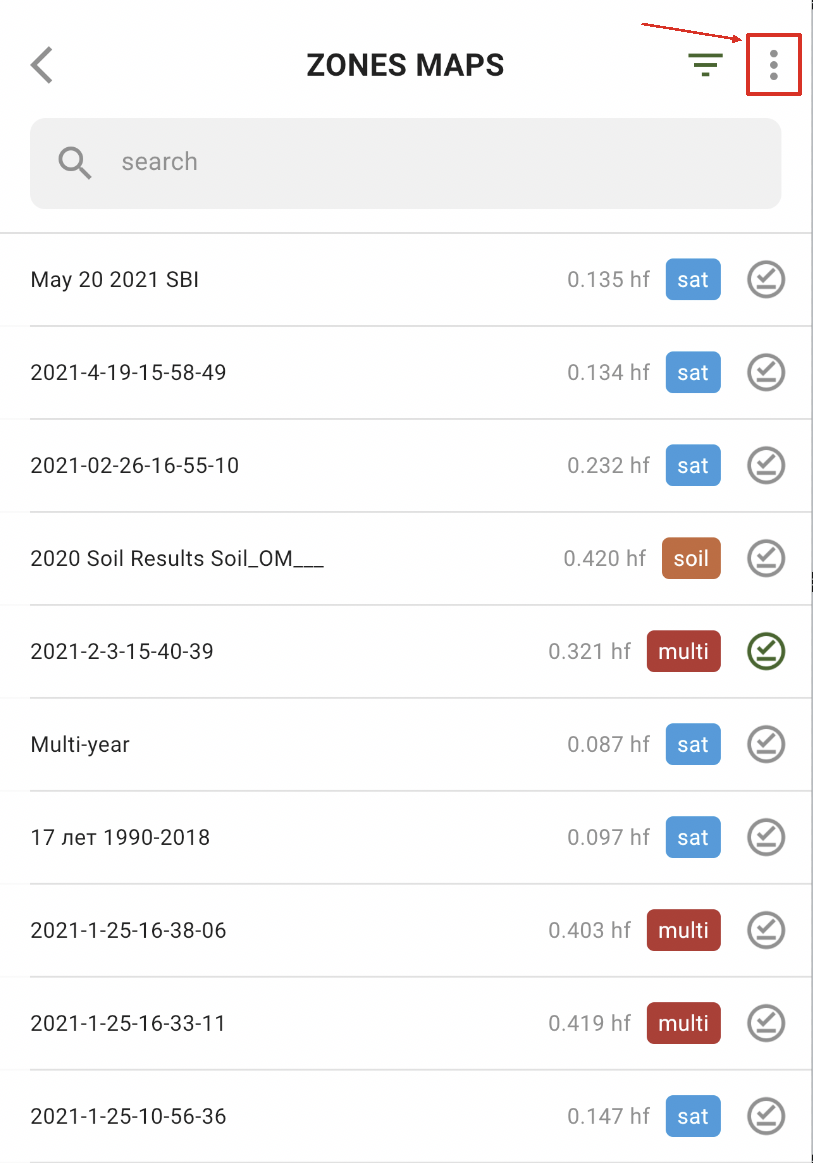
Norėdami iš karto atsisiųsti visus zonų žemėlapius, palieskite parinktį „Daugiau“:
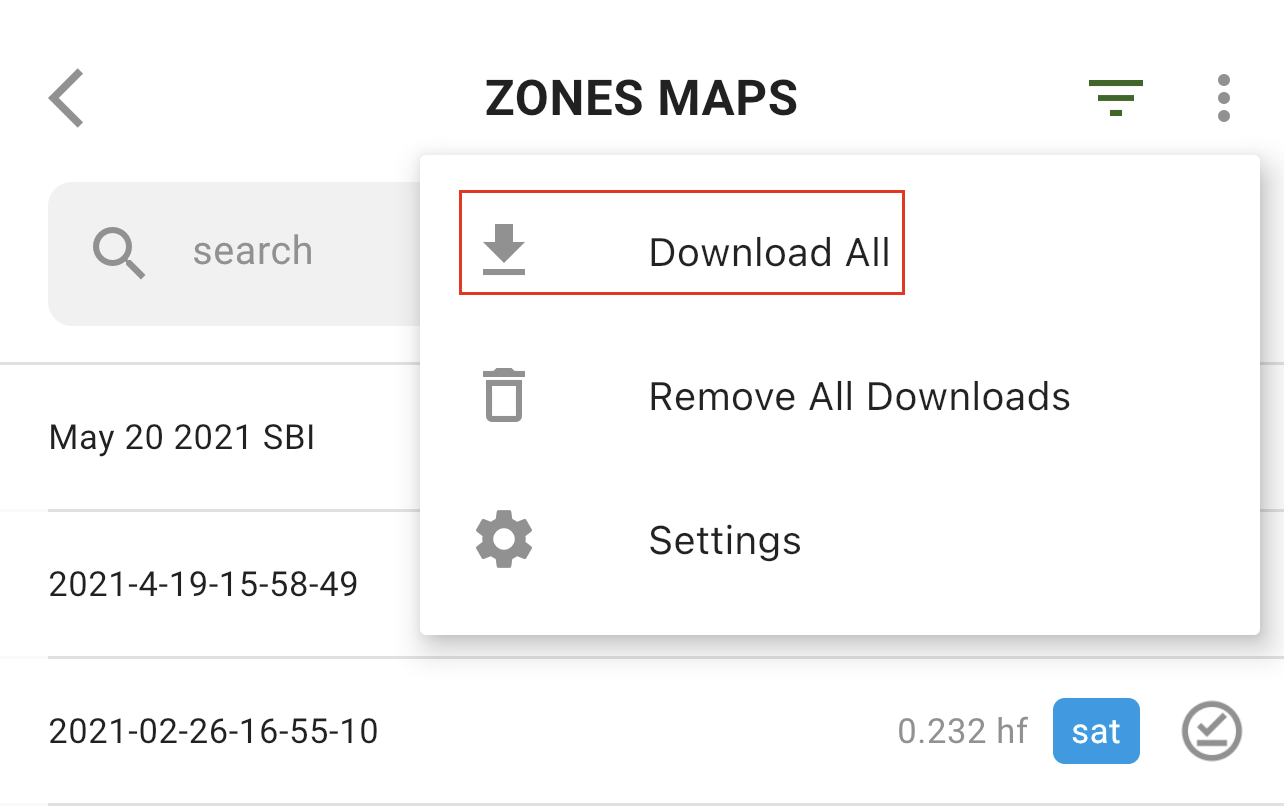
ir pasirinkite parinktį „Atsisiųsti viską“:
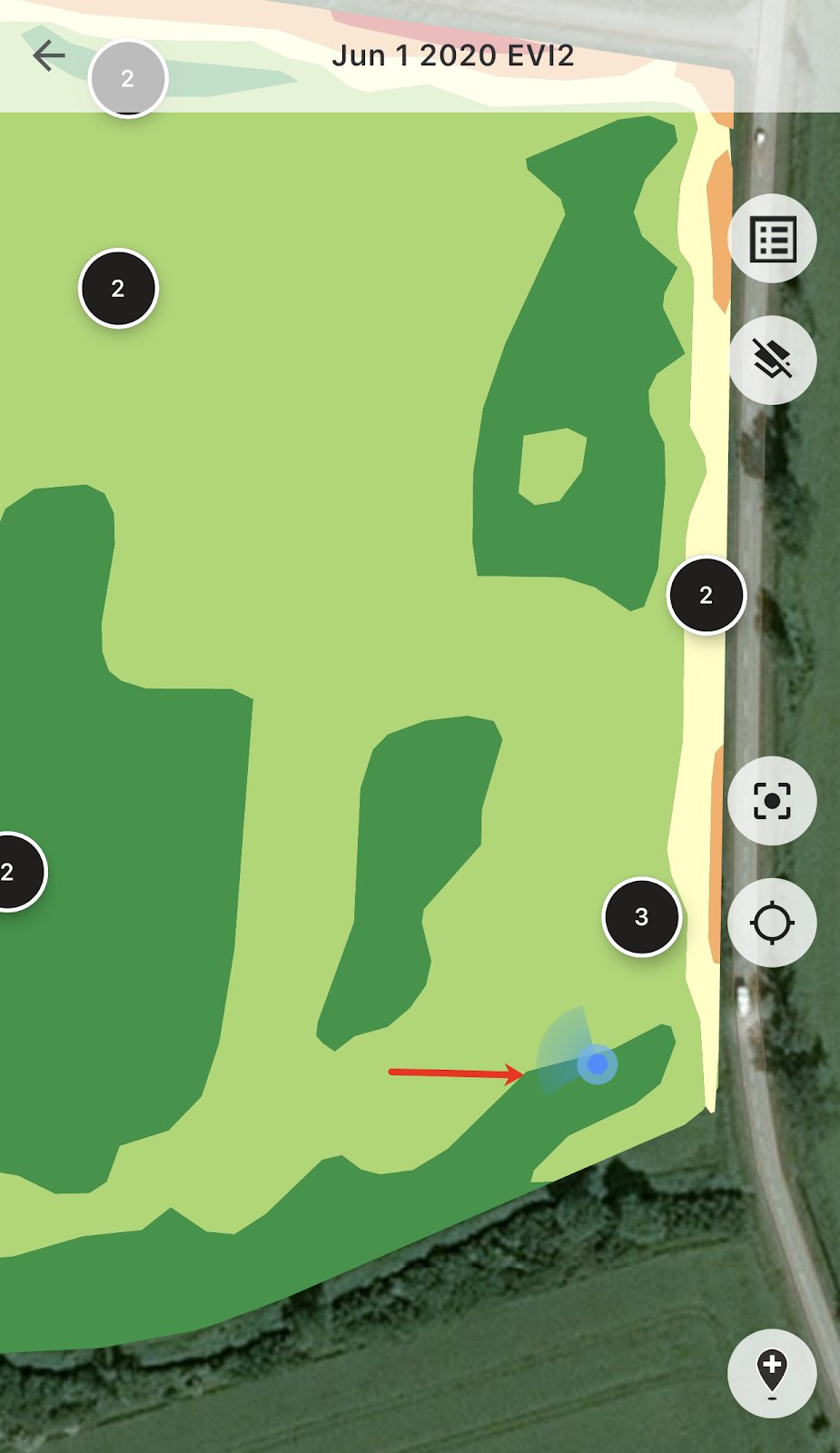
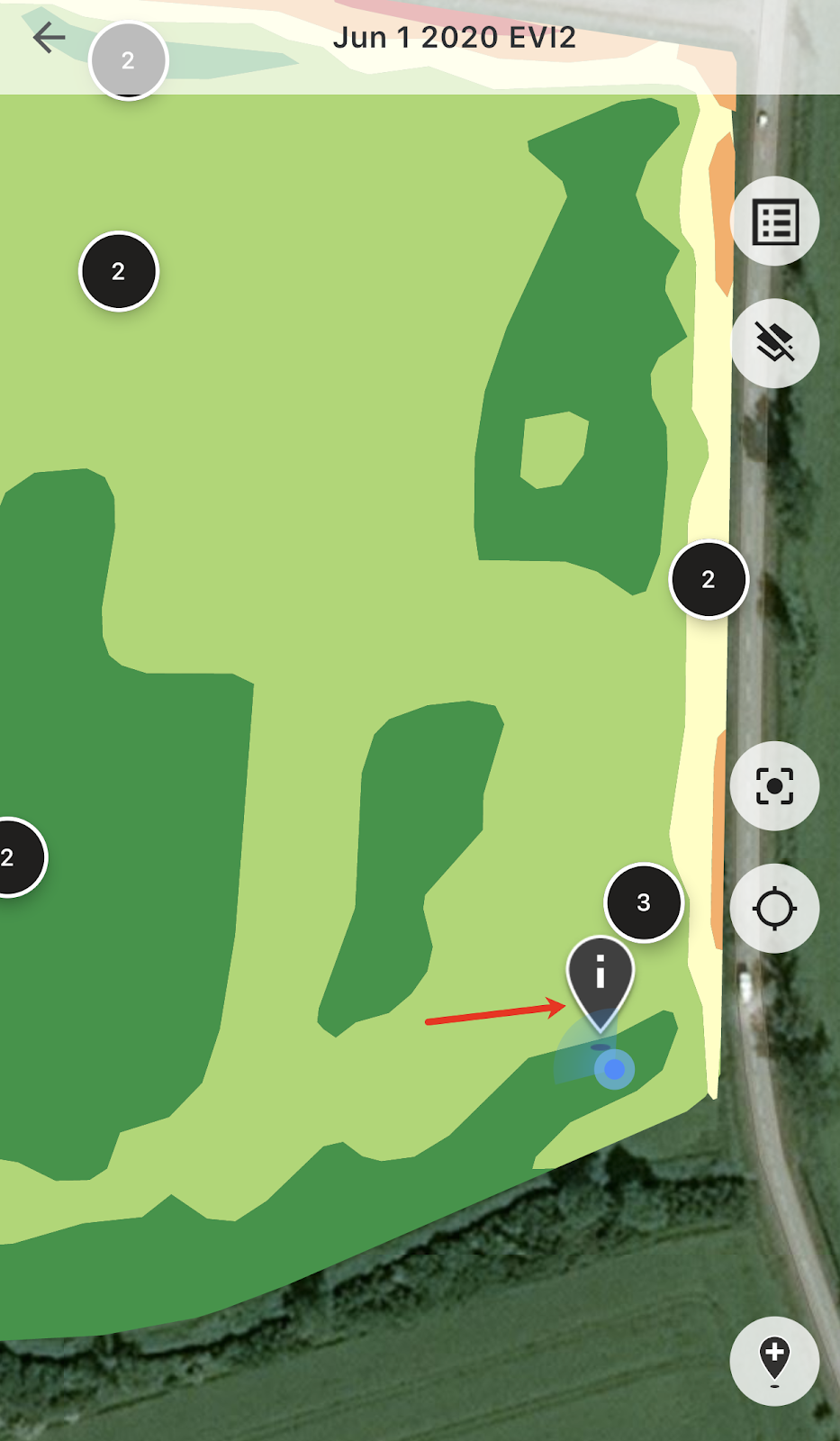
Atvykę į lauką galite sekti savo buvimo vietą ir matyti judėjimo kryptį.
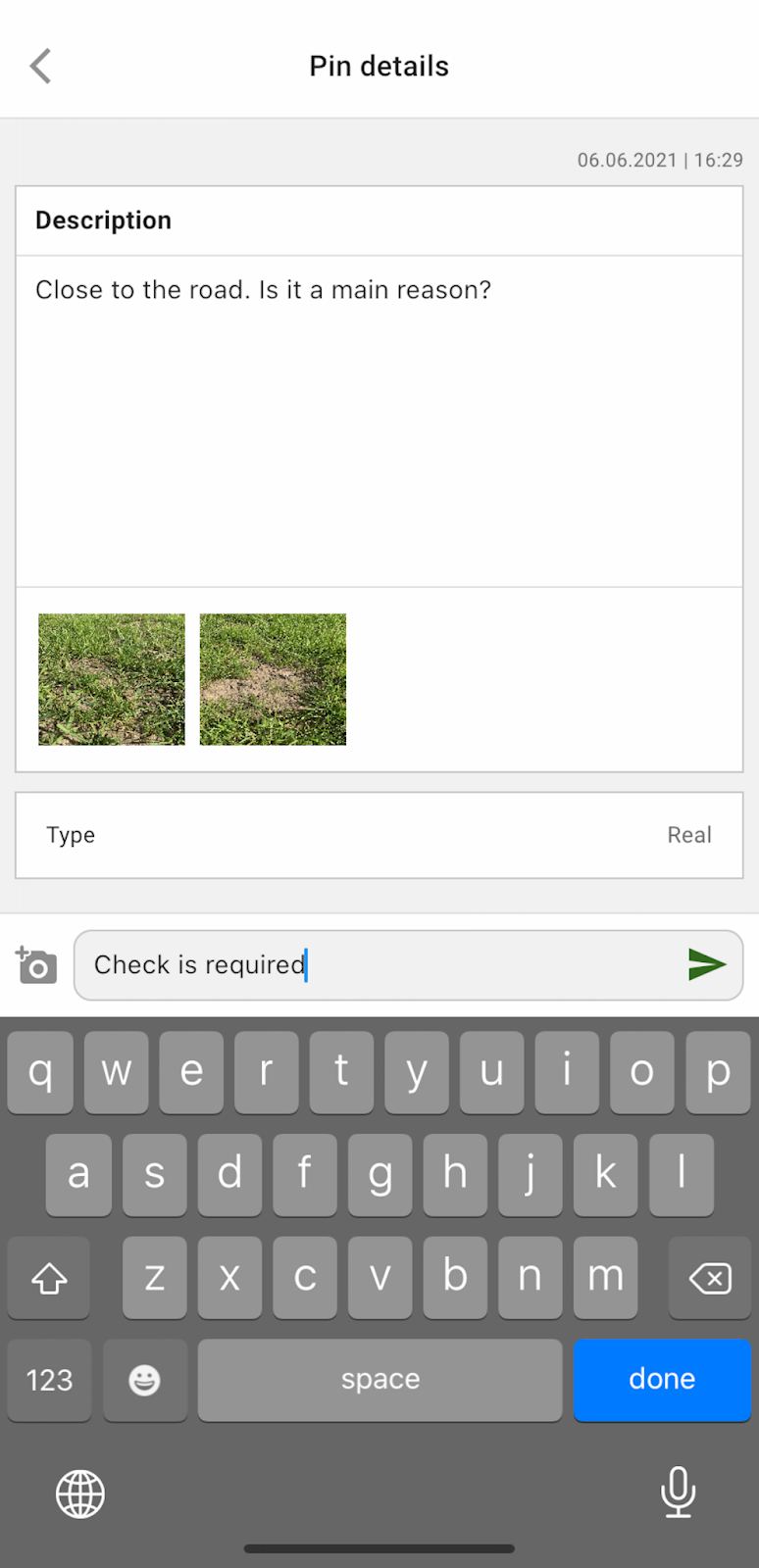
Galite paliesti bet kurį suplanuotą žymeklį ir pridėti arba redaguoti komentarus.
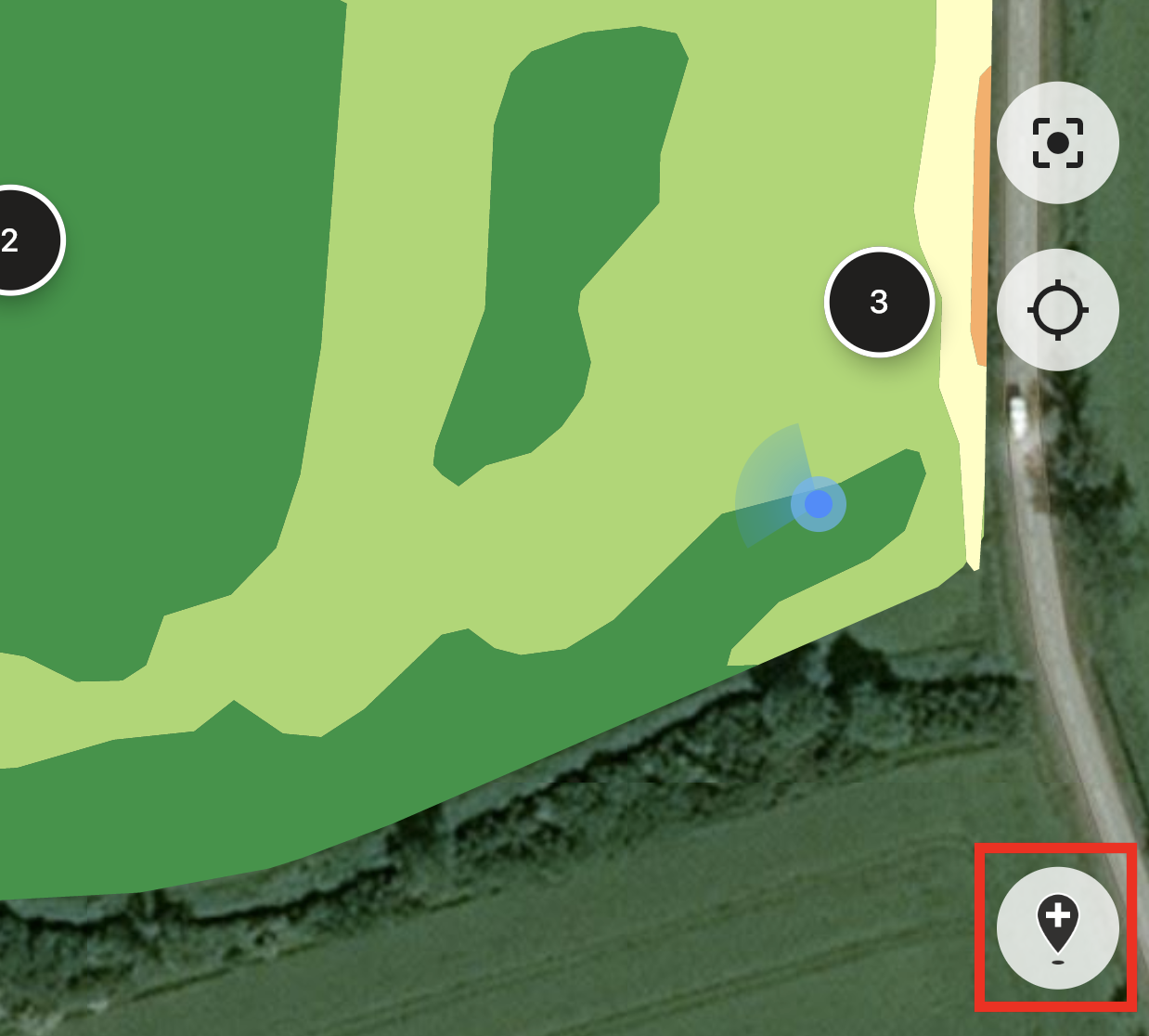
Jei pastebėjote ką nors, į ką reikia atkreipti dėmesį (pavyzdžiui, anomaliją arba neteisingą lauko ribą), palieskite mygtuką „Pridėti naują žymeklį“.
Įrašykite komentarus ir palieskite mygtuką „Išsaugoti“, kad zonų žemėlapyje pridėtumėte naują žymeklį.
Mobiliuoju įrenginiu pridėtų žymeklių piktogramos skiriasi nuo planuotų žymeklių, kuriuos pridedate žiniatinklio programėlėje.
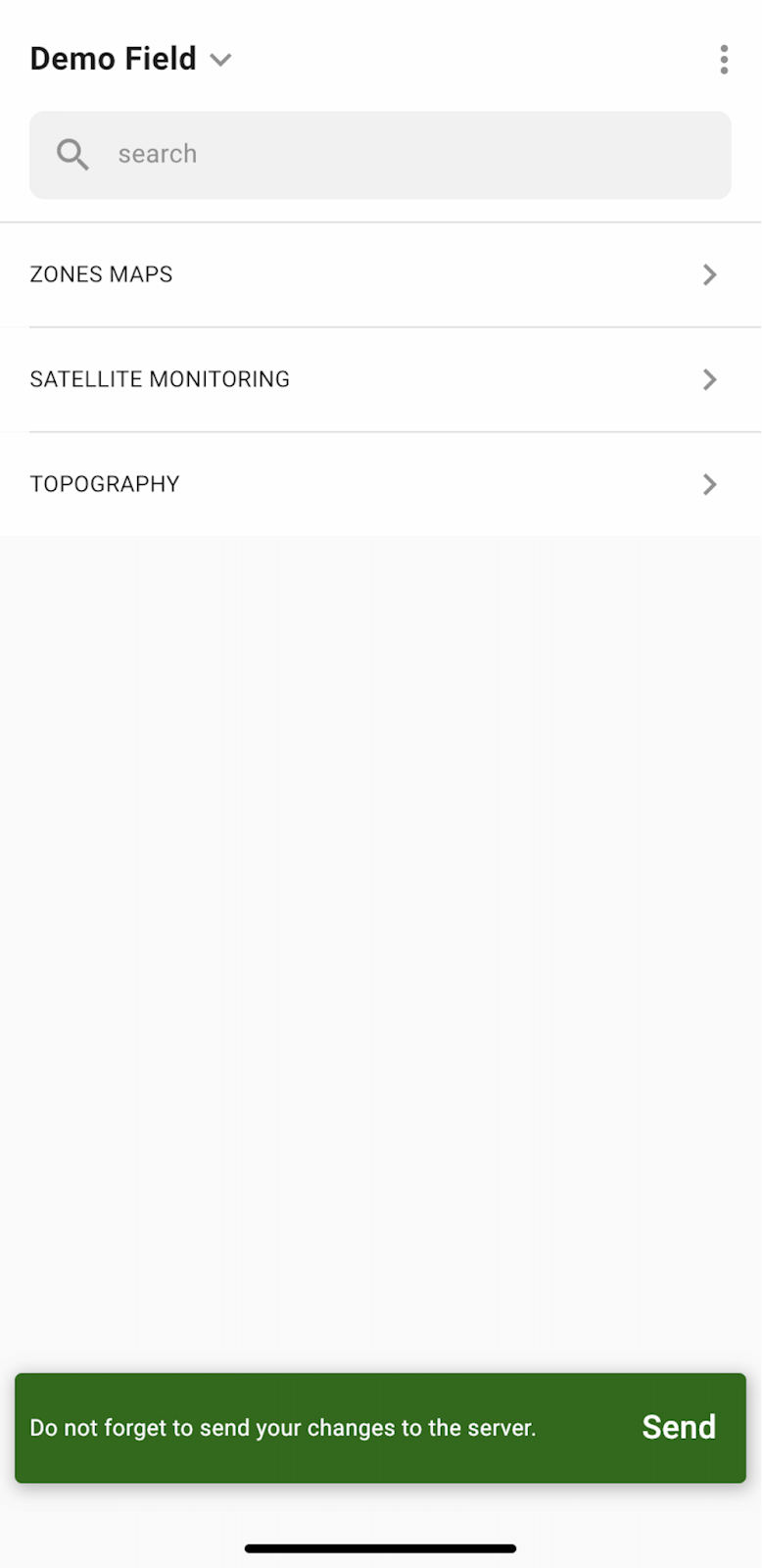
Baigę darbus lauke ir pridėję arba redagavę žymeklius, pamatysite pranešimą, kuriame bus prašoma įkelti pakeitimus į serverį. Jei dirbote neprisijungę, būsite paraginti įkelti pakeitimus, kai vėl prisijungsite prie tinklo.
Palieskite „Siųsti“, kad sinchronizuotumėte pakeitimus su serveriu.
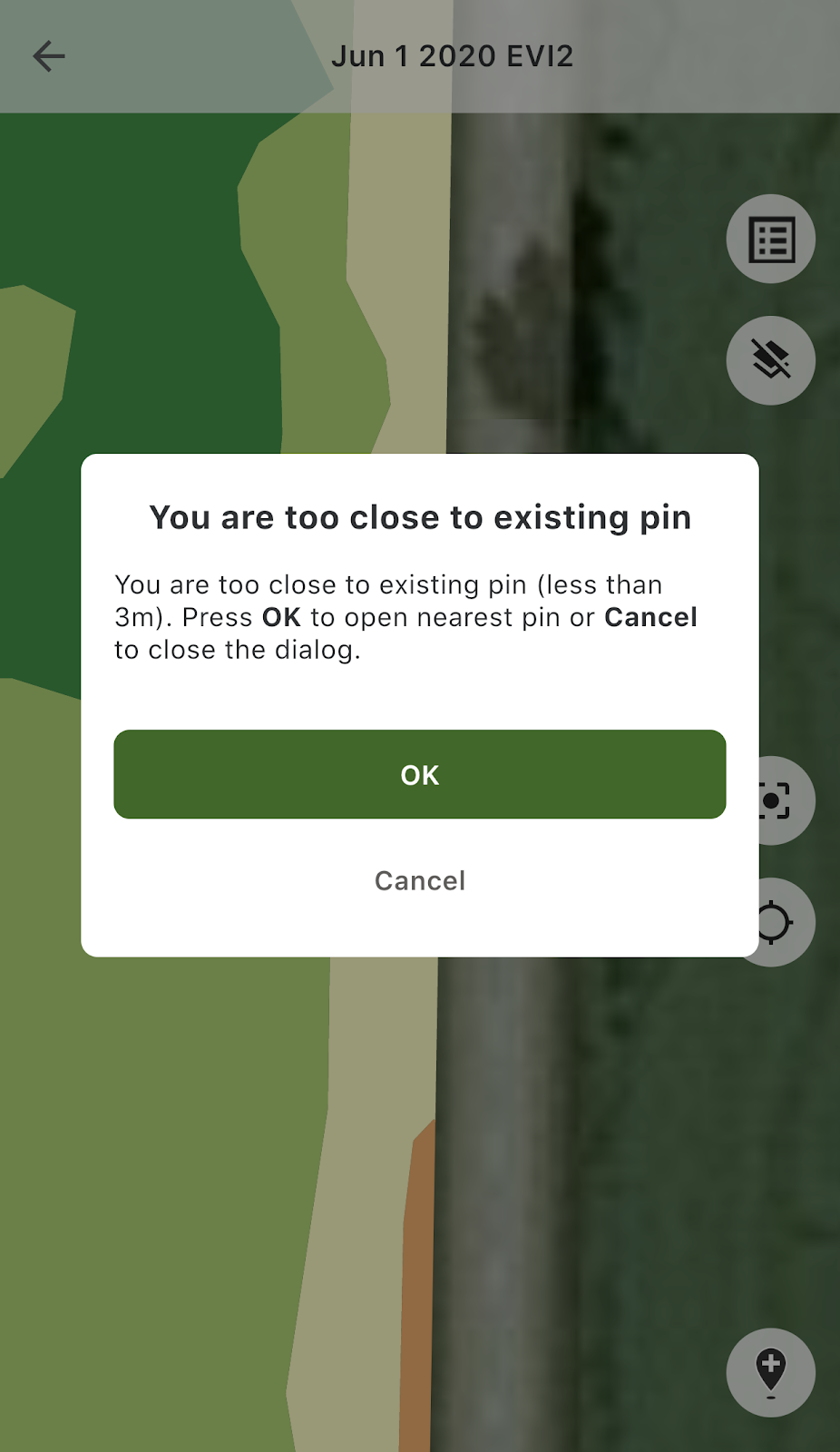
Jei esate arti esamo žymeklio ir bandysite pridėti naują, pamatysite šį pranešimą:
Tokiu atveju galite paliesti „Gerai“, kad atidarytumėte artimiausią žymeklį, arba „Atšaukti“, kad uždarytumėte iššokantįjį pranešimą.
---
# Agent Instructions
This documentation is published with GitBook. GitBook is the documentation platform designed so that both humans and AI agents can read, navigate, and reason over technical content effectively. Learn more at gitbook.com.
## Querying This Documentation
If you need additional information that is not directly available in this page, you can query the documentation by asking a question.
Perform an HTTP GET request on the following URL with the `ask` and `goal` query parameters:
```
GET https://docs.geopard.tech/geopard-tutorials/ltu/produkto-turas-mobilioji-programa/working-offline.md?ask=&goal=
```
`ask` is the immediate question: it should be specific, self-contained, and written in natural language.
`goal` is what the user is ultimately trying to achieve, the reason they need the answer. Sharing it helps GitBook give you a better, more relevant answer. A goal is most helpful when it describes the outcome the user wants rather than restating the question. For example, with `ask=how do I create an API token`, a goal like `automate deployments from our CI pipeline` lets GitBook tailor the answer to that use case.
The response will contain a direct answer to the question and relevant excerpts and sources from the documentation.
Use this mechanism when the answer is not explicitly present in the current page, you need clarification or additional context, or you want to retrieve related documentation sections.