> For the complete documentation index, see [llms.txt](https://docs.geopard.tech/geopard-tutorials/llms.txt). Markdown versions of documentation pages are available by appending `.md` to page URLs; this page is available as [Markdown](https://docs.geopard.tech/geopard-tutorials/ltu/gis-greiti-patarimai/qgis-padalyti-keliu-lauku-shapefile-failus.md).
# QGIS: padalyti kelių laukų shapefile failus
Padalykite kelių laukų shapefile į atskirus lauko ribų shapefile failus QGIS, kad galėtumėte juos importuoti į GeoPard.
Jei viename shapefile faile yra keli laukų poligonai, prieš importą jį padalykite. „GeoPard“ importuoja vieną lauko ribą iš vieno shapefile failo. Ši QGIS darbo eiga padės greičiau paruošti tvarkingus failus ir išvengti importo problemų.
### Prieš pradedant
* Įsitikinkite, kad sluoksnis turi unikalų lauko pavadinimą arba ID.
* Iš anksto sukurkite tuščią išvesties aplanką.
* Pašalinkite `/`, `\`, ir panašius specialiuosius simbolius iš laukų pavadinimų.
### Kaip QGIS programoje padalyti shapefile failą su keliais laukais
#### 1. Atidarykite shapefile failą QGIS programoje
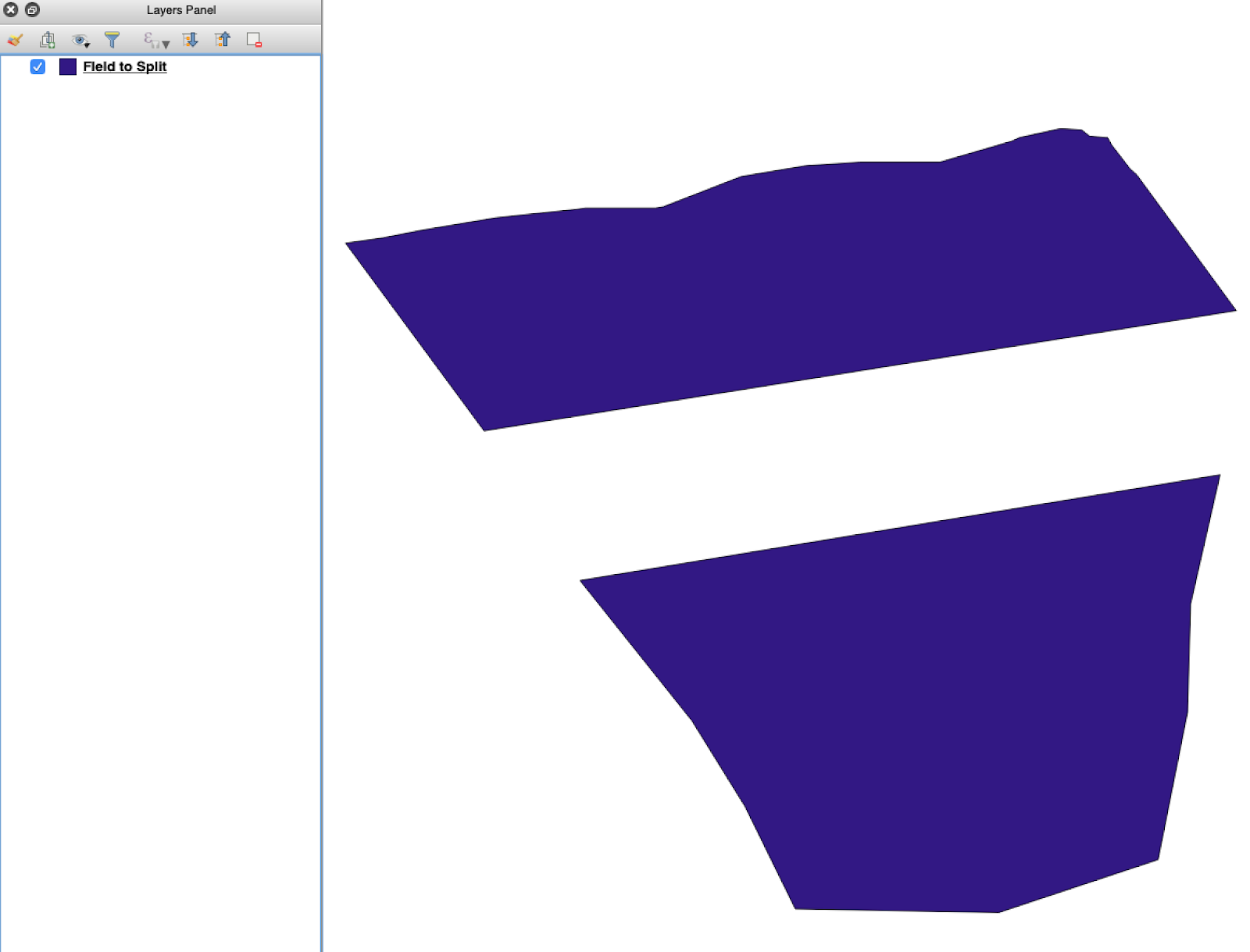
Atidarykite pradinį shapefile failą QGIS programoje. Patvirtinkite, kad jame yra keli laukų poligonai.
Pradinis lauko ribų sluoksnis su keliais poligonais.
#### 2. Atidarykite padalijimo įrankį
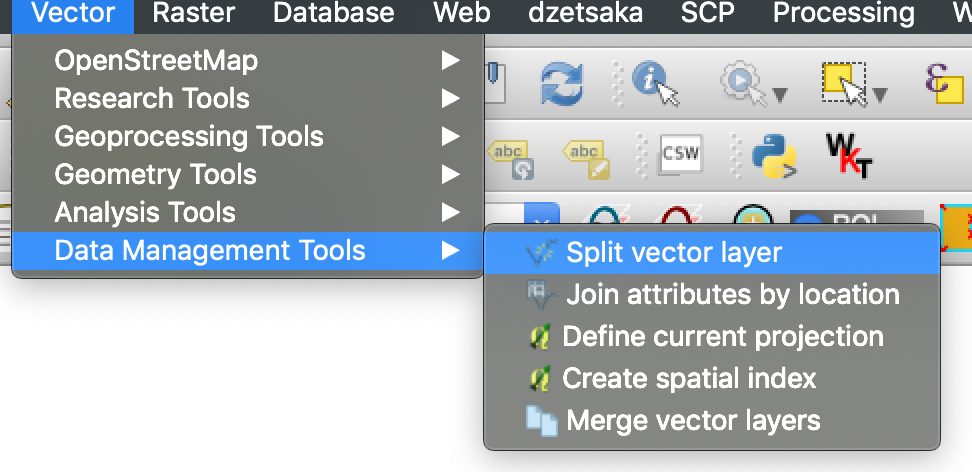
Atidarykite sluoksnio parinktis ir pasirinkite **Padalyti vektorinį sluoksnį**.
Atidarykite padalijimo darbo eigą.
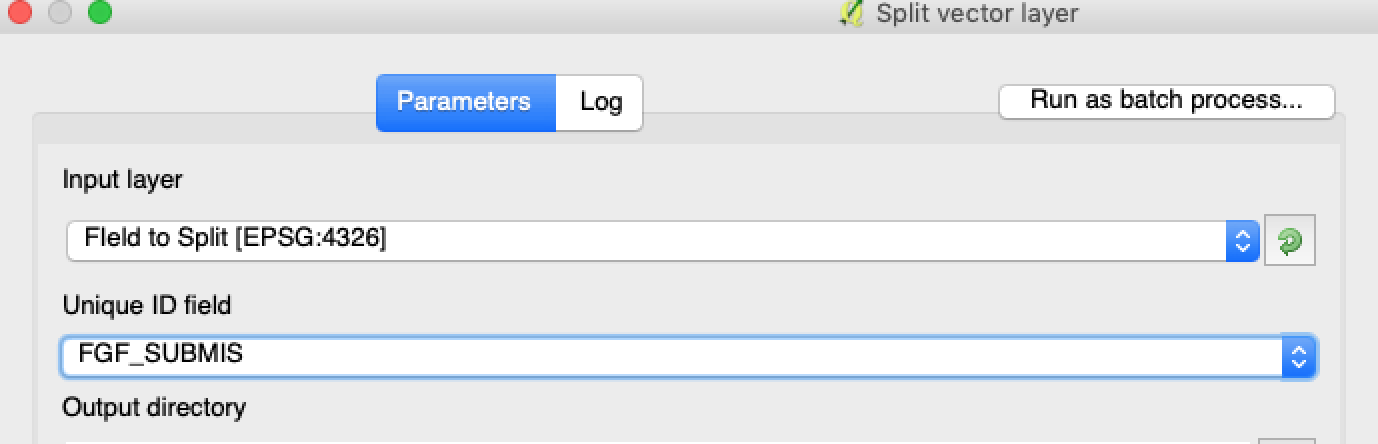
#### 3. Pasirinkite sluoksnį, atributą ir išvesties aplanką
Nustatykite:
1. Sluoksnį, kurį reikia padalyti.
2. Unikalų atributą kiekvienam laukui.
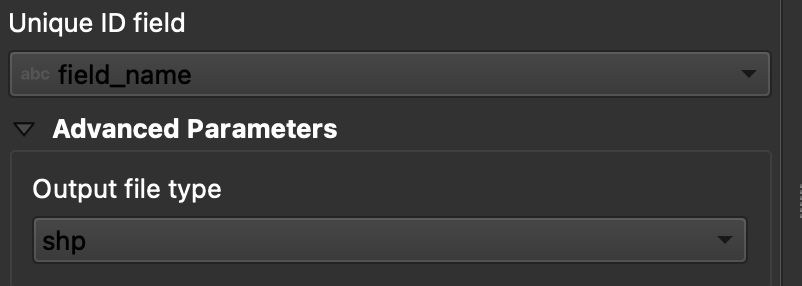
3. Išvesties katalogą.
Pasirinkite šaltinio sluoksnį ir padalijimo atributą.
Nustatykite išvesties aplanką ir shapefile formatą.
#### 5. Paleiskite padalijimą
Spustelėkite **Vykdyti**. QGIS sukuria po vieną failą kiekvienam poligonui. Kiekvienas poligonas tampa atskiru lauko ribos shapefile failu.
#### 6. Konvertuokite `.gpkg` failus į `.shp` jei reikia
Kai kurios QGIS konfigūracijos pirmiausia sukuria `.gpkg` failus. Jei taip nutinka, atidarykite kiekvieną failą ir išsaugokite jį dar kartą kaip **ESRI Shapefile**.
1. Dešiniuoju pelės mygtuku spustelėkite sluoksnį.
2. Pasirinkite **Eksportuoti** → **Išsaugoti objektus kaip**.
3. Pasirinkite **ESRI Shapefile**.
4. Nustatykite failo pavadinimą ir vietą.
5. Jei reikia, pašalinkite nereikalingus atributus.
### Rezultatas
Dabar turite po vieną shapefile failą kiekvienam laukui. Kiekvienas failas paruoštas lauko ribų įkėlimui į „GeoPard“. Tai taupo paruošimo laiką ir sumažina išvengiamo pakartotinio importo poreikį.
### Susiję QGIS vadovai
* [QGIS: Konvertuoti CSV į SHP](/geopard-tutorials/ltu/gis-greiti-patarimai/qgis-konvertuoti-csv-i-shp.md)
* [QGIS: Perprojektuoti Shapefile](/geopard-tutorials/ltu/gis-greiti-patarimai/qgis-perprojektuoti-shapefile.md)
---
# Agent Instructions
This documentation is published with GitBook. GitBook is the documentation platform designed so that both humans and AI agents can read, navigate, and reason over technical content effectively. Learn more at gitbook.com.
## Querying This Documentation
If you need additional information that is not directly available in this page, you can query the documentation by asking a question.
Perform an HTTP GET request on the following URL with the `ask` and `goal` query parameters:
```
GET https://docs.geopard.tech/geopard-tutorials/ltu/gis-greiti-patarimai/qgis-padalyti-keliu-lauku-shapefile-failus.md?ask=&goal=
```
`ask` is the immediate question: it should be specific, self-contained, and written in natural language.
`goal` is what the user is ultimately trying to achieve, the reason they need the answer. Sharing it helps GitBook give you a better, more relevant answer. A goal is most helpful when it describes the outcome the user wants rather than restating the question. For example, with `ask=how do I create an API token`, a goal like `automate deployments from our CI pipeline` lets GitBook tailor the answer to that use case.
The response will contain a direct answer to the question and relevant excerpts and sources from the documentation.
Use this mechanism when the answer is not explicitly present in the current page, you need clarification or additional context, or you want to retrieve related documentation sections.