> For the complete documentation index, see [llms.txt](https://docs.geopard.tech/geopard-tutorials/llms.txt). Markdown versions of documentation pages are available by appending `.md` to page URLs; this page is available as [Markdown](https://docs.geopard.tech/geopard-tutorials/ltu/gis-greiti-patarimai/qgis-apskaiciuoti-ndvi-drono-geotiff-faile.md).
# QGIS: apskaičiuoti NDVI drono GeoTIFF faile
Kartais reikia apskaičiuoti vidutinį NDVI tam tikram poligonui lauko viduje. Tai galite atlikti QGIS programoje.
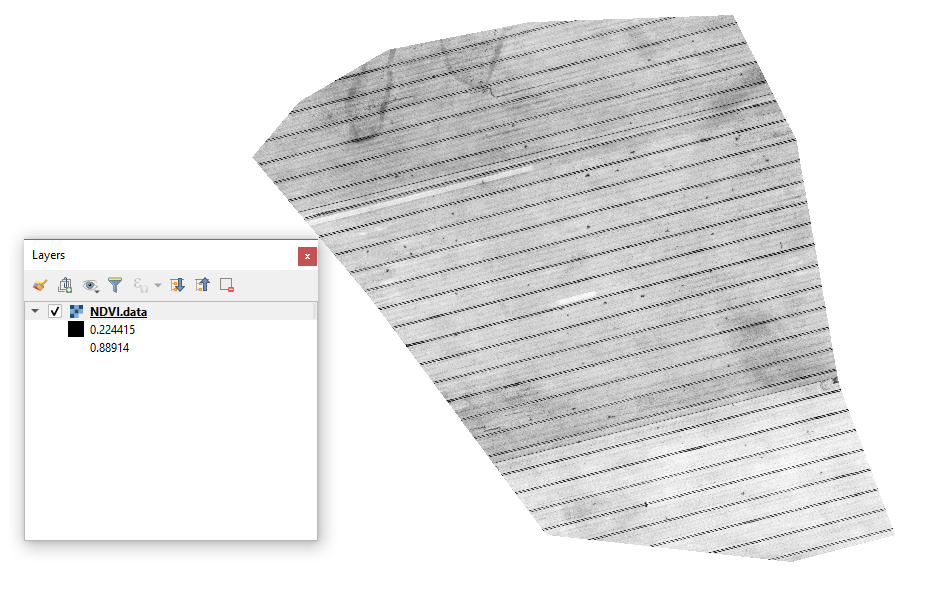
#### 1 - Vizualizuokite pradinį drono NDVI geotiff
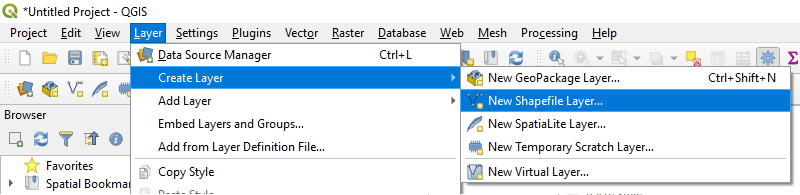
#### 2 - Sukurkite naują sluoksnį
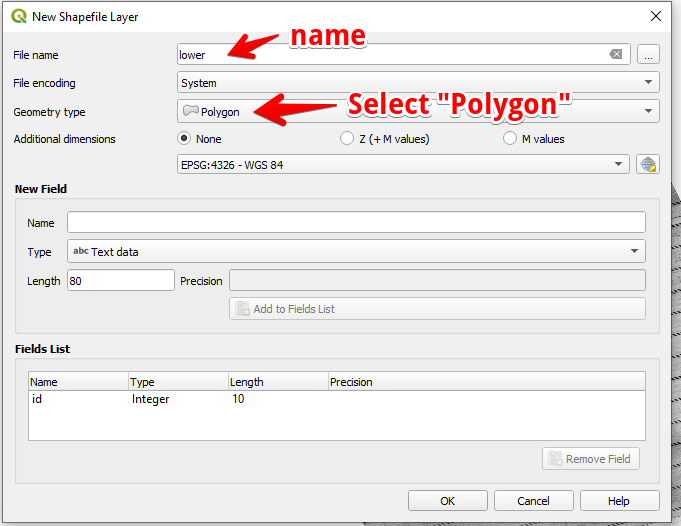
#### 3 - Nustatykite sluoksnio pavadinimą ir geometrijos tipą, tada spauskite OK
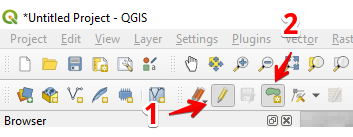
#### 4 - Pasirinkite sluoksnį sluoksnių skydelyje
1. Pasirinkite „Perjungti redagavimą“ (1)
2. Pasirinkite „Pridėti poligono objektą“ (2)
#### 5 - Nubrėžkite poligoną. Baigę braižyti, spustelėkite dešinįjį pelės mygtuką ir iššokančiame lange nustatykite „id“.
Užbaikite sluoksnį dar kartą paspausdami „Perjungti redagavimą“ ir spauskite „Išsaugoti“.
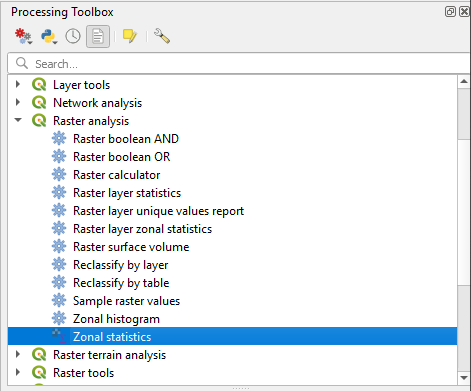
#### 6 - Skydelyje „Apdorojimo įrankių rinkinys“ pasirinkite zoninę statistiką.
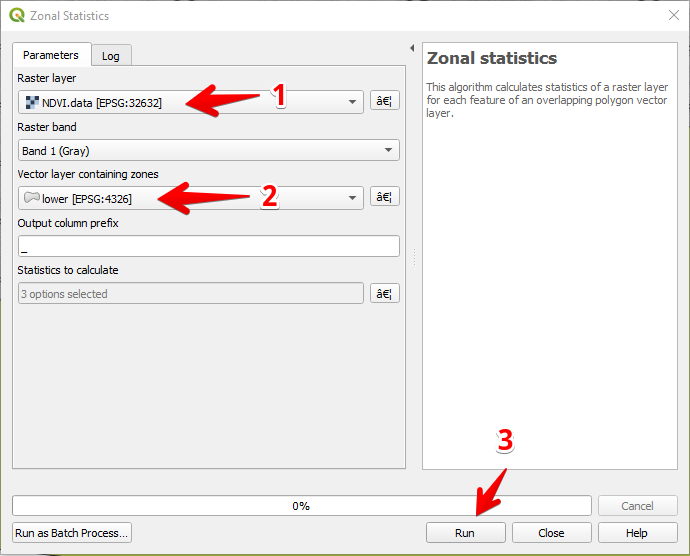
#### 7 - Pasirinkite rastrinį sluoksnį (1),
Pasirinkite poligono sluoksnį (2),
Spauskite „Vykdyti“ (3).
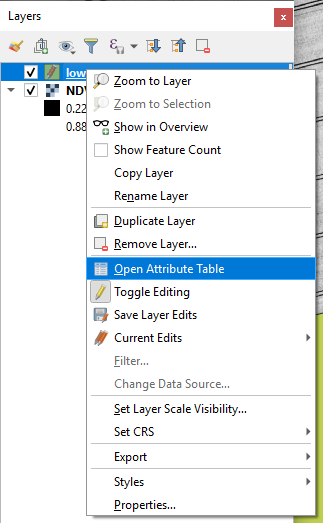
#### 8 - Pasirinkite sluoksnį sluoksnių skydelyje ir spustelėkite dešinįjį pelės mygtuką; kontekstiniame meniu pasirinkite Atidaryti atributų lentelę.
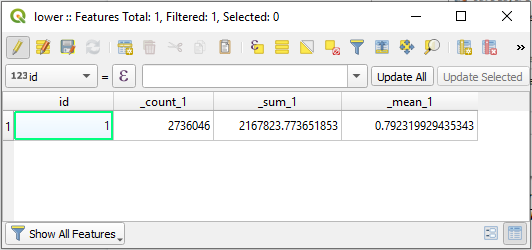
#### 9 - Apskaičiuota statistika bus rodoma lentelėje.
---
# Agent Instructions
This documentation is published with GitBook. GitBook is the documentation platform designed so that both humans and AI agents can read, navigate, and reason over technical content effectively. Learn more at gitbook.com.
## Querying This Documentation
If you need additional information that is not directly available in this page, you can query the documentation by asking a question.
Perform an HTTP GET request on the following URL with the `ask` and `goal` query parameters:
```
GET https://docs.geopard.tech/geopard-tutorials/ltu/gis-greiti-patarimai/qgis-apskaiciuoti-ndvi-drono-geotiff-faile.md?ask=&goal=
```
`ask` is the immediate question: it should be specific, self-contained, and written in natural language.
`goal` is what the user is ultimately trying to achieve, the reason they need the answer. Sharing it helps GitBook give you a better, more relevant answer. A goal is most helpful when it describes the outcome the user wants rather than restating the question. For example, with `ask=how do I create an API token`, a goal like `automate deployments from our CI pipeline` lets GitBook tailor the answer to that use case.
The response will contain a direct answer to the question and relevant excerpts and sources from the documentation.
Use this mechanism when the answer is not explicitly present in the current page, you need clarification or additional context, or you want to retrieve related documentation sections.