> For the complete documentation index, see [llms.txt](https://docs.geopard.tech/geopard-tutorials/llms.txt). Markdown versions of documentation pages are available by appending `.md` to page URLs; this page is available as [Markdown](https://docs.geopard.tech/geopard-tutorials/jpn/tsu-webapuri/john-deere-operations-center-lian-xie/9-dtawomappureiytoshiteekusupto.md).
# 9. 土壌、地形、衛星、分析データをマップレイヤーとしてエクスポート
GeoPardでは、任意の地理空間レイヤーをマップレイヤーとしてJohn Deere Ops Centerへエクスポートできます。
#### エクスポートできるもの
* 管理 **ゾーン** (例:播種、肥料、作物保護)
* **衛星画像** (およびすべての植生指数)
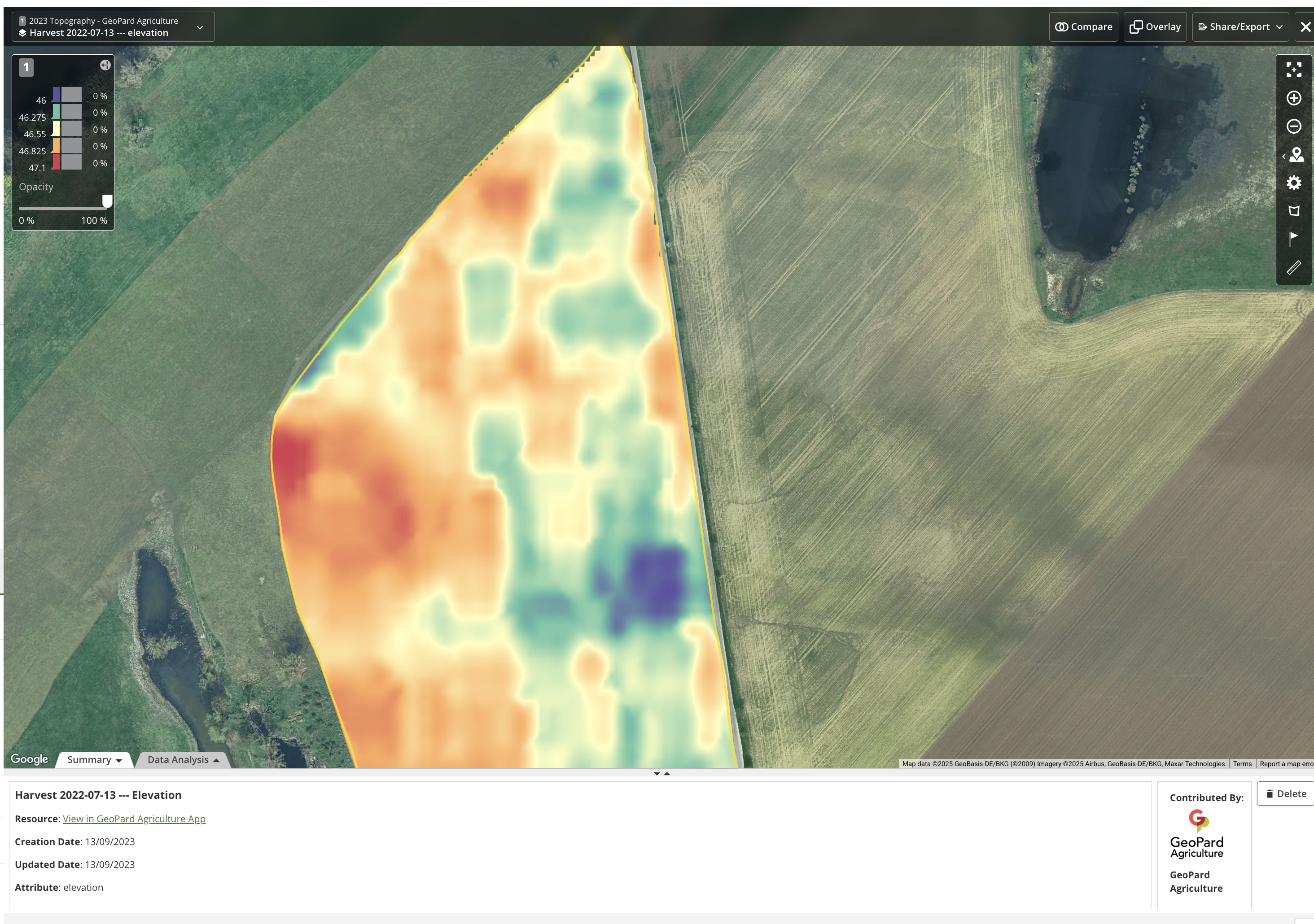
* **地形** および派生レイヤー(標高、傾斜、方位)
* **NUE** (窒素利用効率)マップ
* **利益** マップ
* 可変施肥率 **Rx** 処方箋(任意の製品)
* GeoPardで作成したその他のラスターまたはベクターレイヤー
#### 簡単な手順
1. 圃場を開き、共有したいレイヤーを選択します。
2. 次をクリックします **︙** (三点アイコン)をレイヤー名の横で選び、 **エクスポート → John Deere → マップレイヤー**.
3. 通常、1~2分以内にOps Centerに表示されます。
#### Ops Centerで確認する
1. John Deere Operations Centerにログインします。
2. 次へ移動 **Field Analyzer → Map Layers**.
3. 新しいレイヤーは下に表示されます **レイヤー**。オンにすると地図上で表示されます。
以上です — GeoPardの知見を圃場のあらゆるJohn Deere画面に届ける簡単な方法です。
---
# Agent Instructions
This documentation is published with GitBook. GitBook is the documentation platform designed so that both humans and AI agents can read, navigate, and reason over technical content effectively. Learn more at gitbook.com.
## Querying This Documentation
If you need additional information that is not directly available in this page, you can query the documentation by asking a question.
Perform an HTTP GET request on the following URL with the `ask` and `goal` query parameters:
```
GET https://docs.geopard.tech/geopard-tutorials/jpn/tsu-webapuri/john-deere-operations-center-lian-xie/9-dtawomappureiytoshiteekusupto.md?ask=&goal=
```
`ask` is the immediate question: it should be specific, self-contained, and written in natural language.
`goal` is what the user is ultimately trying to achieve, the reason they need the answer. Sharing it helps GitBook give you a better, more relevant answer. A goal is most helpful when it describes the outcome the user wants rather than restating the question. For example, with `ask=how do I create an API token`, a goal like `automate deployments from our CI pipeline` lets GitBook tailor the answer to that use case.
The response will contain a direct answer to the question and relevant excerpts and sources from the documentation.
Use this mechanism when the answer is not explicitly present in the current page, you need clarification or additional context, or you want to retrieve related documentation sections.