> For the complete documentation index, see [llms.txt](https://docs.geopard.tech/geopard-tutorials/llms.txt). Markdown versions of documentation pages are available by appending `.md` to page URLs; this page is available as [Markdown](https://docs.geopard.tech/geopard-tutorials/jpn/tsu-webapuri/dtaworimi/mk.md).
# 機械メーカー独自形式
圃場作業や農学データセットの取り込みに対応する、機械ファイル形式を確認できます。
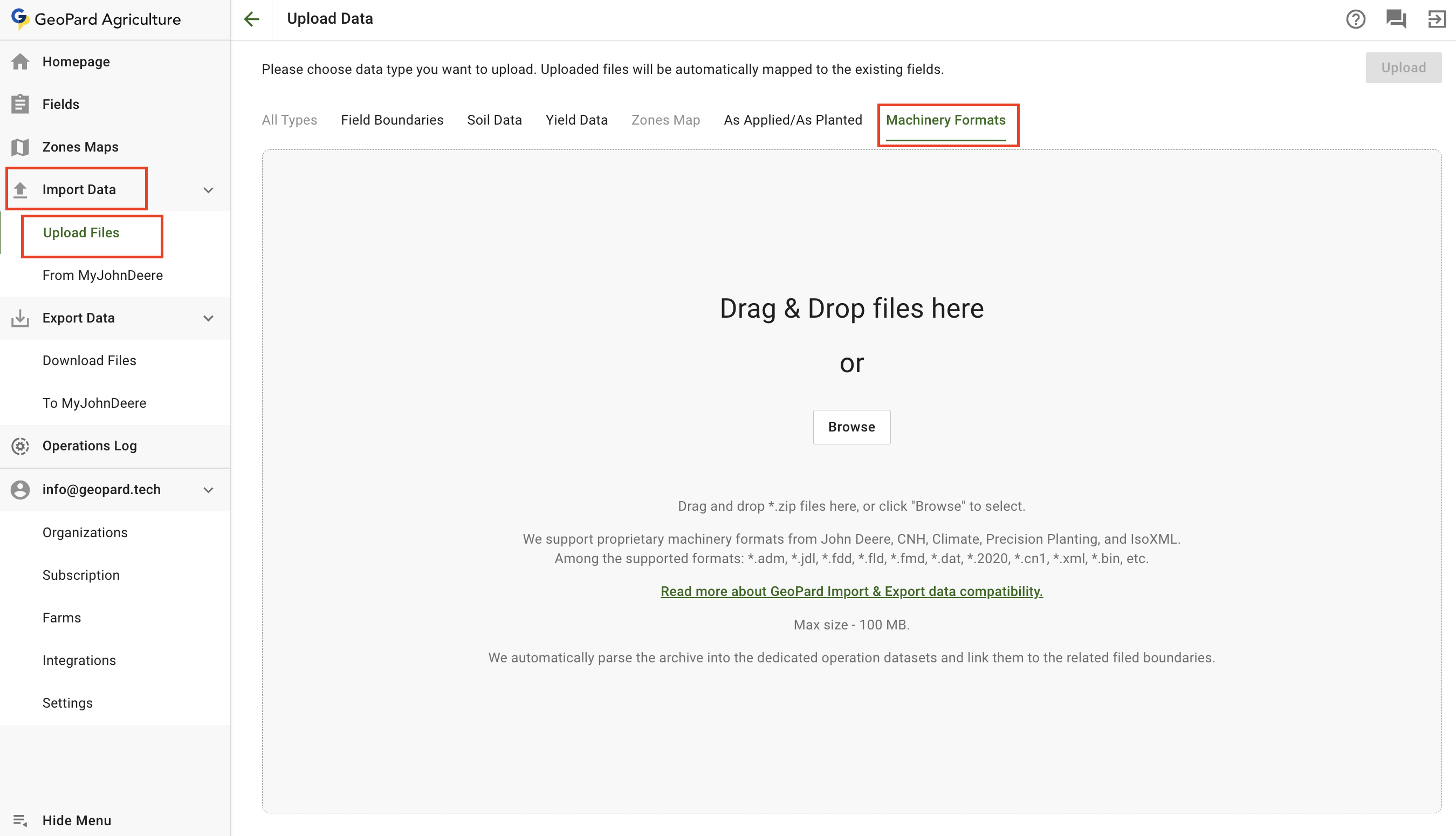
機械メーカー独自形式のファイルをアップロードするには、 **データをインポート** メニューと **ファイルをアップロード** 項目を選択します。次に、 **機械フォーマット**.
なお、いくつか制限があります。
* GeoPard は、John Deere、CNH、Climate、Precision Planting、IsoXML の独自機械フォーマットに対応しています。
* 対応形式には、\*.adm、\*.jdl、\*.fdd、\*.fld、\*.fmd、\*.dat、\*.2020、\*.cn1、\*.xml、\*.bin などがあります。
[GeoPard のインポート/エクスポートのデータ互換性について詳しく読む。](https://geopard.tech/data-compatibility/)
* 最大サイズ - 100 MB。
* GeoPard はアーカイブを自動的に専用の作業データセットに解析し、関連する圃場境界にリンクします。
---
# Agent Instructions
This documentation is published with GitBook. GitBook is the documentation platform designed so that both humans and AI agents can read, navigate, and reason over technical content effectively. Learn more at gitbook.com.
## Querying This Documentation
If you need additional information that is not directly available in this page, you can query the documentation by asking a question.
Perform an HTTP GET request on the following URL with the `ask` and `goal` query parameters:
```
GET https://docs.geopard.tech/geopard-tutorials/jpn/tsu-webapuri/dtaworimi/mk.md?ask=&goal=
```
`ask` is the immediate question: it should be specific, self-contained, and written in natural language.
`goal` is what the user is ultimately trying to achieve, the reason they need the answer. Sharing it helps GitBook give you a better, more relevant answer. A goal is most helpful when it describes the outcome the user wants rather than restating the question. For example, with `ask=how do I create an API token`, a goal like `automate deployments from our CI pipeline` lets GitBook tailor the answer to that use case.
The response will contain a direct answer to the question and relevant excerpts and sources from the documentation.
Use this mechanism when the answer is not explicitly present in the current page, you need clarification or additional context, or you want to retrieve related documentation sections.