> For the complete documentation index, see [llms.txt](https://docs.geopard.tech/geopard-tutorials/llms.txt). Markdown versions of documentation pages are available by appending `.md` to page URLs; this page is available as [Markdown](https://docs.geopard.tech/geopard-tutorials/jpn/tsu-webapuri/dtaworimi/myjohndeerekararimi.md).
# MyJohnDeereから取り込み
John Deere Operations Centerから、圃場境界、収量データ、播種データ、散布データ、耕起データをGeoPardに取り込みます。
John Deere Operations Centerから圃場境界と農業データをGeoPardに取り込みます。 **MyJohnDeereからインポート** を使うと、収量データ、播種時データ、施用データ、耕起データセットを、手作業でのファイル操作を減らしてより速く取り込めます。
### 取り込める内容
* 圃場境界
* 収量データ、播種時データ、施用データ、耕起データ
* 1つの圃場または複数の圃場のデータを一度に
境界を再度インポートすると、GeoPardが更新します。同じデータファイルを再度インポートすると、GeoPardは既存のファイルをスキップします。
{% hint style="info" %}
### APIベースのJohn Deere Ops Center連携が必要ですか?
GeoPardを独自のプラットフォームに接続したい、手動インポートを減らしたい、またはJohn Deereの作業データを自動で流し続けたい場合は、APIと自動同期フローを使用してください。
* [John Deere Operations Center連携](/geopard-tutorials/jpn/tsu-webapuri/john-deere-operations-center-lian-xie.md)
* [自動データ同期を設定](/geopard-tutorials/jpn/tsu-webapuri/john-deere-operations-center-lian-xie/5-dtawo.md)
* [GeoPard API概要](/geopard-tutorials/jpn/apidokyumento/geopard-api-gai-yao.md)
{% endhint %}
### 開始前に
データをインポートする前に、GeoPardをJohn Deere Operations Centerに接続してください。John Deereの組織が表示されない、またはグレー表示の場合は、先にアクセスを有効にしてください。
* [JohnDeere Operations Centerに接続](/geopard-tutorials/jpn/tsu-webapuri/john-deere-operations-center-lian-xie/2-john-deere-operations-centerni.md)
* [John Deereの組織に接続](/geopard-tutorials/jpn/tsu-webapuri/john-deere-operations-center-lian-xie/3-john-deereni.md)
### John Deere Operations Centerからデータをインポート
1. 圃場を選択して **すべてをインポート** ボタンをクリックするか、選択機能を使用します。
正しい組織が利用できない場合は、 [John Deereの組織に接続](/geopard-tutorials/jpn/tsu-webapuri/john-deere-operations-center-lian-xie/3-john-deereni.md)に追加してください。John Deereの組織が無効でグレー表示されている場合は、John Deere Operations Centerでアクセスを有効にしてください。
2. クリックして **選択したものをインポート** ボタン。
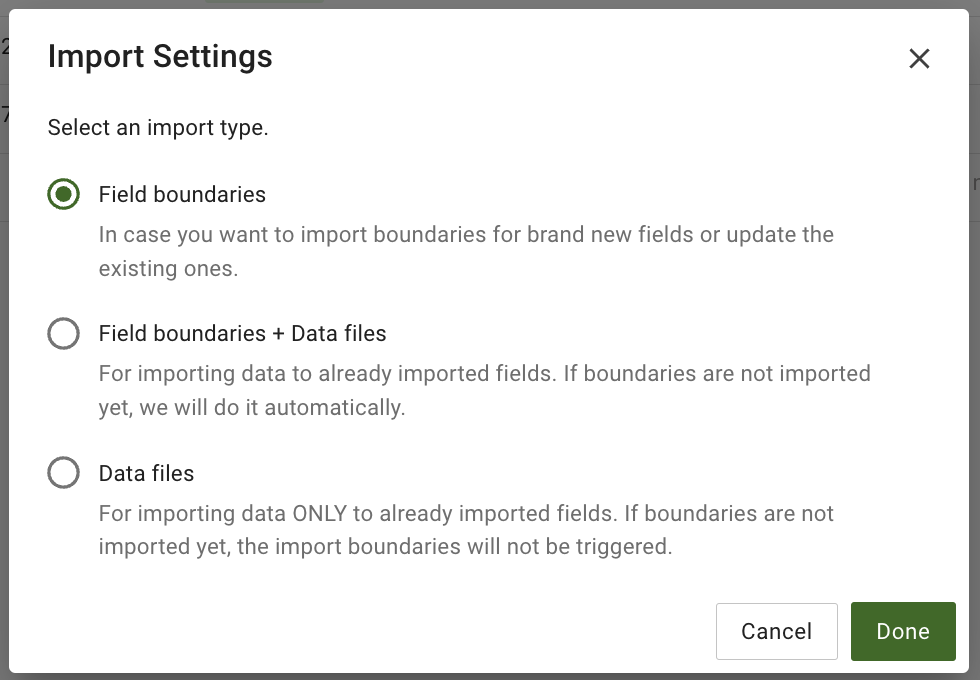
### インポート設定を選択
ワークフローに合ったインポートオプションを選択してください。
#### 圃場境界
選択して **圃場境界** 境界のみをインポートまたは更新します。 **完了** をクリックしてインポートを開始します。
#### 圃場境界 + データファイル
選択して **圃場境界 + データファイル** 境界と関連する農業データセットをまとめてインポートします。境界がすでに存在する場合は、GeoPardが更新します。データファイルがすでに存在する場合は、再インポート時にGeoPardがそれらを無視します。
#### データファイル
選択して **データファイル** 収量、播種時、施用、または耕起ファイルを、境界をインポートせずに取り込みます。関連ファイルがすでにインポート済みの場合、再インポート時にGeoPardはそれらを無視します。
その後、 **種類** と **期間** を選択して、インポートしたいアセットを指定します。 **期間** ドロップダウンではカスタムの日付範囲も指定できます。
を選択したら、 **種類** と **期間**をクリックして **完了** をクリックしてインポートを開始します。
### インポート状況を追跡
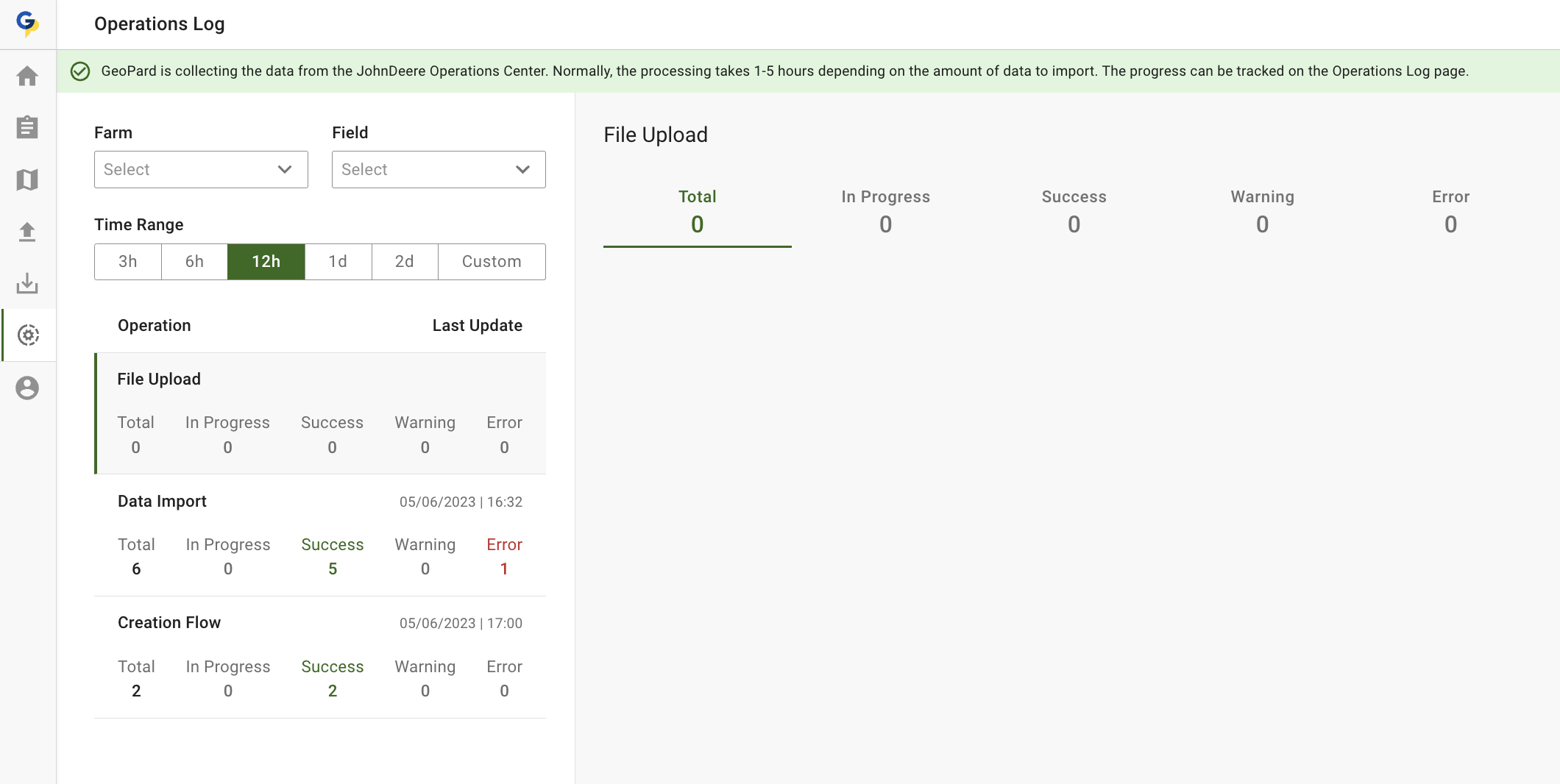
3. GeoPardがバックグラウンドでアセットを収集・処理します。インポートが完了すると、ファイルは **Operations Log** 内の **ファイルアップロード**.
を使用して [Operations Log - エラー/インポートと分析を追跡](/geopard-tutorials/jpn/tsu-webapuri/rogu-errimino.md) で、ステータスの確認、詳細のレビュー、失敗したインポートの素早い把握ができます。
---
# Agent Instructions
This documentation is published with GitBook. GitBook is the documentation platform designed so that both humans and AI agents can read, navigate, and reason over technical content effectively. Learn more at gitbook.com.
## Querying This Documentation
If you need additional information that is not directly available in this page, you can query the documentation by asking a question.
Perform an HTTP GET request on the following URL with the `ask` and `goal` query parameters:
```
GET https://docs.geopard.tech/geopard-tutorials/jpn/tsu-webapuri/dtaworimi/myjohndeerekararimi.md?ask=&goal=
```
`ask` is the immediate question: it should be specific, self-contained, and written in natural language.
`goal` is what the user is ultimately trying to achieve, the reason they need the answer. Sharing it helps GitBook give you a better, more relevant answer. A goal is most helpful when it describes the outcome the user wants rather than restating the question. For example, with `ask=how do I create an API token`, a goal like `automate deployments from our CI pipeline` lets GitBook tailor the answer to that use case.
The response will contain a direct answer to the question and relevant excerpts and sources from the documentation.
Use this mechanism when the answer is not explicitly present in the current page, you need clarification or additional context, or you want to retrieve related documentation sections.